
Everything a user can see and do in Latner comes from the permission groups they belong to. This article shows you how to grant or restrict access yourself - your own administrators control permissions, so you don't need to raise a support ticket to change what your team can do.
Overview
A permission group is a named set of rights. Users are assigned to one or more groups, and their access is the sum of all the groups they belong to. There are two jobs an administrator does:
-
Amend a group - turn a permission on or off for everyone in that group.
-
Assign a group - give a user a different set of rights by putting them in another group.
The most important thing to understand is that permissions belong to the group, not the person. If you switch on Edit Rental Rates so one hire controller can adjust a rate, everyone in that group can now adjust rates. If you need an exception for one person, duplicate the group, change the copy, and move that person into it.
Permissions also cannot follow a job title or a work order assignment - Latner only knows about groups. And after you change a group, affected users need to reload the page or log out and back in before the change appears in their menus.
Before You Begin
You need the Permission Group screen permission to see the configuration screen, and Create Permission Groups to create, rename or duplicate one. Amending an existing group needs no extra right beyond access to the screen.
Note: Latner ships a set of ready-made groups - Administrator, Service Manager, Mechanic, Hire Controller, Sales, Finance Manager and more. These are marked Internal and their permissions are locked, so nobody can accidentally change the standard roles. You can still assign users to them. To build on one, duplicate it and edit the copy.
Finding Permission Groups
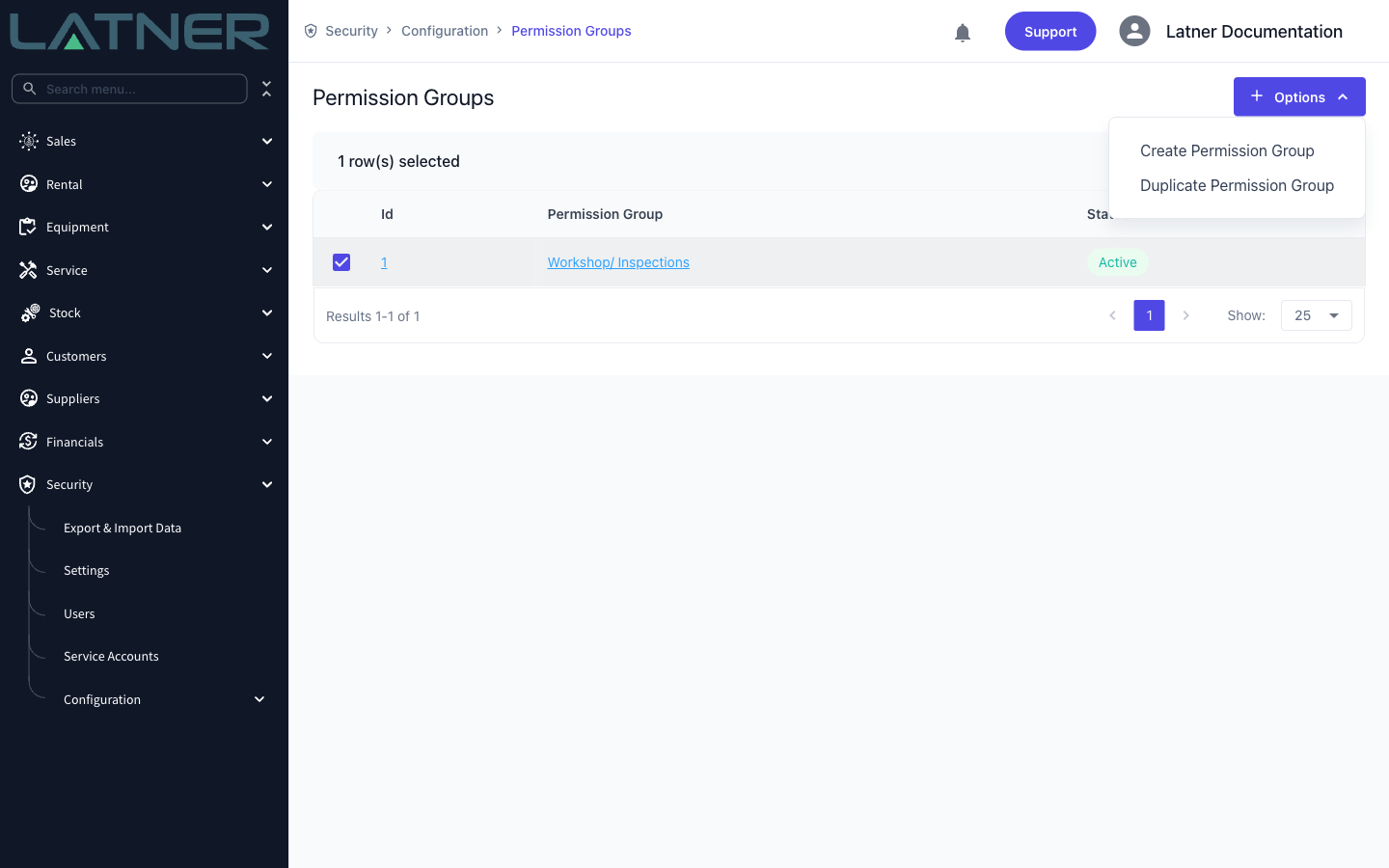
Navigate to Security › Configuration › Permission Groups. The list opens with the Active quick filter applied, which shows only the groups your business has created - deselect it to also see the Internal groups Latner supplies.
Select a group and the Options menu offers Create Permission Group and Duplicate Permission Group. Duplicating gives you a copy named "(Copy)" that is fully editable - this is how you create an exception without disturbing the original group.
Amending a Group
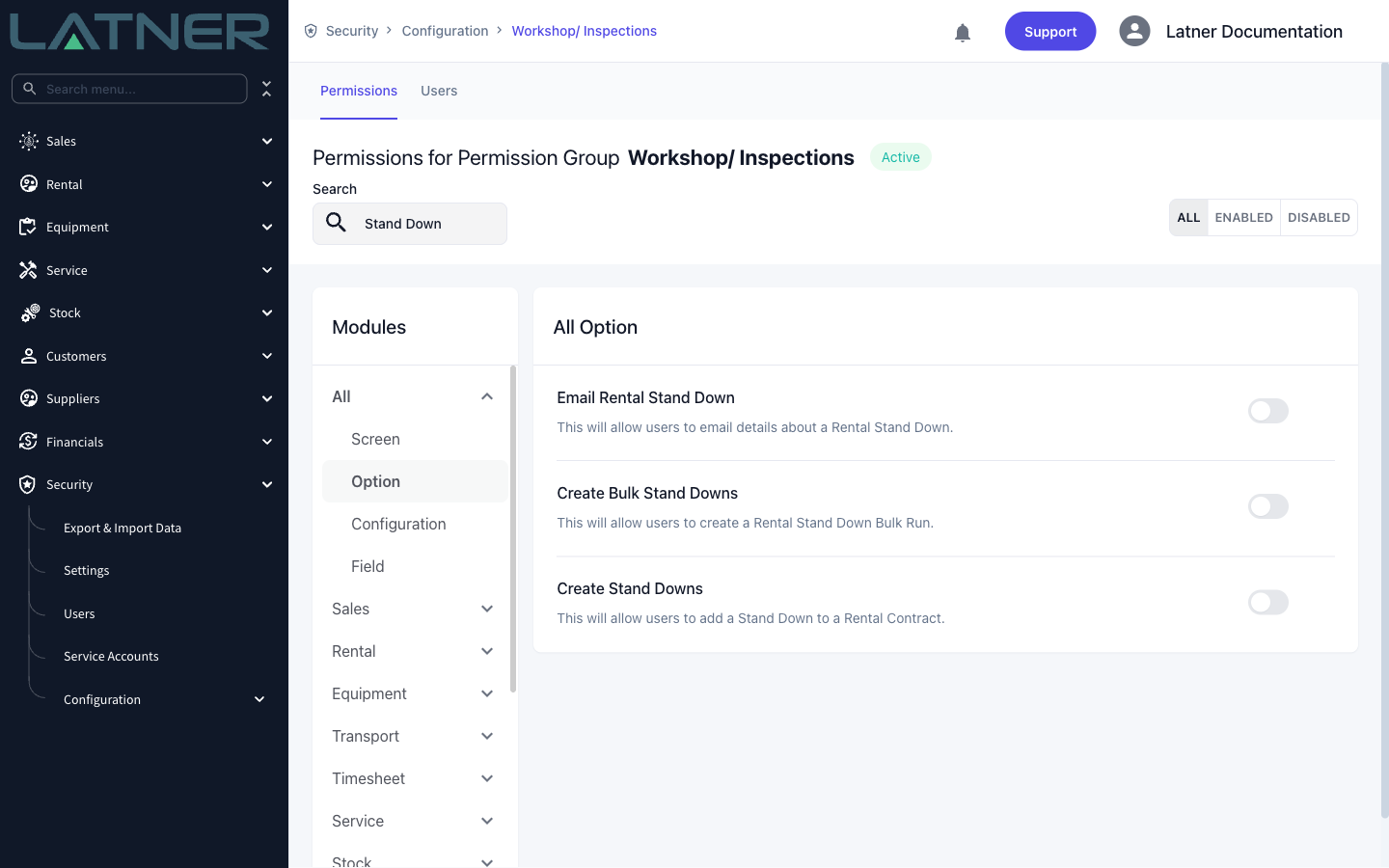
Open the group to see its Permissions tab. Permissions are organised by module down the left (Sales, Rental, Equipment, Service and so on), and each module is split into four kinds:
-
Screen - whether a screen or list appears at all.
-
Option - whether an action appears in an Options menu.
-
Configuration - access to the configuration screens behind a module.
-
Field - whether a particular field can be edited.
The quickest way to find a right is the Search box, which matches on both the permission name and its description. The All / Enabled / Disabled buttons narrow the list further - use Enabled to audit what a group can currently do.
Toggle the permissions you want, then click Save. The Save and Cancel buttons only appear once you have changed something, and if you switch module before saving, Latner warns you about unsaved changes.
Assigning a Group to a User
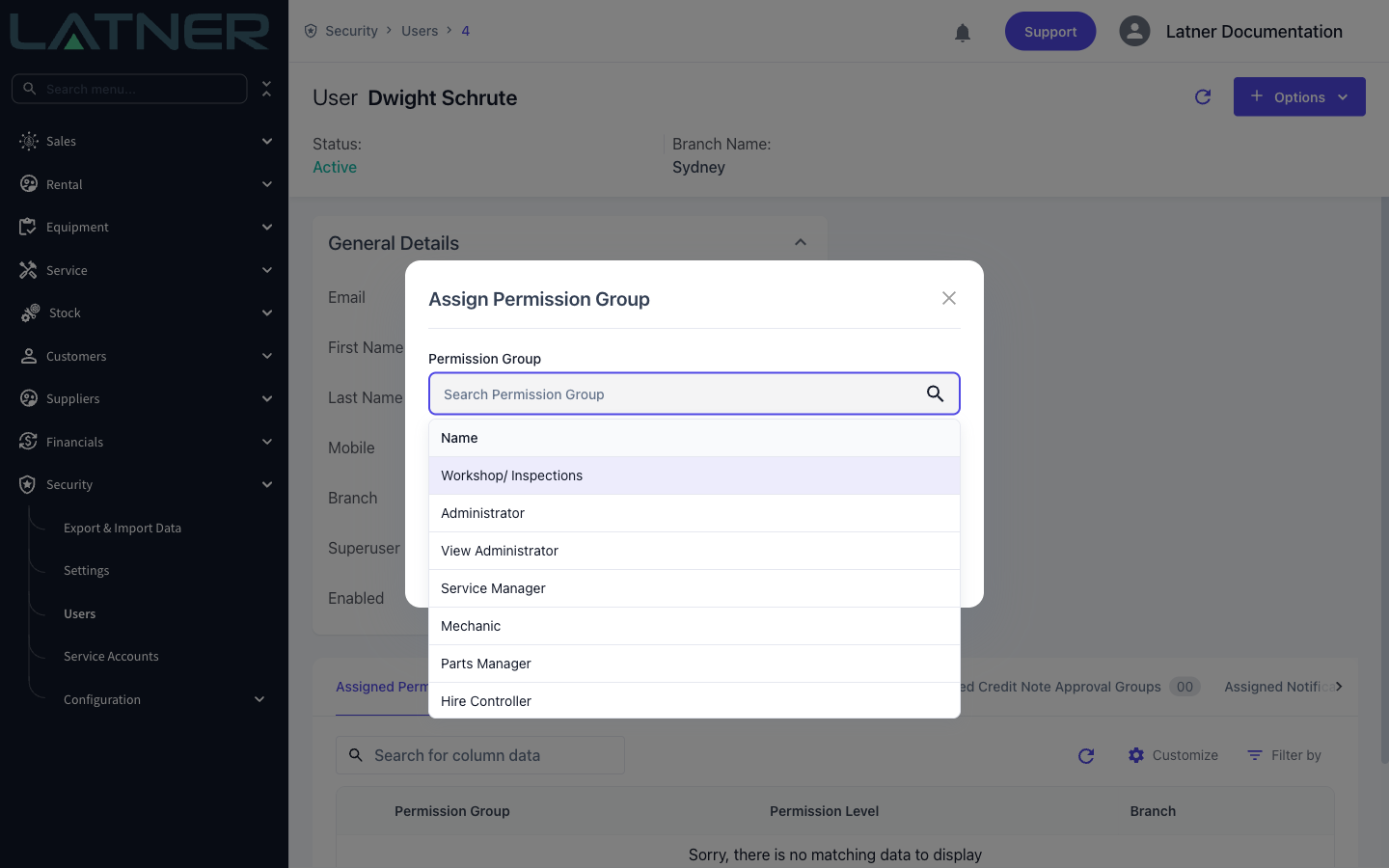
Go to Security › Users, open the user, then select Options › Assign Permission Group. Choose the group and set the Level:
-
All - the group's rights apply across every branch.
-
Branch - the rights only apply to records belonging to the branch you choose.
A user can hold several groups, and the same group can be assigned at more than one branch, so you can give someone hire-controller rights in Sydney and Brisbane without granting access everywhere. Assigned groups are listed on the user's Assigned Permission Groups tab, where you can also unassign them.
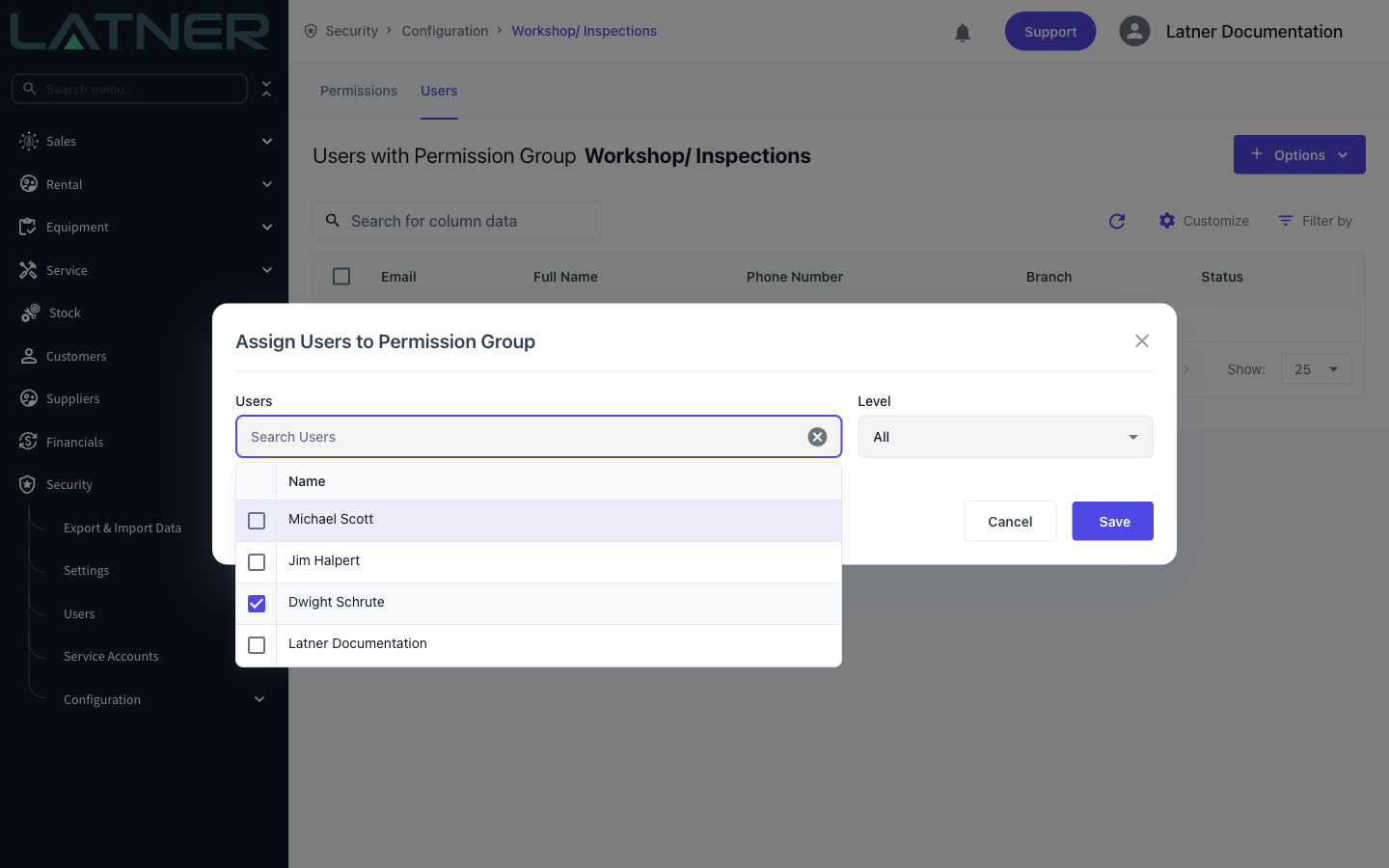
If you are setting up several people at once, work from the other direction instead: open the group, switch to its Users tab, and use Options › Assign Users to Permission Group to add them all in one go.
Quick Recipes
These are the rights our support team is asked for most often. Search for the name in the group's permission list to find it.
|
What the user wants to do |
Permission to switch on |
Where to find it |
|---|---|---|
|
Pull an on-rent report for a customer |
Generate Customer On Rent Report |
Customers › Option |
|
Pull an on-rent report for the fleet |
Generate Equipment On Rent Report |
Equipment › Option |
|
Connect or configure Xero / MYOB |
Accounting Integration |
Financials › Configuration |
|
Add a stand down to a contract |
Create Stand Downs |
Rental › Option |
|
Run a bulk stand down |
Create Bulk Stand Downs |
Rental › Option |
|
Email invoices in bulk |
Bulk Email Invoices |
Customers › Screen |
|
Assign technicians to work orders (and let technicians pick up their own jobs on mobile) |
Assign Work Order Technician |
Service › Option |
|
Change a rate when adding lines to a quote or contract |
Edit Rental Rates |
Rental › Field |