
Users represent the people in your organisation who log in and interact with Latner. Each user is assigned basic details, access permissions, and optional roles that define how they work within the system. Administrators can create, manage, and deactivate users as needed.
Set Up User
When creating a new user, you’ll need to provide the following information:
-
First Name & Last Name – The user’s full name.
-
Phone Number – Contact details for communication.
-
Email Address – Used as the login credential.
-
Branch – The branch the user belongs to.
You can also designate a user as a Superuser, which grants full access to all areas of the system.
If a user leaves the organisation or no longer requires access, you can deactivate their account. This preserves their history but prevents further logins.
User Access Groups
User access is controlled through:
-
Permission Groups – Define what a user can do/access in the system. You can assign them on a specific branch so they do not have access to other branches.
-
Notification Groups – Control which users receive alerts or updates.
-
Approval Groups – Define what a user is limited to approve.
Note: These groups must first be created in the system. Once set up, they can be assigned to users.
Skilled Persons
Users can also be set up as Skilled Persons for the service side of the business. This allows them to be scheduled, access to Mobile functionality and assigned to specific tasks. Roles include Driver, Field Technician, Workshop Technician, Yard Staff, Sanitation Pump Driver.
A Skilled Person record turns one of your Latner users into a resource you can schedule, so drivers, yardies, technicians, pump drivers and operators appear on the allocation screens and carry their own charge-out rates.
Overview
A user account gets someone into Latner. A Skilled Person record gets them onto the run sheet. Until you create one, a user can log in and do their job on screen, but no one can allocate work to them, because the allocation boards only draw lanes for skilled persons.
-
One Skilled Person record per user account, not per name - the user is chosen once, at creation, and can't be swapped afterwards. Someone who gets a new user account gets a new Skilled Person record to go with it.
-
Roles decide which allocation screens the person shows up on. A record with no roles is valid, but invisible to every board.
-
The record carries three rates - Cost, Retail Price and Call Out Price - that pre-fill work order timesheets.
-
Skills are optional licences and tickets you record against the person, each with an expiry date and an optional document or photo.
-
Skilled persons are never deleted. They're deactivated, which takes them off the boards but keeps their history.
Before You Begin
You'll need the following in place before you start.
|
Requirement |
Where to Find It |
|---|---|
|
The person already has a Latner user account, in the branch they'll work from |
Security › Users |
|
Skilled Person permission - controls the menu entry and the ability to create or edit a record |
Security › Configuration › Permission Groups › Service › Configuration |
|
A warehouse in that person's branch |
Financials › Configuration › Warehouse |
|
Optional - the skills you want to record against people |
Service › Configuration › Skills |
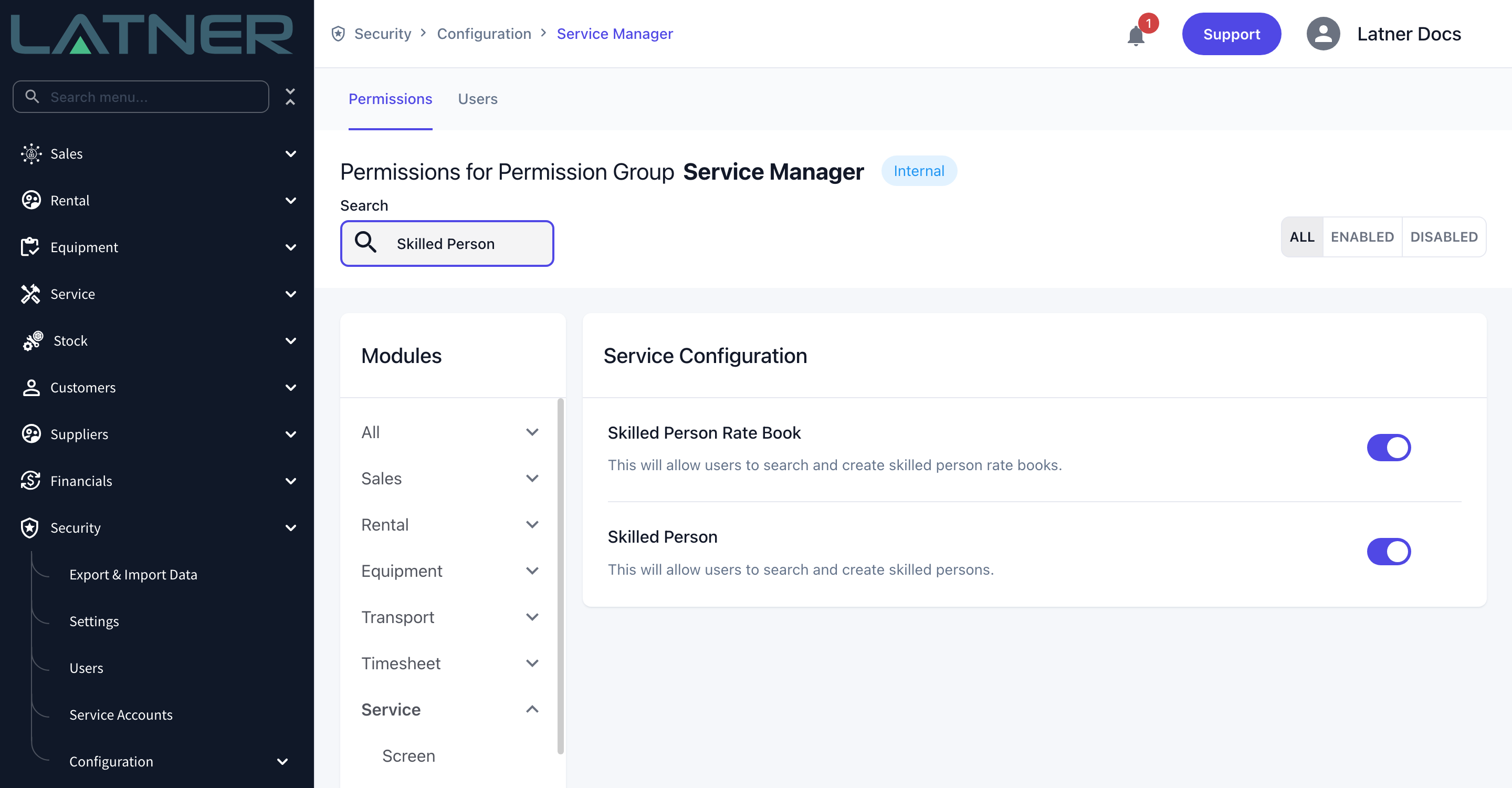
The user's branch does the work here, not the warehouse. The Warehouse field only offers warehouses in the selected user's branch, and every allocation screen filters its resource list by the user's branch. If someone is turning up on the wrong branch's board, fix the branch on their user record rather than the warehouse on their Skilled Person record.
Creating the Skilled Person
Step 1 - Open the Skilled Persons screen
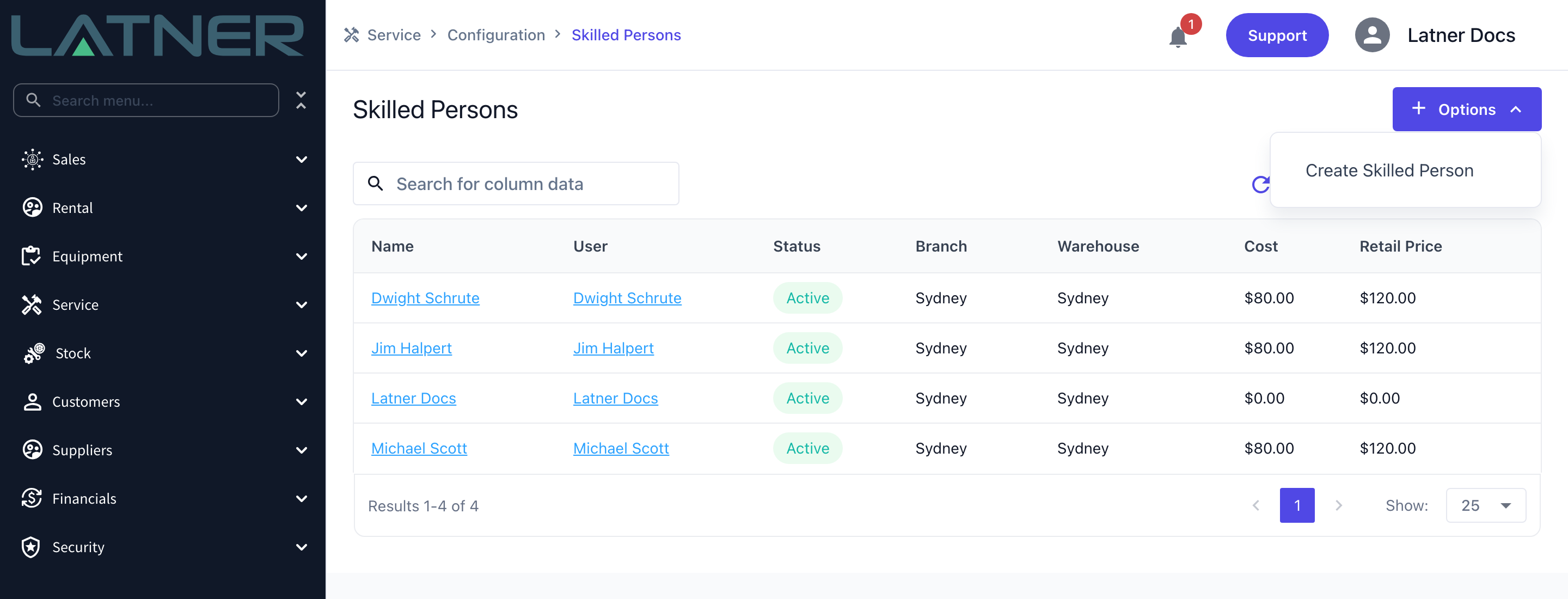
Go to Service › Configuration › Skilled Persons. The list shows everyone already set up, with their status, branch, warehouse and rates. Click Options › Create Skilled Person.
Step 2 - Choose the user and set the rates
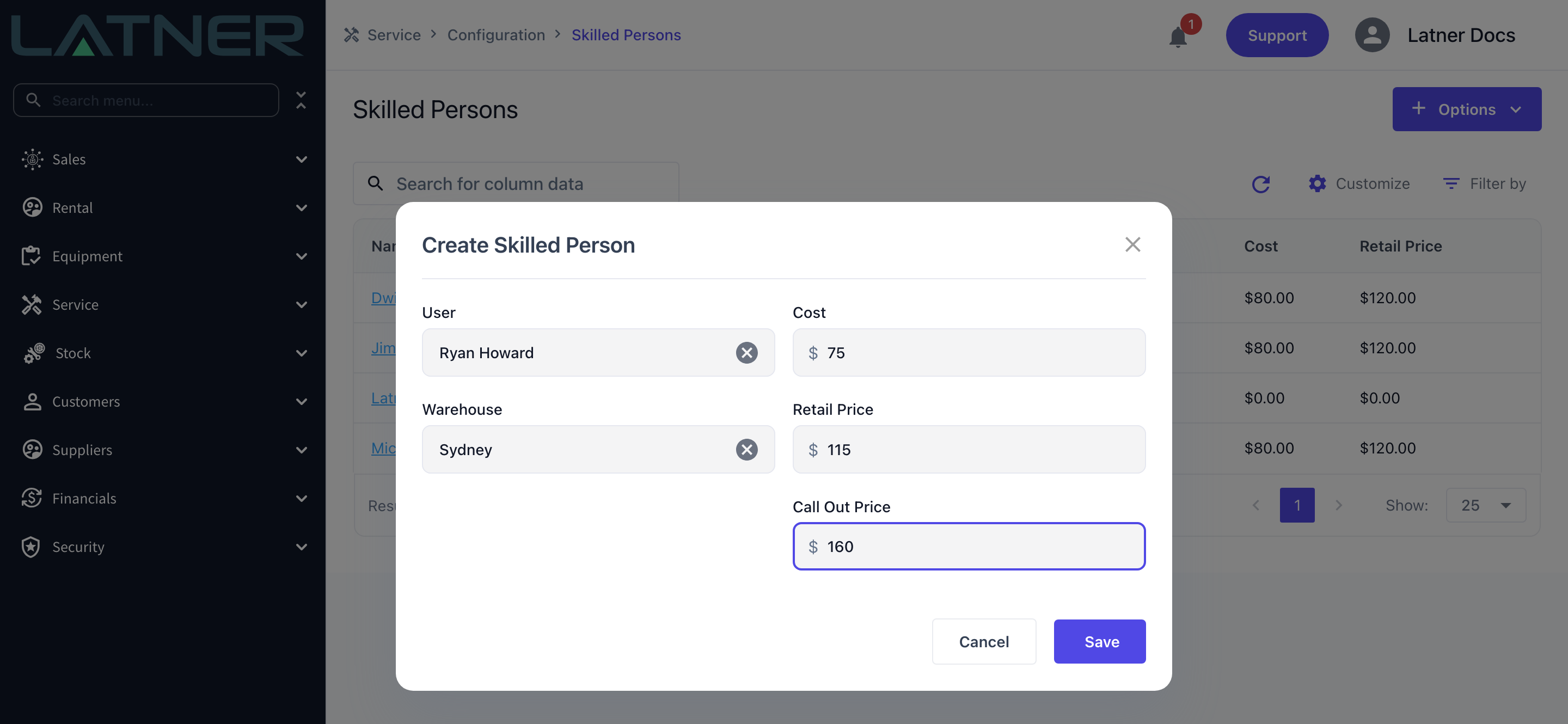
Fill in the Create Skilled Person form. Only two fields are required.
-
User - required. Search for the person's user account. Pick this one carefully; it's fixed once the record is saved.
-
Warehouse - required. The list is filtered to warehouses in the selected user's branch, and it clears itself if you change the user, so choose the user first.
-
Cost - what this person costs you per hour. Defaults to $0.00.
-
Retail Price - the hourly rate you charge for their normal time. Defaults to $0.00.
-
Call Out Price - the hourly rate you charge when they're called out. Defaults to $0.00.
Click Save. Latner creates the record and takes you straight to it.
Step 3 - Check the new record
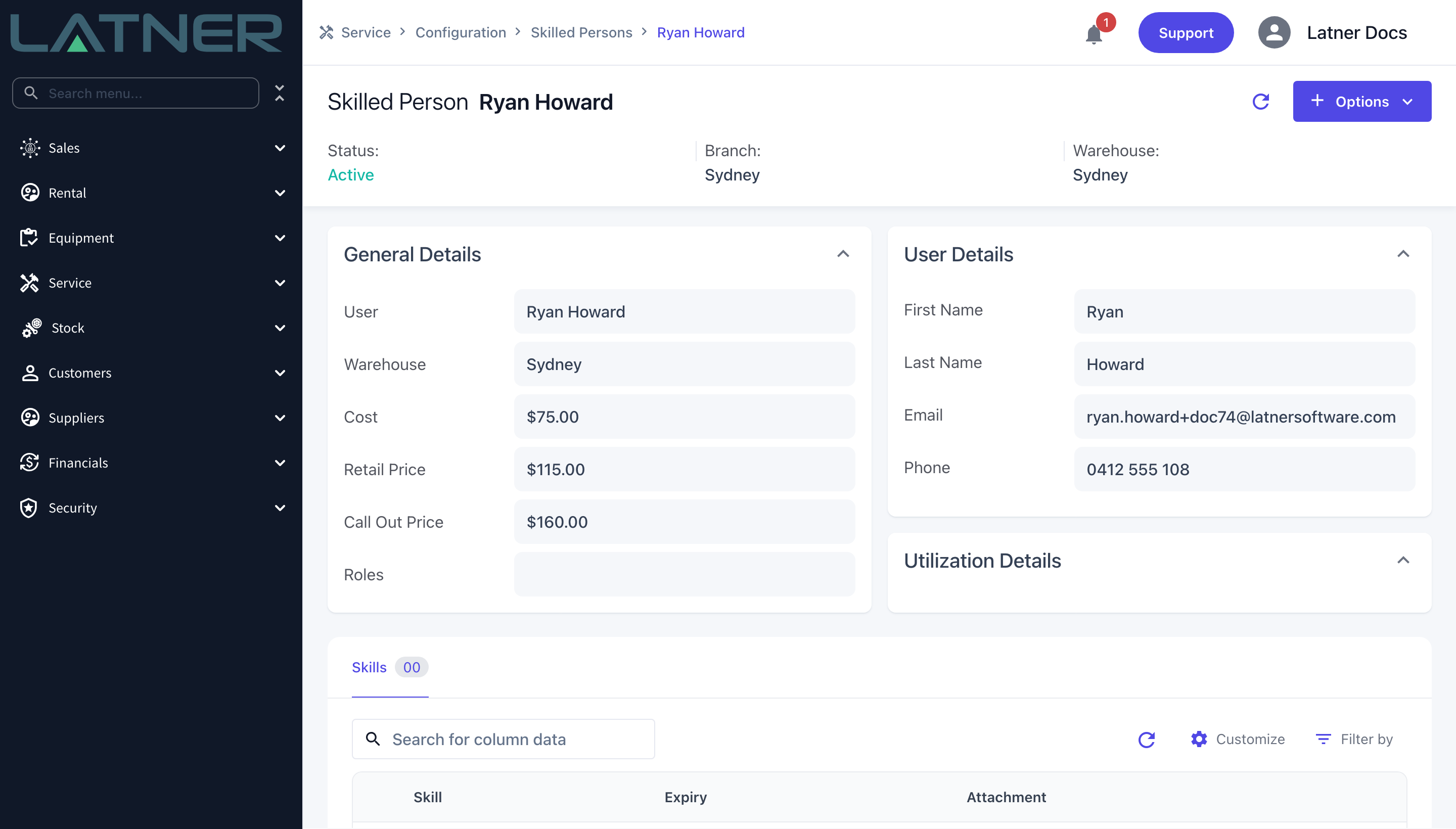
The Skilled Person page opens with a status of Active, the branch inherited from the user, and the warehouse you picked. User Details is a read-only copy of the person's name, email and phone from their user record - to change any of those, edit the user.
Notice that Roles is empty. The record exists, but it isn't on any allocation screen yet.
Step 4 - Give them their roles
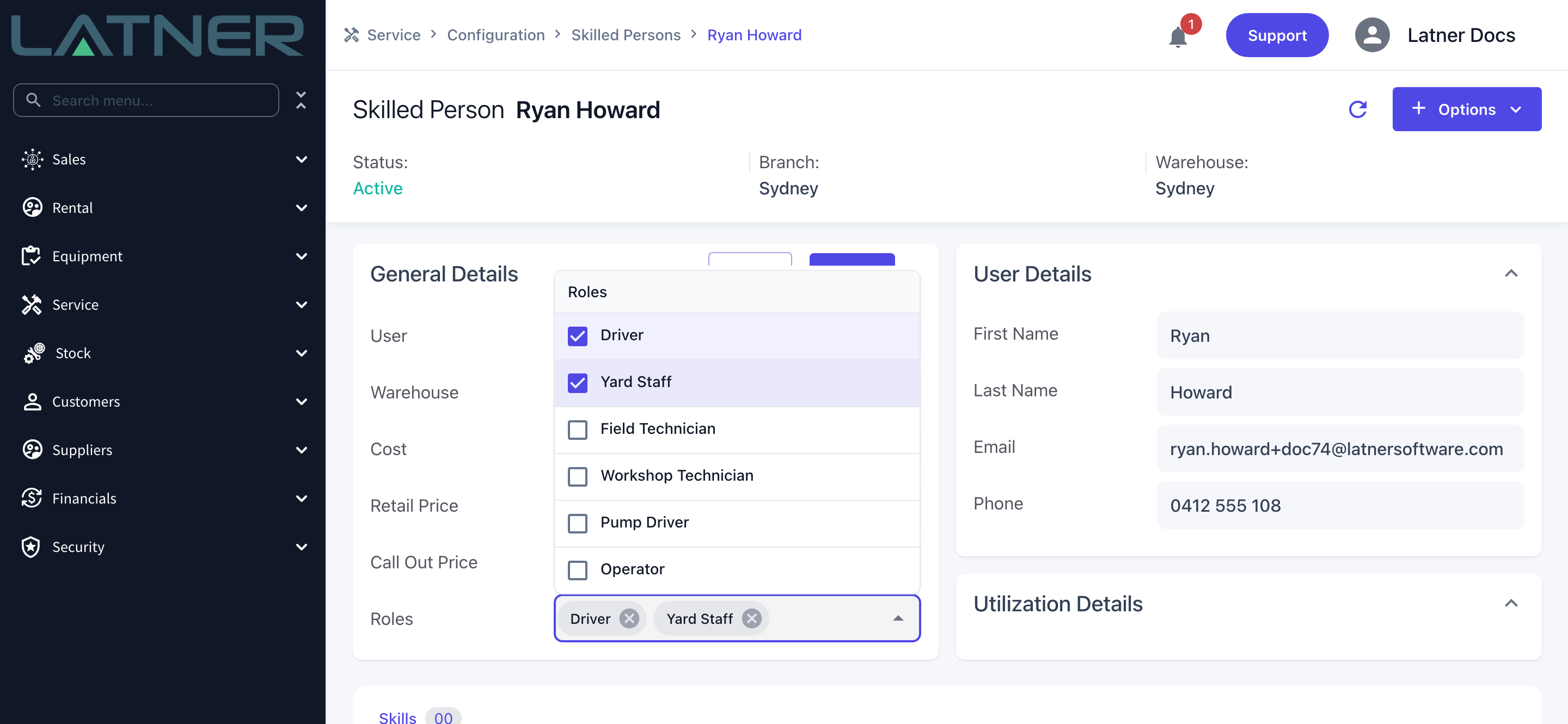
In the General Details card, click the Roles value to switch it into edit mode, then tick every role the person can take on. Click Save in the card header.
Each role maps to one allocation screen:
-
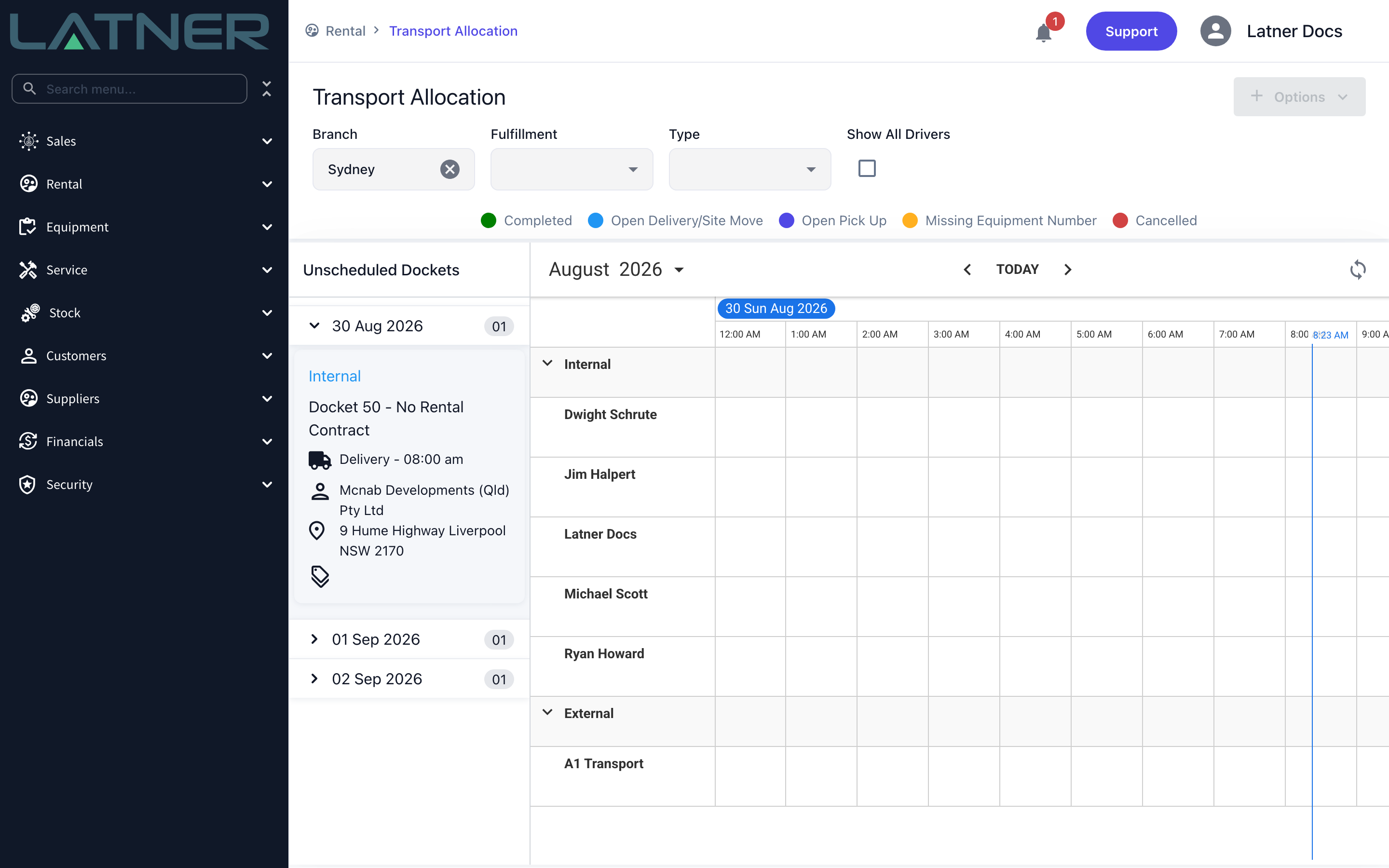
Driver - Rental › Transport Allocation
-
Yard Staff - Equipment › Inspection Allocation
-
Field Technician and Workshop Technician - Service › Service Allocation (either role is enough)
-
Pump Driver - Rental › Sanitation Allocation
-
Operator - Rental › Operator Allocation
Give someone as many roles as they genuinely cover. A yardie who also drives the truck should hold both Driver and Yard Staff, and they'll then appear on both boards.
Step 5 - Record their skills (optional)
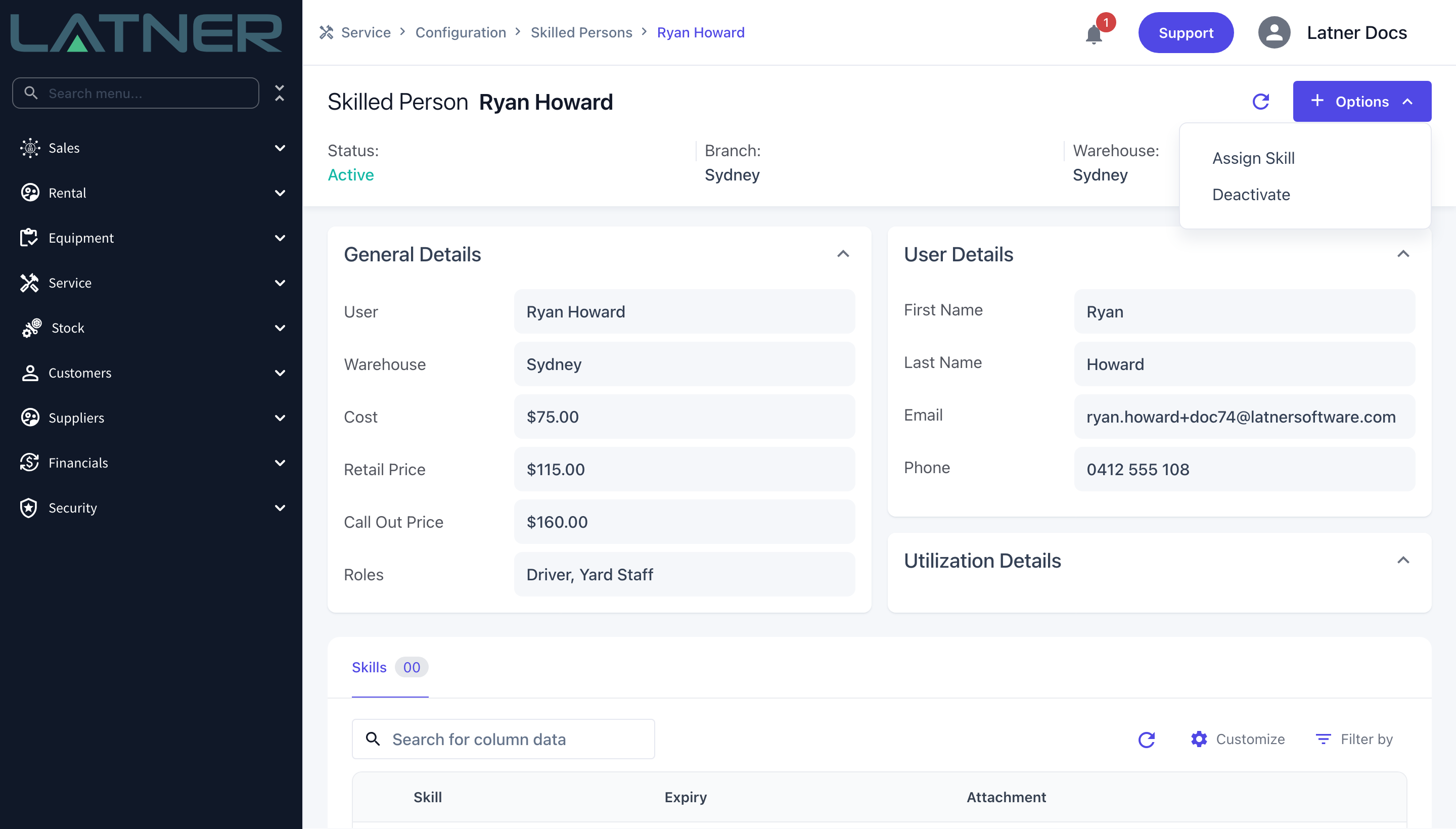
Use Options › Assign Skill to record a licence, ticket or competency against the person.
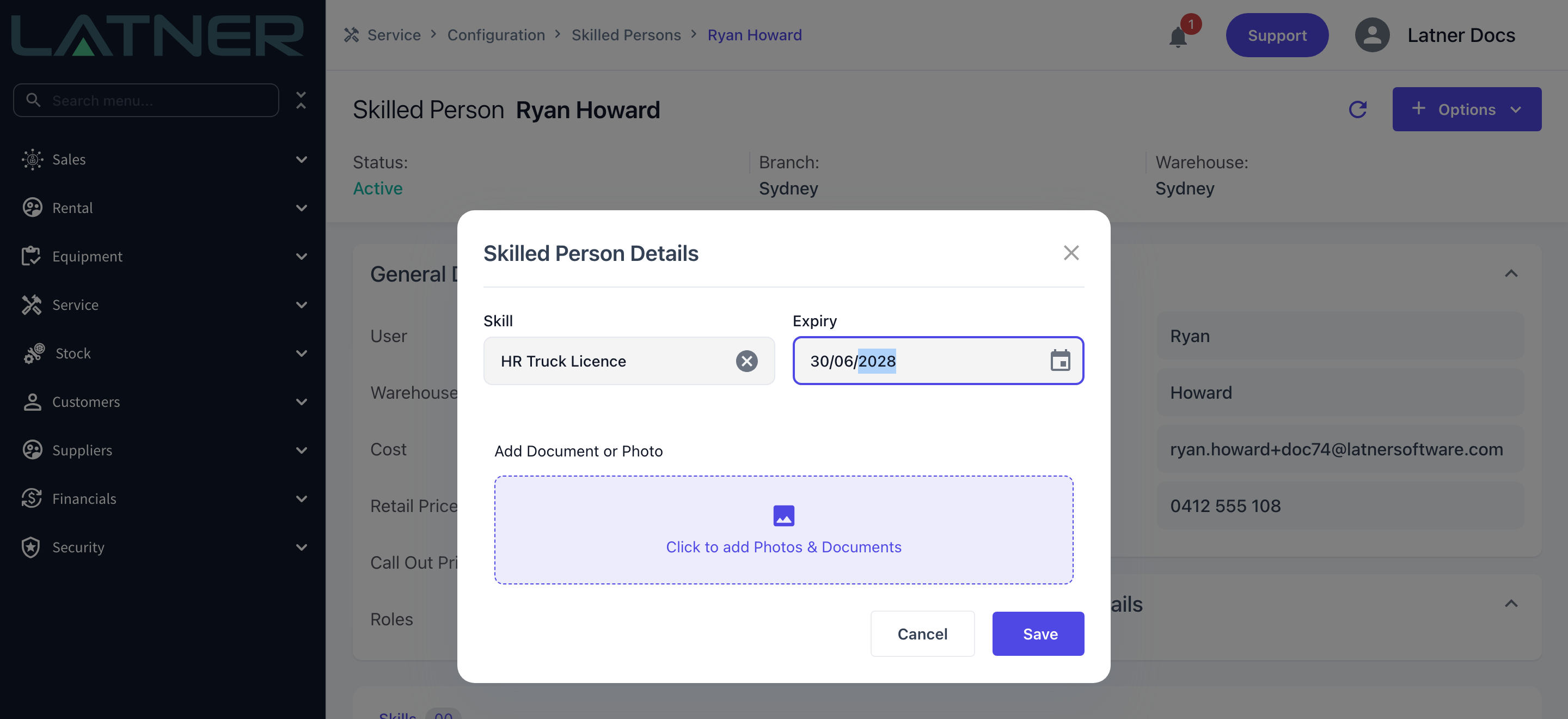
The Skilled Person Details dialog asks for:
-
Skill - required. Chosen from the skills set up under Service › Configuration › Skills.
-
Expiry - required, and defaults to today. Set it to the date the licence or ticket actually runs out.
-
Add Document or Photo - optional. One image or PDF, typically a scan of the licence.
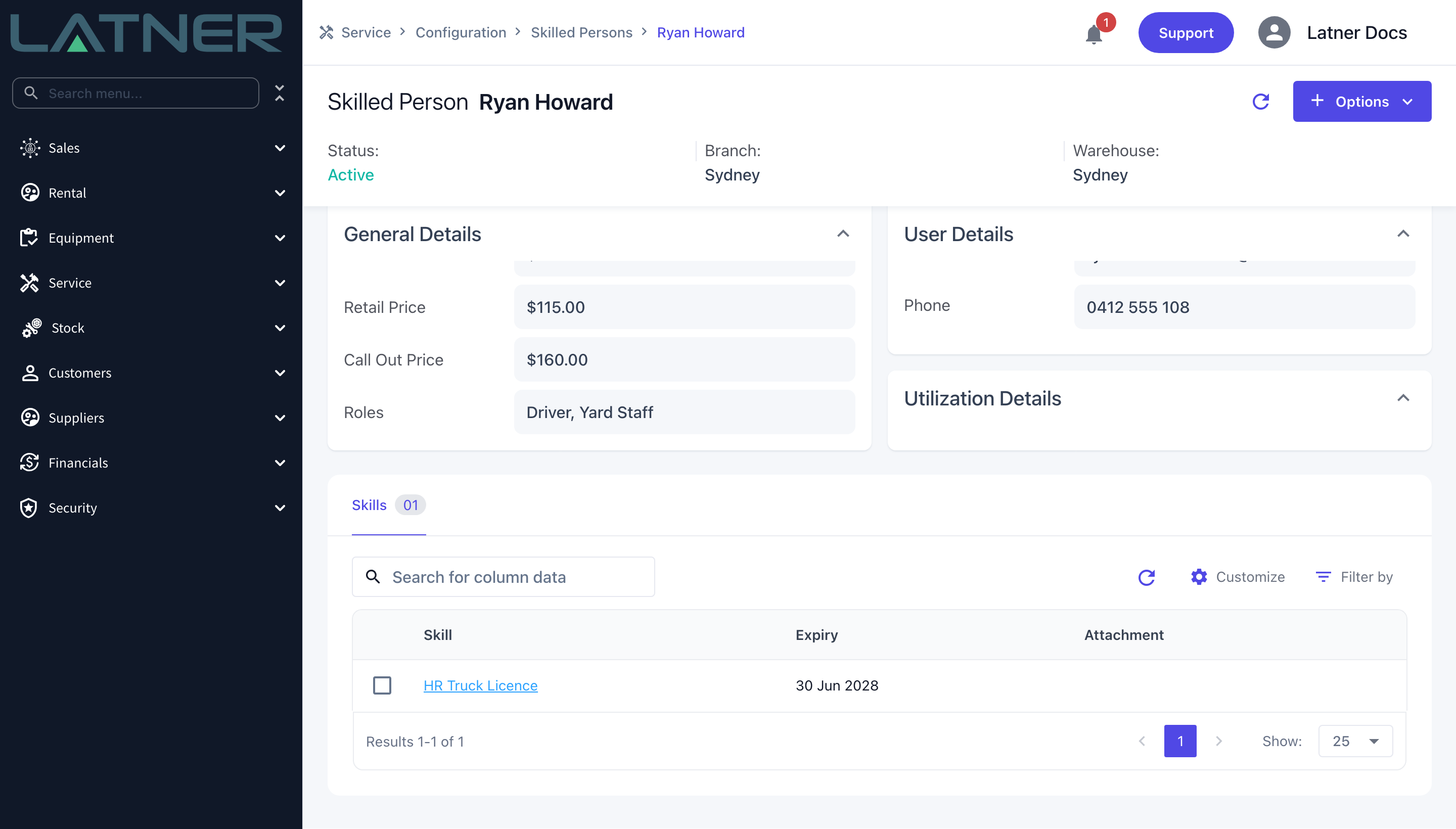
Saved skills appear on the Skills tab. Double-click a row to open Update Detail Lines and change the expiry date or swap the attachment.
After Creation
-
The person appears as a resource lane on the allocation screen for each role they hold, in their user's branch. Tick Show All Drivers (or the equivalent filter) on a board to see resources from every branch.
-
They can be picked as the Allocated Mechanic on a work order, and as a secondary technician, regardless of which roles they hold.
-
On a work order timesheet, Cost is pre-filled from their Cost, and Retail Rate from their Retail Price when the rate type is Normal Time, or their Call Out Price when it's Call Out Rate. A skilled person rate book assigned to the customer overrides both.
-
If they're a driver, the My Transport tab on the mobile transport screen shows them the open dockets assigned to them.
-
The mobile app starts working for them. My Work Orders lists the work orders they're allocated to as primary or secondary technician, the Timesheets tile on the mobile dashboard counts today's timesheets, and adding a part to a work order on mobile defaults Warehouse to the warehouse on their Skilled Person record. Without the record, those screens have nothing to match on and come up empty.
-
Rates, warehouse and roles can all be changed later from the General Details card. The user can't.
Deactivating the person's user account deactivates their Skilled Person record with it, and reactivating the user does not bring it back. If someone returns from leave and their lane is missing from the boards, open their Skilled Person record and use Options › Activate.
FAQs
Watch the Demo
Prefer to watch it? Step through the same flow here.
Best Practices
-
Assign the minimum permissions required for a user’s role to maintain security.
-
Use Superuser access sparingly, only for trusted administrators.
-
Regularly review and deactivate inactive users to keep the system secure.
-
Ensure Skilled Persons are set up correctly so they can be included for service tasks.