
Bulk Stand Downs let you apply the same stand down to many rental contracts at once, so a public holiday or a week of rain can be credited across the whole fleet without opening a single contract.
Overview
When a site shuts, it usually shuts for everyone on it. Rather than adding a stand down to each rental contract by hand, the Bulk Stand Down screen lets you filter every on-hire line in your branch, tick the ones affected and apply one stand down to the lot.
-
Every line in a run gets the same From Date, To Date, Discount % and Stand Down Reason.
-
Latner groups the selected lines by rental contract and creates one Stand Down per contract, with a detail line for each of that contract's selected lines.
-
Runs happen in the background. The History tab tracks each one as Pending, Running, Completed or Failed, right down to the individual line.
-
Only Equipment, Sub Hire Equipment and Package lines can be stood down, and only on rental contracts that are Reserved or Active.
-
The discount is a billing reduction, not a flag. A stand down removes (stood down days x Discount %) from the days billed, so 100% takes the period off the invoice entirely and 50% halves it.
Before You Begin
You'll need the following before the screen will do anything useful.
|
Requirement |
Where to Find It |
|---|---|
|
Create Bulk Stand Downs permission |
Security › Permission Groups › Rental › Options. It controls both the menu item and the run itself. |
|
At least one Stand Down Reason |
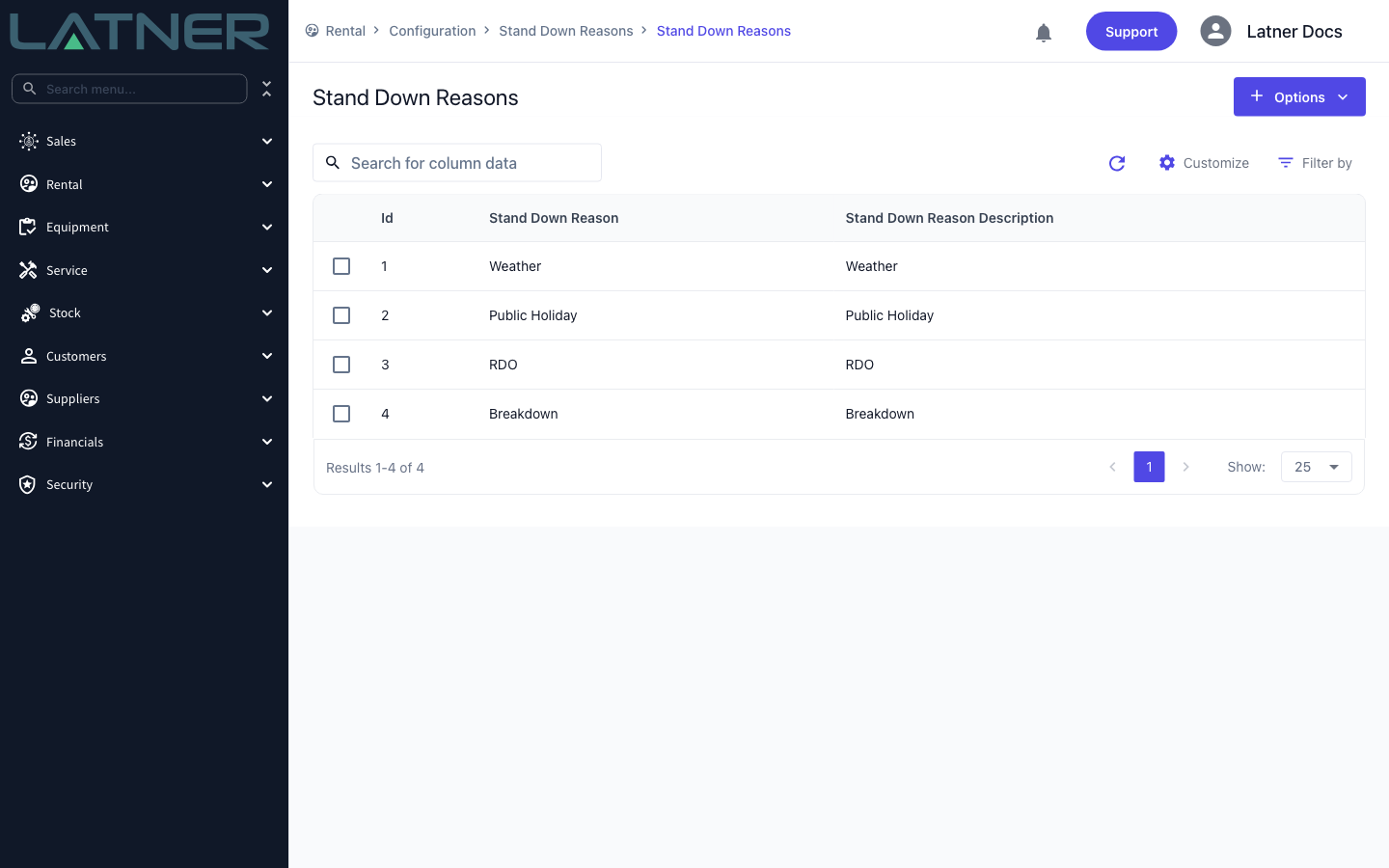
Rental › Configuration › Stand Down Reasons. Latner ships with Weather, Public Holiday, RDO and Breakdown. |
|
Rental contracts that are Reserved or Active, with lines on hire |
Rental › Rental Contracts |
Bulk Stand Downs only ever looks at Reserved and Active rental contracts. That restriction is built into the screen and isn't one of the filters, so a line on a Completed or Cancelled contract will never appear no matter how you search.
Creating a Bulk Stand Down
Step 1 - Open the Bulk Stand Down screen
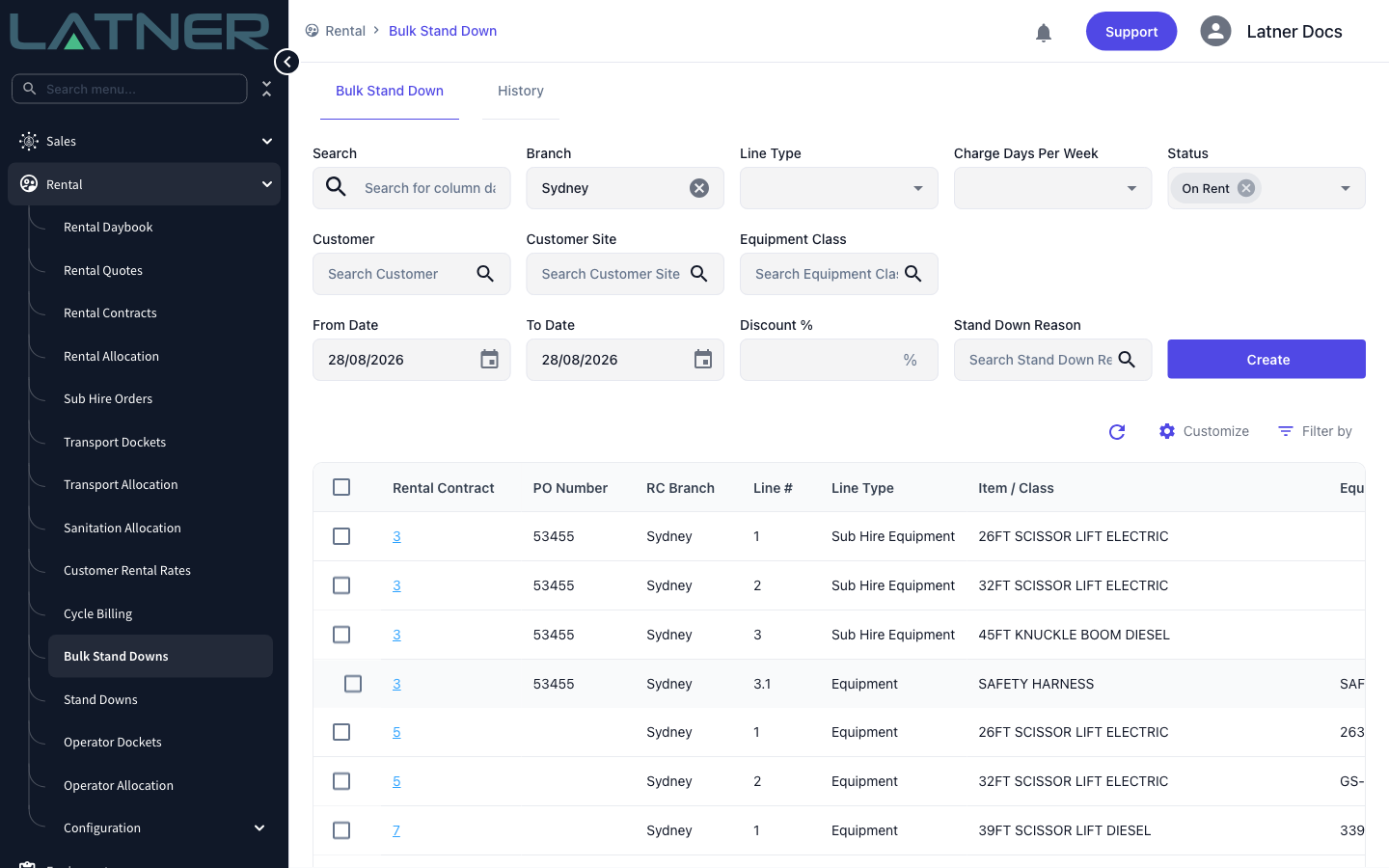
Go to Rental › Bulk Stand Downs. The screen has two tabs: Bulk Stand Down, where you build and start a run, and History, where you review the runs that have already gone through. It opens with your own branch selected and the line Status set to On Rent.
Step 2 - Narrow the list to the lines you need
The filters across the top rebuild the table as you change them. Nothing is committed at this stage, so filter freely.
-
Search - free text across the listed columns.
-
Branch - defaults to your own branch, and takes more than one.
-
Line Type - Equipment, Sub Hire Equipment or Package. Other line types (Transport, Fuel, Admin and so on) can't be stood down and aren't offered.
-
Charge Days Per Week - 5 Days, 6 Days, 7 Days, Saturday or Weekend. Handy when a shutdown only matters to contracts that charge on the days in question.
-
Status - the line's own status, defaulting to On Rent. You can add others, such as Pre-Allocated or Off Hire.
-
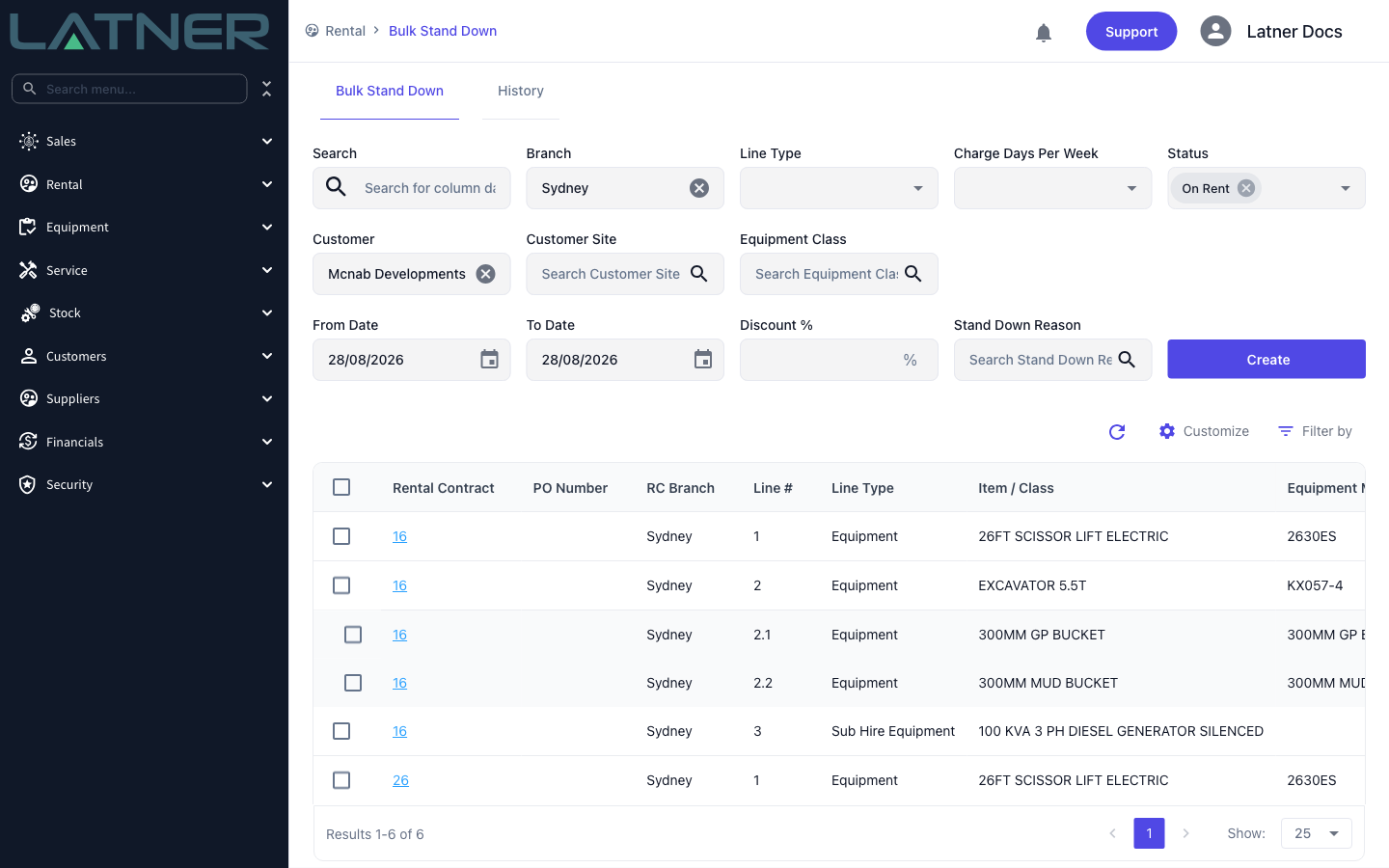
Customer and Customer Site - the usual pair for a site shutdown. Customer Site only offers sites belonging to the customers you've picked.
-
Equipment Class - narrow to a class where only some of the fleet is affected.
Step 3 - Select the lines
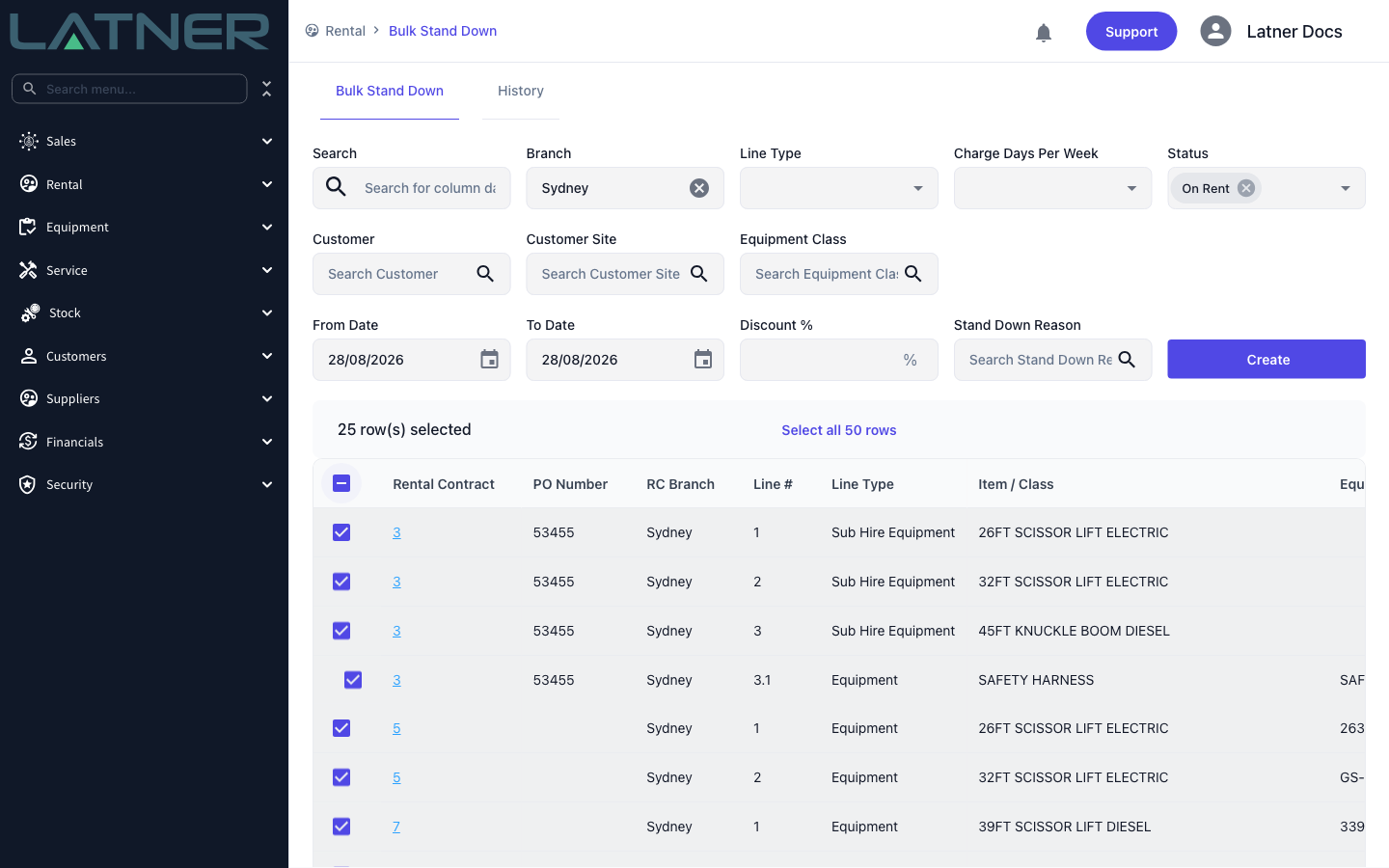
Tick the lines you want stood down, or use the checkbox in the table header to take every row on the page. The toolbar above the table keeps a count of what you have selected.
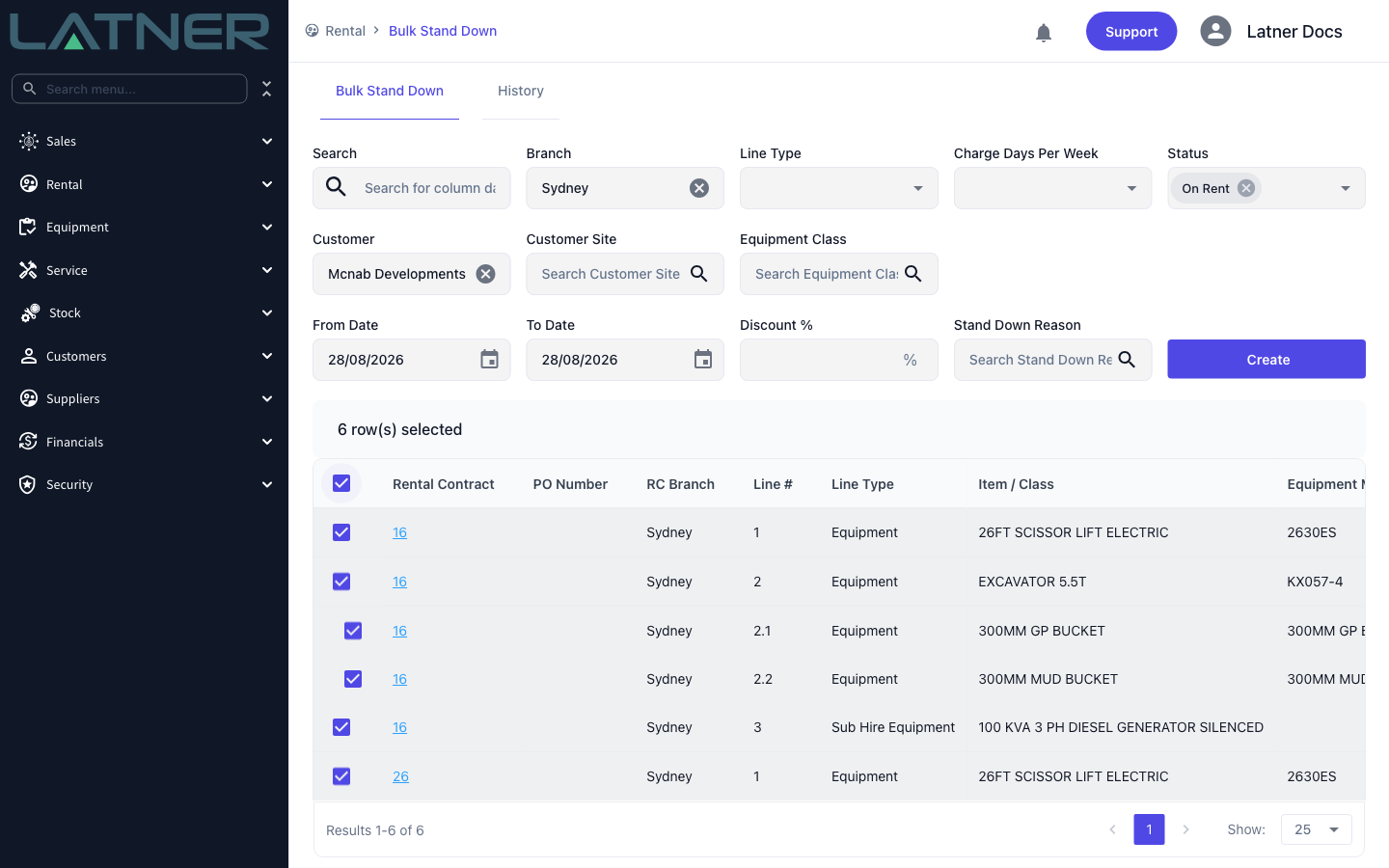
If your filter matches more lines than fit on one page, select every row on the page and a Select all N rows button appears. That option sends the filter itself to the run rather than a list of ticked rows, so every matching line is included, not just the page you can see.
Step 4 - Enter the stand down details
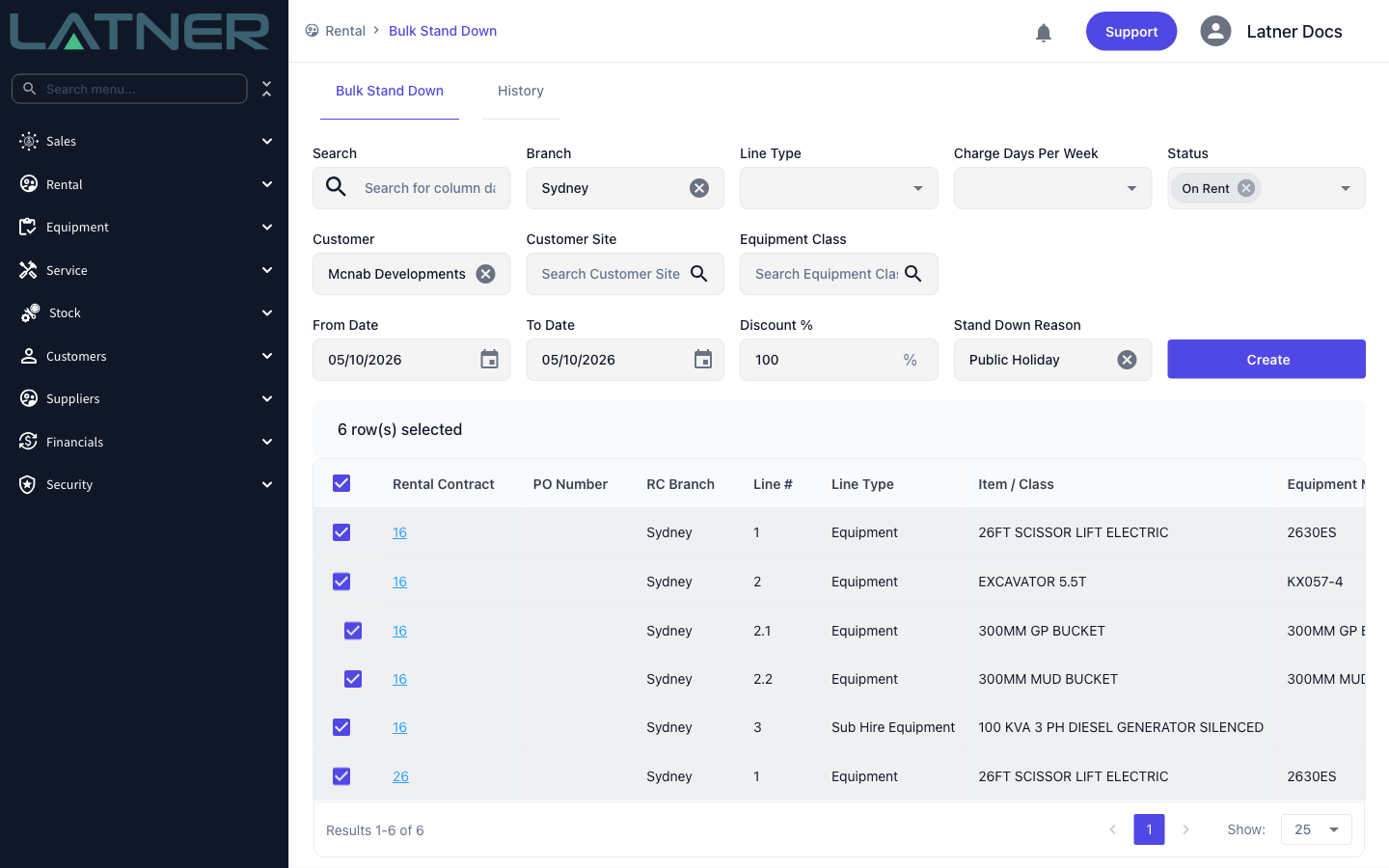
The four fields to the right of the filters describe the stand down itself. All of them are required.
-
From Date - the first day of the stand down. Defaults to today.
-
To Date - the last day, and it's inclusive. It can be the same day as From Date for a single-day shutdown, but it can't be earlier.
-
Discount % - how much of each stood-down day comes off the bill, from 0 to 100, to two decimal places.
-
Stand Down Reason - one of your configured reasons. It's carried onto every stand down the run creates and is what stand down reporting groups by.
Step 5 - Start the run
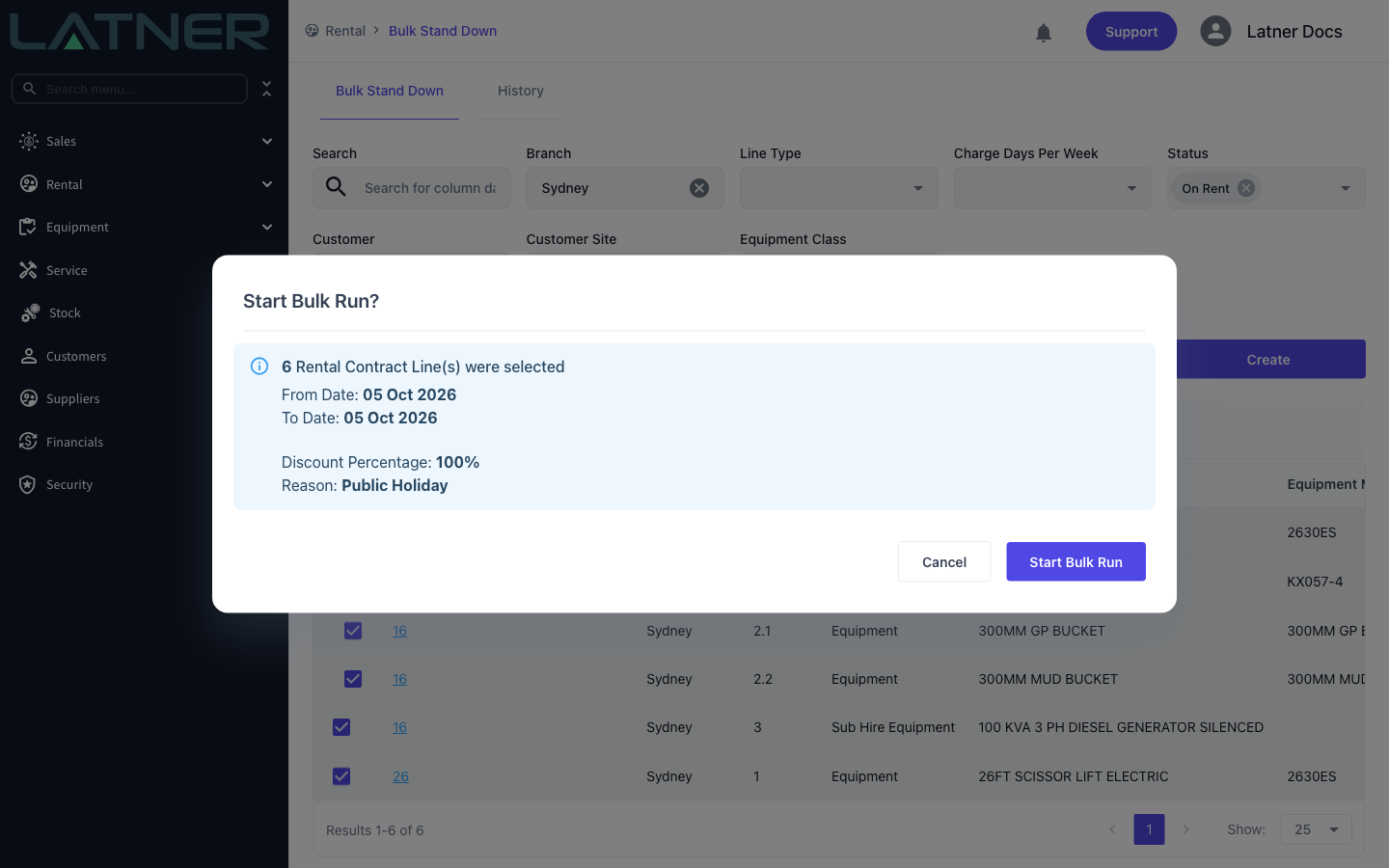
Click Create. Latner summarises what's about to happen - how many rental contract lines were selected, the dates, the discount and the reason - and waits for you to confirm with Start Bulk Run. This is the last point at which you can back out, so read the line count and the dates before you commit.
Once you confirm, Latner reports Bulk Run Started and clears the form and the selection. The stand downs themselves are created in the background, so a large run may still be working after the screen comes back.
Step 6 - Check the results on the History tab
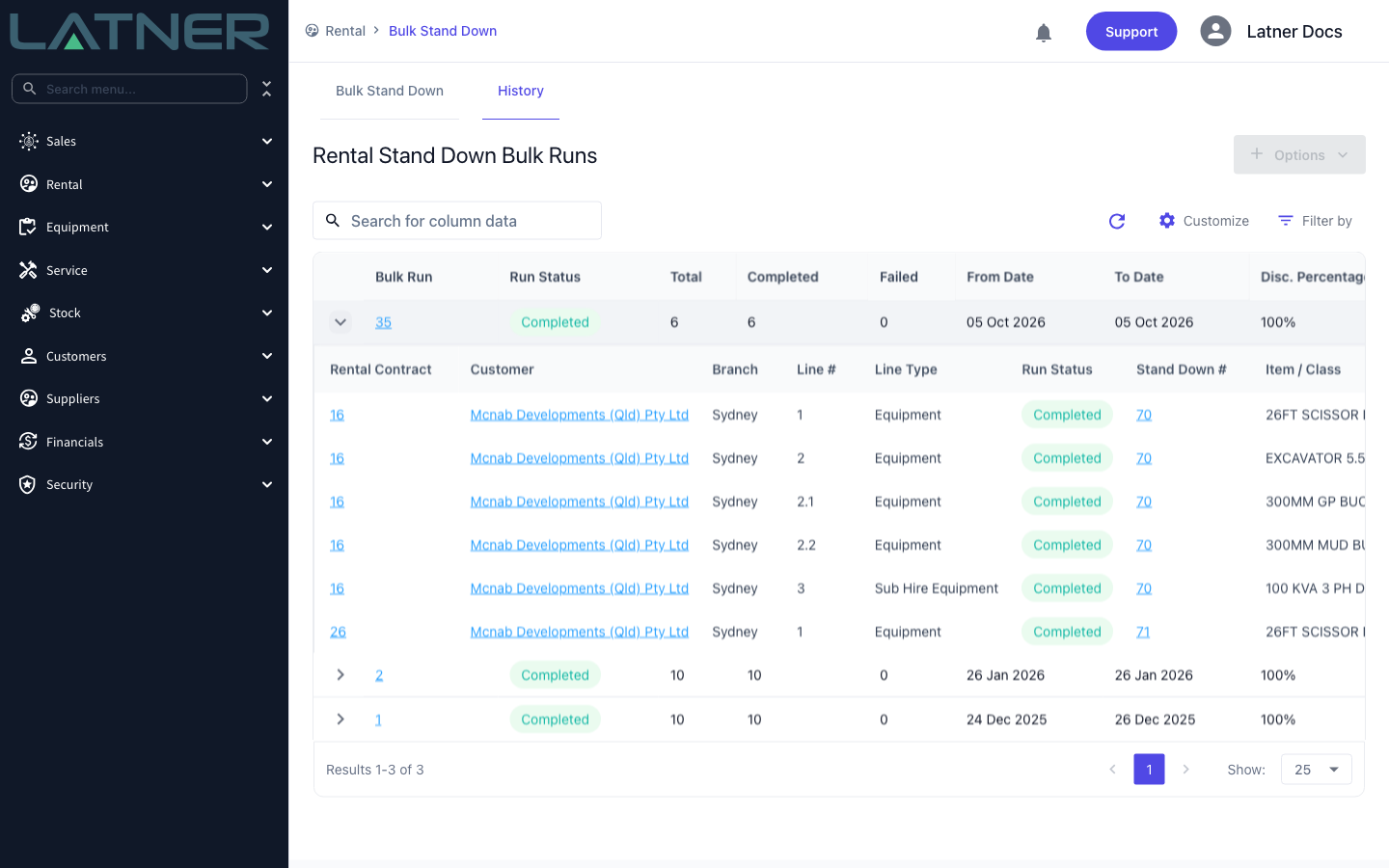
Switch to History. Each run is one row, showing its Run Status and a Total / Completed / Failed count alongside the dates, discount, reason and who started it. A run sits at Pending, moves to Running, then finishes as Completed, or as Failed if any line in it failed.
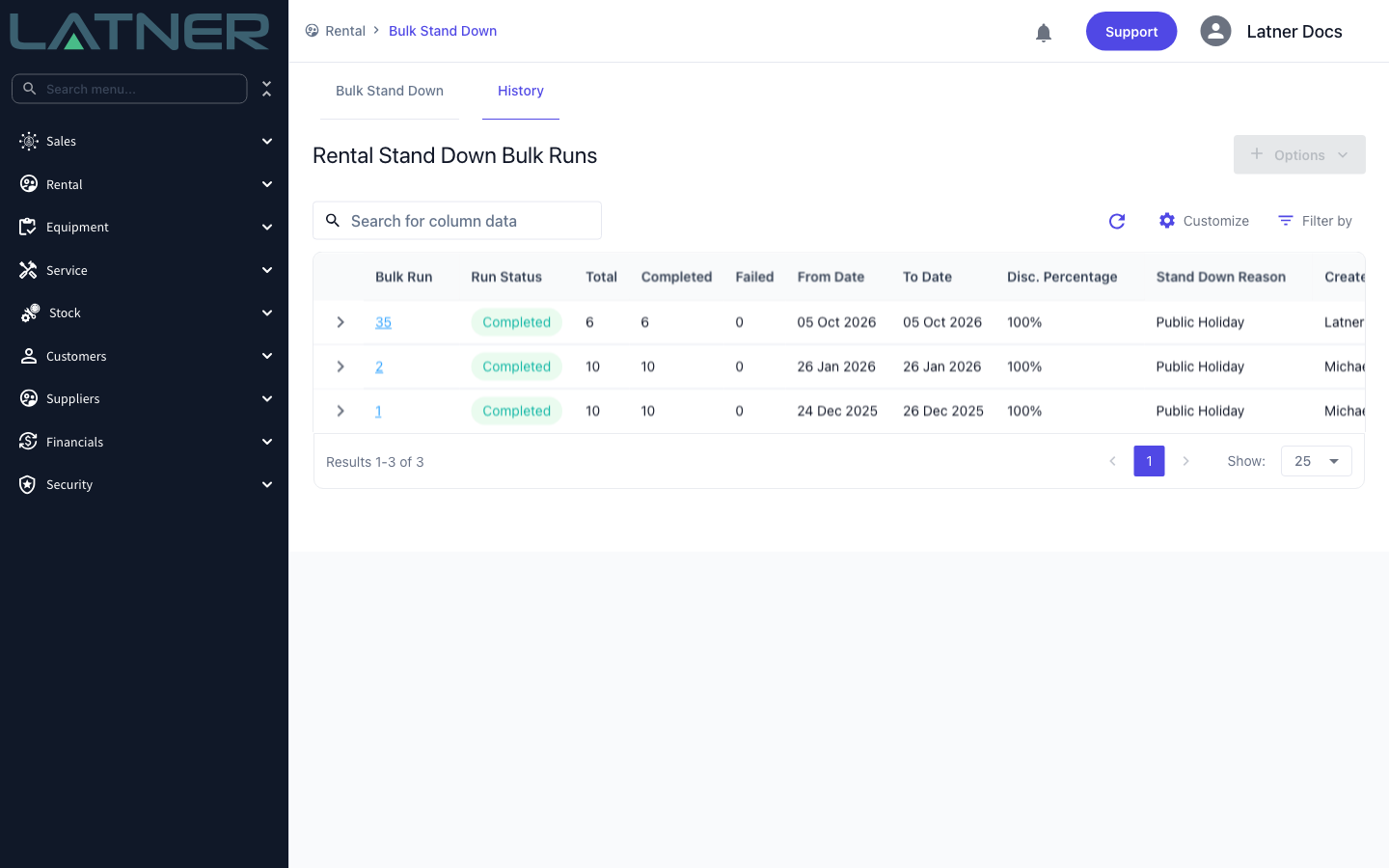
Expand a run with the arrow at the left to see the individual lines. The Stand Down # column links to the stand down each line ended up on, and lines from the same rental contract share a number. If a line shows a red Failed status, click the status to read the error.
After the Run
-
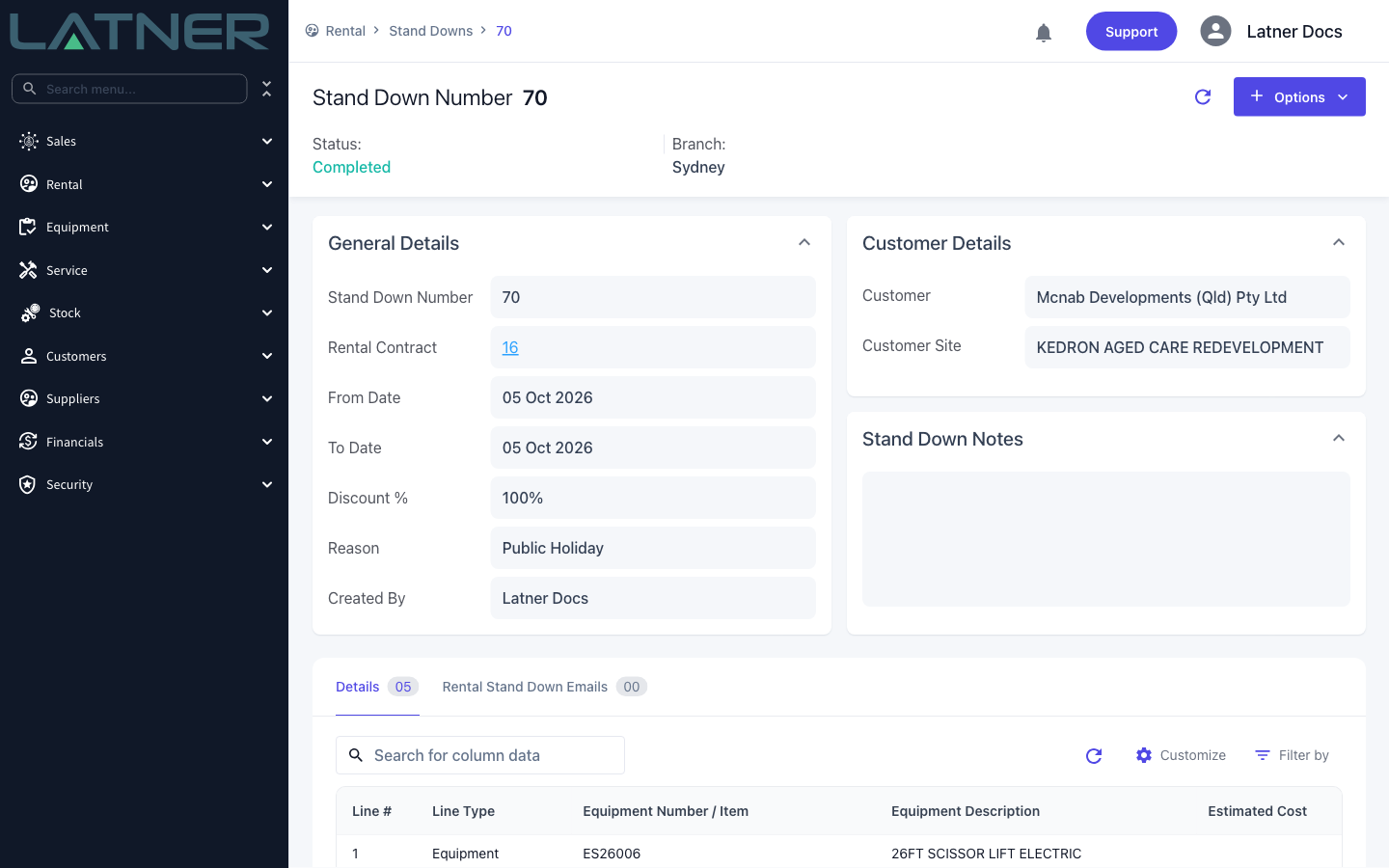
One Stand Down is created per rental contract, in Completed status, carrying the run's dates, discount and reason.
-
Each stand down appears under Rental › Stand Downs and on its rental contract, with a detail line for every line the run selected.
-
Billing for the affected lines drops by the stood-down days multiplied by the discount, on the next invoice that covers the period.
-
Estimated Cost on each stand down line is filled in when the contract is invoiced for a period that covers the stand down, and feeds the stand down cost reporting.
A bulk run doesn't warn you when the dates fall in a period that has already been invoiced, and there's no bulk undo. If you get the dates wrong, each stand down has to be cancelled individually from its own record with Options › Cancel Stand Down. Check the dates on the confirmation before you start the run.
FAQs
Watch the Demo
Prefer to watch it? Step through the same flow here.