
A Stand Down records a period when hired equipment could not be used, so the customer is not charged the full rate for days the machine sat idle.
Overview
Rain shuts the site. A public holiday empties it. A machine breaks down and sits in the corner waiting on a fitter. The gear is still on hire and the meter is still running, but nobody is using it - and the customer will ask about it. A Stand Down is how you answer that question in Latner, and how you make the next invoice reflect it.
-
A Stand Down discounts one or more equipment lines on a rental contract across a date range you choose.
-
Discount % is the share of the rate you are taking off. 100% means those days are not charged at all; 50% halves them.
-
Only chargeable days count. On a contract set to 5 Days per week, a stand down that covers a weekend takes nothing off the invoice.
-
A Stand Down is saved straight into Completed status. There is no approval step - if it is wrong, you cancel it.
-
Stand Downs make no difference to lines priced on a Flat Monthly rate.
-
On a Minimum Hours Per Month line a stand down lowers the month's minimum to (chargeable days on hire - stand down days) x Hours per Day, capped at the Minimum Monthly Hours. It is not the minimum less the stand down hours. See Rental Rate Types | minimum hours pro rata for the formula and worked examples.
-
One Stand Down covers one rental contract. To stand down equipment across many contracts at once, use Bulk Stand Downs instead.
Before You Begin
Make sure the following are in place before you start.
|
Requirement |
Where to Find It |
|---|---|
|
Create Stand Downs permission |
Security › Configuration › Permission Groups › Rental › Options |
|
Stand Downs permission, to open the Stand Downs screen |
Security › Configuration › Permission Groups › Rental › Screens |
|
Email Rental Stand Down permission, if you want to email the stand down out |
Security › Configuration › Permission Groups › Rental › Options |
|
At least one Stand Down Reason |
Rental › Configuration › Stand Down Reasons |
|
A rental contract in Active status with equipment on it |
Rental › Rental Contracts |
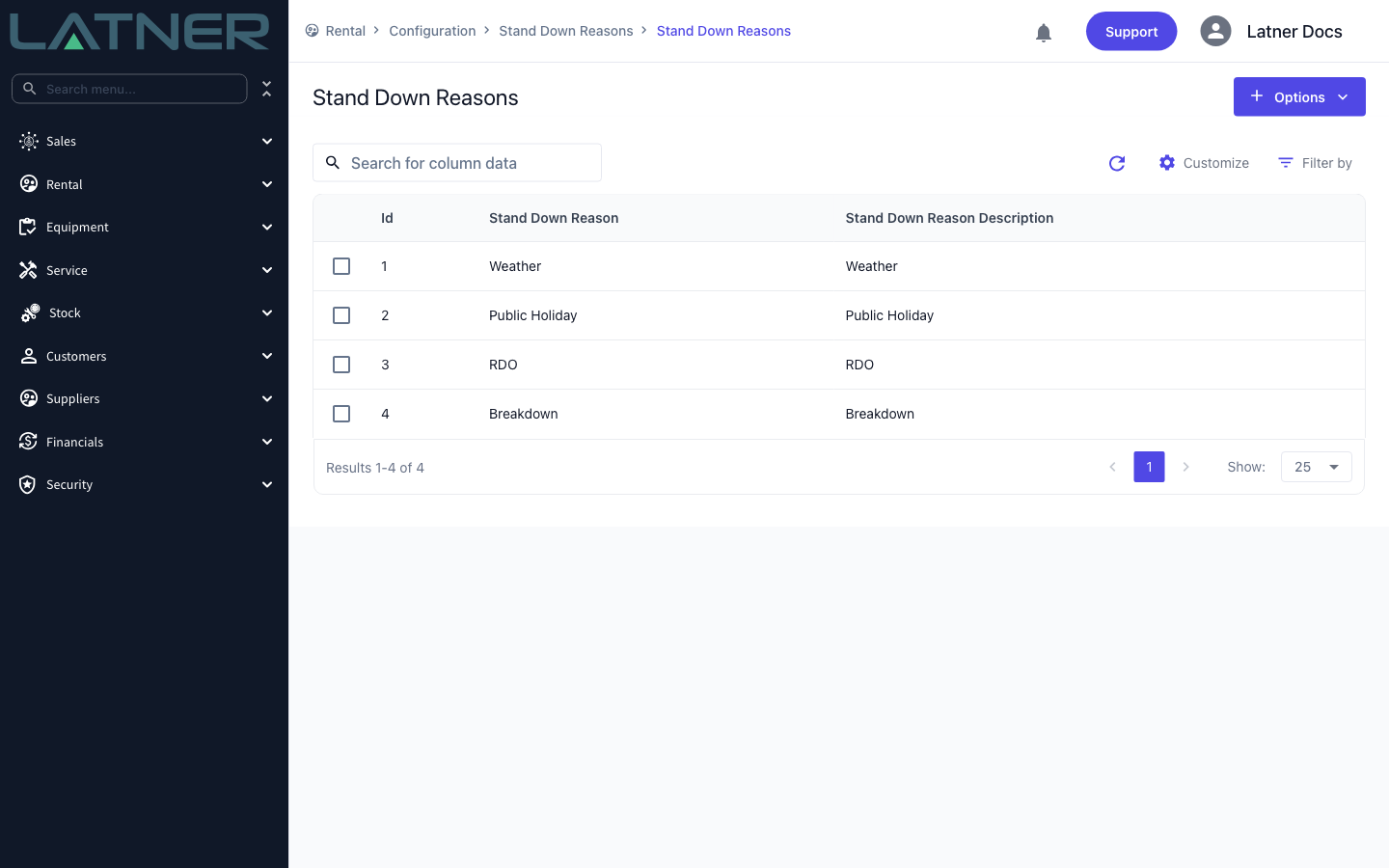
Stand Down Reasons are shared across every branch and every contract, and they drive your reporting. Keep the list short and meaningful - a reason you can group on later is worth more than a free-text explanation, which is what the notes field is for.
Creating the Stand Down
Step 1 - Open the rental contract
Go to Rental › Rental Contracts and open the contract the equipment is on. Check the Contract Status at the top of the page: it has to be Active. On a Reserved, Closed, Completed or Cancelled contract the Stand Down option is greyed out.
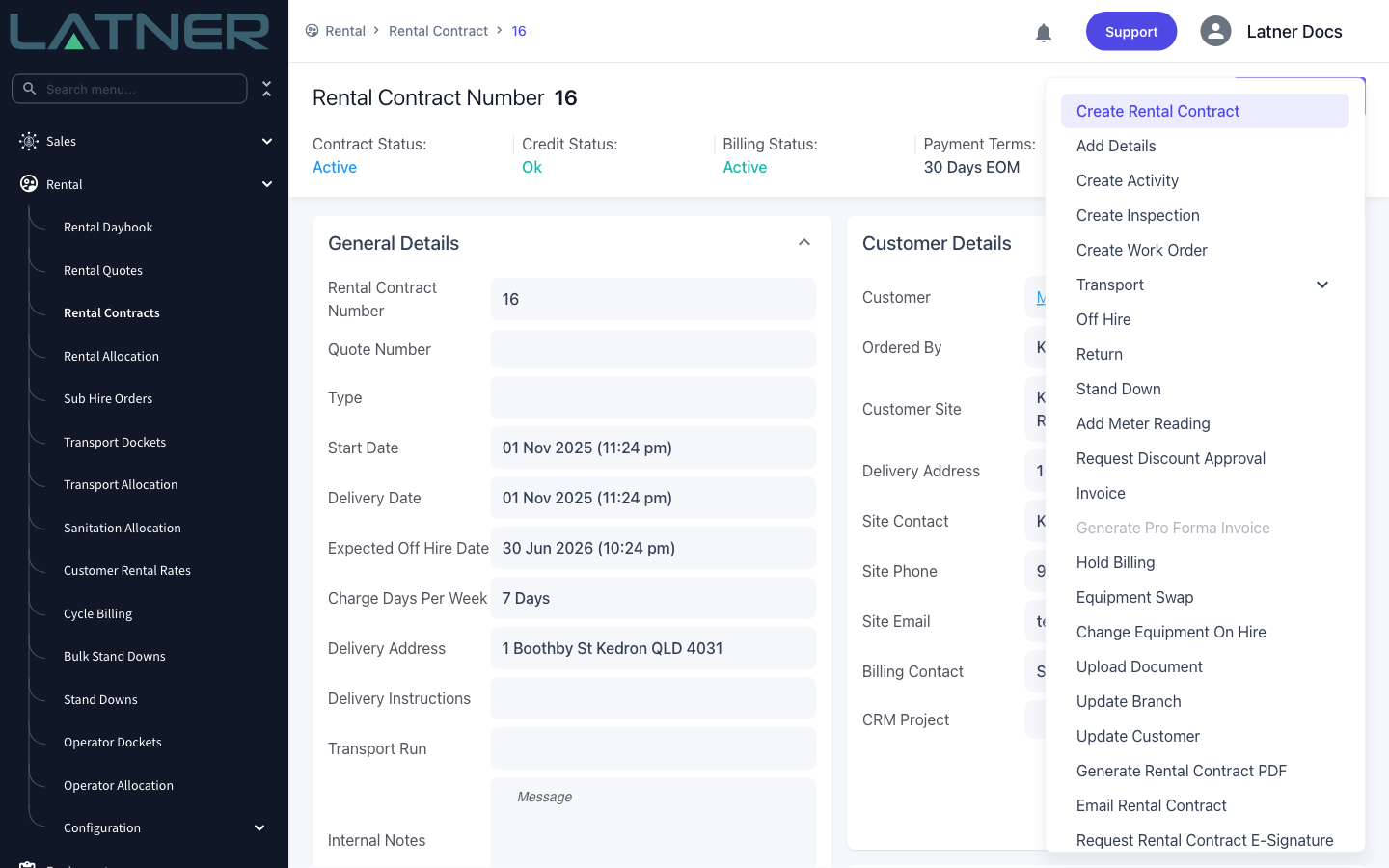
Step 2 - Choose Stand Down from Options
Select Options › Stand Down in the top right of the contract.
Step 3 - Pick the equipment that stood down
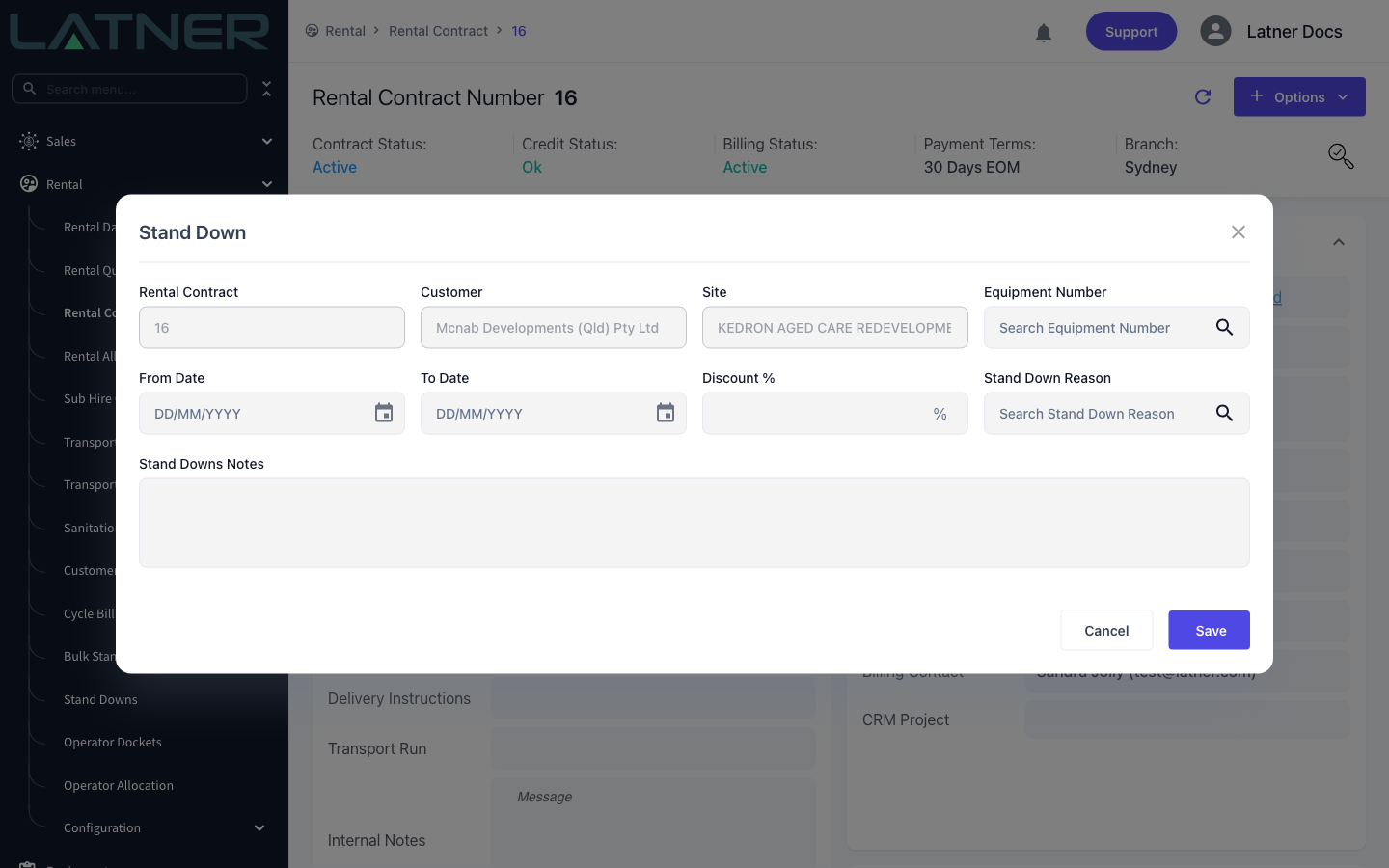
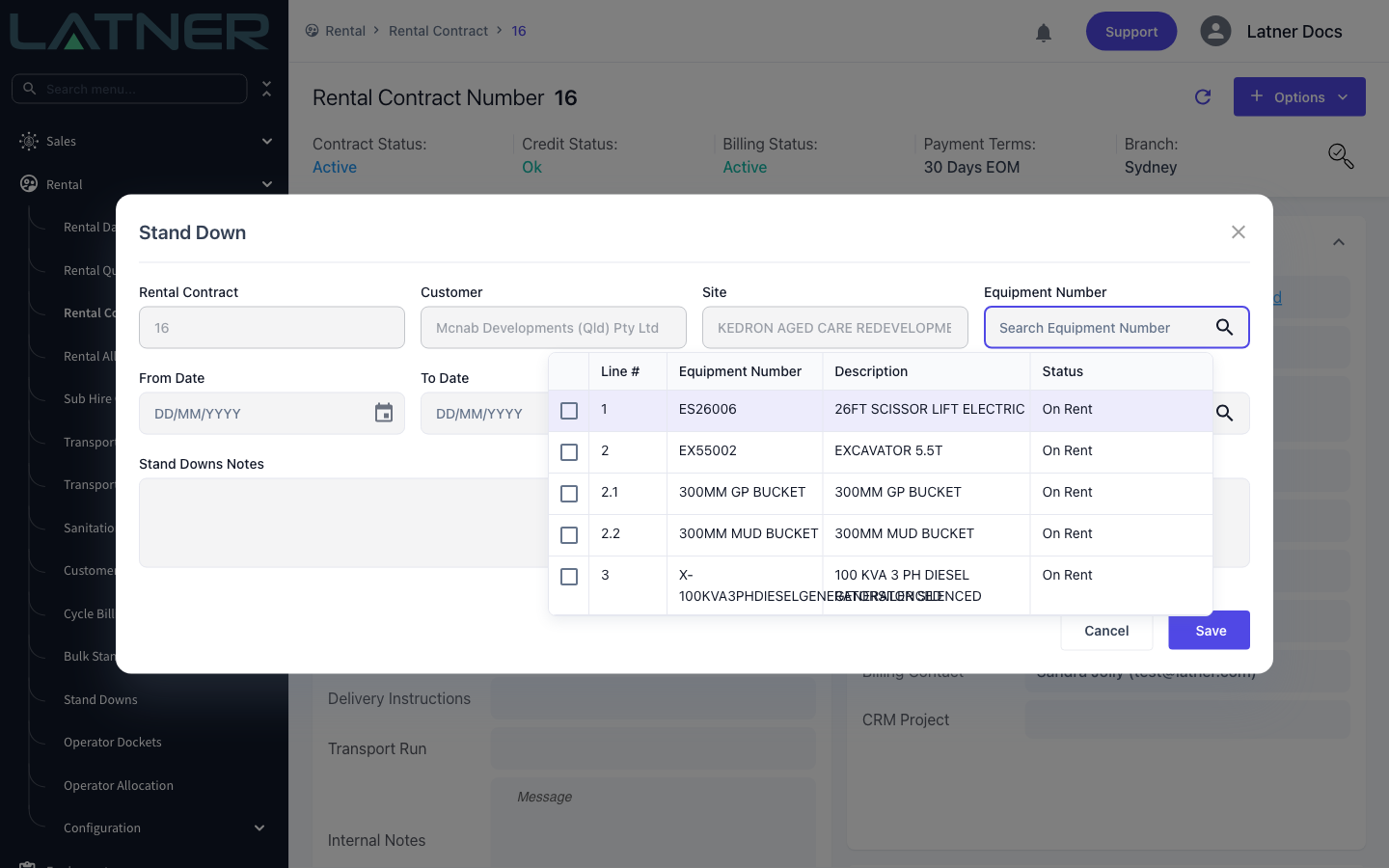
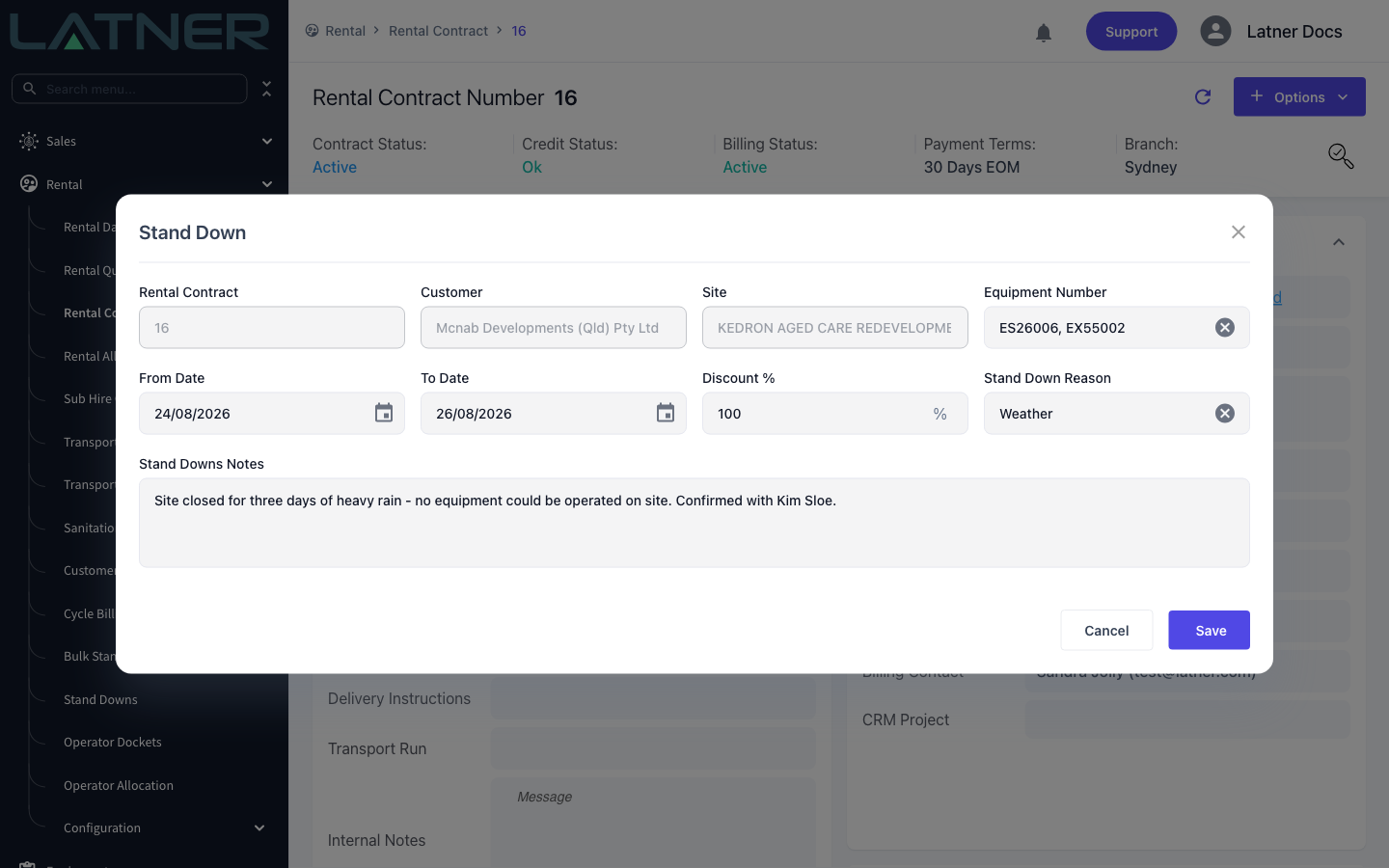
Rental Contract, Customer and Site are filled in from the contract and cannot be changed. Click Equipment Number and tick every line that was standing idle - it is a multi-select, so one Stand Down can cover several machines on the same contract.
The picker lists Line #, Equipment Number, Description and Status. It shows Equipment, Sub Hire Equipment and Package lines whose status is On Rent, Off Rent, Pending Pick Up, Pending Return or Returned - so you can still record a stand down for a machine that has since come back off the site.
Lines priced on a Flat Monthly rate are highlighted in the picker, and choosing one raises the message Stand Downs have no impact on invoicing for Flat Monthly Rate Type. You can still record the stand down so the history is there - it just will not change what gets billed.
Step 4 - Set the period, the discount and the reason
Every field below is required.
-
From Date - the first day the equipment stood idle.
-
To Date - the last day. It can be the same day as From Date, but not earlier, or you will get To Date must occur after From Date.
-
Discount % - how much of the rate to take off across those days. Enter 100 for days you are not charging at all.
-
Stand Down Reason - pick from your configured list.
-
Stand Downs Notes - the free-text explanation. This is what the customer sees if you email the stand down, so write it for them, not for yourself.
Step 5 - Save
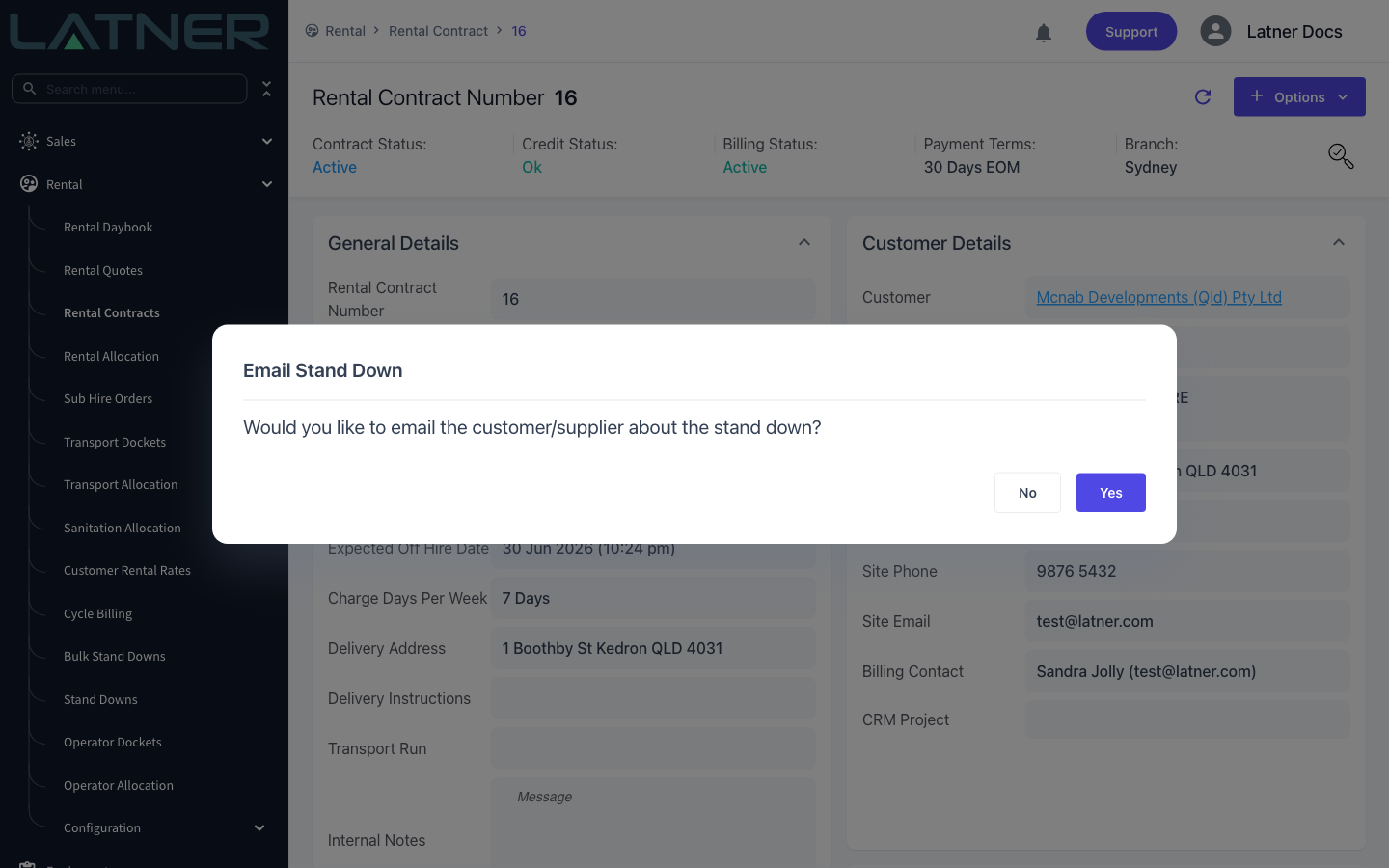
Click Save. Latner creates the Stand Down in Completed status and asks whether you want to let anyone know about it. Choose Yes to go straight to the new record with the email dialog open, or No to finish here - you can email it later from the Stand Down itself.
If the period you have chosen has already been invoiced, Latner stops and asks first: You are about to create a Stand Down that covers a period that is already Invoiced. An alternative approach would be to create a Manual Credit Note for the Stand Down day(s). Are you sure that you want to continue? Take the warning seriously. A credit note against the invoice you already sent is usually cleaner for the customer to follow than a discount buried in the next one.
After Creation
-
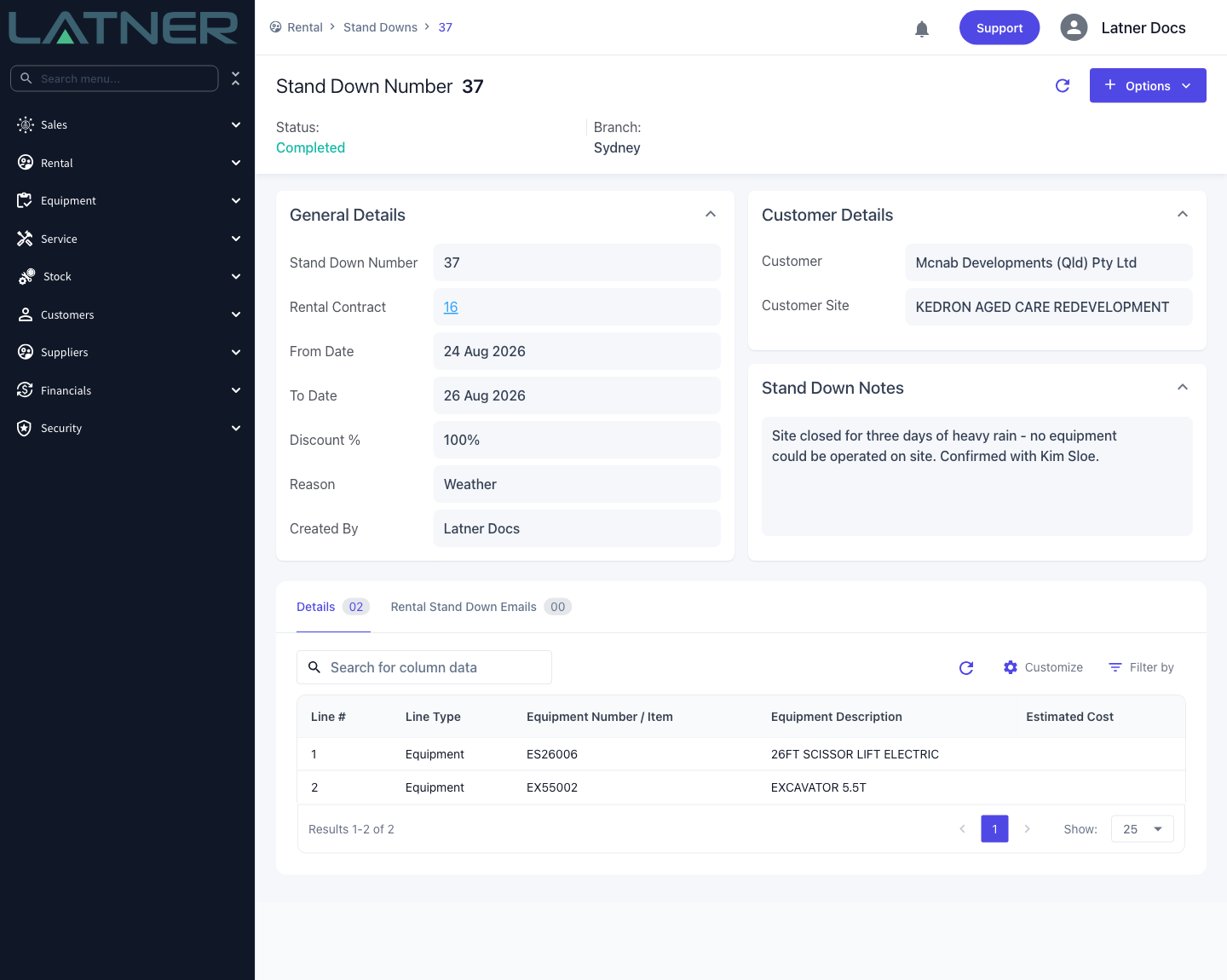
The Stand Down gets its own numbered record under Rental › Stand Downs, in Completed status.
-
Each piece of equipment you selected becomes a row on the Stand Down's Details tab.
-
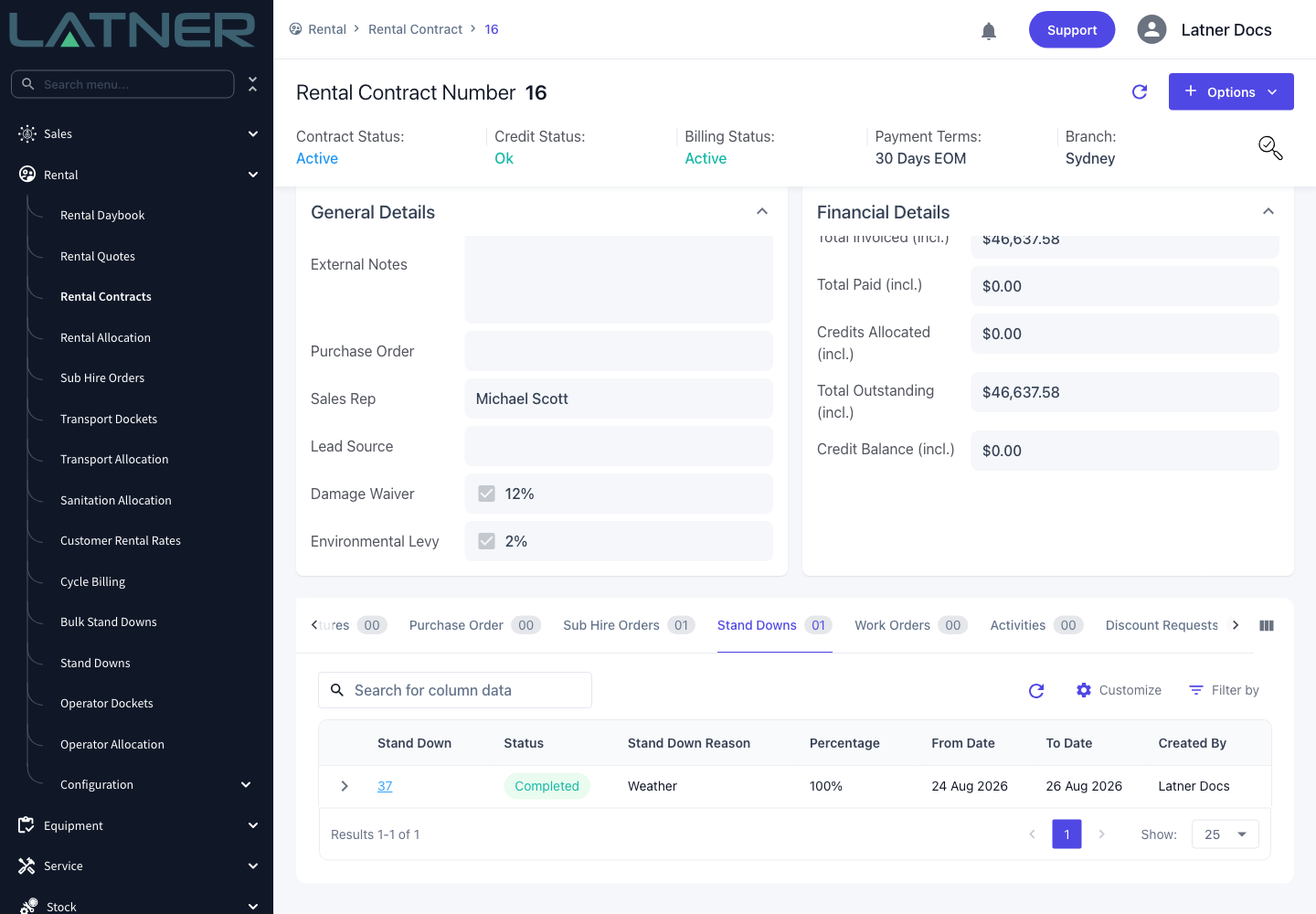
The Stand Down also appears on the contract's Stand Downs tab, with its reason, percentage and dates.
-
Estimated Cost on each detail row stays empty until the invoice covering those days is raised. Latner then fills it with the value that line actually gave back.
-
The next invoice for those lines bills fewer days - the stand down days multiplied by the discount are taken off the days on rent.
Two Completed Stand Downs cannot cover the same equipment line on overlapping dates - Latner rejects the second one with Stand Down dates cannot overlap with an existing Completed Stand Down. If the period really has changed, edit the existing Stand Down or cancel it rather than stacking a second one on top.
Emailing the Stand Down
On the Stand Down, choose Options › Email Stand Down. Pick Customer or Supplier as the Email Recipient - choosing Supplier also asks you which supplier - then Save to open the message. The recipient, subject and body are pre-filled from your branch's email settings under Security › Settings › Email, and you can edit any of it and attach files before sending.
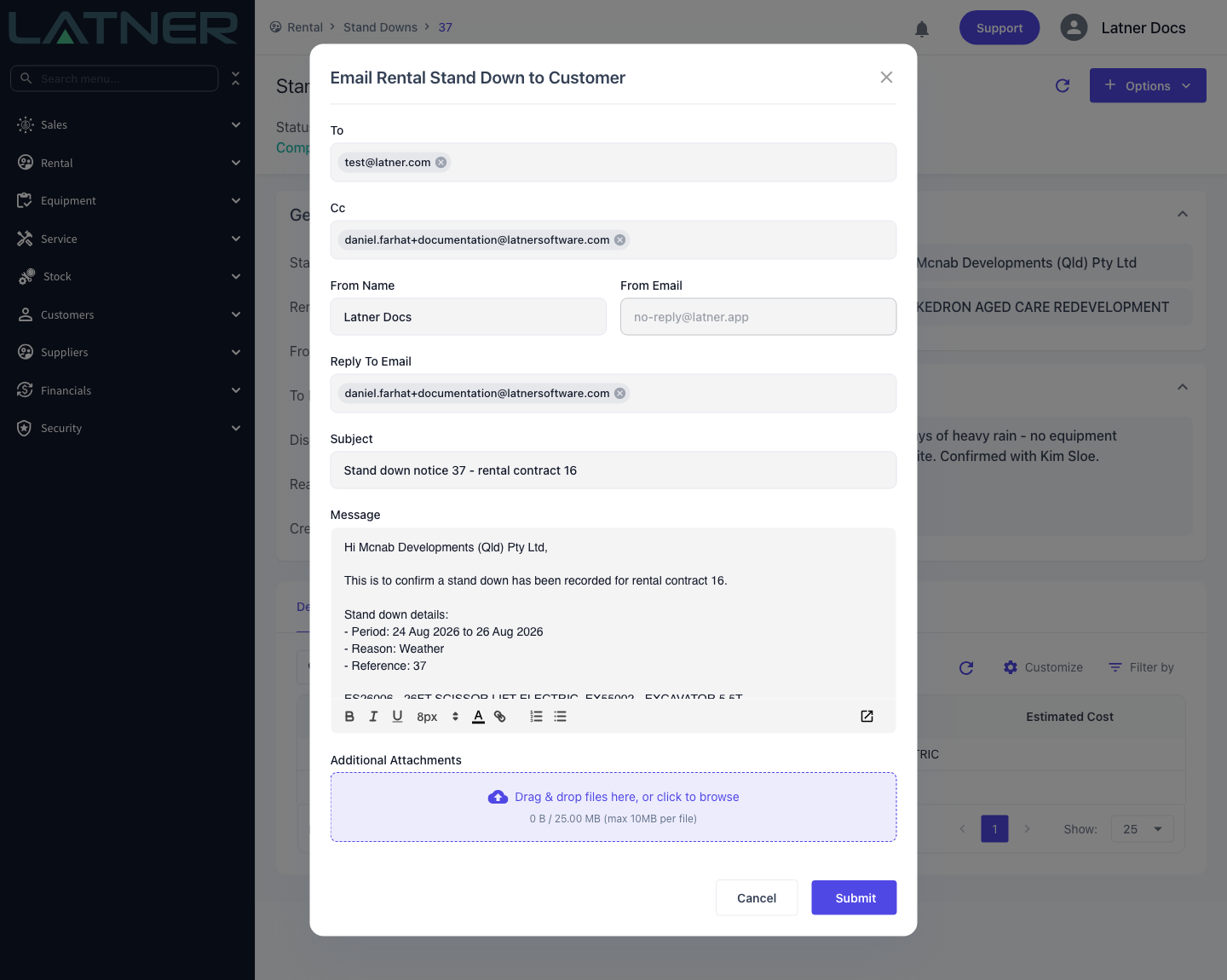
Sent messages are kept on the Rental Stand Down Emails tab of the Stand Down, so there is a record of who was told and when.
Editing or cancelling a Stand Down
From Date, To Date, Discount % and the notes can all be edited on the Stand Down record while the period is still uninvoiced. Once an invoice has covered it, Latner locks the fields that would change what was billed.
To reverse a Stand Down entirely, choose Options › Cancel Stand Down and confirm. The record moves to Cancelled and stops affecting billing; it is not deleted, so the history stays intact.
FAQs
Watch the Demo
Prefer to watch it? Step through the same flow here.