
A CRM Activity records an interaction - a call, meeting, site visit, note or follow-up - against a customer, prospect or lead, so your sales team can see the full history of contact and anything still due.
Overview
Every phone call, quote follow-up and site visit is worth capturing, and an Activity is how you do it in Latner.
-
Log a completed interaction or schedule an upcoming one against an Account or a Lead.
-
Choose an Activity Type - for example Phone Call, Site Visit or Follow Up Quote - that your team has configured.
-
Optionally link the activity to a Contact, Site, Opportunity, Sales Order, Rental Quote or Rental Contract for context.
-
Assign a Sales Rep so the activity shows up as their work, and tick Add to My Calendar to send yourself a calendar invite.
-
Completing an activity updates the Last Contacted date on the linked account, contact and site.
Before You Begin
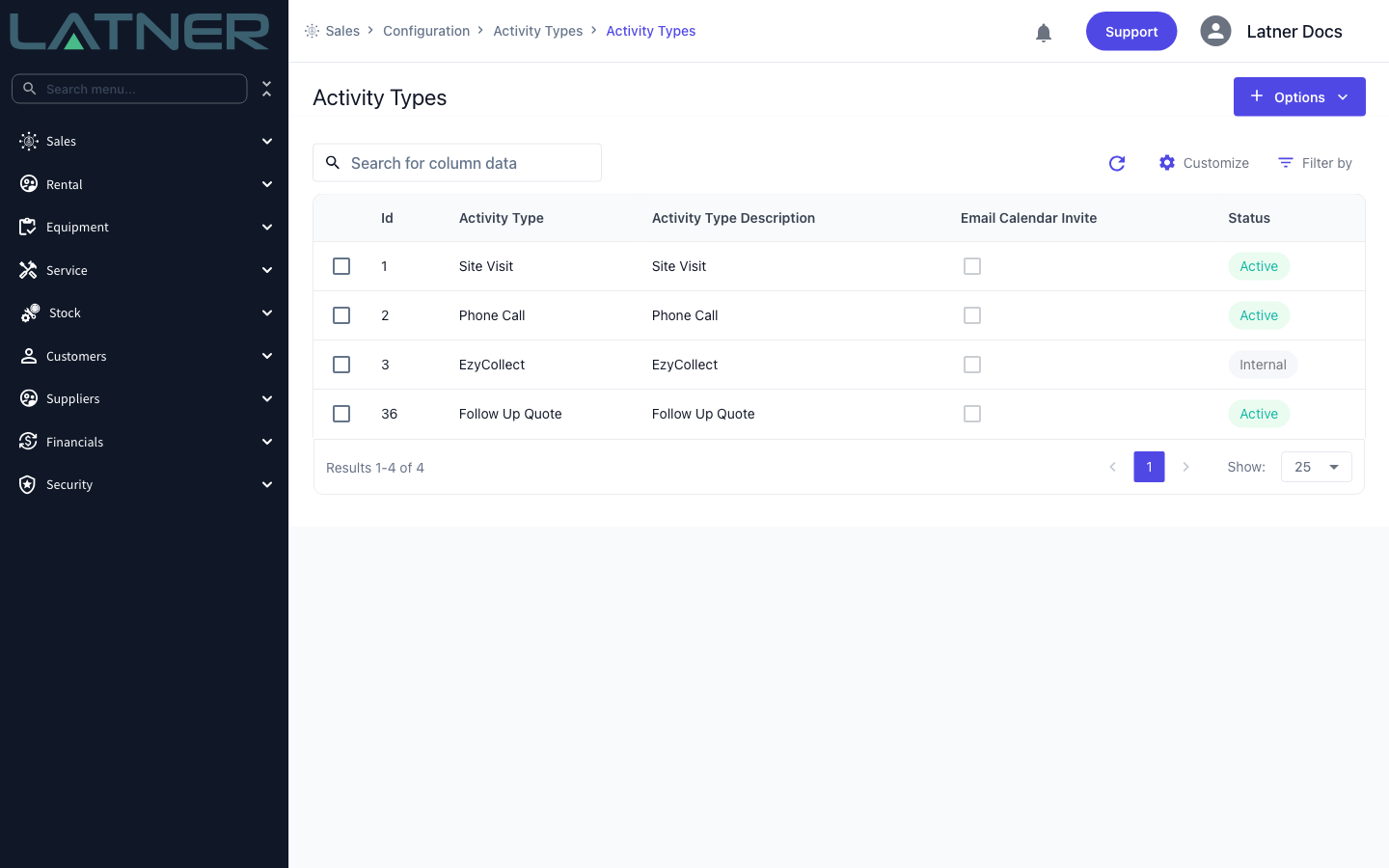
Creating an activity needs a couple of permissions and at least one activity type to choose from.
|
Requirement |
Where to Find It |
|---|---|
|
Create Activity permission |
Security › Configuration - the Create Activity permission under the Sales module |
|
Access to the CRM screen |
Security › Configuration - the CRM permission under the Sales module |
|
At least one active Activity Type |
Sales › Configuration › Activity Types |
Every activity must be linked to either an Account or a Lead. When you create one from the CRM screen you link it to an Account; creating it from a Lead links it to that lead instead. An activity with neither cannot be saved.
Creating the Activity
Step 1 - Open the CRM screen and start a new activity
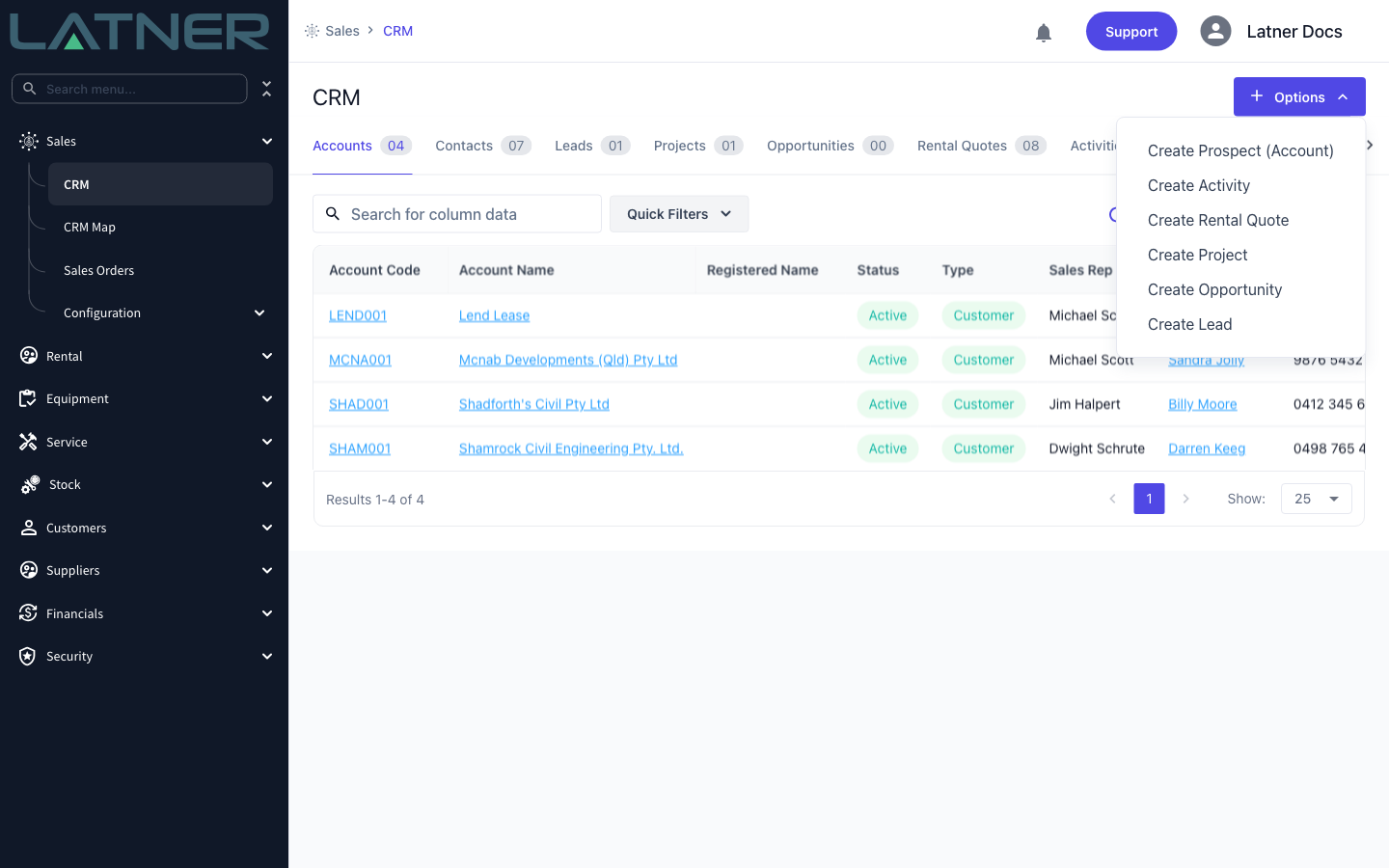
Go to Sales › CRM, select Options in the top right, then choose Create Activity.
Step 2 - Set the type, due date and owner
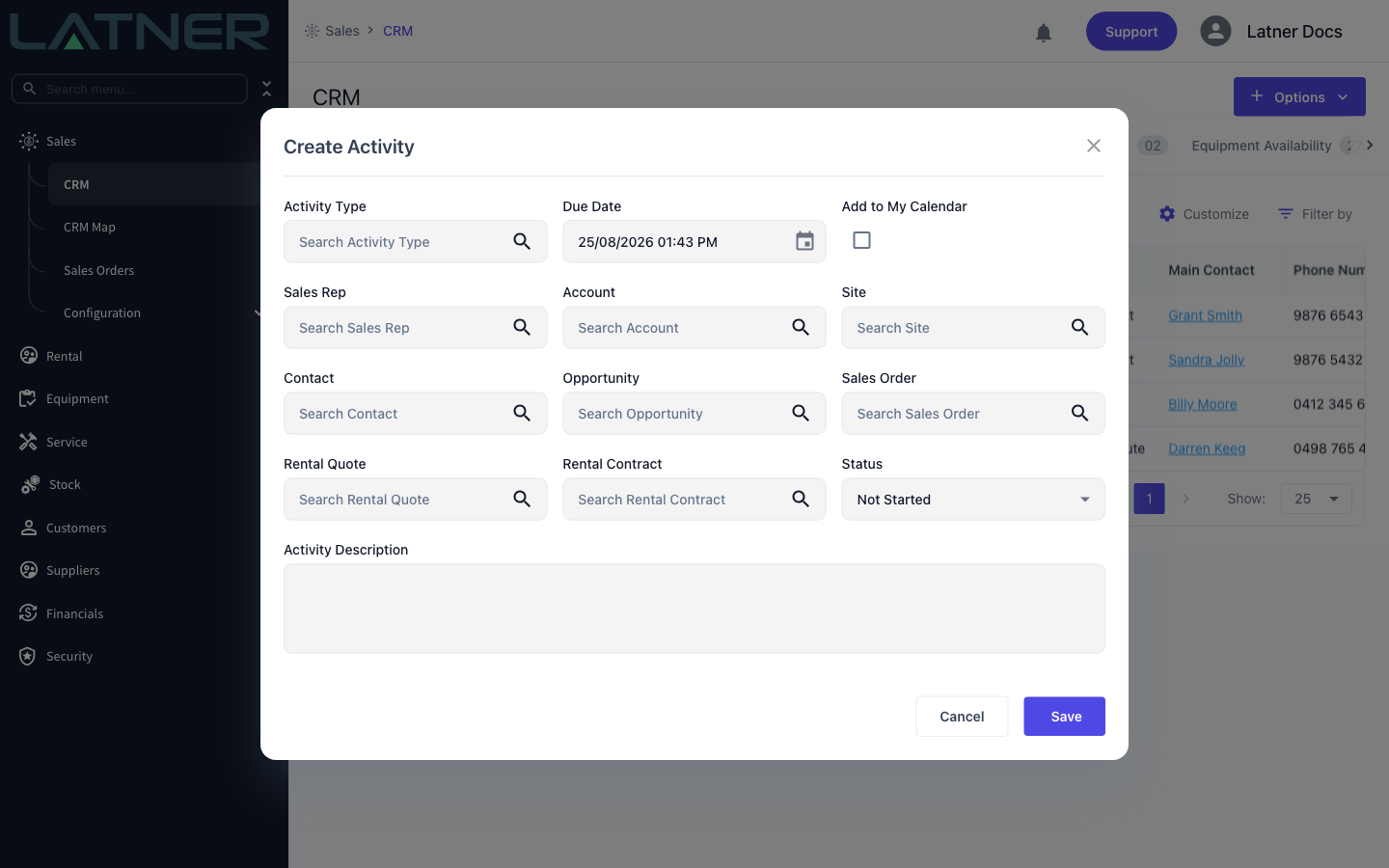
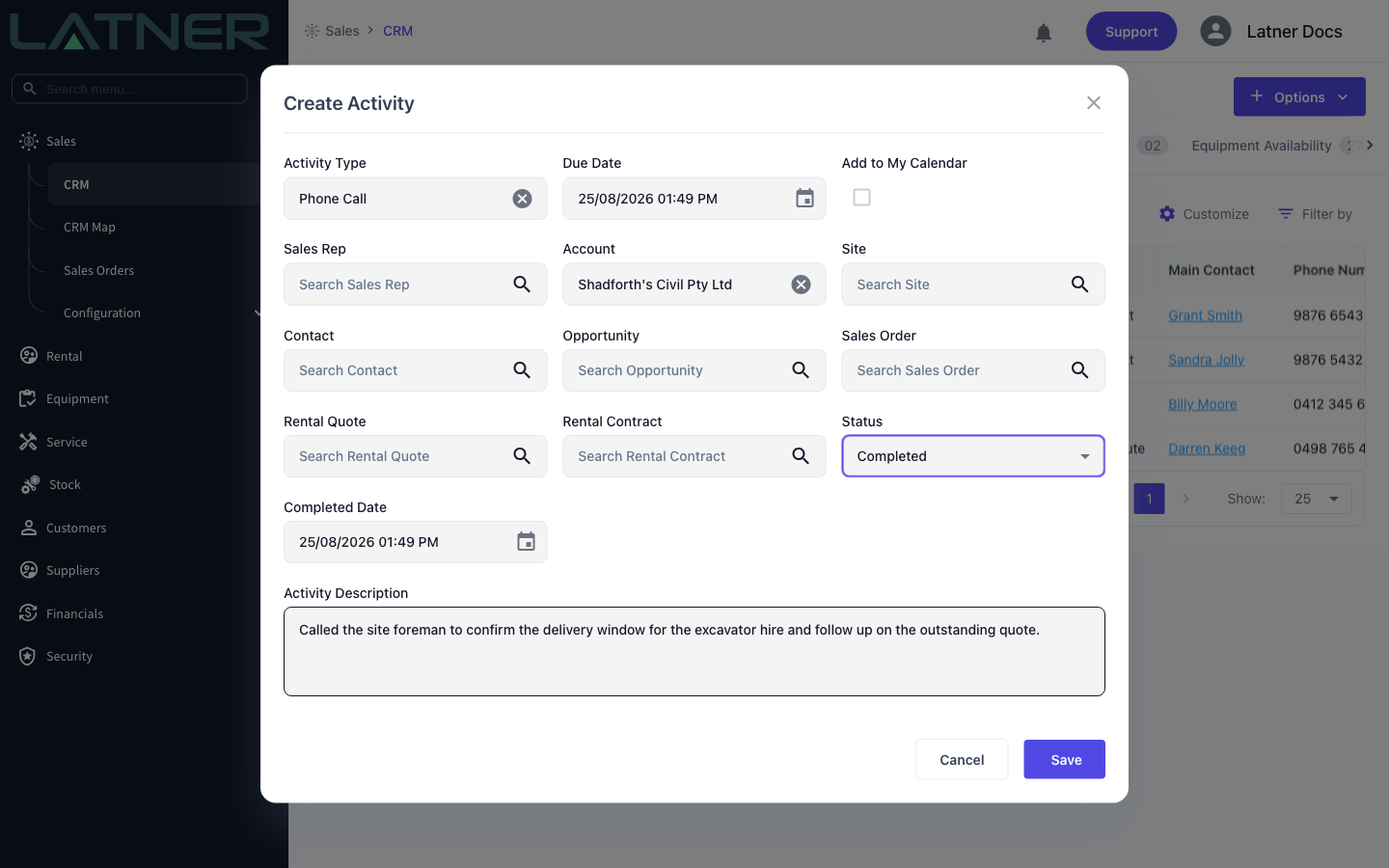
The Create Activity window opens. Start with the core details at the top:
-
Activity Type (required) - the kind of interaction. Only Active types appear in the list.
-
Due Date (required) - defaults to the current date and time; set it to when the activity is due, or when it happened.
-
Sales Rep - who owns the activity. This defaults to your own sales rep if you have one.
-
Add to My Calendar - tick to email the sales rep a calendar invite for the due date and time (a 30-minute event). It defaults to the Activity Type's own calendar setting and is unavailable once the status is Completed.
Step 3 - Link the activity to an account
Tell Latner who the activity is about, and optionally connect it to a related record:
-
Account (required) - the customer or prospect the activity relates to.
-
Site, Contact and Opportunity - optional, and filtered to the account you choose. Picking a Site, Contact or Opportunity fills in the Account for you.
-
Sales Order, Rental Quote and Rental Contract - optional links to related records for that account.
Step 4 - Set the status and description
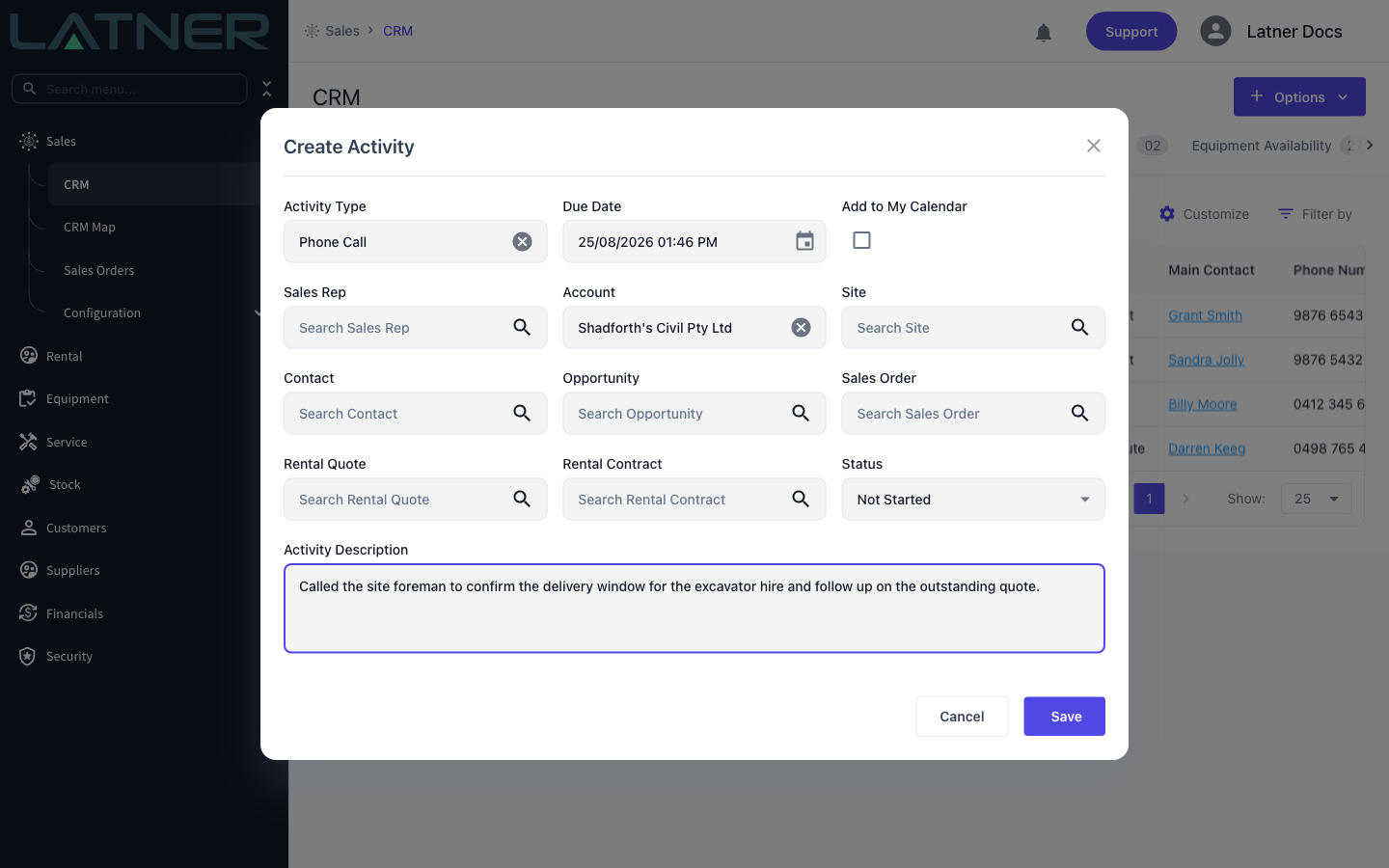
Finish with the status and a note of what happened or needs doing:
-
Status (required) - Not Started, In Progress or Completed. New activities default to Not Started.
-
Completed Date - appears only when the status is Completed, and defaults to the current date and time.
-
Activity Description (required) - what was discussed, or what still needs to be done.
Step 5 - Save
Select Save to create the activity. Latner then asks whether you'd like to create another - choose No to finish, or Yes to log a second activity against the same account. A confirmation message links straight to the new activity.
After Creation
-
The activity appears on the Activities tab of the CRM screen, and on the detail page of any record you linked it to.
-
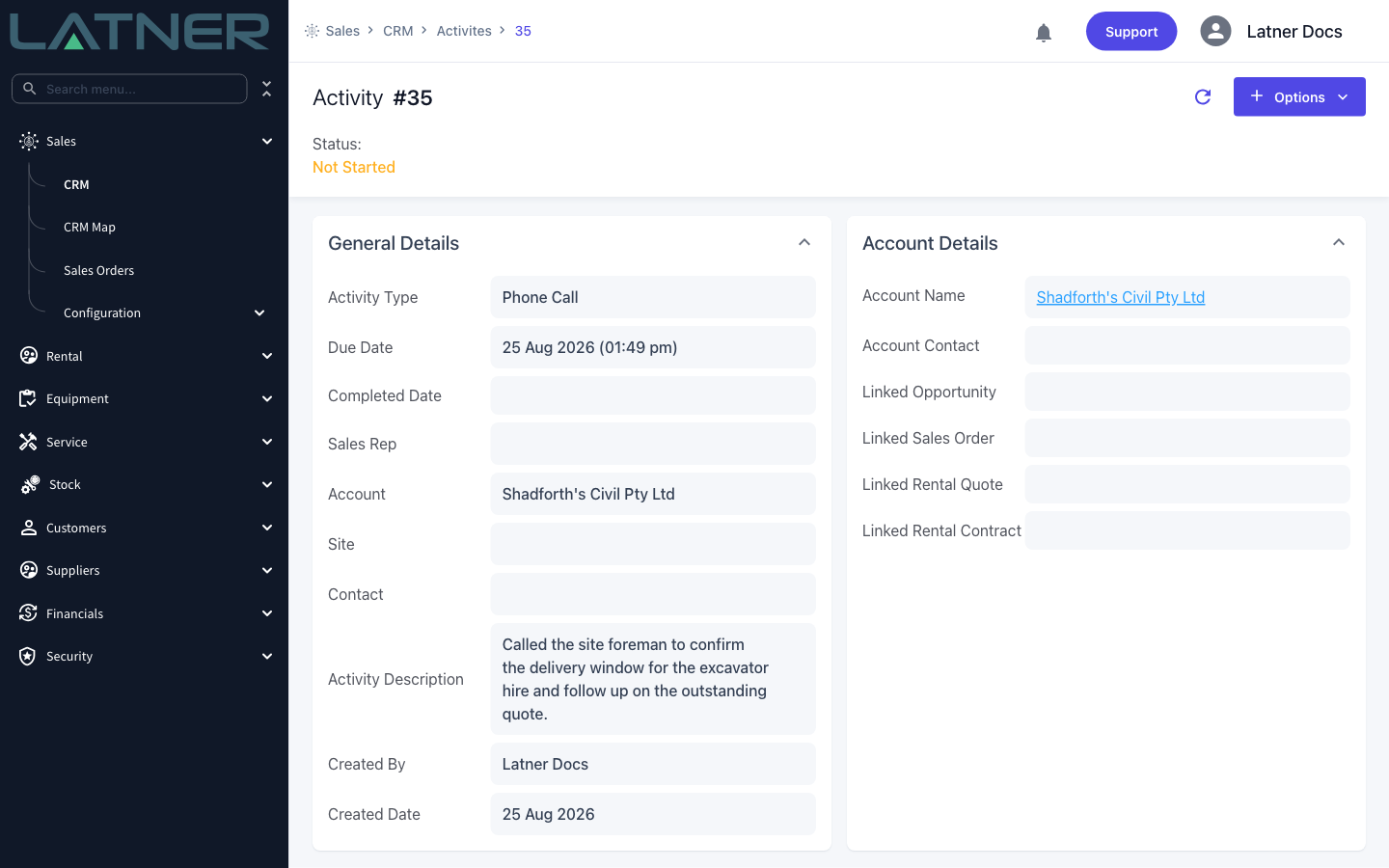
Open it to see its General Details and Account Details, including who created it and when.
-
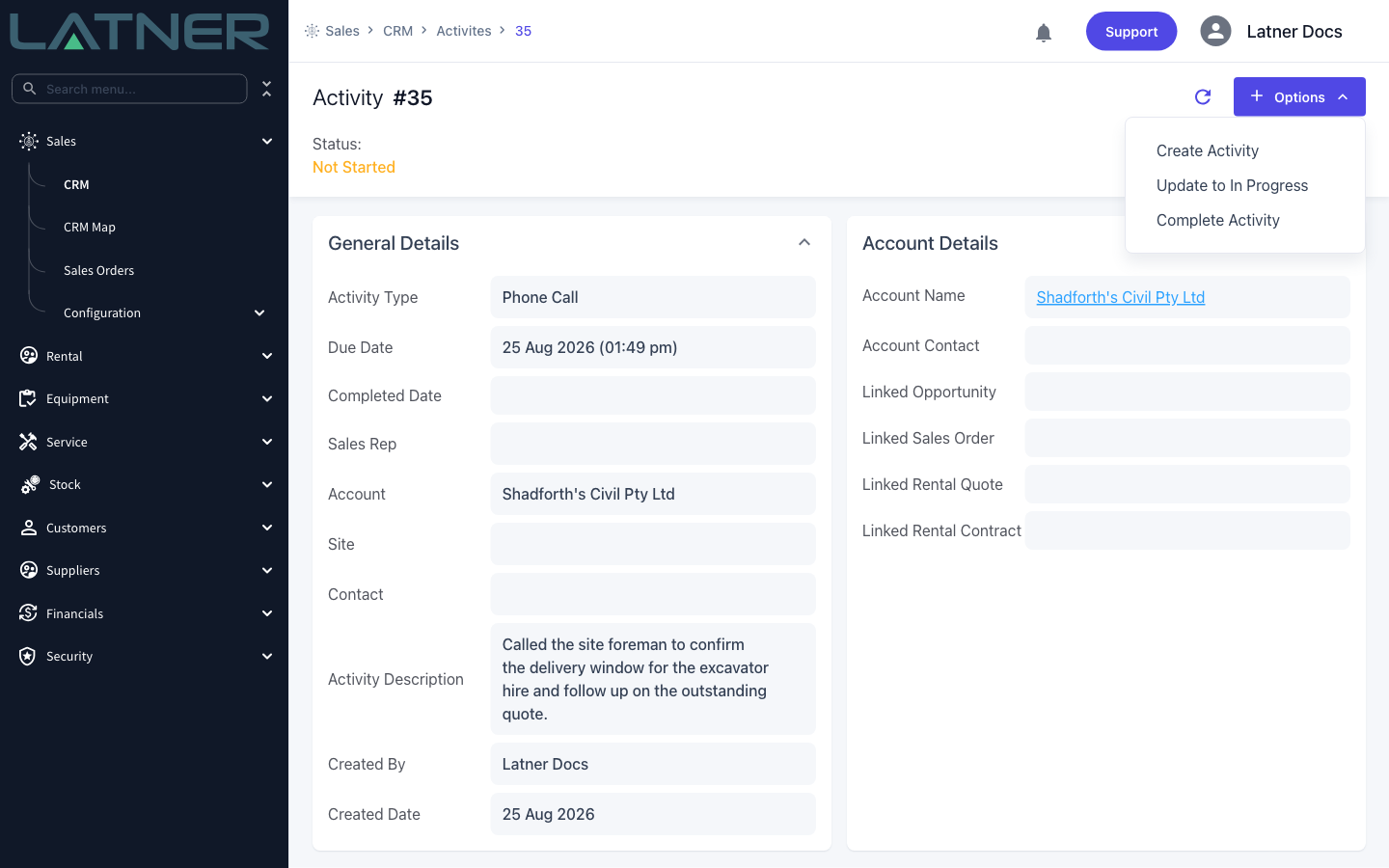
From the activity's Options menu you can move it between statuses (Update to In Progress, Update to Not Started) or choose Complete Activity.
-
Completing an activity stamps the Completed Date and updates the Last Contacted date on the linked account, contact and site whenever this activity is the most recent contact.
-
If Add to My Calendar was ticked and the activity isn't already completed, the assigned Sales Rep receives an email calendar invite.
Activities can't be deleted - they stay as a permanent record of contact. If one was logged in error, update its details or change its status rather than removing it.