
Converting a prospect into a customer turns a CRM account you have been chasing into a trading account, so your team can raise rental contracts and invoices against it.
Overview
Every account in Latner's CRM starts life as a prospect. That is deliberate - you can quote, log activities and track opportunities against a prospect without it ever touching your accounts receivable. Converting is the moment you decide the relationship is real.
-
One record, two faces. A prospect and a customer are the same underlying account. Converting flips its Type from Prospect to Customer; nothing is copied, re-keyed or re-created.
-
Conversion is a two-part flow. Converting sets the account's status to Pending Approval. Someone then has to approve it before it becomes Active.
-
Prospects can be quoted, but not contracted. You can raise a rental quote against a prospect. Converting that quote into a rental contract is blocked until the account is a customer and Active.
-
Conversion is one-way. There is no option to turn a customer back into a prospect, and an account can only be converted once.
-
It can be done from either screen. Convert to Customer appears on the CRM Account screen and on the Customer screen - both run the same action.
Before You Begin
Conversion needs no system settings, but it does need the right permissions and a prospect to convert.
|
Requirement |
Where to Find It |
|---|---|
|
Convert To Customer permission |
Security › Configuration › Permission Groups › your group › Sales › Option |
|
CRM screen permission |
Security › Configuration › Permission Groups › your group › Sales › Screen |
|
Edit Customer and Create Customer (or their Cash (COD) equivalents), for the approval step |
Security › Configuration › Permission Groups › your group › Customers › Option |
|
An existing prospect account |
Sales › CRM › Accounts, or Options › Create Prospect (Account) |
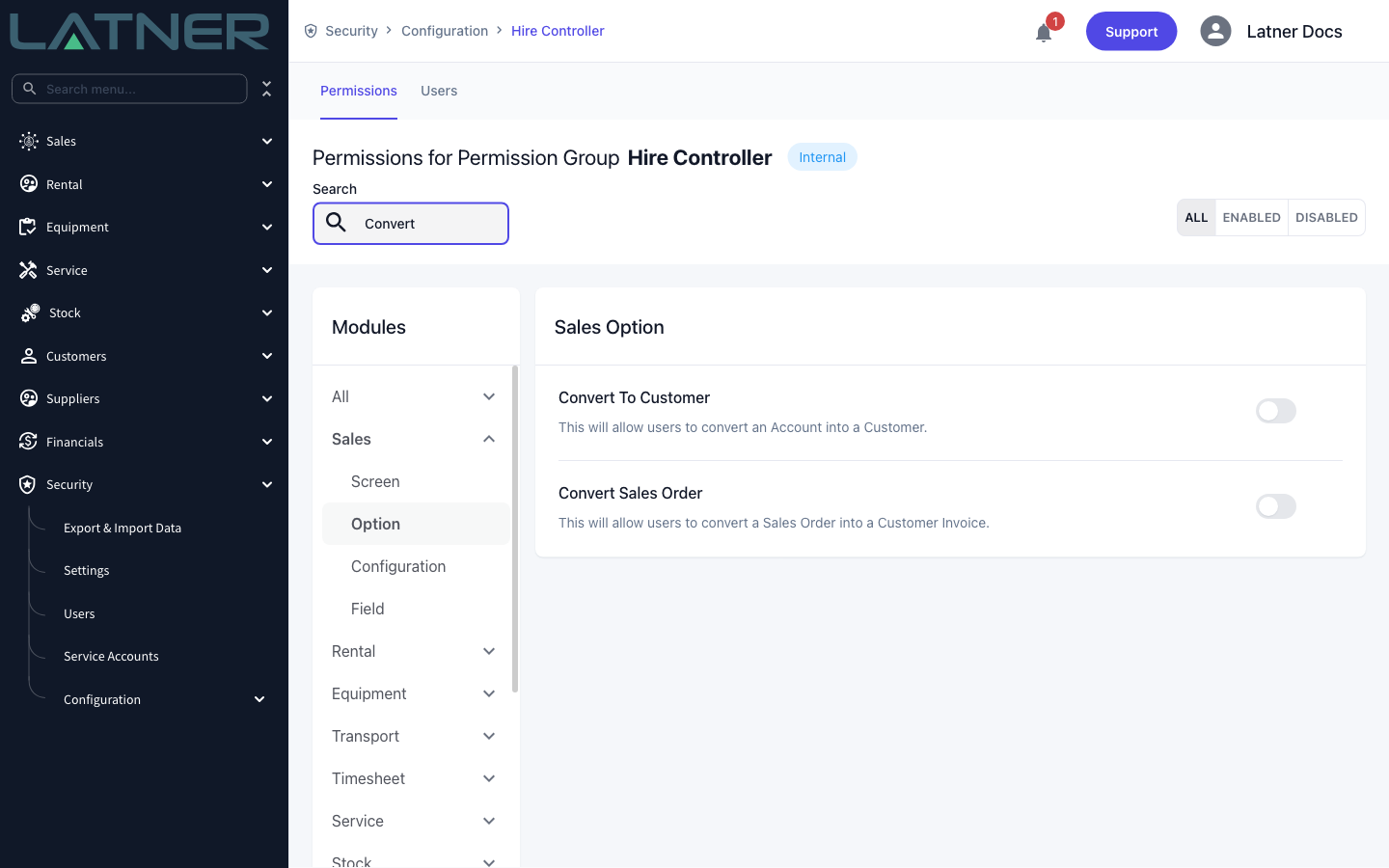
The person who converts the account and the person who approves it do not have to be the same. Converting only needs Convert To Customer; approving needs the customer permissions. That split is what lets a sales rep hand a new account to accounts receivable for a credit check.
Converting the Prospect
Step 1 - Find the prospect
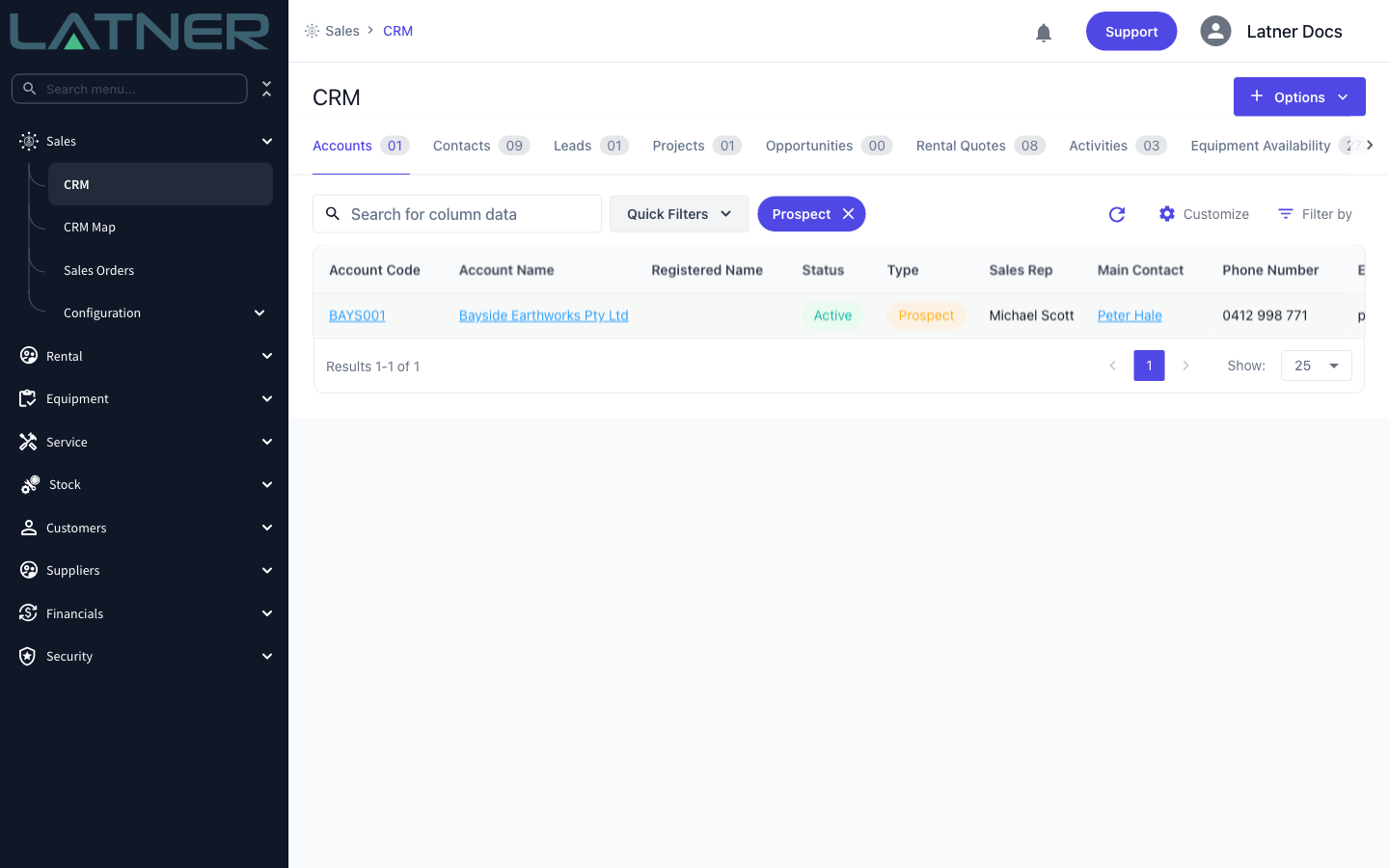
Go to Sales › CRM and stay on the Accounts tab. Open Quick Filters and choose Prospect to narrow the list to accounts that have not been converted yet.
Step 2 - Open the account
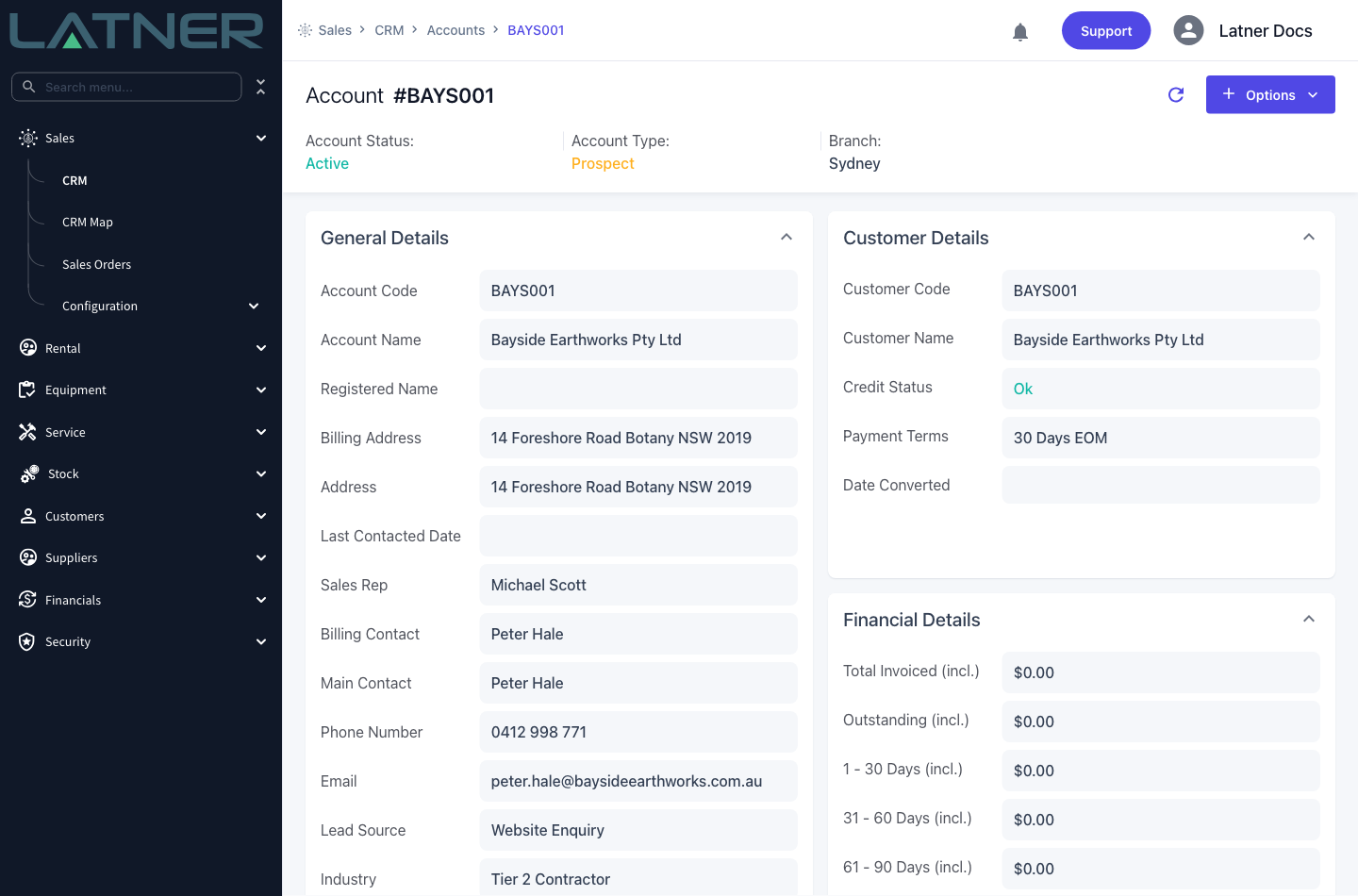
Double-click the row to open the account. Check the header before you go further: Account Type reads Prospect and the Date Converted field in the Customer Details card is empty.
This is also the moment to make sure the account is worth converting. Confirm at least the following, because some of them are harder to change afterwards:
-
Account Name - the trading name that will appear on contracts and invoices.
-
Billing Address and Billing Contact - once the account is a customer, these can only be changed from the Customer screen.
-
Branch - drives who is notified that the new customer needs approving.
-
Sales Rep - carried through to the customer record and to reporting on revenue by sales rep.
Step 3 - Convert to Customer
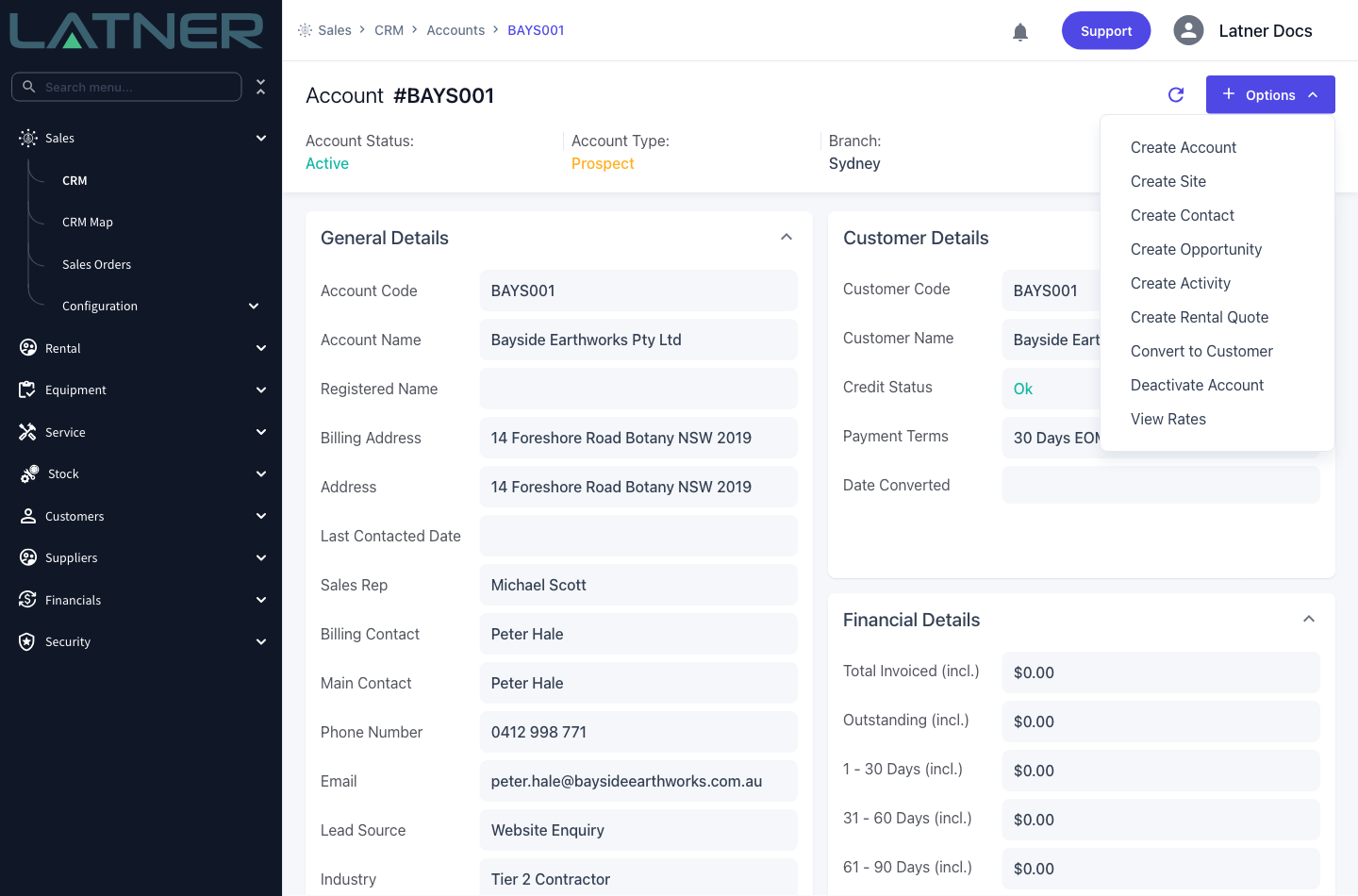
Choose Options › Convert to Customer. There is no confirmation dialog and nothing to fill in - the account is converted as soon as you click.
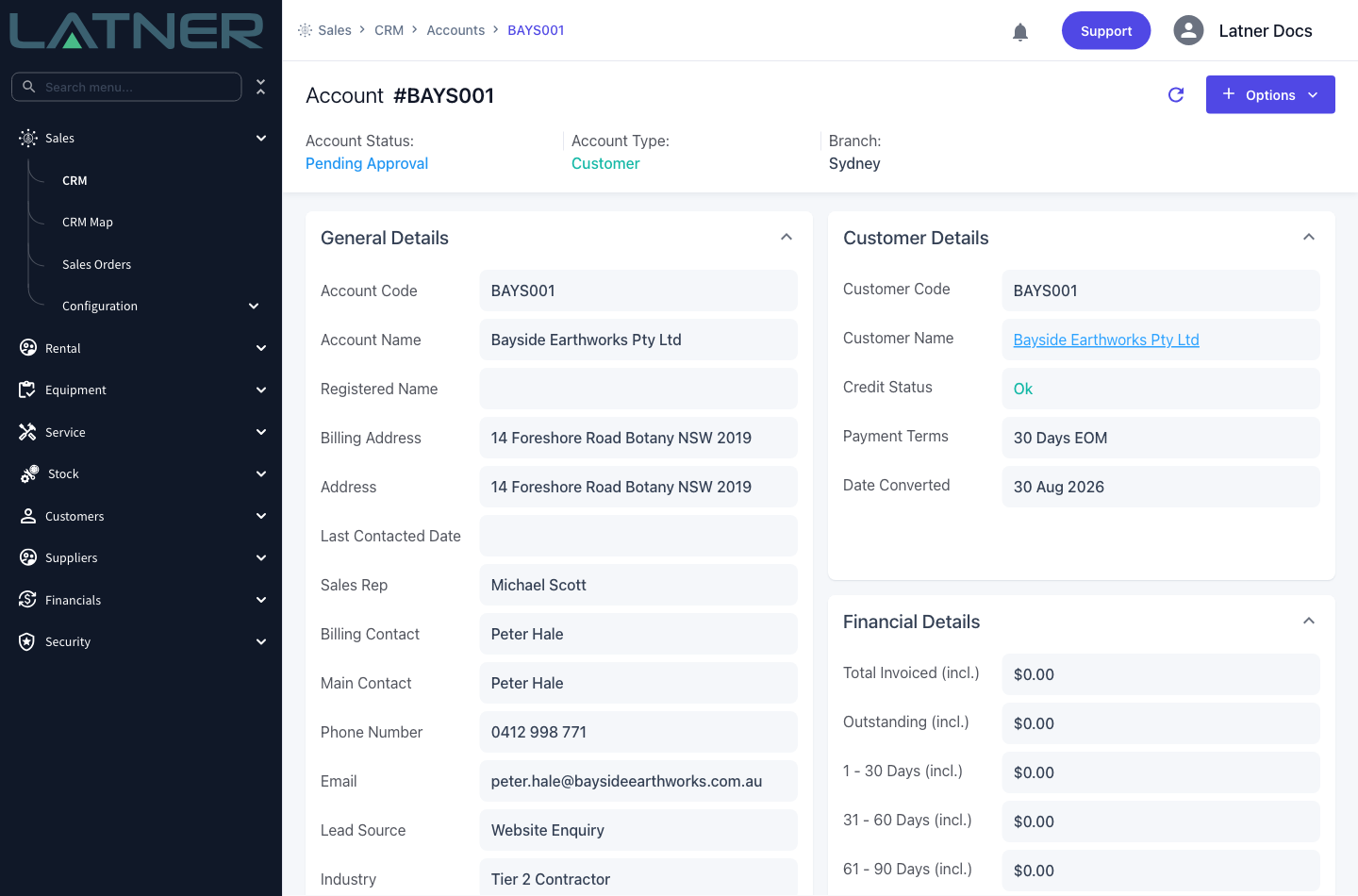
Step 4 - Check the converted account
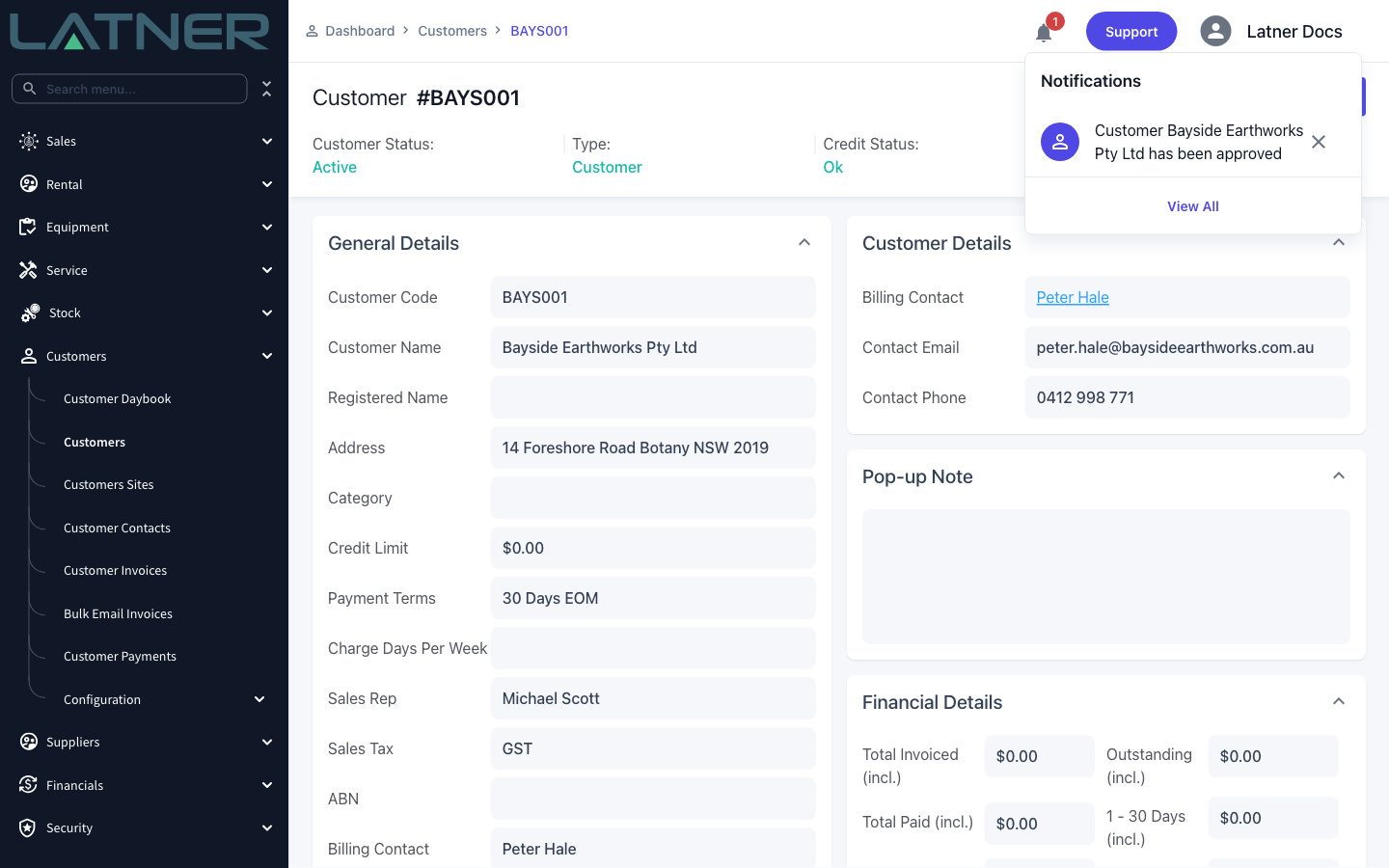
The screen refreshes with three changes: Account Type is now Customer, Account Status is Pending Approval, and Date Converted is stamped with today's date. The Customer Name in the Customer Details card becomes a link through to the customer record.
Step 5 - Open the customer record
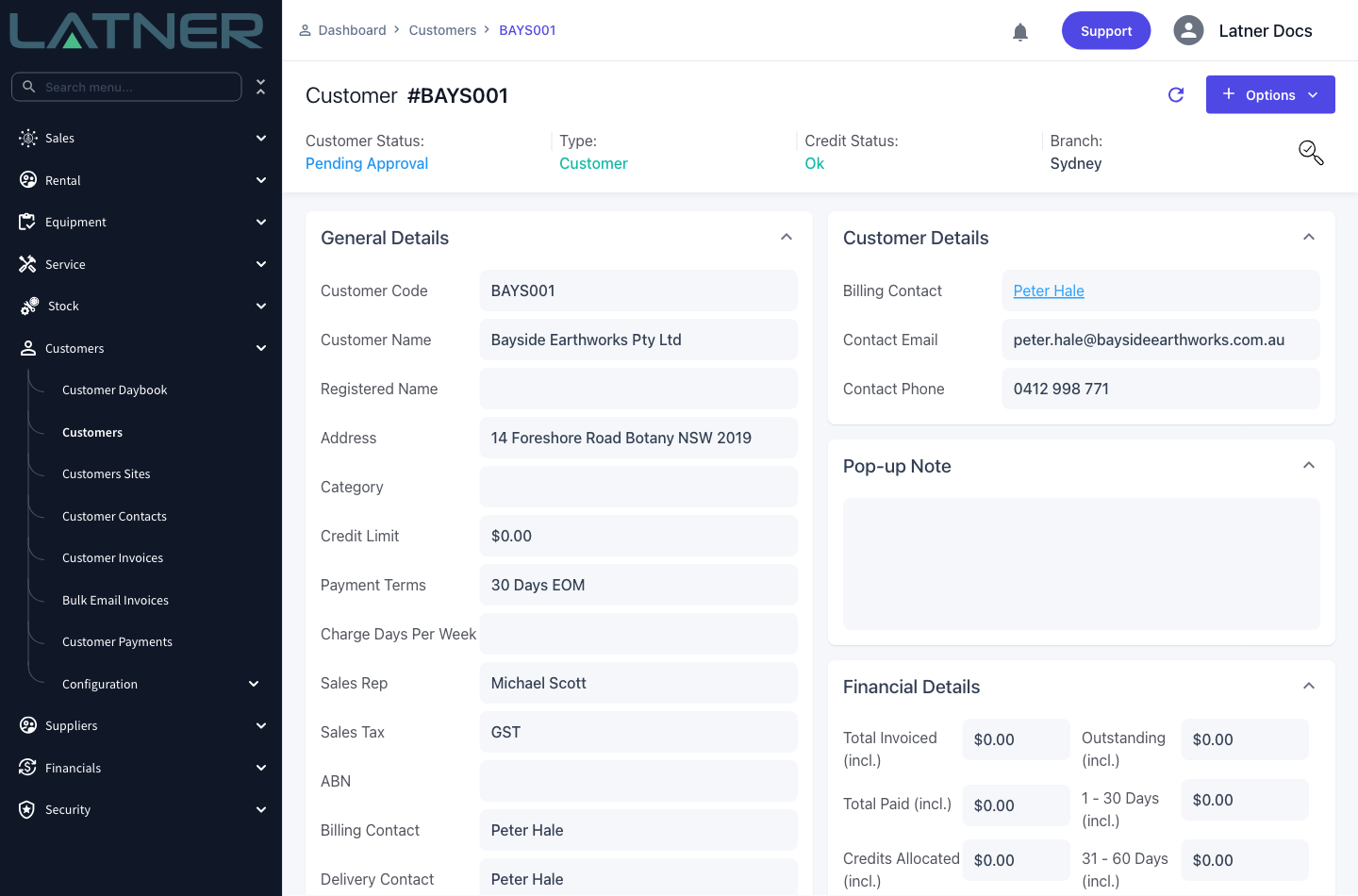
Click the Customer Name link, or go to Customers › Customers and search for the account. The customer screen carries everything the account had, plus the trading fields a prospect never needed: Credit Limit, Payment Terms, Damage Waiver, Purchase Order Required and the Pop-up Note.
Fill these in now if they are not right. Payment terms default from the Default Payment Term setting when the account was created, not from anything you chose during conversion.
Step 6 - Approve the customer
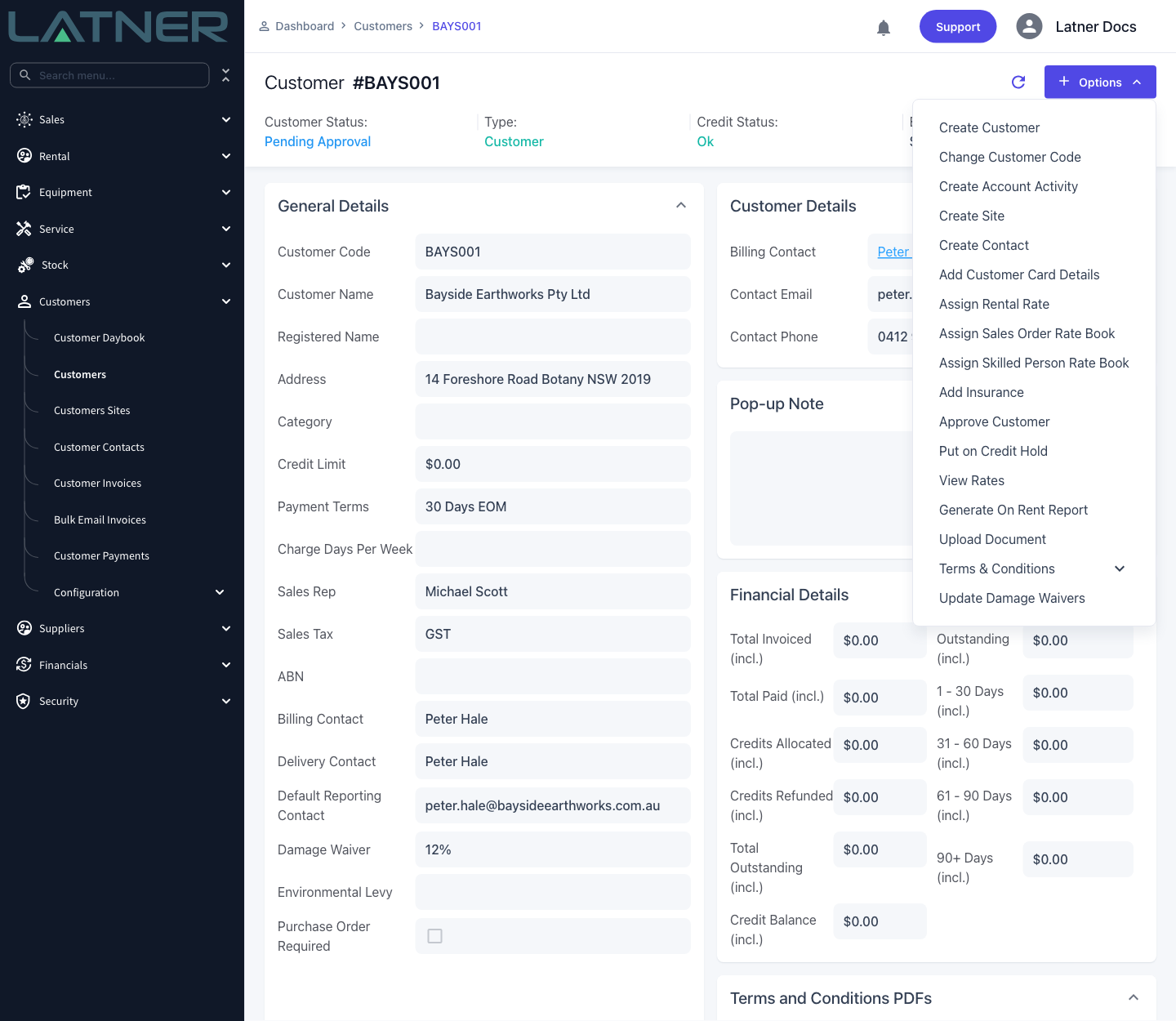
Choose Options › Approve Customer. The option only appears while the customer is Pending Approval, and it disappears again once approved.
Step 7 - Confirm the customer is Active
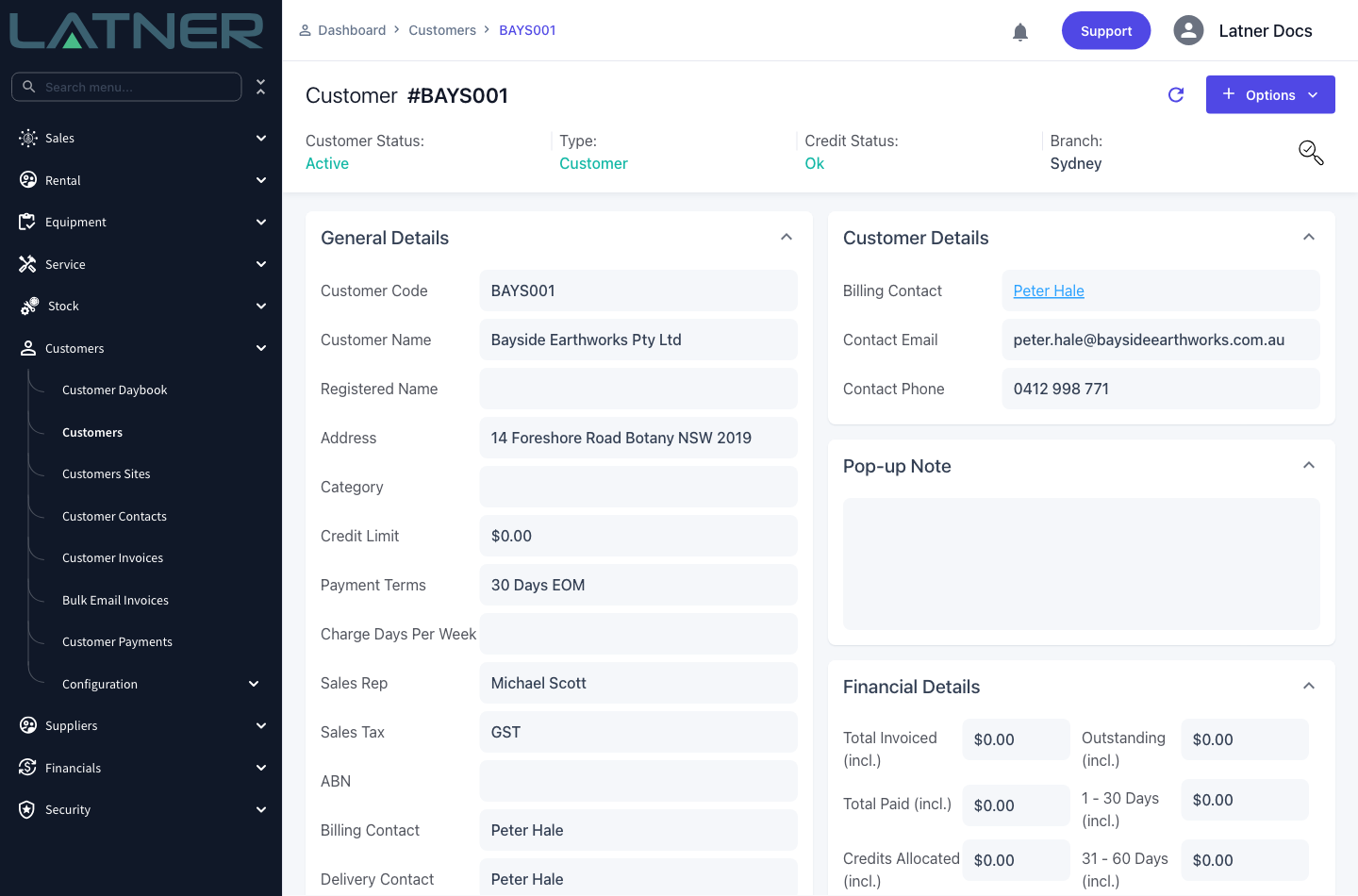
Customer Status changes to Active. The account can now be used everywhere a customer can: rental contracts, sales orders, invoices and credit notes.
After Conversion
-
The account keeps its code, its contacts, its sites, its activities and its quotes. Nothing is duplicated.
-
It drops off the Prospect quick filter on Sales › CRM › Accounts and appears under the Customer filter instead, as well as in Customers › Customers.
-
Latner raises a Customer Pending Approval notification against the account's branch the moment it is converted, and a Customer Approved notification to the person who converted it and to the account's sales rep once it is approved.
-
Date Converted and the converting user are recorded on the account, so the conversion is auditable.
-
Rental quotes already raised against the prospect stay where they are and can now be converted into rental contracts.
Conversion cannot be undone. There is no option to turn a customer back into a prospect, and a second attempt is rejected with "You cannot convert an Account more than once". If an account was converted by mistake, deactivate it from the Customer screen rather than trying to reverse the conversion.
FAQs
Watch the Demo
Prefer to watch it? Step through the same flow here.