Cancelling a Rental Contract closes it off before the hire runs its course, releases the equipment you had committed to the job, and records why the work did not go ahead.
Overview
Not every booking turns into a hire. The customer's site gets delayed, a competitor wins on price, or the job is simply called off. Cancelling the contract in Latner tidies up everything the booking was holding and keeps the reason on the record, so the lost work is visible instead of silently disappearing.
You can only cancel a Rental Contract while it is Reserved or Active.
Every cancellation needs a Reason and a Note. Both are mandatory.
The reason's Type decides the contract's final status: a Cancellation reason leaves the contract Cancelled, a Lost reason leaves it Lost.
All detail lines are set to Cancelled. Reserved equipment is released back to the fleet and allocated stock is unallocated.
Open inspections and linked sub hire order lines are cancelled along with the contract. Open transport dockets are too, unless a docket has already moved equipment into Pending Delivery or Pending Collection - cancel that docket first.
Cancelling is final. A Cancelled or Lost contract cannot be reopened.
Before You Begin
A few things need to be in place before anyone can cancel a contract.
The Contract Status shown at the top of the Rental Contract
Every invoice on the contract paid, or credited with the credit allocated
Financial Details on the Rental Contract, or the Invoices tab
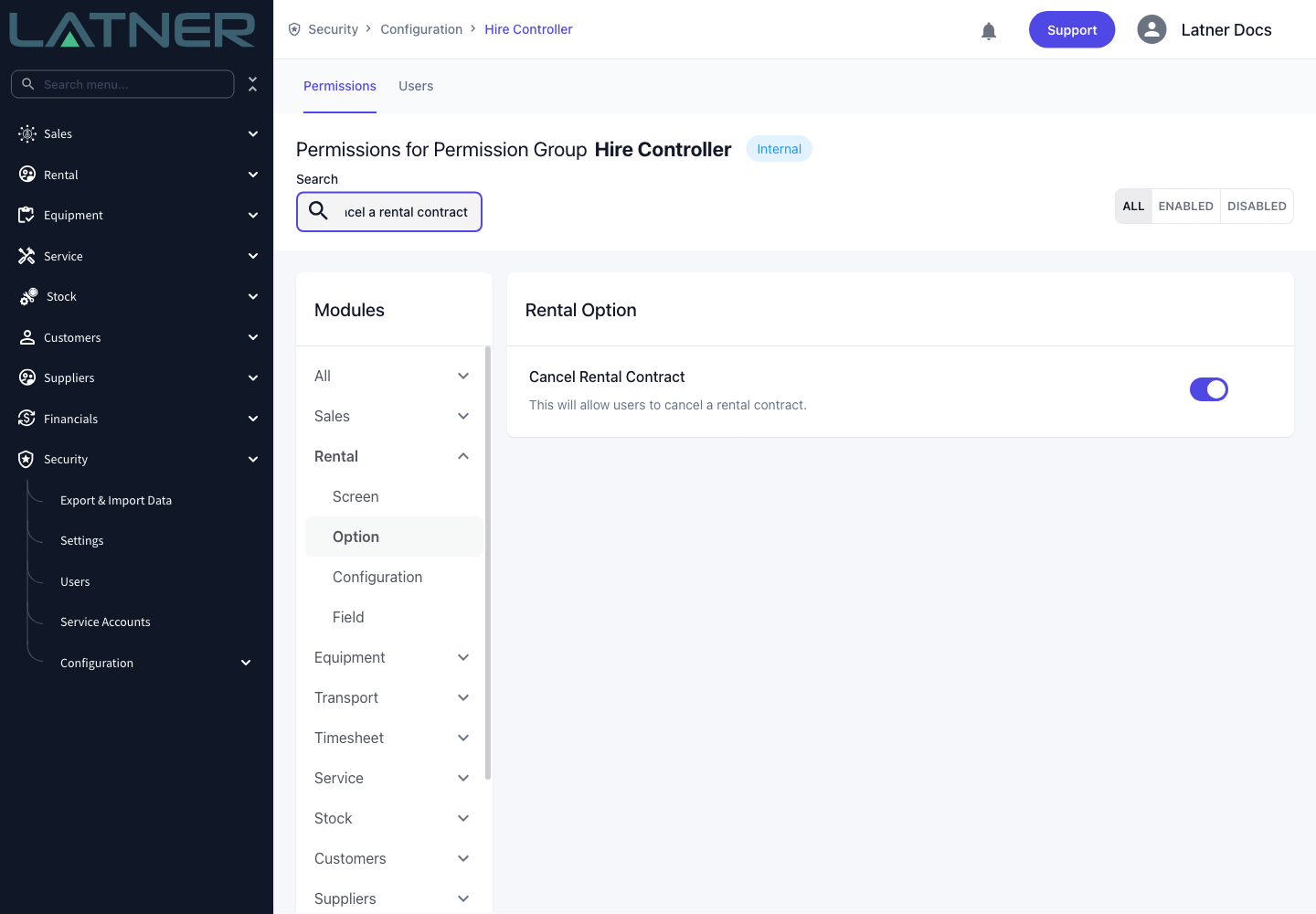
The Cancel Rental Contract permission sits under Rental › Option in a permission group. Without it, the option does not appear in the contract's Options menu
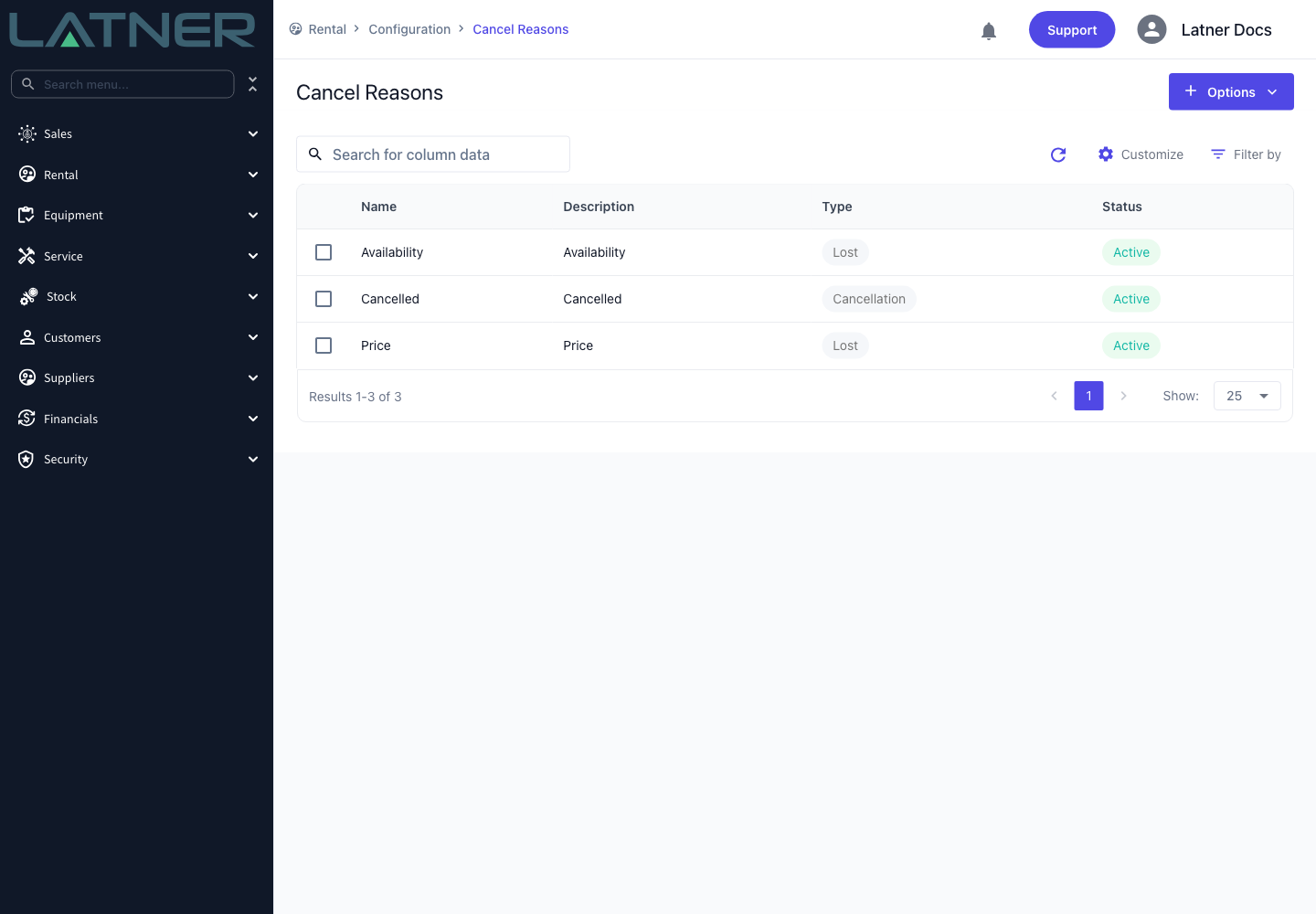
Cancel Reasons are maintained under Rental › Configuration › Cancel Reasons. Each reason carries a Name, a Description, a Type of Cancellation or Lost, and a Status. Only reasons with a status of Active can be picked when you cancel.
The Cancel Reasons configuration screen - the Type column is what drives the contract's final status, so it is worth getting right
Use Cancellation for work that was booked and then called off, and Lost for work you never won, such as a competitor beating you on price or availability. The two types split cleanly in reporting, so a reason with the wrong type quietly distorts your lost-business numbers.
Cancelling the Rental Contract
Step 1 - Open the Rental Contract
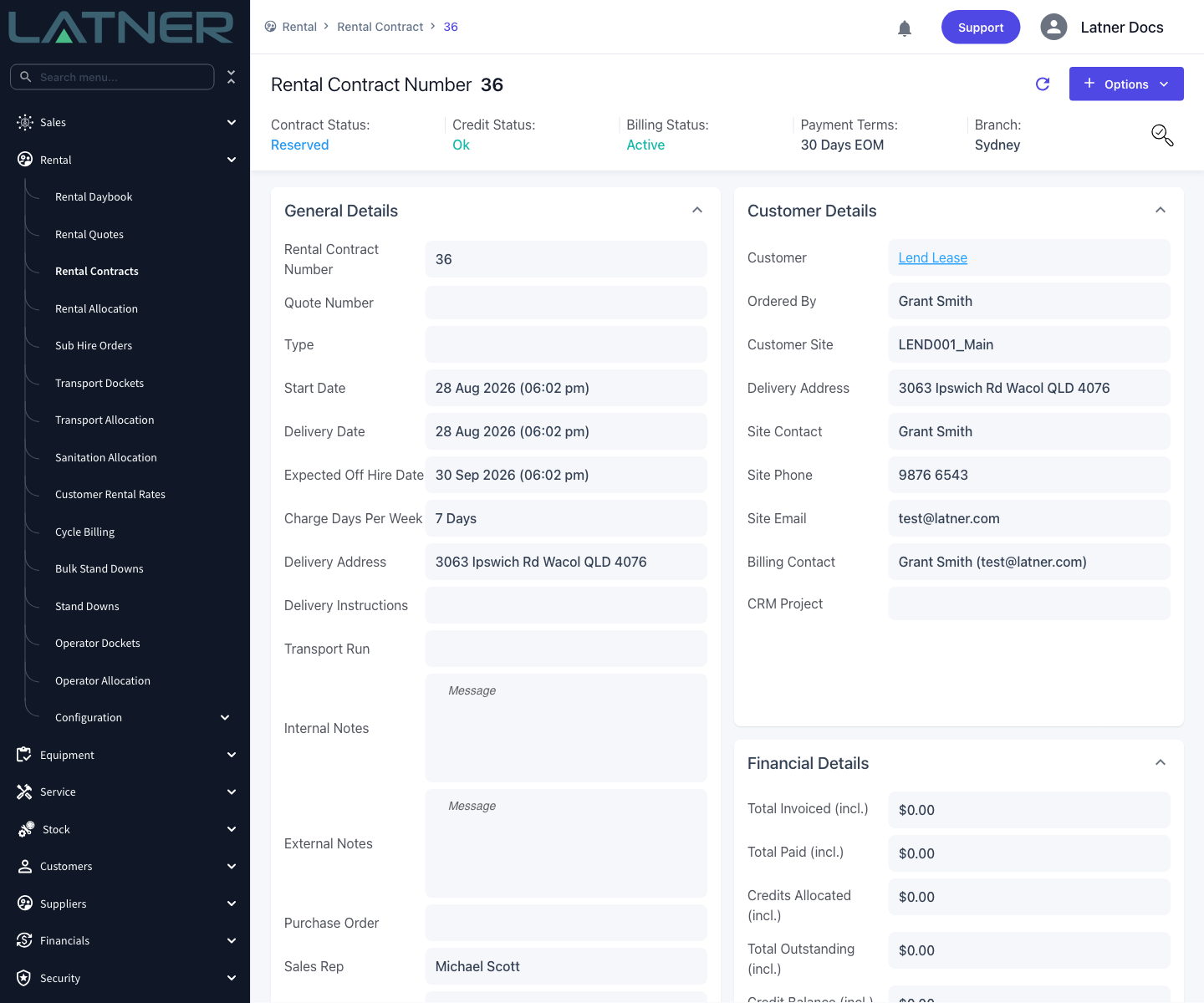
Go to Rental › Rental Contracts and open the contract you want to cancel. Check the Contract Status at the top of the screen reads Reserved or Active.
A Reserved Rental Contract before cancelling - the Financial Details panel is on the right, and is replaced by Lost Sale Details once the contract is cancelled
Step 2 - Choose Cancel Rental Contract
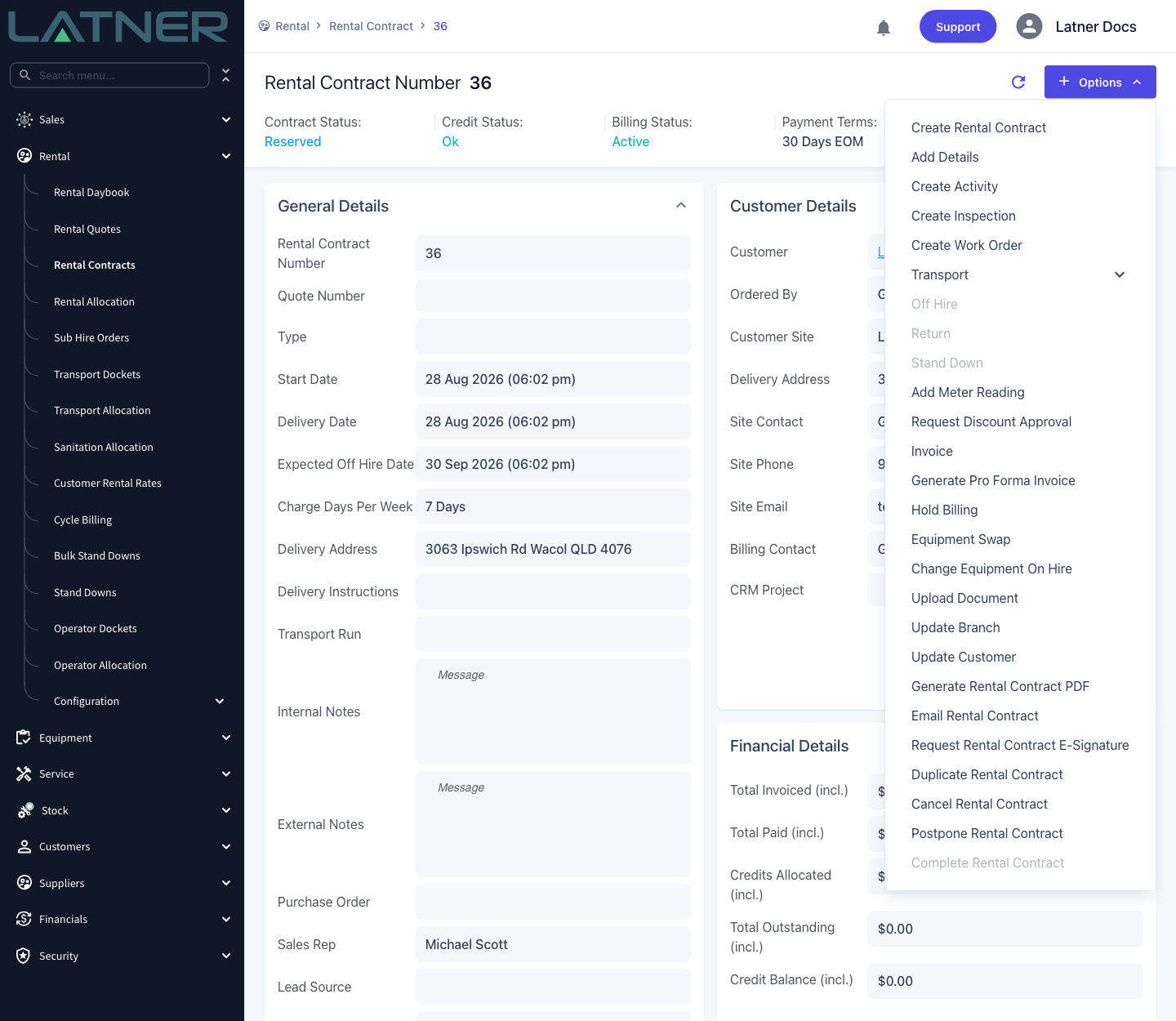
Select Options › Cancel Rental Contract. The option is greyed out on a contract that is already Completed, Cancelled or Lost.
Cancel Rental Contract in the Options menu, between Duplicate Rental Contract and Postpone Rental Contract
Step 3 - Pick a Reason
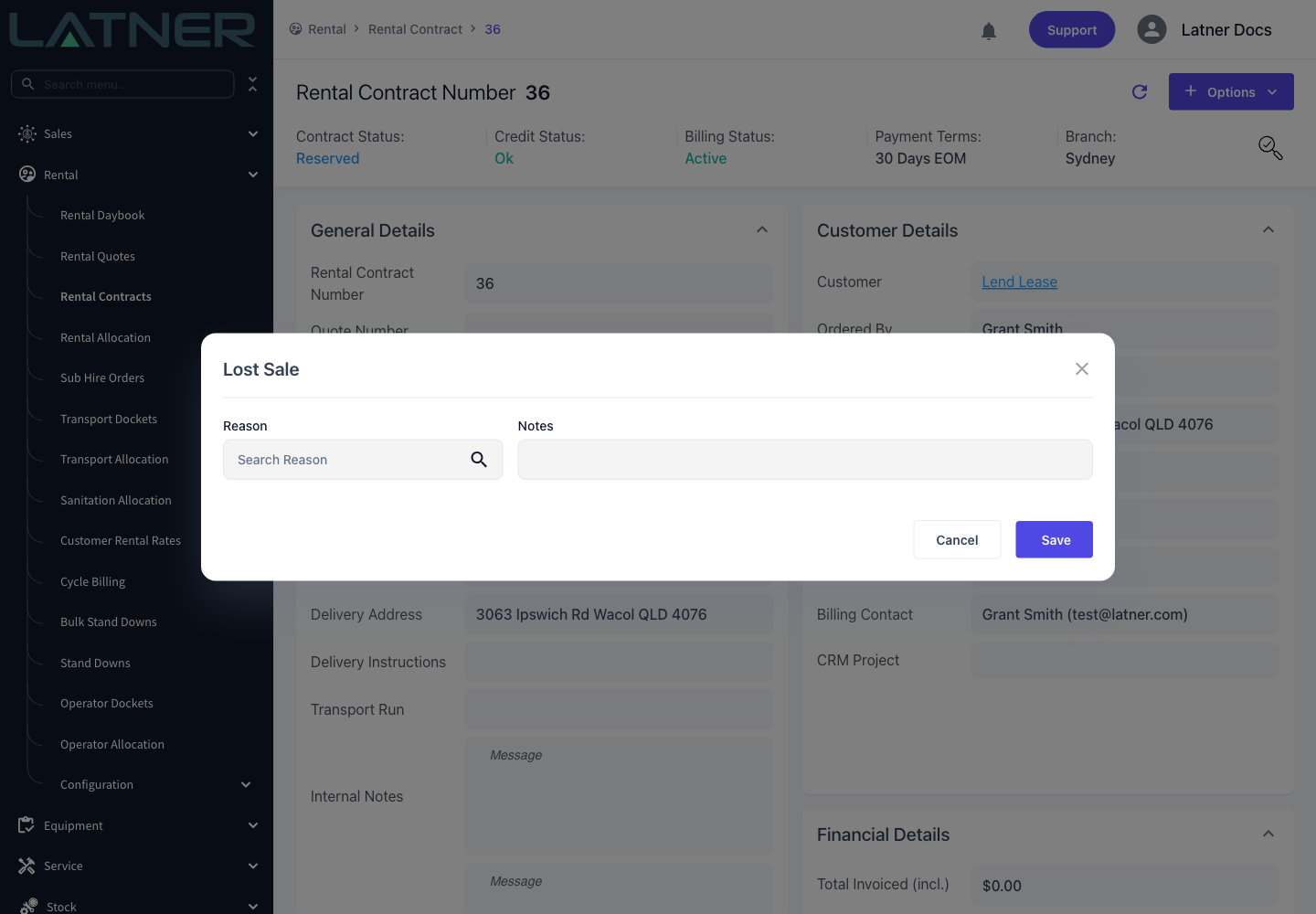
The Lost Sale window opens with two fields, both required:
Reason - the Cancel Reason that explains why the hire is not going ahead. Search the field to see the active reasons with their descriptions.
Notes - free text for the detail behind the reason.
The Lost Sale window - Reason and Notes are the only fields, and neither can be left empty
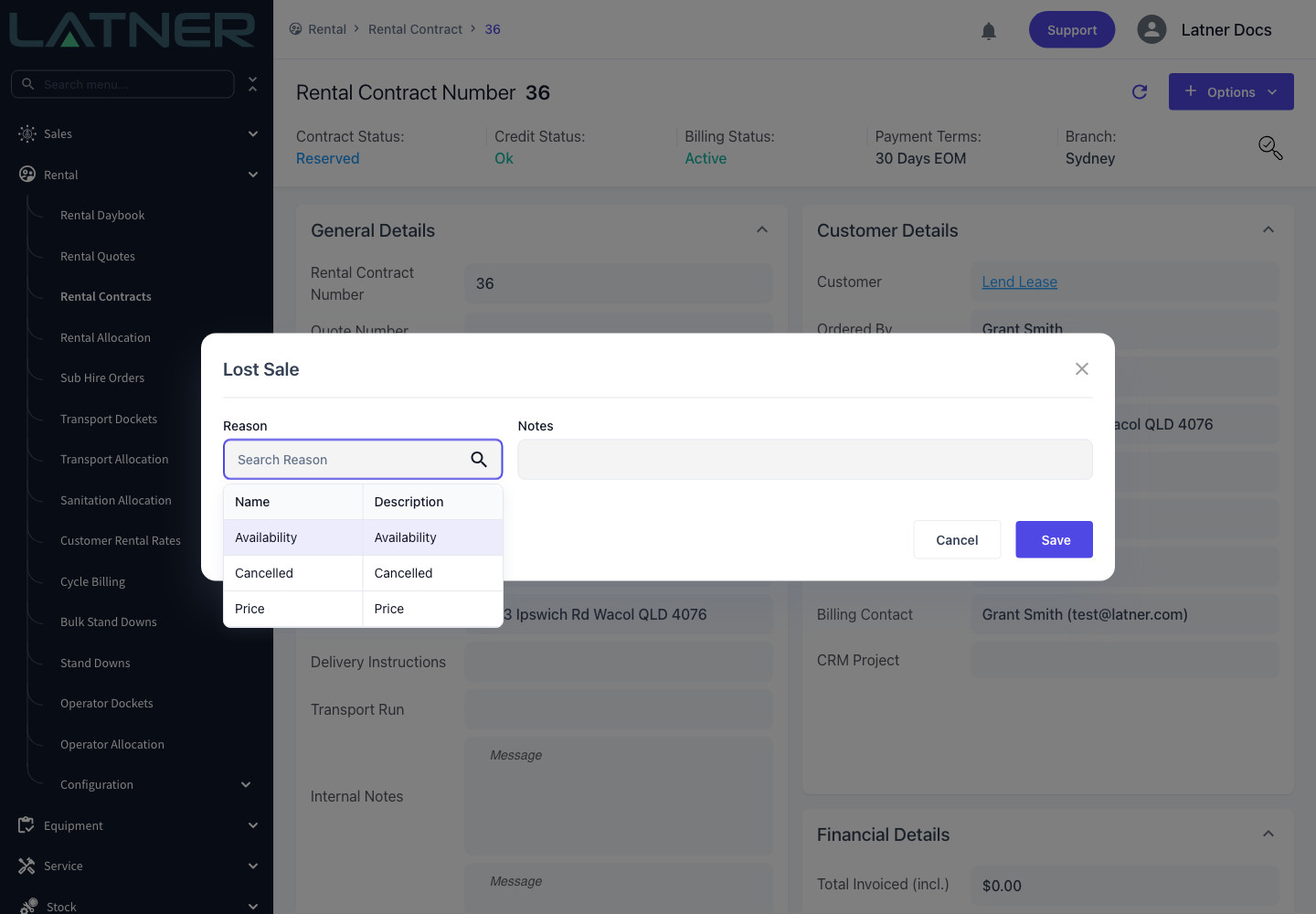
Click into Reason to search. Only reasons with a status of Active are listed, and the Description column helps when several reasons have similar names.
Searching the Reason field - the reason you pick determines whether the contract ends up Cancelled or Lost
Step 4 - Add a Note
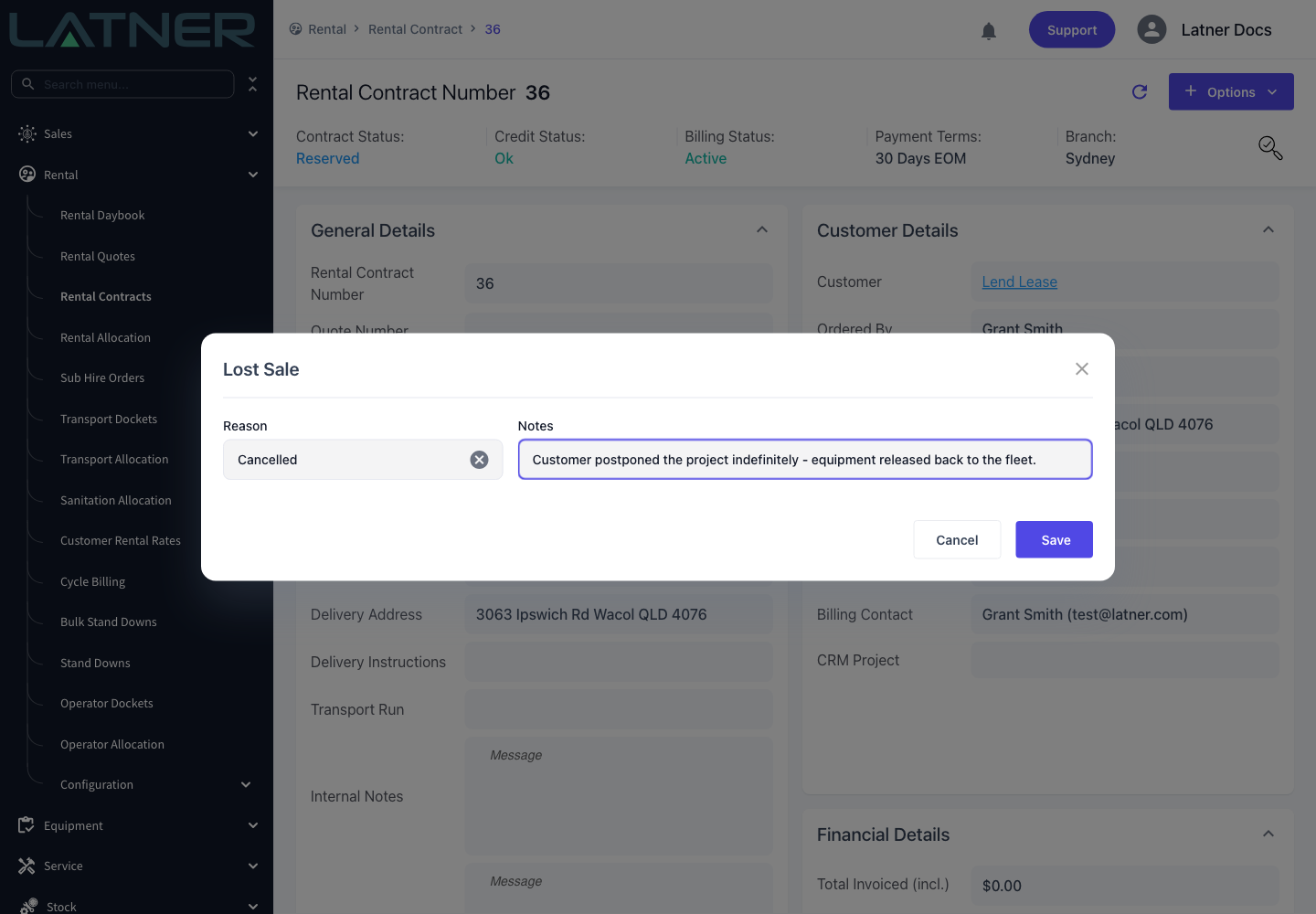
Type the detail into Notes. This is the only place the story behind the cancellation is kept, and it stays on the contract permanently, so write it for the person who opens the contract in six months' time.
A completed Lost Sale window, ready to save
Step 5 - Save
Click Save. Latner confirms with Lost Sale Added and the contract reloads with its new status.
After Cancelling
The contract's status becomes Cancelled or Lost, depending on the reason's type, and its sub status is cleared.
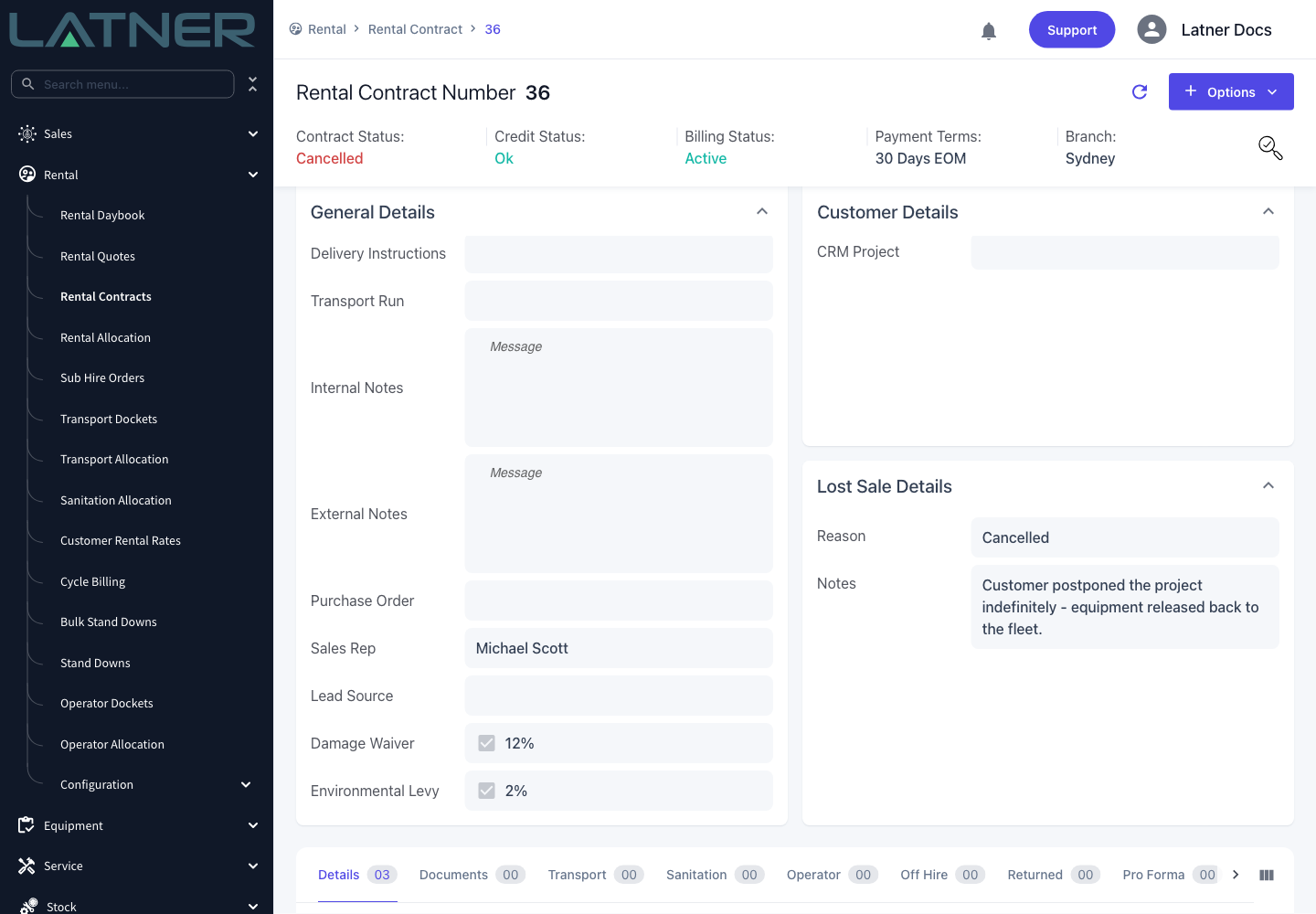
Financial Details is replaced by a Lost Sale Details panel showing the Reason and Notes you entered.
Every detail line, including transport and additional item lines, is set to Cancelled.
Reserved equipment is unreserved and allocated stock quantities are released, so the items are available for other contracts again.
Any linked sub hire order line is cancelled, and its link back to the contract line is severed. The equipment class, number, quantity and dates are copied onto the sub hire order line first, so the supplier record still reads sensibly.
Transport dockets still open on the contract, such as a delivery booked for Preallocated equipment, are cancelled. Dockets already Completed, Attempted or Cancelled are left as they are. A docket that has moved reserved equipment into Pending Delivery or Pending Collection stops the cancellation instead, so it has to be cancelled first (see the FAQs).
Open inspections raised against the contract's detail lines are cancelled.
The cancellation is written to the contract's audit trail as a Cancel action, with the user and the time.
The cancelled contract - the status reads Cancelled and the new Lost Sale Details panel carries the reason and note
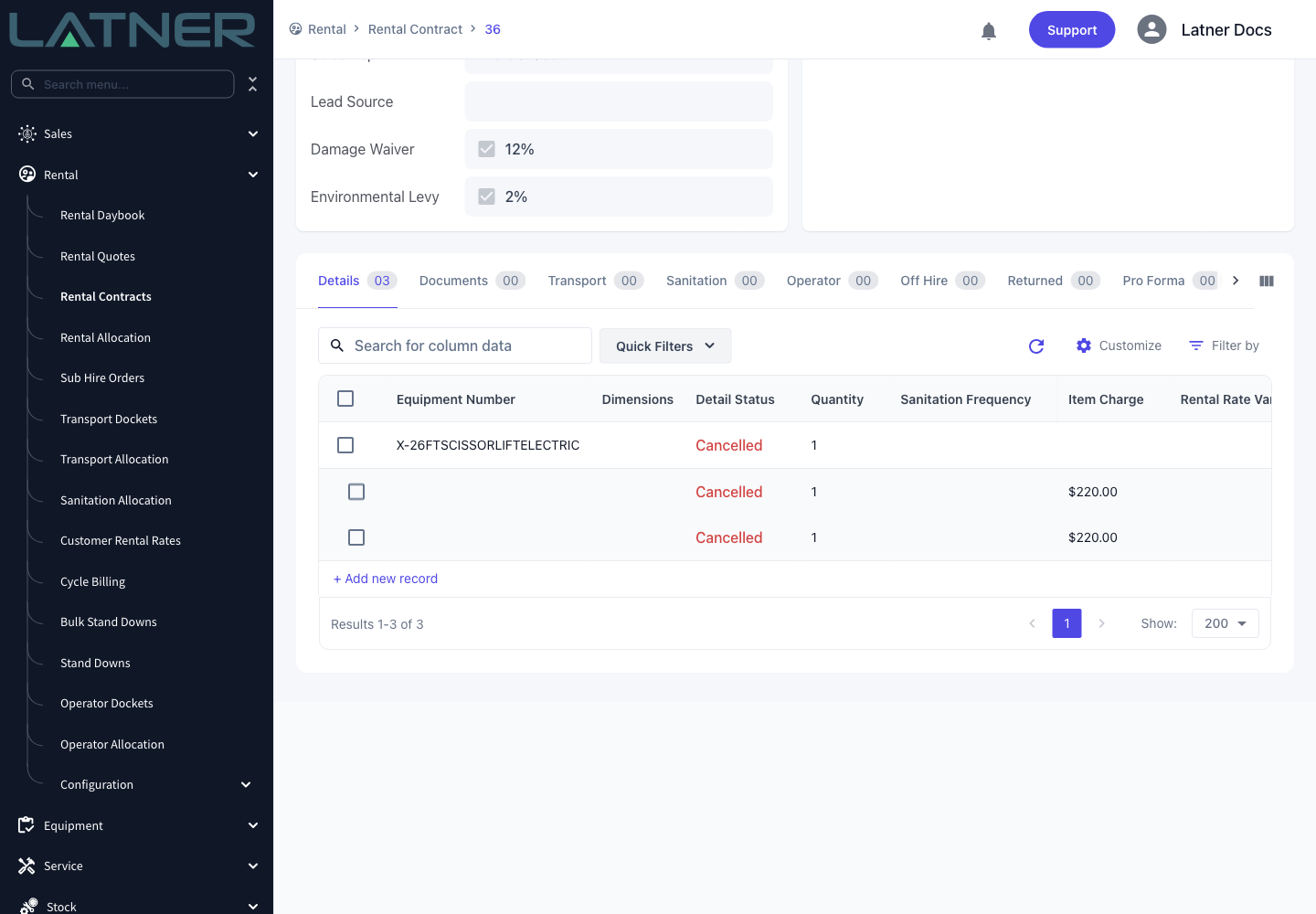
The Details tab after cancelling - every line, including the delivery and pick up transport lines, now has a Detail Status of Cancelled
Cancelling cannot be undone. Reopen Rental Contract only works on a contract that is Completed, so a Cancelled or Lost contract stays that way. If the customer comes back, use Options › Duplicate Rental Contract on the cancelled contract to raise a fresh one with the same details rather than trying to revive it.
FAQs
Cancel Rental Contract is greyed out. Why?
The contract is already closed. The option is disabled on any contract with a status of Completed, Cancelled or Lost. If the option is missing from the Options menu altogether, your permission group does not have Cancel Rental Contract under Rental › Option.
I get "Can only cancel a Rental Contract if all equipment is Returned or Reserved", but the hire never started. Why won't it let me cancel?
Something on the contract has moved past the point where it can simply be dropped. A detail line blocks the cancellation when its status is On Rent, Off Rent, Pending Return, Pending Pick Up, Pending Delivery, Pending Collection or Cancelled.
If the hire never started, the cause is almost always a transport docket. As soon as a delivery or Customer Collection docket is created for reserved equipment, those lines move from Reserved to Pending Delivery or Pending Collection, and they stay there until the docket is completed or cancelled. Cancel the docket first, then the contract:
On the Rental Contract, open the Transport tab and click the Docket # of the open delivery or Customer Collection docket.
Select Options › Cancel Transport and confirm. The docket's lines go back to Reserved on the contract.
Go back to the Rental Contract and select Options › Cancel Rental Contract.
Pick a Reason, add Notes, and click Save.
For more on cancelling dockets, see How to Cancel a Transport Docket. Cancel Transport is greyed out on a docket that is already Completed. A completed delivery means the equipment is On Rent, so treat it as equipment that has gone out.
If equipment has physically gone out, bring it back through the normal off hire and return process first, then cancel the contract.
Lines that are Reserved, Preallocated (including the pending delivery and pending collection preallocated statuses), Pending, Added, Applied, Invoiced or already Returned do not stand in the way. A docket booked only for Preallocated equipment doesn't block you either - it is cancelled along with the contract.
I get "Cannot cancel a Rental Contract with an outstanding balance". How do I cancel a contract that has already been invoiced?
The contract has at least one invoice that hasn't been cancelled, and the invoiced total is still more than what has been paid plus the credit allocated to it. An Open invoice counts as well. A contract that has never been invoiced isn't affected by this rule.
If the customer no longer wants the hire, credit each unpaid invoice in full and allocate the credit back to it:
Open the invoice from the contract's Invoices tab. If its status is Open, select Options › Complete Invoice first - a credit note can only be raised from a Completed or Paid invoice.
Select Options › Create Credit Note from Invoice. Every line starts ticked at its full Qty to Credit. Leave it that way so the credit note covers the full amount, then click Create Credit Note. Latner opens the new credit note.
Select Options › Complete Credit Note.
Select Options › Allocate Credit, choose the invoice, and enter a Credit Allocation for the invoice's full Outstanding amount. Save the allocation.
Go back to the Rental Contract and select Options › Cancel Rental Contract.
Creating the credit note isn't enough on its own. A credit note that is created, or even completed, but not allocated leaves the balance outstanding, and the cancel still fails with the same message.
If the invoice was raised by mistake and nothing has been paid or credited against it, you can cancel it instead with Options › Cancel Customer Invoice, as long as it is the latest invoice on the contract. A cancelled invoice no longer counts towards the balance.
Open transport dockets don't affect this balance - it is worked out from invoices, payments and allocated credit only. Latner checks the balance before it checks the equipment, though, so if an invoiced contract also has an open delivery or Customer Collection docket, you'll see this message first and the "all equipment is Returned or Reserved" message once the balance is cleared. Cancel the docket as described in the question above.
Why is the window called Lost Sale when I am cancelling a contract?
The same window is used to cancel a Rental Quote, a Rental Contract and a Sales Order, and it records the same thing in each case: the reason a piece of business did not proceed. Nothing about the window changes the fact that you are cancelling this contract.
What is the difference between a Cancelled and a Lost contract?
Only the reason you choose. A Cancel Reason with a Type of Cancellation puts the contract into Cancelled, and one with a Type of Lost puts it into Lost. The clean-up is identical either way. The distinction is there so you can tell work that was booked and then called off apart from work you never won.
Can I reopen a cancelled contract if the customer changes their mind?
No. Reopen Rental Contract only applies to a Completed contract. Use Options › Duplicate Rental Contract on the cancelled contract instead, which copies the header and, if you choose, the detail lines onto a new contract.
The contract has sub hire equipment on it. Does cancelling deal with the supplier as well?
Yes, as long as the supplier has not invoiced you. The matching sub hire order line is set to Cancelled automatically. If a supplier invoice already exists against that line, the cancellation is stopped with Cannot cancel a Sub Hire Order detail that has been invoiced. Sort the supplier invoice out first, then cancel the contract.
The reason I want is not in the list. Where do I add it?
Go to Rental › Configuration › Cancel Reasons and use Options › Create Cancel Reason. Give it a Name, a Description, the right Type, and a Status of Active so it shows up in the search. An existing reason set to Inactive will not appear either, so check that before creating a duplicate.
Watch the Demo
Prefer to watch it? Step through the same flow here.