
Generating a rental quote PDF turns the quote on screen into the document you send the customer, with your cover page, equipment spec sheets and terms and conditions stitched around it.
Overview
A quote is more persuasive when it looks like a proposal rather than a price list. Latner builds the quote pages from your PDF template, then wraps them in the supporting documents you have set up, so nobody has to merge PDFs by hand before hitting send.
-
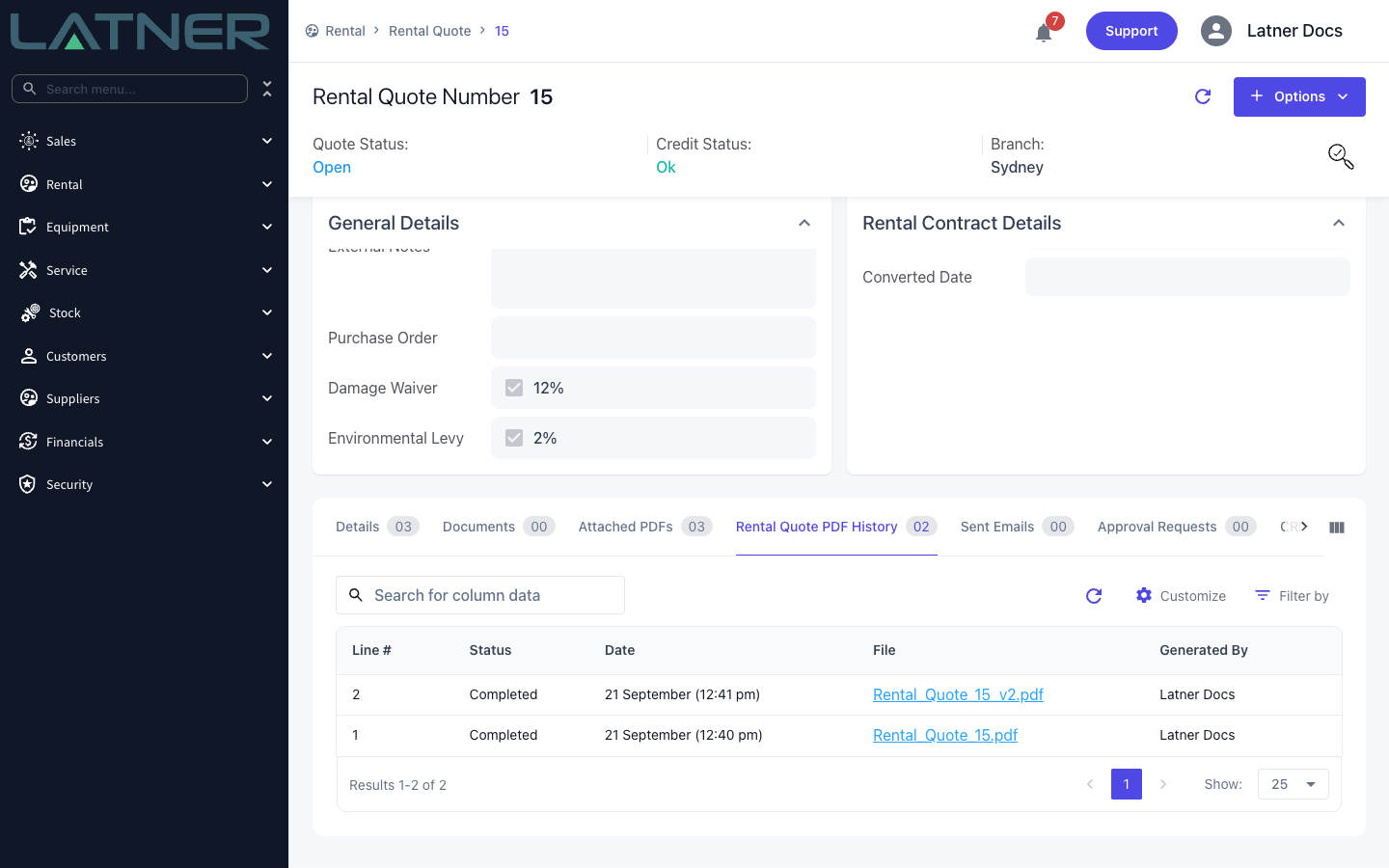
You generate a PDF from Options › Generate Rental Quote PDF on the quote, and every generation is kept on the Rental Quote PDF History tab.
-
The Attached PDFs tab on the quote shows exactly what will be stitched in, and in what order, before you generate anything.
-
A cover page and a terms and conditions PDF can be set once in Settings, globally or per branch.
-
Terms and conditions can also be set per customer, which beats the setting for that customer's quotes.
-
PDFs attached to an equipment class or equipment model are copied onto the quote automatically when that equipment is added to it.
-
Both the cover and the terms can be overridden on a single quote without changing anything else.
The finished document is always assembled in this order:
-
Cover page
-
Any attachments positioned Before Main
-
The rental quote pages themselves
-
Any attachments positioned After Main
-
Terms and conditions
-
Any attachments positioned After Terms & Conditions
Before You Begin
Generating a quote PDF works out of the box, but the settings and permissions below control what you can configure around it.
|
Requirement |
Where to Find It |
|---|---|
|
Rental Quote PDF Template ID - the template your quote pages are drawn from. Leave it blank to use Latner's built-in generic quote template. |
Security › Settings › PDF Templates |
|
Rental Quote PDF Name Format - optional. Controls the generated filename, using the {{quote_number}} and {{version}} placeholders. |
Security › Settings › PDF Templates |
|
Rental Quotes permission - to open a quote and generate its PDF. |
Security › Configuration › Permission Groups › Rental › Screen |
|
Upload Documents permission - to add, edit, reorder or remove attached PDFs on a quote. |
Security › Configuration › Permission Groups › Rental › Option |
|
Create Document permission - to attach PDFs to an equipment class or equipment model. |
Security › Configuration › Permission Groups › Equipment › Option |
|
Edit Customer permission - to set or clear a customer's quote terms and conditions PDF. |
Security › Configuration › Permission Groups › Customers › Option |
|
Setting permission - to reach the Settings screen at all. |
Security › Configuration › Permission Groups › Security › Screen |
The cover and terms settings can be set per branch as well as globally. Switch Global to Branch at the top of the Settings screen and pick a branch to give that branch its own cover page or terms. When a quote is generated, Latner uses the branch value if there is one and falls back to the global value if there isn't.
Setting Up the Attached PDFs
Step 1 - Set the default cover page and terms
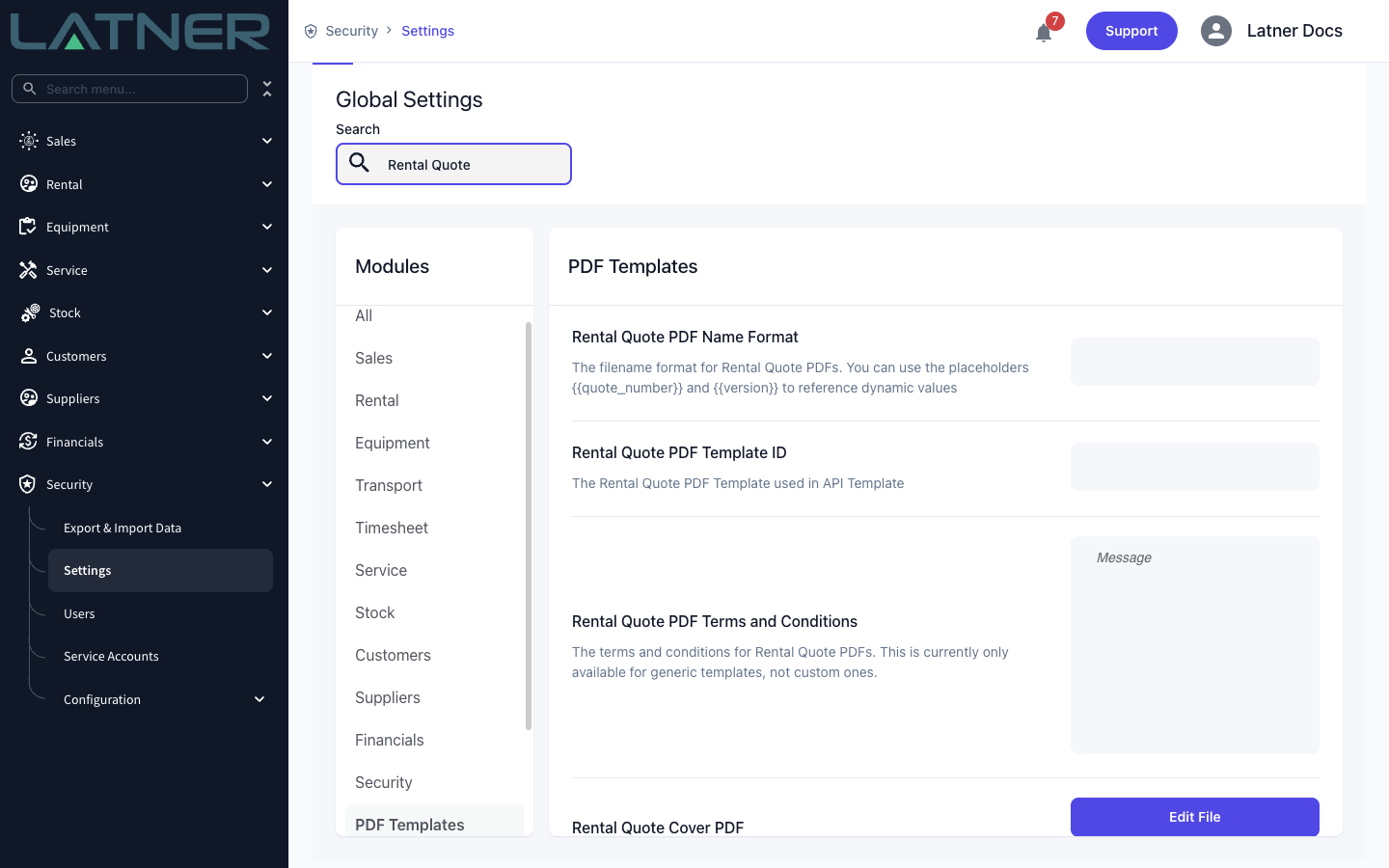
Go to Security › Settings, choose PDF Templates in the Modules list and search for Rental Quote. Two of the settings there take a PDF file:
-
Rental Quote Cover PDF - the pages added to the front of every rental quote PDF.
-
Rental Quote Terms and Conditions PDF - the pages added to the back of every rental quote PDF.
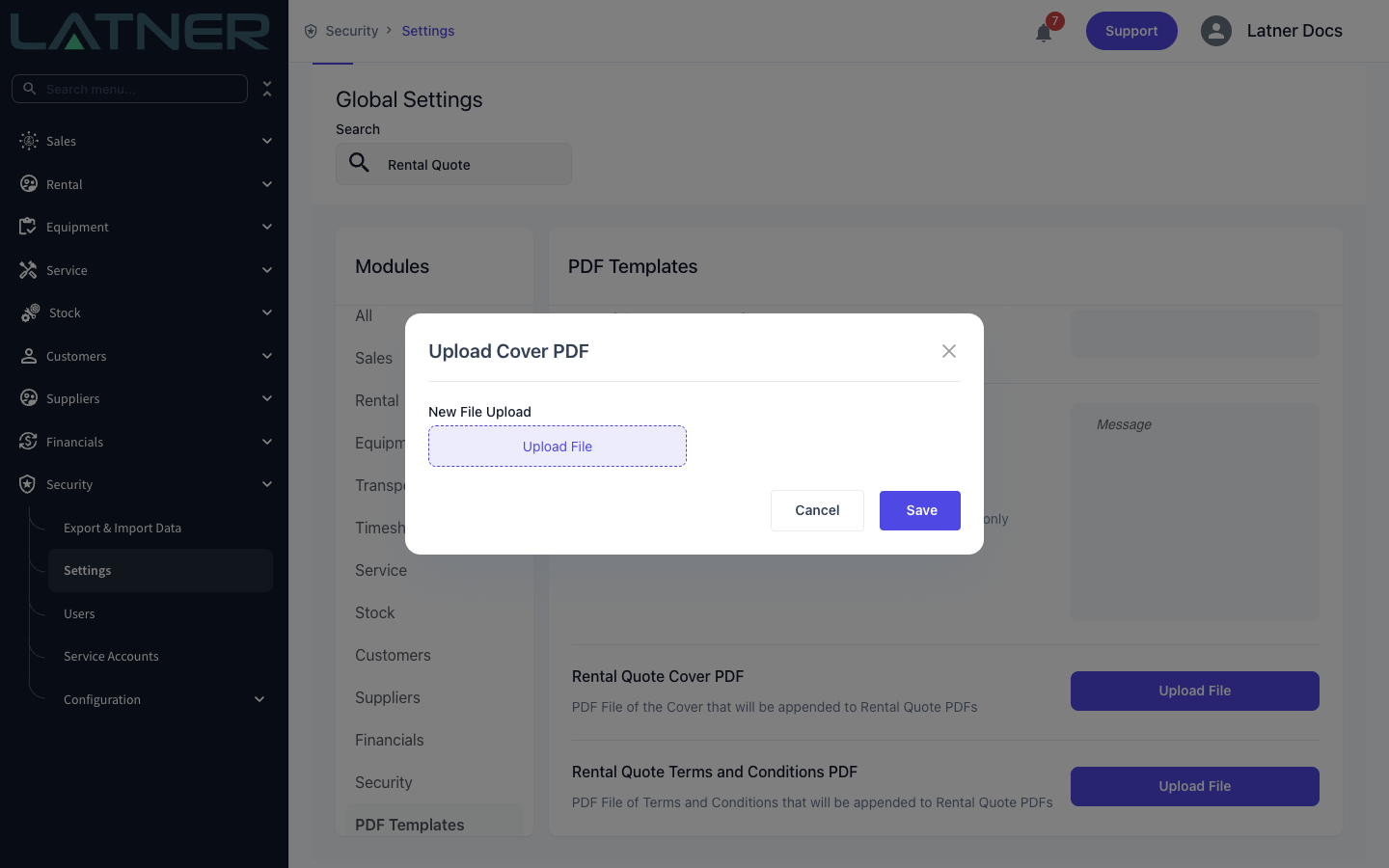
Click Upload File, pick your PDF and click Save. Only PDF files are accepted.
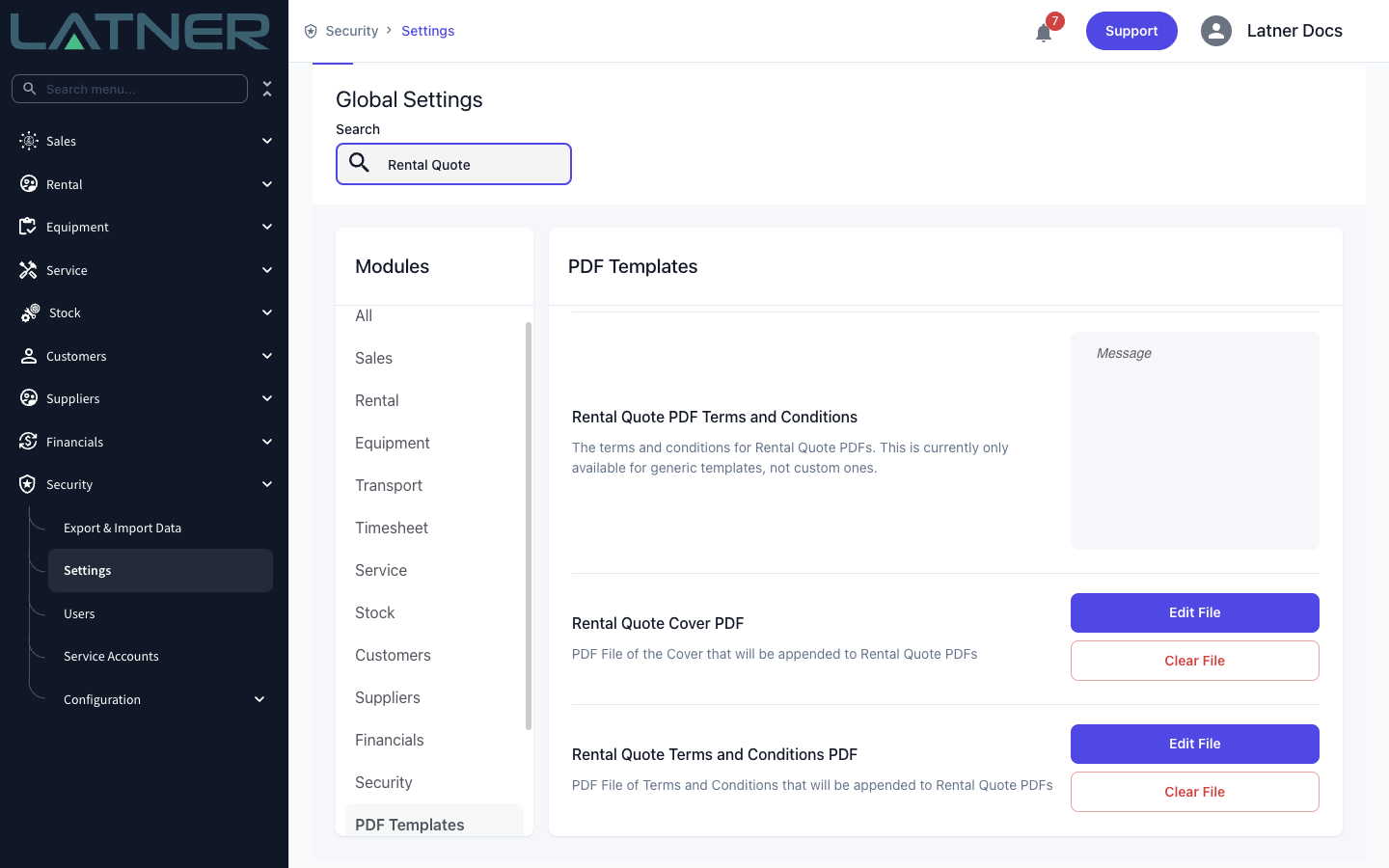
Once a file is set, the button changes to Edit File with a Clear File button beneath it, so you can swap the document later or remove it altogether.
There is a separate Rental Quote PDF Terms and Conditions setting that takes formatted text rather than a file. That one prints inside the quote template itself and only works on Latner's generic templates, not custom ones. If you have your own branded template, use the Rental Quote Terms and Conditions PDF file setting instead.
Step 2 - Give a customer their own terms and conditions
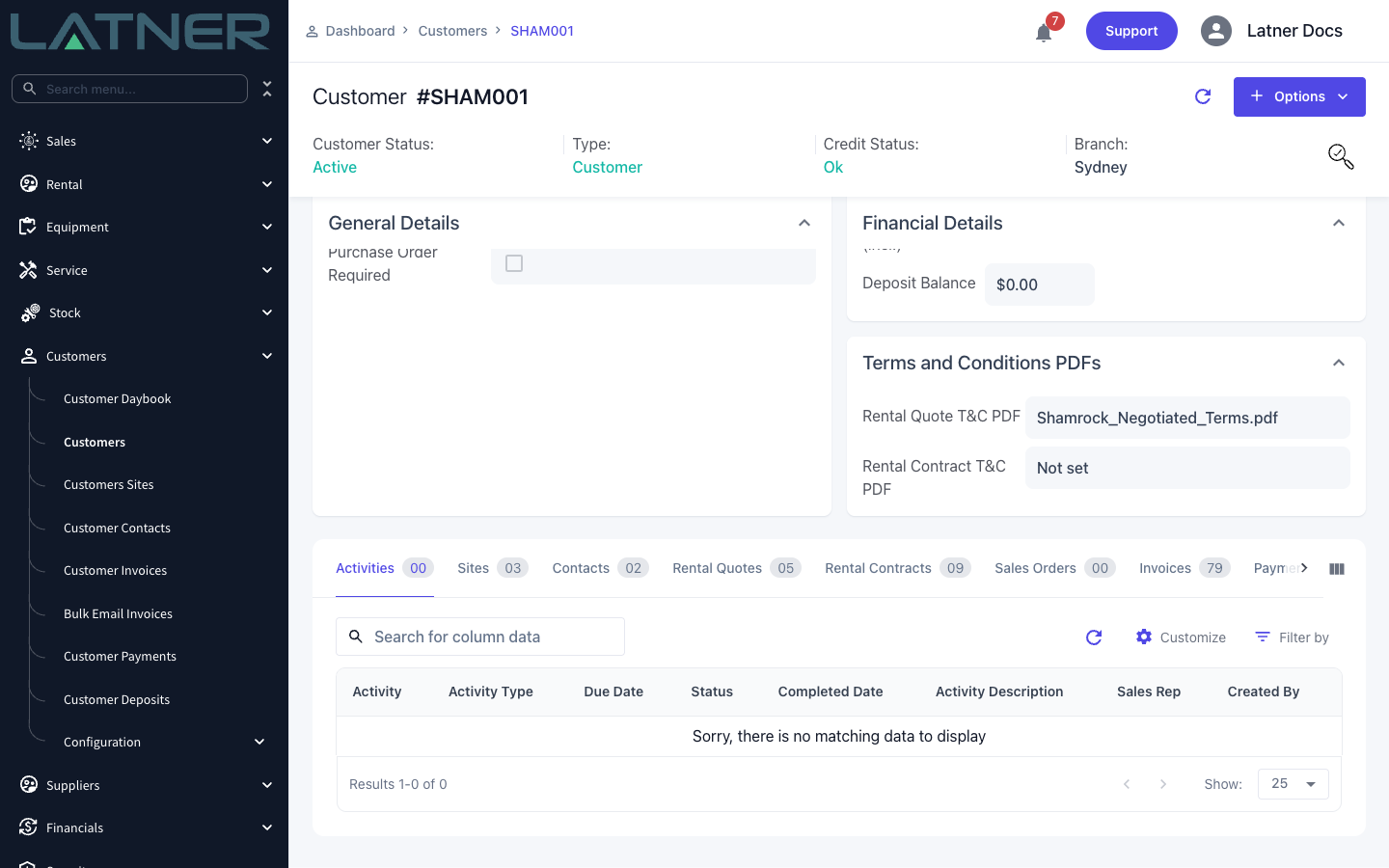
Customers on a negotiated master agreement usually need their own terms rather than your standard set. Open the customer, then choose Options › Terms & Conditions › Upload Quote T&C PDF and pick the file. There is no confirmation dialog - the file uploads as soon as you select it.
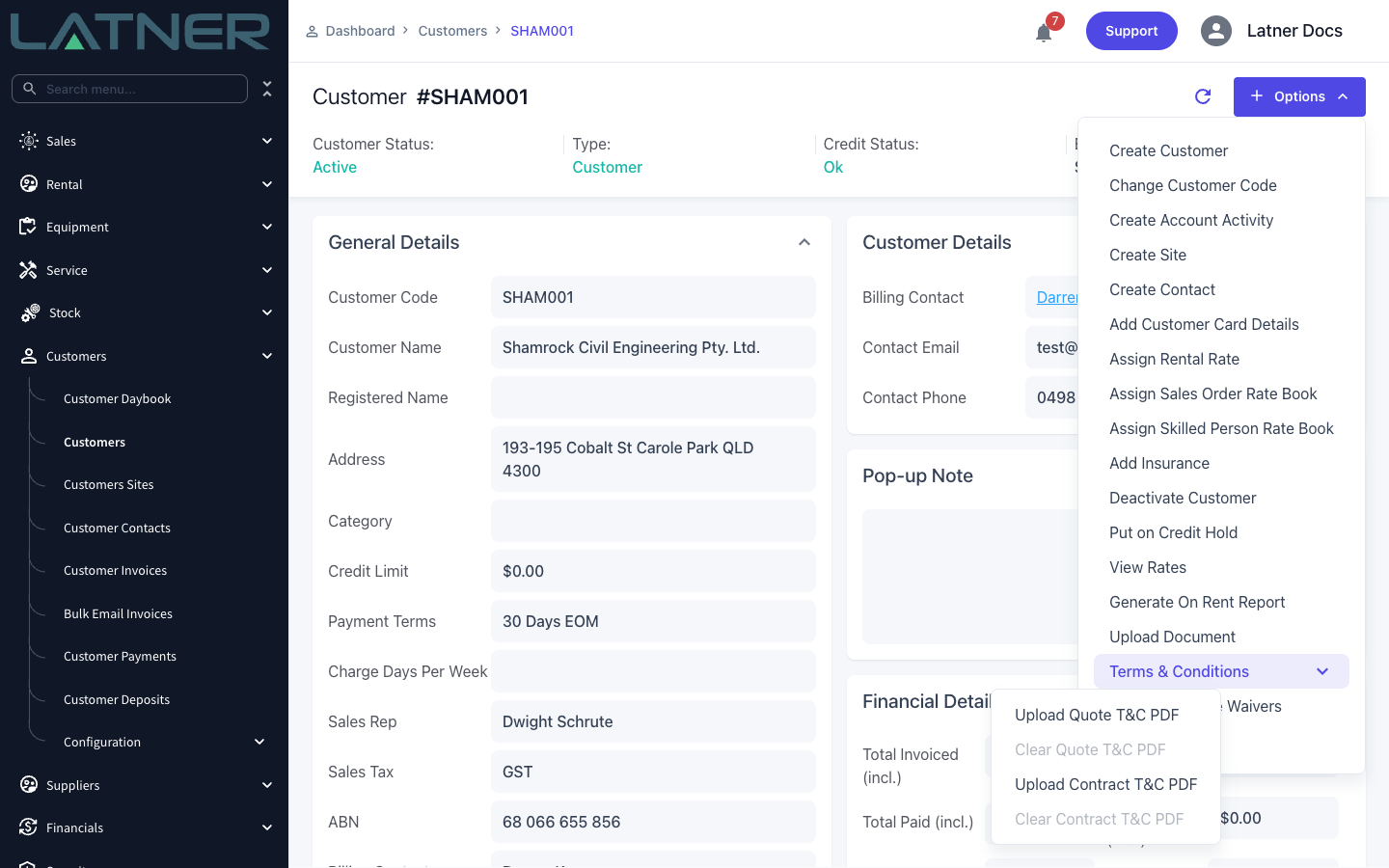
The uploaded file shows on the customer's Terms and Conditions PDFs card. From that point on, every quote for that customer uses it in place of the Rental Quote Terms and Conditions PDF setting. Use Options › Terms & Conditions › Clear Quote T&C PDF to drop back to the setting.
Step 3 - Attach PDFs to an equipment class or model
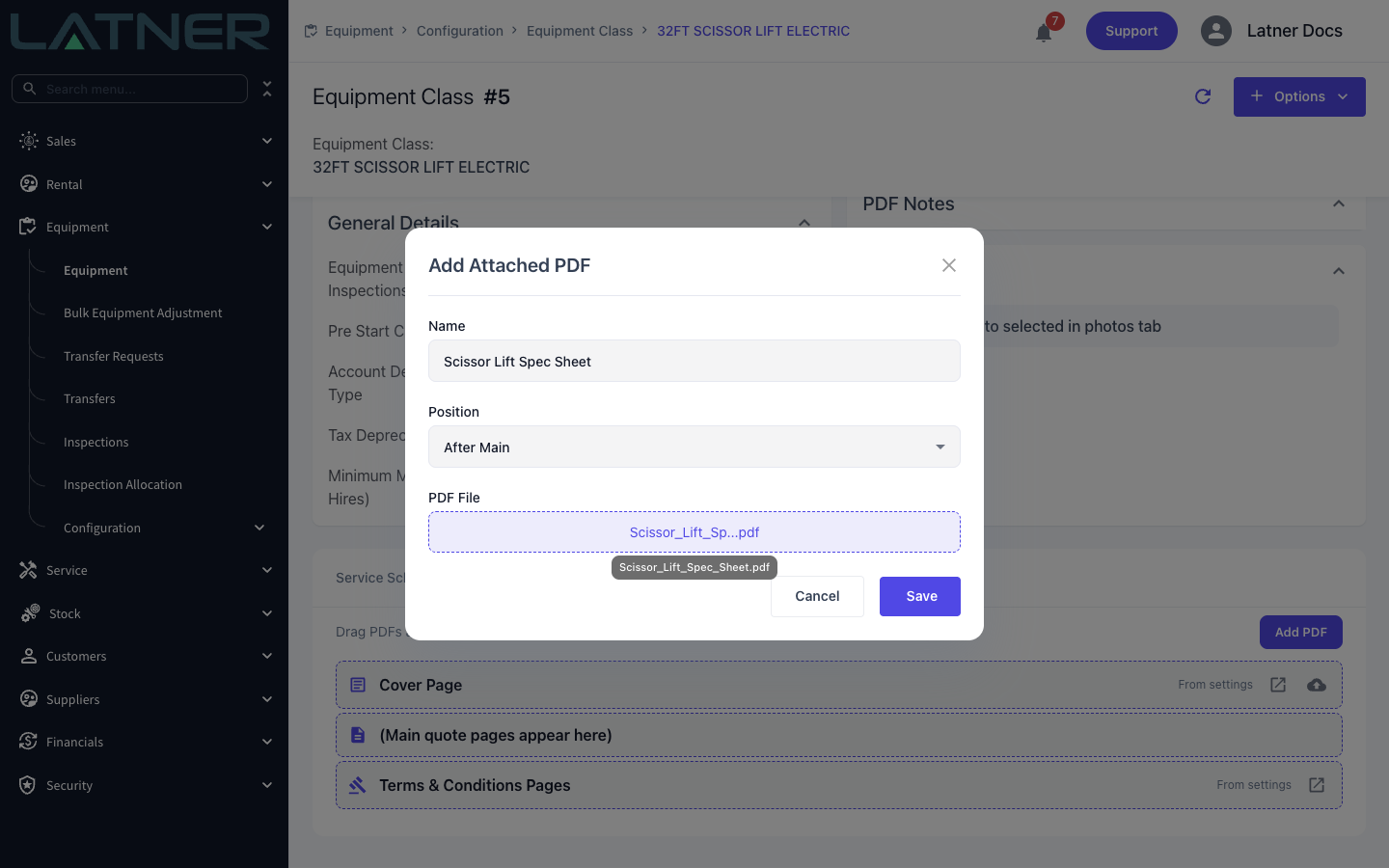
Spec sheets, operating manuals and compliance certificates belong to the machine, not the quote, so attach them once and let them follow the equipment. Open Equipment › Configuration › Classes (or Models), open the record and go to the Attached PDFs tab, then click Add PDF. Fill in:
-
Name - required. What the row is called in Latner; it is not printed on the PDF.
-
Position - required. Before Main or After Main, plus After Terms & Conditions when a terms PDF exists. Defaults to After Main.
-
PDF File - required, and it must be a PDF.
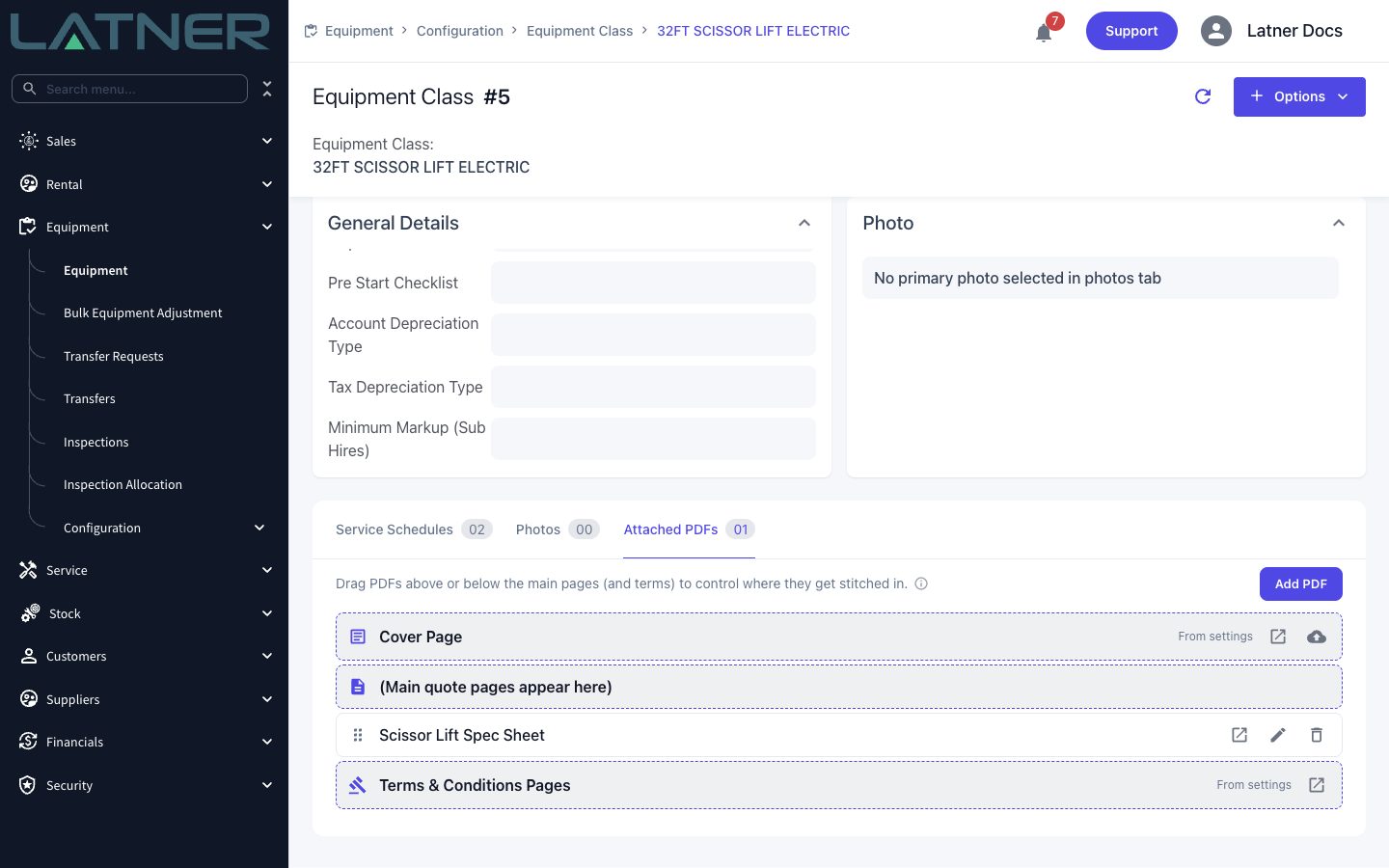
The tab shows your PDFs between dashed markers that stand in for the cover page, the main quote pages and the terms, so you can see where each one will land. Drag a row above or below a marker to move it between positions. The Cover Page marker also has an upload icon: uploading there sets a cover page for this class or model. The terms marker has no upload icon, because terms are always resolved at the quote level.
Equipment models win over equipment classes. When a quote line is added, Latner looks at the line's equipment model first and copies its attached PDFs; only if the model has none does it fall back to the equipment class. It is not a merge - one source or the other, never both.
Generating the Quote PDF
Step 4 - Check what will be attached
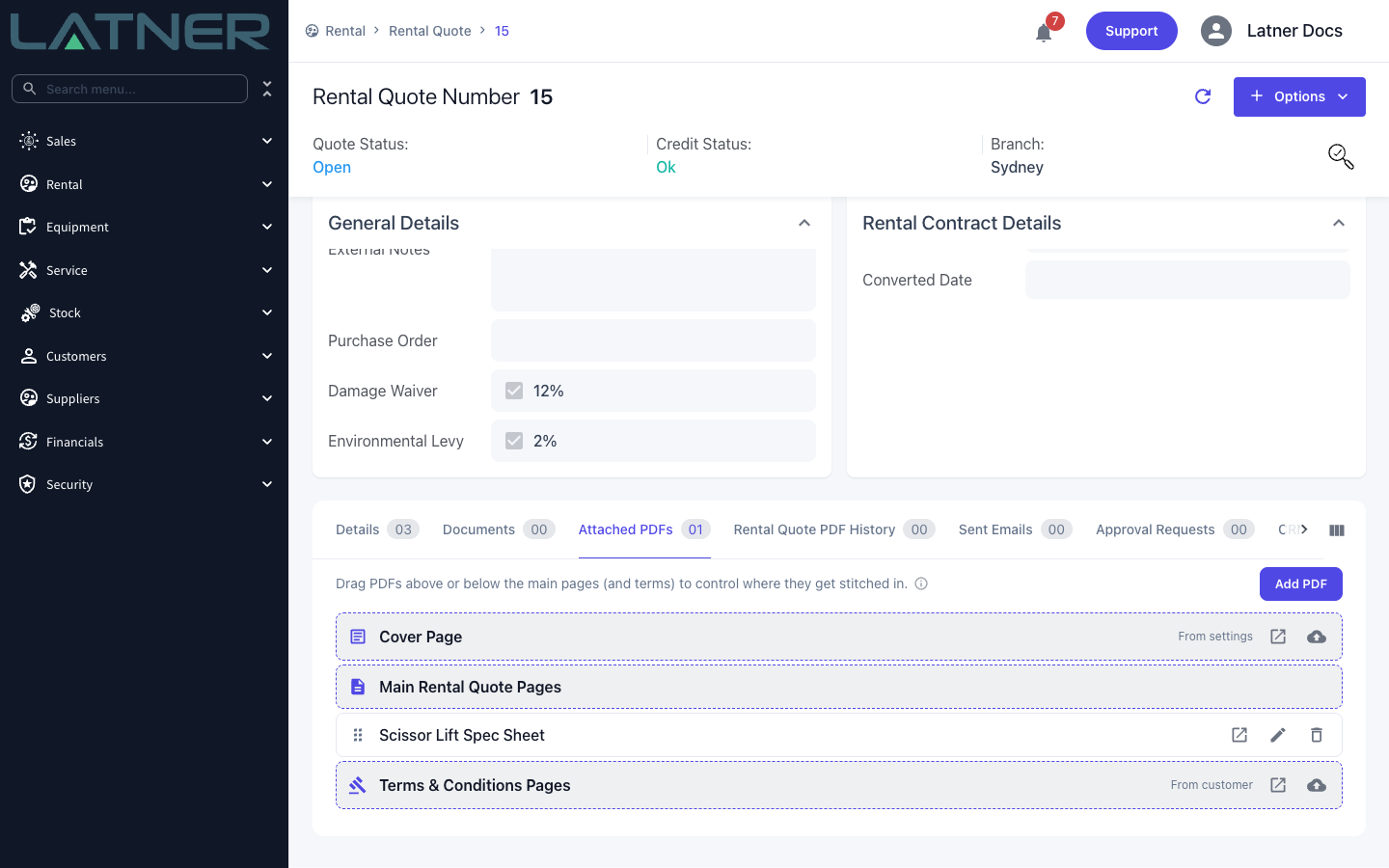
Open the rental quote and go to the Attached PDFs tab. Anything attached to the equipment on the quote is already there, copied across when the line was added, and the cover and terms markers tell you where each one is coming from:
-
From settings - the file set in Security › Settings › PDF Templates.
-
From customer - the customer's own quote terms and conditions PDF.
-
Override - a file uploaded against this quote only.
-
No cover set or No terms set - nothing will be stitched into that slot.
Click the open icon on any row to read the actual PDF before you send it.
Step 5 - Override the cover or terms for one quote
For a tender or a named project you'll often want a one-off cover page. Click the upload icon on the Cover Page or Terms & Conditions Pages marker and choose a PDF. The marker's caption changes to Override and a reset icon appears - use it to clear the override and fall back to the default.
Use Add PDF for anything else this quote needs, such as a site-specific safety document, and drag the rows to get the order right.
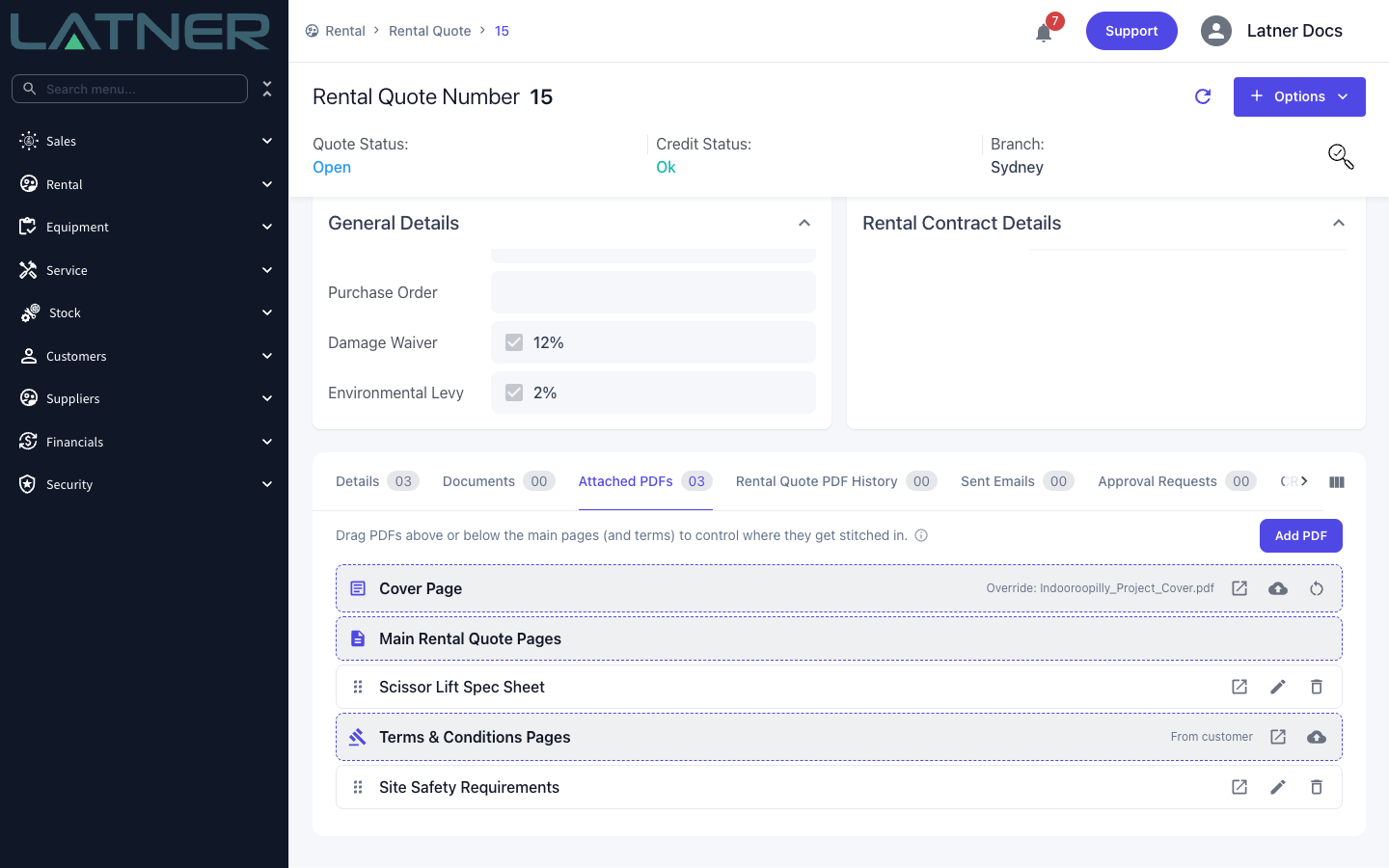
There is only ever one cover and one set of terms on a quote. Uploading a second cover override replaces the first rather than adding to it.
Step 6 - Generate the PDF
Choose Options › Generate Rental Quote PDF. If your system has any Rental Quote PDF Templates configured, Latner asks you to pick one in a Select PDF Template dialog; if there are none, it goes straight ahead with the template from the Rental Quote PDF Template ID setting.
The option is greyed out when the quote has no detail lines, or when it is Cancelled or Lost.
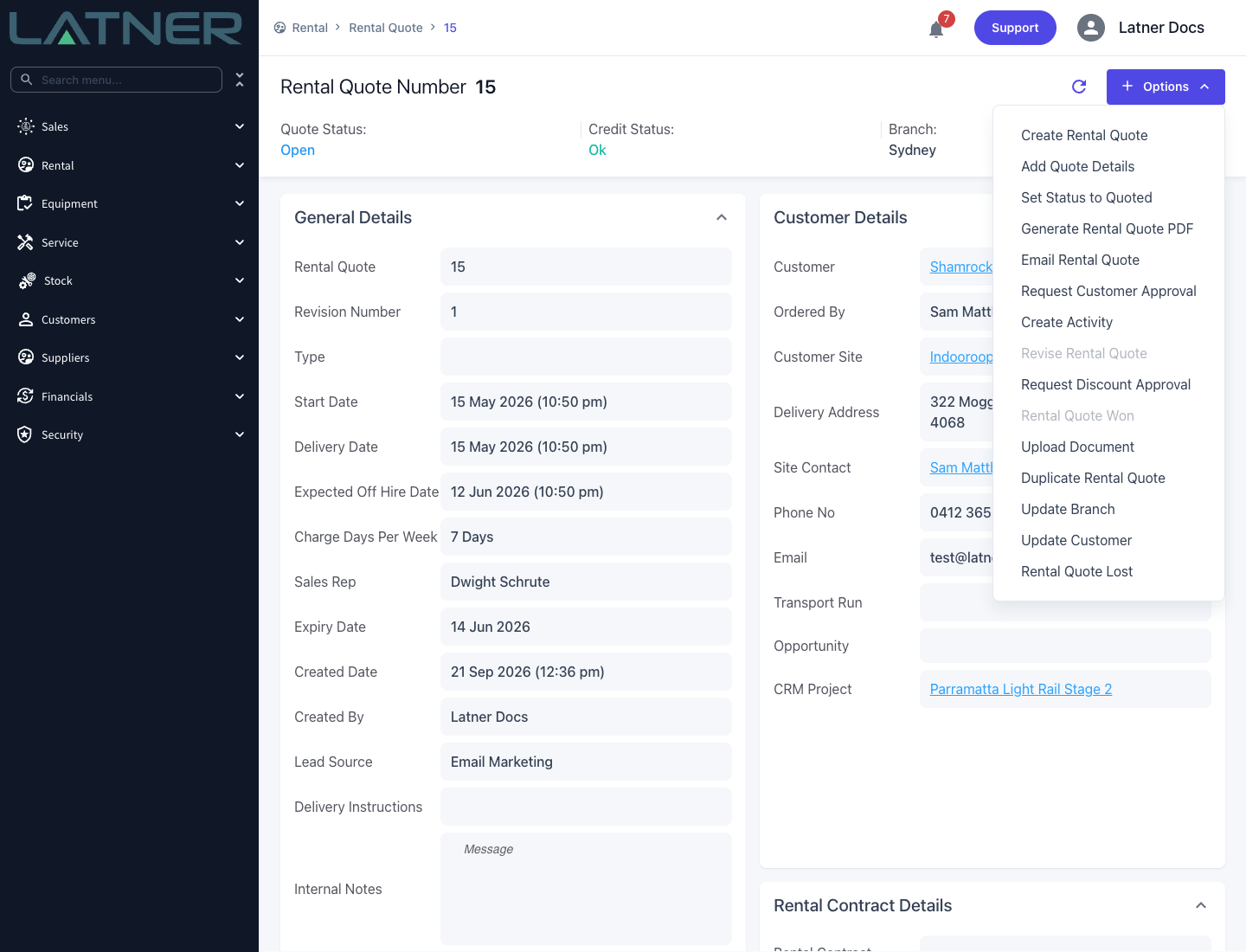
Generation runs in the background and takes a few seconds. When it finishes, the PDF opens in a new browser tab, or downloads straight away if you have Auto-download files ticked under User Settings › File Settings.
After Generating
-
Every generated PDF is listed on the quote's Rental Quote PDF History tab with its line number, status, date, filename and who generated it. Click the filename to reopen it.
-
Generating again never overwrites the previous file. The first is Rental_Quote_15.pdf, the second Rental_Quote_15_v2.pdf, and so on.
-
A row showing Failed means the document could not be built. Check that every attached file is a valid PDF and generate again.
-
Options › Email Rental Quote sends the quote to the customer. Leave the Rental Quote PDF field blank and Latner generates a fresh PDF for the email; pick an existing one from the list to send that instead.
A generated PDF is a snapshot. Changing a price, adding a line or swapping a cover page afterwards does not update a PDF that has already been produced, and it does not update one you have already emailed. Generate the quote again and send the new version.