
A discount request is how you ask a manager to sign off on a rate that sits below the floor rate on the rate book, so the approval is recorded against the rental quote or rental contract instead of living in someone's inbox.
Overview
Every so often a deal only works at a number your rate book won't wear. Latner doesn't stop you from having that conversation - it just insists the conversation happens on the record. You raise a discount request against the quote or the contract, nominate who should decide, and their answer is stored beside the deal for anyone who reads it later.
-
Discount requests live on the Discount Requests tab of a rental quote and a rental contract.
-
A request has three statuses: Requested, Approved and Rejected.
-
You can only assign a request to someone who holds the Allow Rates Below Floor Rate permission - and never to yourself.
-
The person you assign it to is notified in Latner and by email, whatever their notification group settings say. You get notified back when they resolve it.
-
Raising and resolving a request are both written to the quote's or contract's audit trail.
-
Approving a request records a decision. It does not change any rate - somebody still has to type the new rate onto the line.
Before You Begin
Requesting and approving are two different jobs with two different permissions, so check both sides before you start.
|
Requirement |
Where to Find It |
|---|---|
|
Allow Rates Below Floor Rate - held by the approver, not by you |
Security › Configuration › Permission Groups › the group › Rental › Field |
|
Add Rental Quote Details or Add Rental Contract Details - to raise a request |
Security › Configuration › Permission Groups › the group › Rental › Option |
|
Edit Rental Quote Details or Edit Rental Contract Details - to approve or reject one |
Security › Configuration › Permission Groups › the group › Rental › Option |
|
A rental quote in Open status, or a rental contract in Reserved or Active status |
The quote or contract itself |
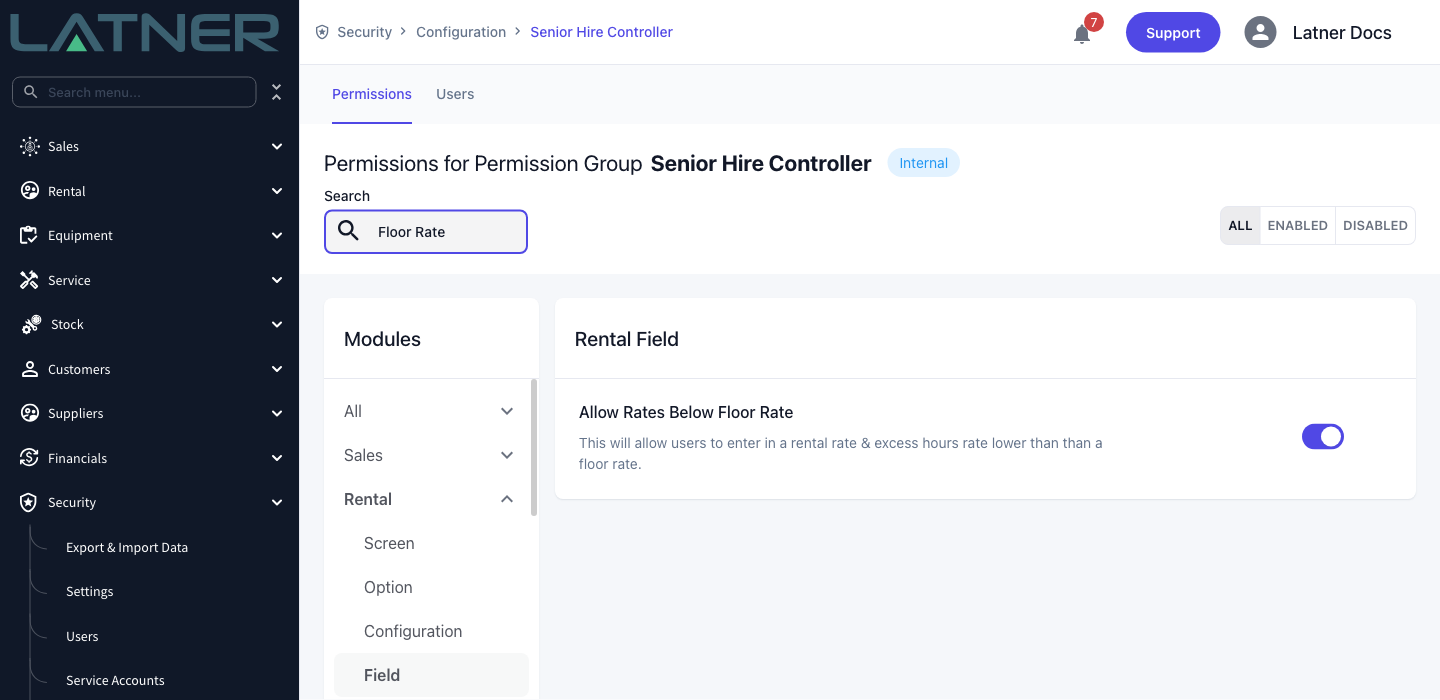
The Assign Request To list only offers active users who hold Allow Rates Below Floor Rate, and it always leaves you out - you can't approve your own request. If the list comes back empty, nobody in your business has the permission yet, and someone will need to grant it to a manager's permission group before requests can be raised.
Raising a Discount Request
Step 1 - Open the rental quote
Go to Sales › Rental Quotes and open the quote you're pricing. The quote must be in Open status - once it has been set to Quoted, Won or Converted, the option disappears and the backend refuses the request with Only Open Rental Quotes can be discounted.
Step 2 - Choose Request Discount Approval
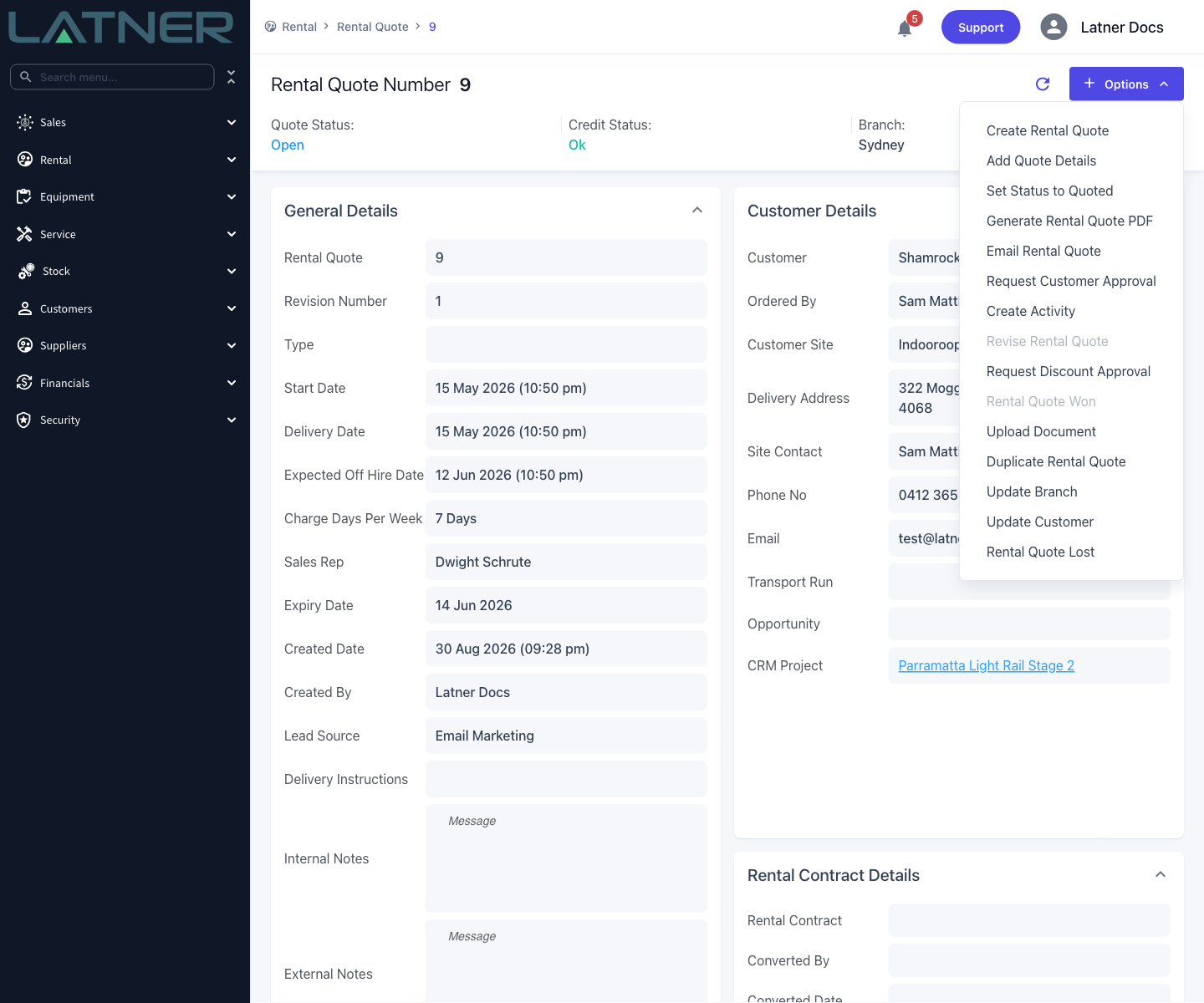
Click Options in the top right and choose Request Discount Approval. The tooltip on the menu item spells out what it's for: Request approval for Rental Rates below the floor rate.
Step 3 - Pick who should approve it
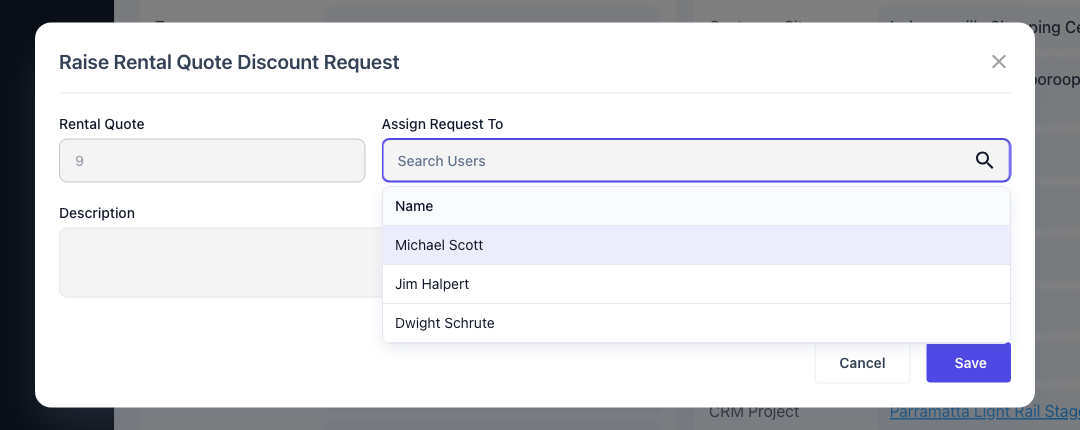
The Raise Rental Quote Discount Request dialog opens with the quote number already filled in and locked. Click Assign Request To and pick your approver.
-
Rental Quote - read only, taken from the record you opened.
-
Assign Request To - required. Only active users with Allow Rates Below Floor Rate appear, and your own name is deliberately absent.
-
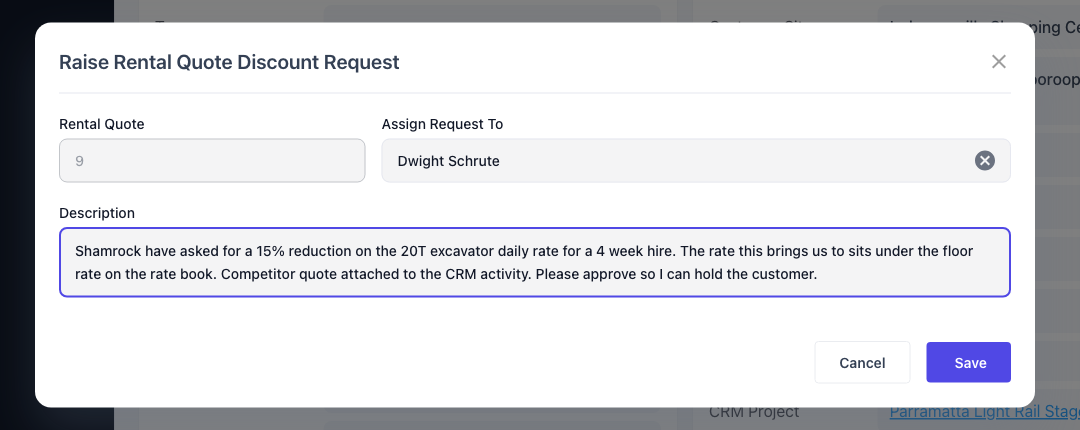
Description - required. This is the case you're making.
Step 4 - Explain what you're asking for and save
Write the Description as if the approver knows nothing about the deal, because they usually don't: which line, what rate, for how long, and why it's worth doing. The description is carried into the email the approver receives, so a thin one costs you a phone call. Click Save.
Step 5 - Check the Discount Requests tab
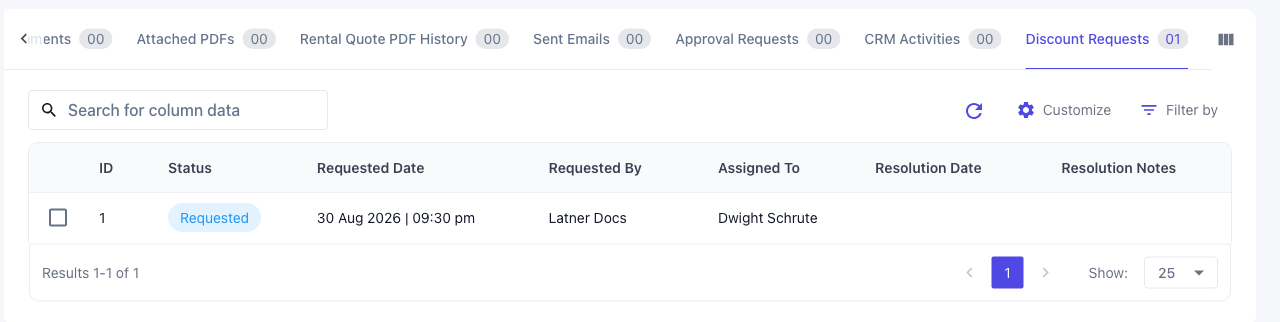
Latner confirms with Rental Quote Discount Requested and drops the new request onto the Discount Requests tab at the bottom of the quote, in Requested status. Leave it with the approver from here - the request cannot be edited once it's raised.
Raising One on a Rental Contract
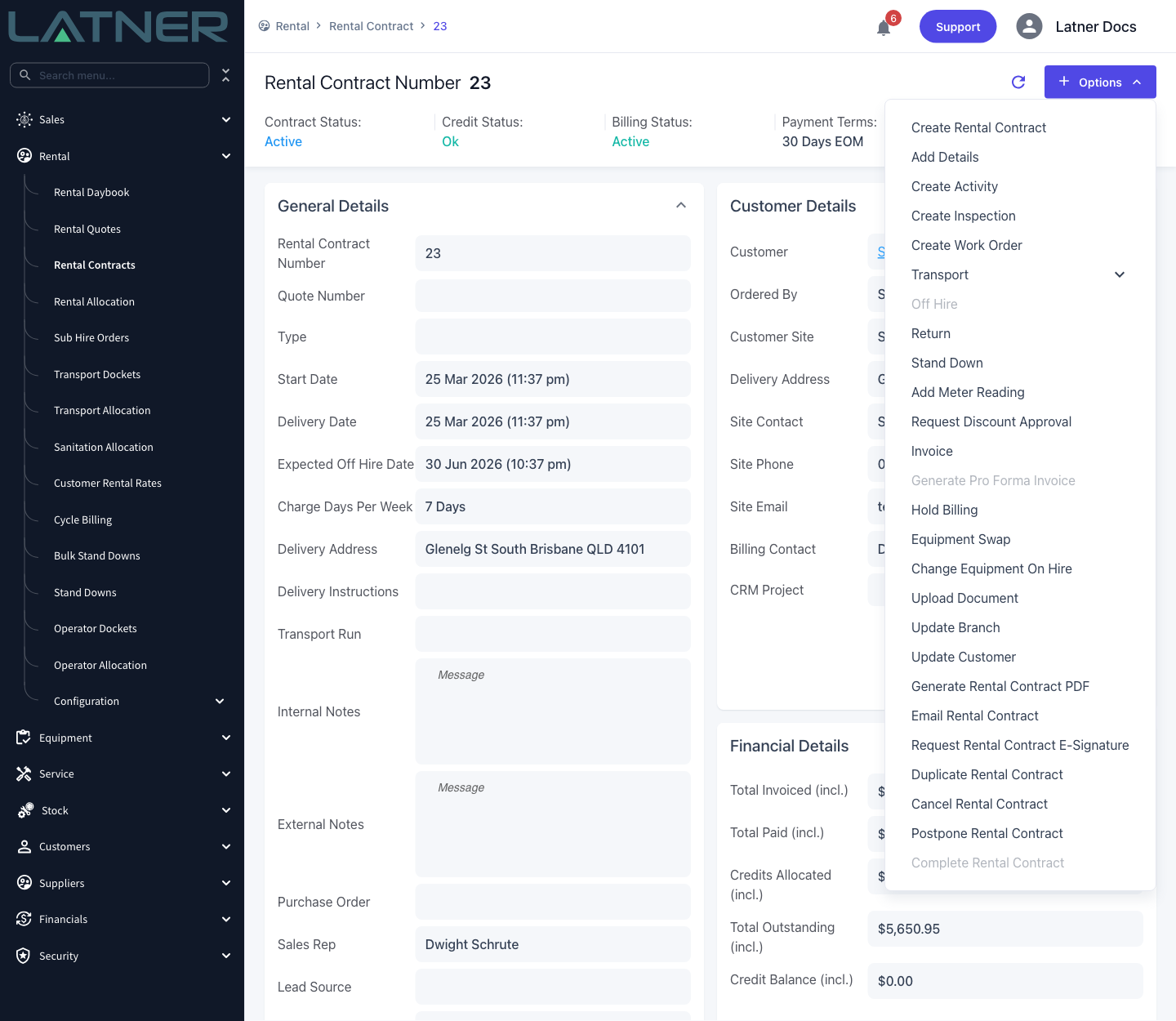
The flow on a rental contract is identical, and it's the one you'll use when a customer asks for a better rate on an extension rather than on a new deal. Open the contract from Rental › Rental Contracts, then Options › Request Discount Approval. The dialog is titled Raise Rental Contract Discount Request and behaves exactly as above.
The contract has to be in Reserved or Active status. On a Completed, Cancelled or Lost contract the menu option isn't shown at all, and the backend rejects the request with Only Active/Reserved Rental Contracts can be discounted.
Approving or Rejecting a Request
Step 1 - Open the notification
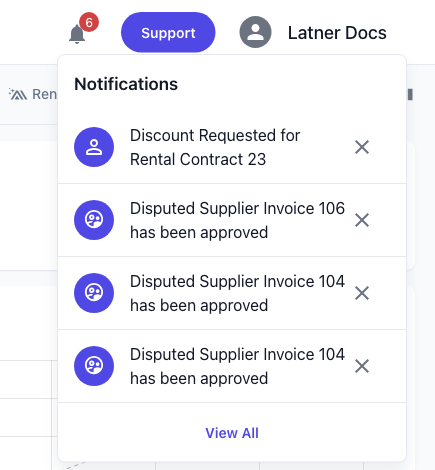
When a request is assigned to you, Latner raises a notification and sends you an email. This one bypasses notification groups entirely, so you get it whether or not you subscribe to rental notifications. Click the bell in the header and the notification opens the quote or contract; the link in the email goes one step further and lands you on its Discount Requests tab.
Step 2 - Open the request
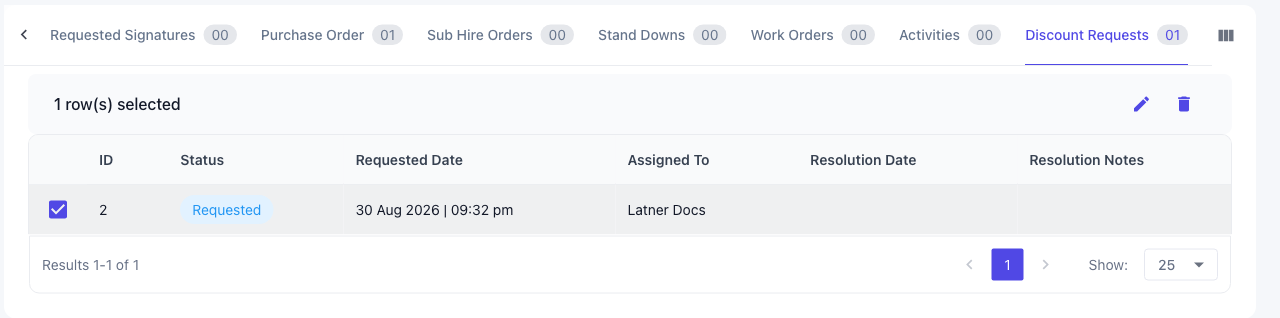
On the Discount Requests tab, tick the request and click the pencil above the table, or just double-click the row. Only the person the request is assigned to can open it: everyone else gets the tooltip Can only resolve discount requests that are assigned to you, and a double-click returns This Discount Request is not assigned to you.
Step 3 - Write a response, then approve or reject
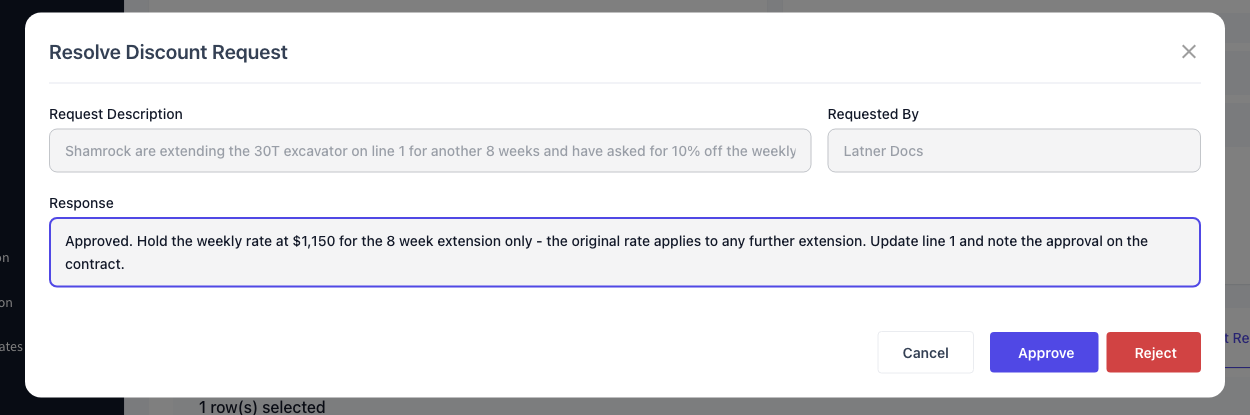
The Resolve Discount Request dialog shows you the Request Description and who raised it, both read only, and gives you one field to fill in.
-
Response - your answer, saved against the request as its resolution notes. Optional, but this is where you set the limits of what you've agreed to.
Click Approve or Reject. Both buttons submit the same form - the only difference is the status they write.
Step 4 - The decision is recorded
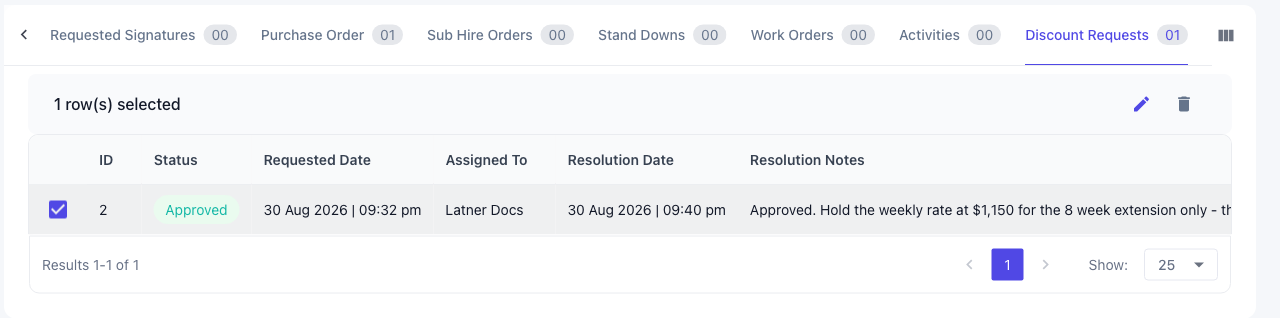
Latner confirms with Discount Request Resolved and the row updates in place: the status becomes Approved or Rejected, and Resolution Date and Resolution Notes fill in. The person who raised it is notified and emailed straight away.
After the Request Is Resolved
-
The request row keeps the whole story: who asked, who decided, when, and what they said.
-
The requester gets a notification and an email carrying the resolution notes.
-
Both the request and its resolution appear on the quote's or contract's audit trail, alongside every other change to the record.
-
A resolved request is final. It can't be reopened, edited or resolved a second time - Latner answers Discount Request has already been resolved. If the deal moves again, raise a new request.
-
While a request is still in Requested status you can delete it from the tab. Once it's been approved or rejected the bin is disabled, with the tooltip Can only delete requests in status Requested.
An approval does not change the rate. It records a decision, nothing more. The new rate still has to be typed onto the quote or contract line, and only a user who holds Allow Rates Below Floor Rate can save it - if the person who raised the request tries, Latner still refuses with Rental rate is lower than the floor rate. In practice the approver either edits the line themselves while they're in the record, or hands the line back to someone who has the permission.