
Requesting customer approval sends your customer a secure link to the rental quote PDF so they can review it and approve it online, with their name, the date and time and their purchase order number all recorded against the quote.
Overview
Chasing a signed quote back over email is slow, and a reply saying "yep, go ahead" is not much of an audit trail. A customer approval request turns that conversation into a record: Latner emails a one-off link, the customer reads the quote in their browser, types their name and clicks Approve, and the quote moves forward on its own.
-
The customer needs no login and no Latner account - just the link in the email.
-
Latner attaches the rental quote PDF to the email and shows the same PDF on the approval page.
-
Every request is tracked on the quote's Approval Requests tab, from Unopened through Opened to Approved.
-
Approving records the approver's name, their IP address, the date and time, and the purchase order number they supplied.
-
An approved quote moves to Customer Approved, and can convert itself straight into a rental contract.
-
You can send as many approval requests as you like against the one quote - each is a separate record.
Before You Begin
Check the following before you send your first request.
|
Requirement |
Where to Find It |
|---|---|
|
Email Rental Quote permission |
Security › Configuration › Permission Groups › Rental › Option. The same permission covers Email Rental Quote and Request Customer Approval. |
|
Rental Quotes permission |
Security › Configuration › Permission Groups › Rental › Screen. Needed to open the quote and read its Approval Requests tab. |
|
SendGrid Email API Key |
Security › Settings › Email. Latner cannot send the approval email without it. SendGrid Sender Email sets the From address; leave it blank and the email comes from no-reply@latner.app. |
|
Rental Quote Purchase Order Required (optional) |
Security › Settings › Rental. Turn it on to force the customer to enter a purchase order number before they can approve. |
|
Auto Convert Customer Approved Rental Quotes (optional) |
Security › Settings › Rental. Turn it on to have Latner create the rental contract as soon as the customer approves. |
|
A quote with detail lines |
The quote needs at least one line, and cannot already be Won, Customer Approved, Cancelled or Lost. |
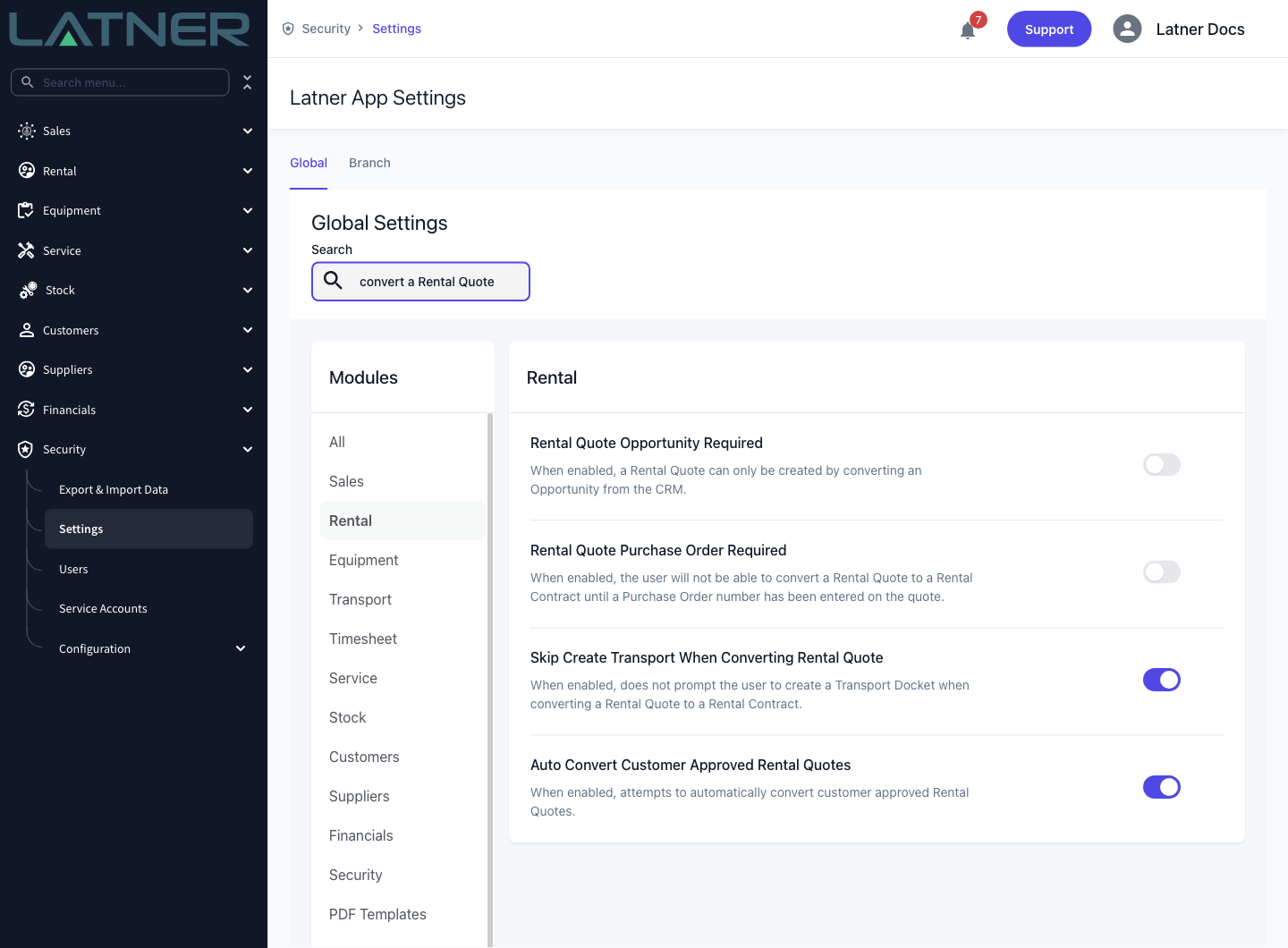
Rental Quote Purchase Order Required is read at the moment you send the request and stored on that request. Turning the setting on later does not make an already-sent link start asking for a purchase order, and turning it off does not relax a link that was sent while it was on.
Sending the Approval Request
Step 1 - Open the quote and choose Request Customer Approval
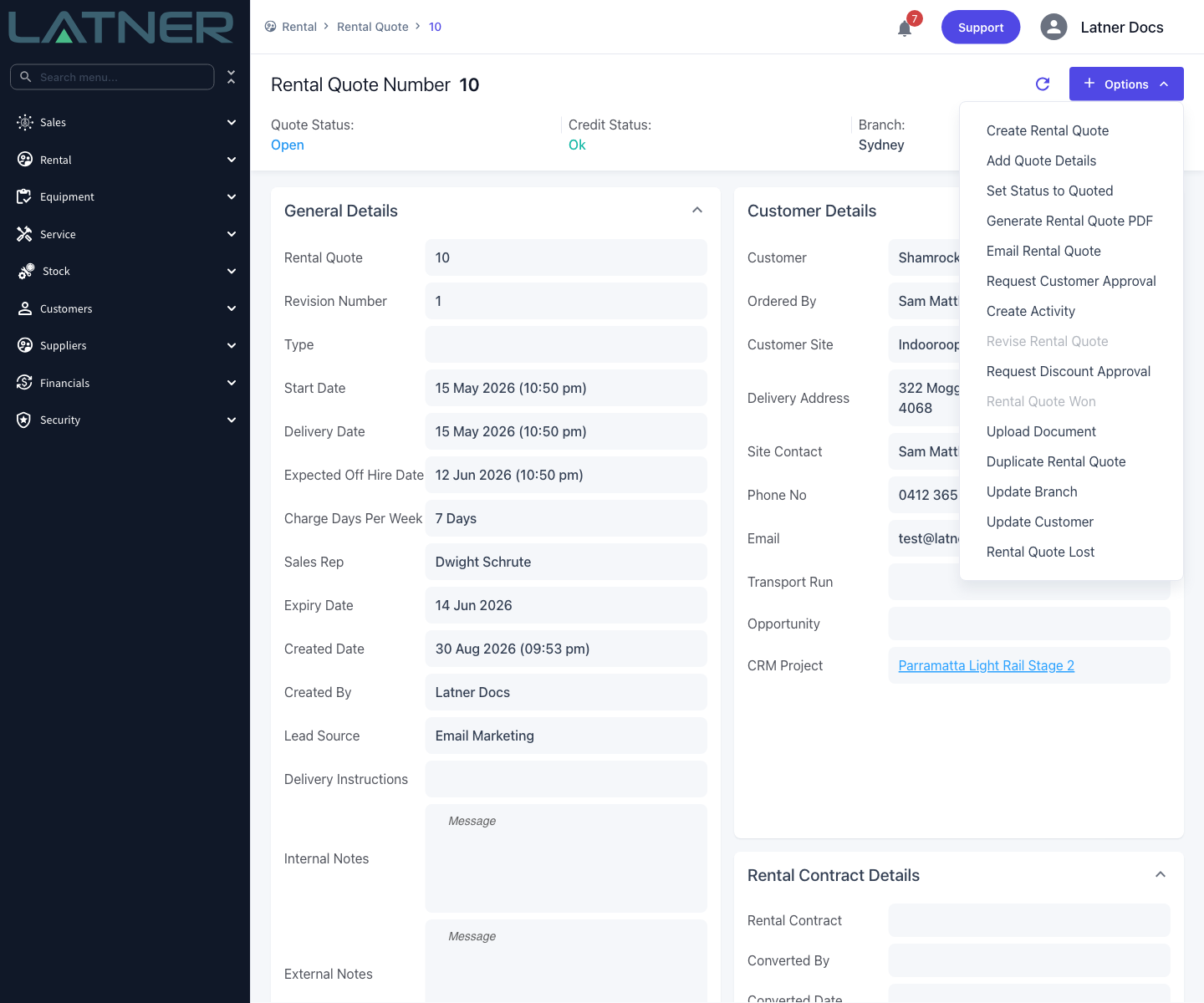
Go to Rental › Rental Quote, open the quote, then choose Options › Request Customer Approval.
The option is greyed out when the quote has no detail lines, or when it is already Won, Customer Approved, Cancelled or Lost. There is nothing left to approve in those states.
Step 2 - Fill in the email
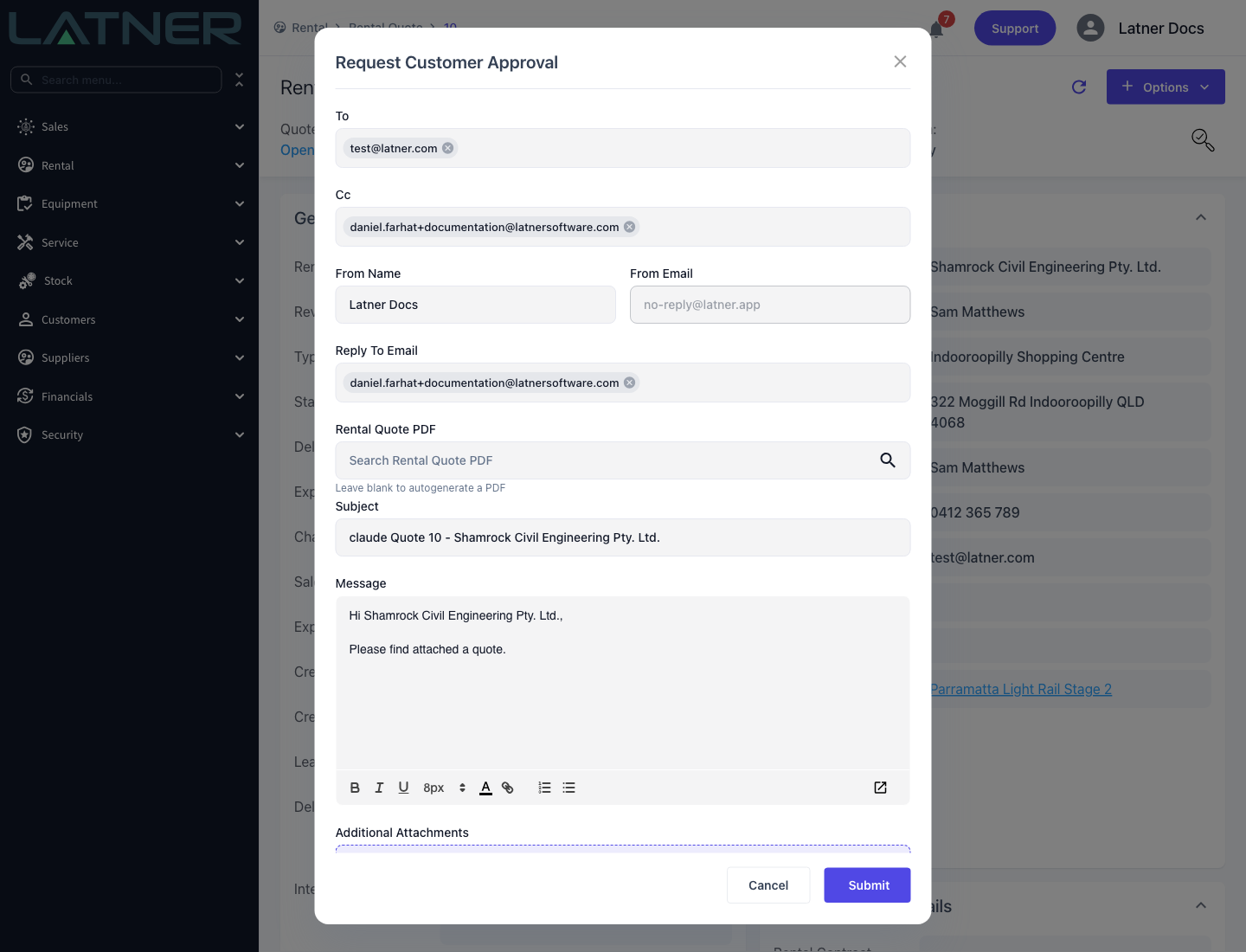
Latner pre-fills most of the email from the quote and your branch's email settings. Check the recipient and the message, then click Submit.
-
To - required. Defaults to the quote's delivery email. Start typing to pick from the customer's contacts.
-
Cc - optional. Customer contacts and Latner users both appear here.
-
From Name - required. Defaults to your name.
-
From Email - read only. This is the branch's SendGrid Sender Email, or no-reply@latner.app when none is set.
-
Reply To Email - required. Where the customer's replies land.
-
Rental Quote PDF - optional. Pick an already-generated PDF, or leave it blank and Latner generates a fresh one for you.
-
Subject and Message - both required, both pre-filled from your branch's rental quote email settings and your email signature.
-
Additional Attachments - optional extra files, on top of the quote PDF.
On submit, Latner creates the approval request, generates the PDF if you left the field blank, and emails the customer a message headed Action Required: Please Review Your Document with a Review Document button and the quote PDF attached. If the quote was still Open, sending also moves the quote and its detail lines to Quoted, stamps the sent date and sets the quote's expiry date to 30 days from today.
Step 3 - Track the request on the quote
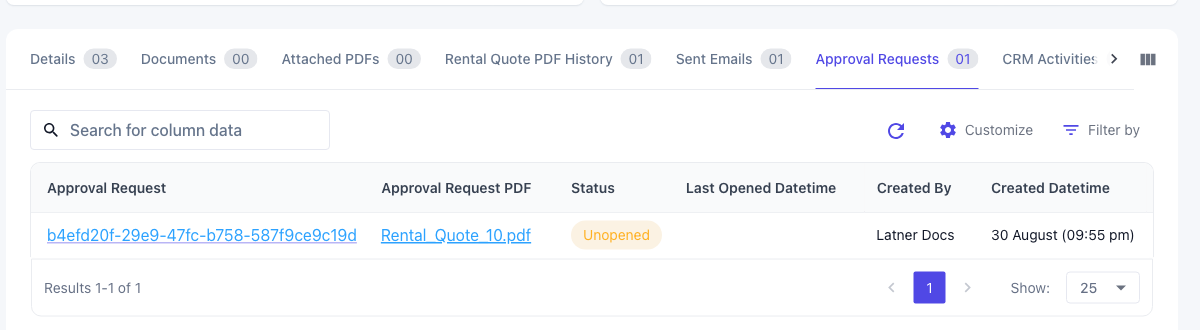
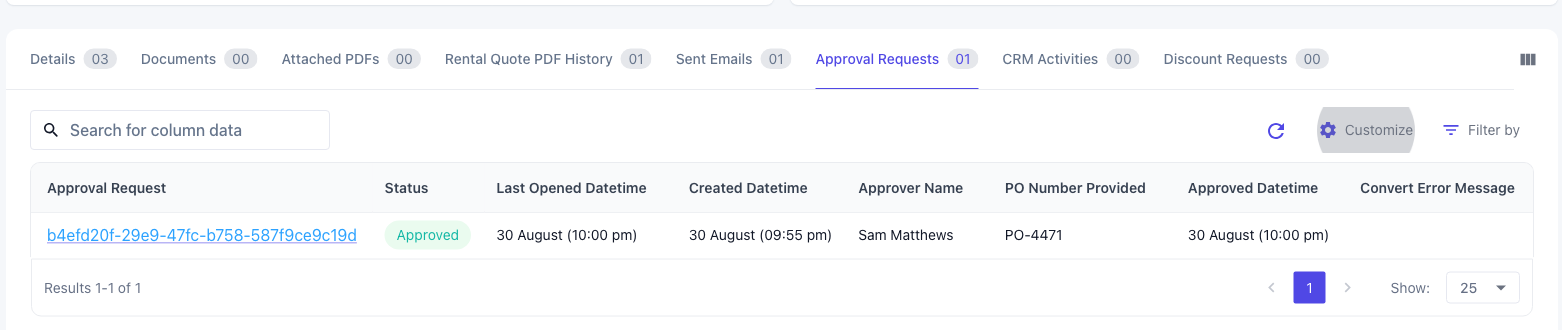
Open the Approval Requests tab on the quote. Each request appears with its own link and a status that tells you exactly how far the customer has got.
-
Unopened - the email has gone out but nobody has clicked the link yet.
-
Opened - the customer has opened the link. Last Opened Datetime updates every time they come back.
-
Approved - the customer has approved the quote.
What the Customer Does
Step 4 - The customer opens the link
Clicking Review Document in the email opens the approval page in the customer's browser. No login is required. The quote PDF is rendered on the page, with a Download PDF to review link for anyone whose browser will not display it inline, and a Reference number at the bottom they can quote back to you.
Simply opening the page moves the request from Unopened to Opened in Latner, which is a useful signal on its own when you are chasing a quote.
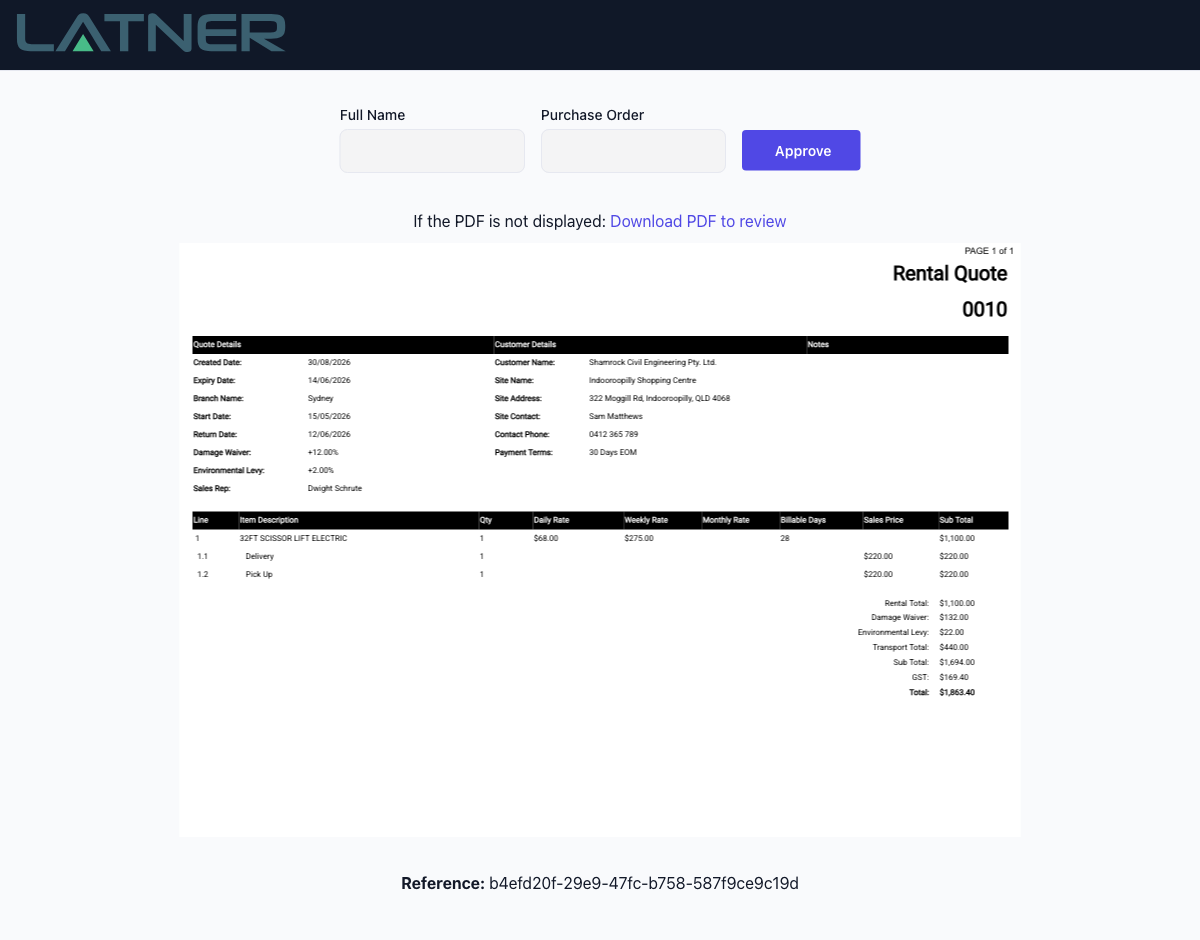
Step 5 - The customer approves
The customer enters their details and clicks Approve.
-
Full Name - always required. This is what gets recorded as the approver.
-
Purchase Order - always shown, but only mandatory when Rental Quote Purchase Order Required was on at the time you sent the request. Anything the customer enters here is copied onto the quote.

Step 6 - The customer sees the confirmation
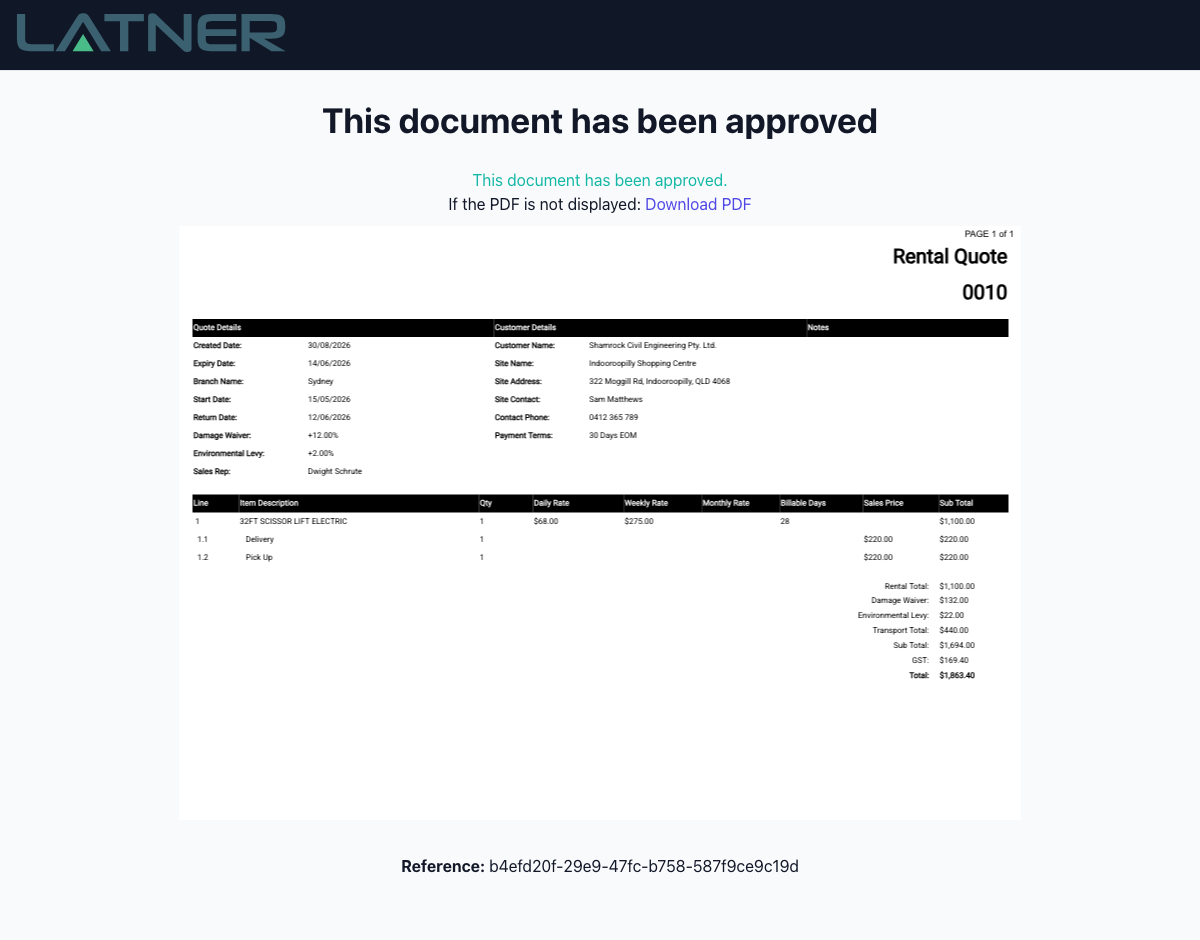
The page confirms This document has been approved and keeps showing the quote so the customer has a record. Latner emails everyone on the original request a confirmation headed The Quote was Approved, again with the quote PDF attached. If the customer returns to the link later, they land straight back on this page.
After Approval
-
The approval request moves to Approved and records Approver Name, PO Number Provided and Approved Datetime.
-
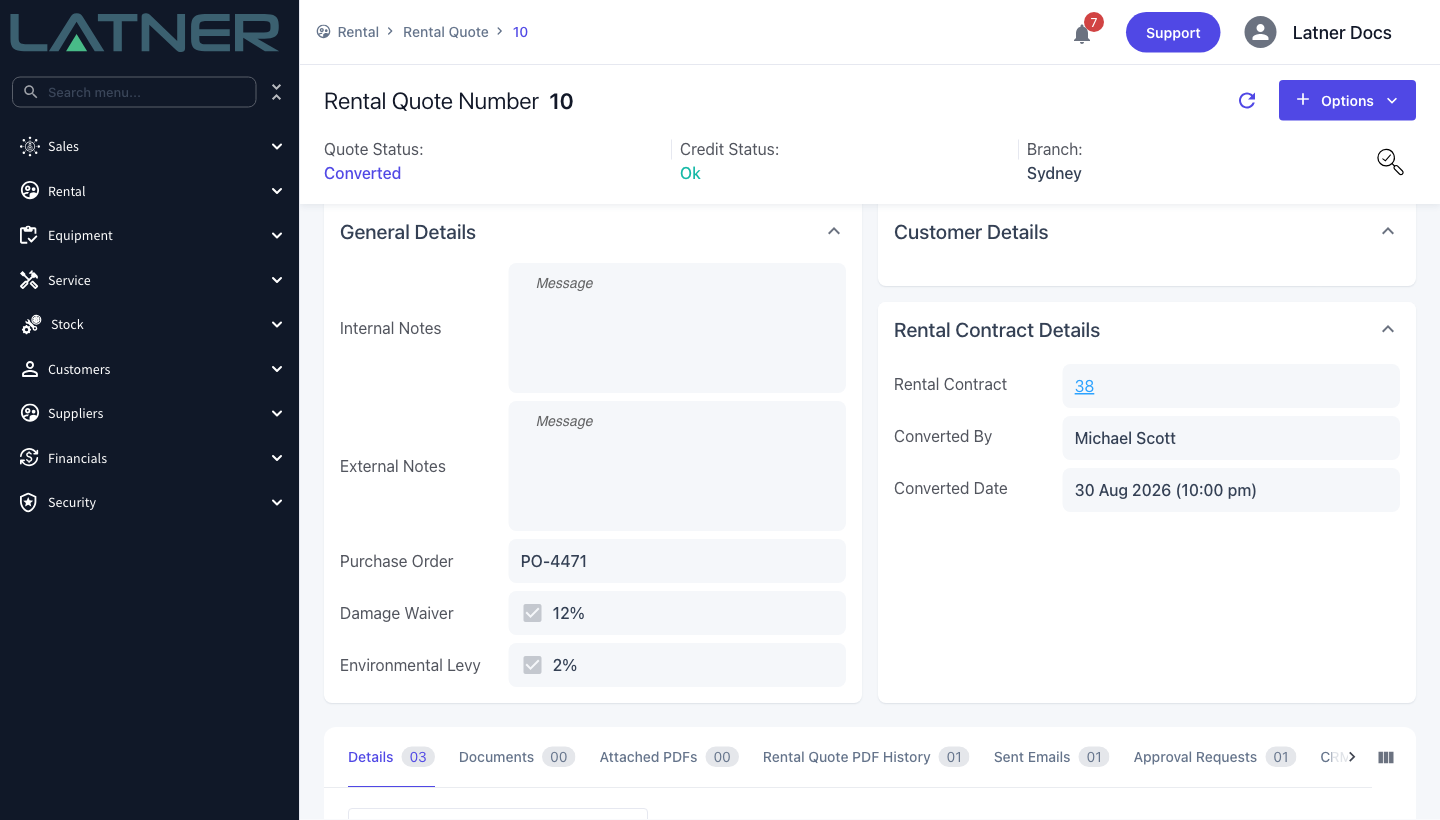
A quote sitting at Quoted moves to Customer Approved, and the purchase order number the customer typed is written onto the quote.
-
With Auto Convert Customer Approved Rental Quotes on, Latner immediately converts the quote into a rental contract. The new contract inherits the purchase order number, and the quote's Rental Contract Details panel links straight to it. Because the customer is not a Latner user, the conversion is recorded against your system administrator rather than the sales rep.
-
With the setting off, the quote waits at Customer Approved for someone to run Options › Convert › Convert to New Contract (or Convert to Existing Contract to add it to a contract that already exists). The Convert option only appears once the quote has left Open and Quoted, which reaching Customer Approved does for you.
-
If the conversion fails - a credit hold, an inactive customer, a missing purchase order - the quote stays at Customer Approved and a warning icon appears in the Convert Error Message column of the Approval Requests tab. Hover it to read what went wrong, fix it, then convert manually.
An approval cannot be undone, and a link cannot be recalled once the email has left. There is no cancel action on an approval request, so a link you have sent stays usable until the customer approves it. If the quote changes after you have sent a request, revise the quote and send a fresh approval request rather than relying on the customer to ignore the old link.
FAQs
Watch the Demo
Prefer to watch it? Step through the same flow here.