
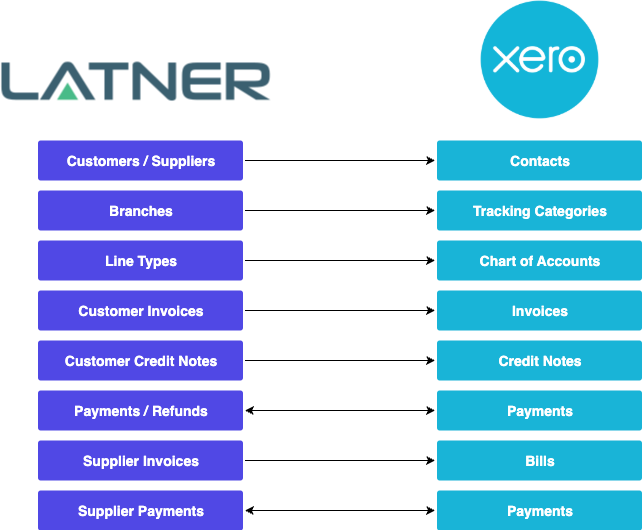
Latner / Xero Data Flow
Connecting to Xero
Latner allows you to connect and manage Xero integrations for each Company you have setup in your instance. Once connected, all Customers, Suppliers, Invoices and Payments for Branches under that Company will by synchronised.
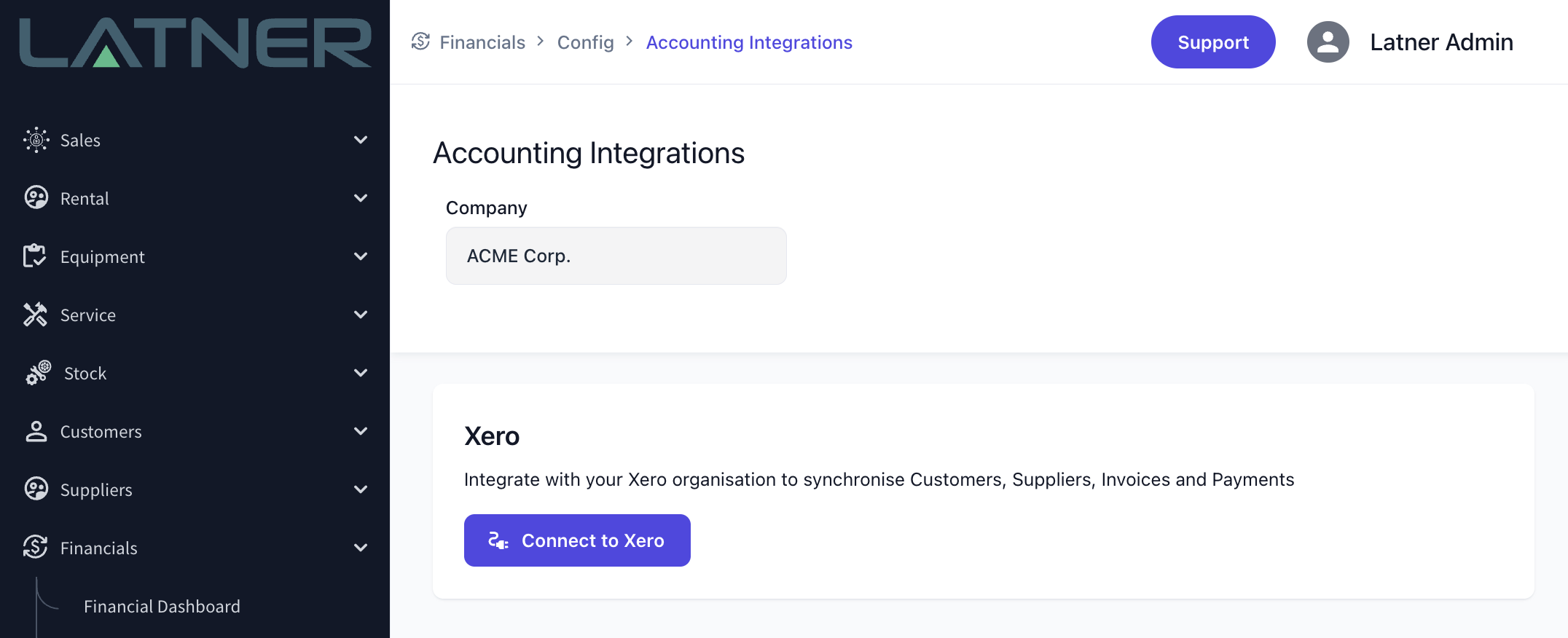
To connect a Company to Xero, go to the Financials > Configuration > Accounting Integrations page in Latner. Select the Company in Latner that you want connected, find the Xero integration card and click the “Connect to Xero” button.
You will be redirected to login to Xero and asked to choose a Xero Organisation to connect to and allow Latner access to manage the integration.
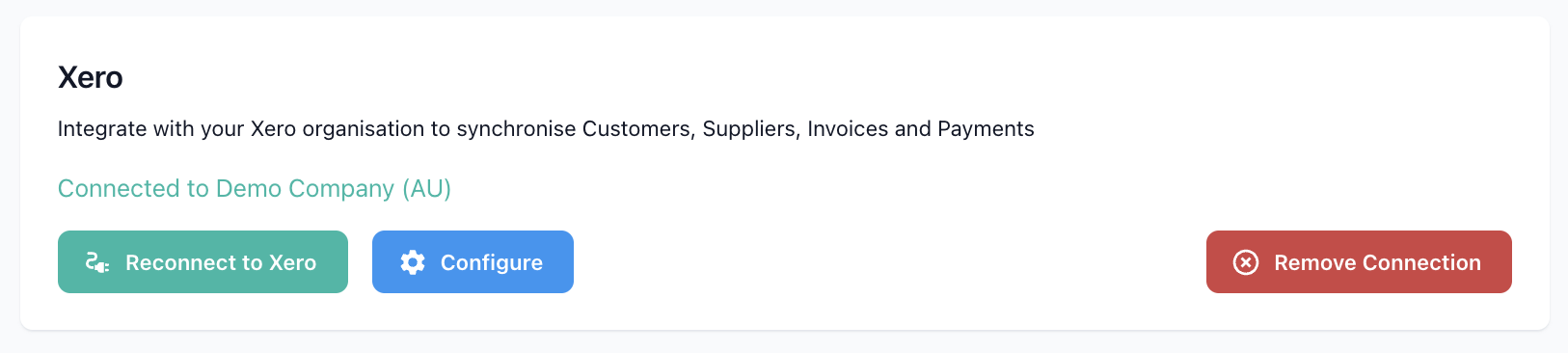
Once, you have selected a Xero Organisation and allowed access, you will be redirected back to the Accounting Integrations page in Latner and you should see the Xero integration card change to say “Connected to {your organisation name}”.
If you have allowed Latner to connect to multiple Xero Organisations, you may be prompted to select which one you want connected to this Latner Company before the connection is made.
If you ever need to change the user credentials used for the Xero integration or start seeing an error message that says “Invalid Grant”, you can click the “Reconnect to Xero” button to refresh the integration between Latner and Xero.
Xero Integration Configuration
Once connected to Xero, you can click the “Configure” button in the Xero integration card to start configuring your connection, such as:
-
Tracking Categories to use for tracking revenue and expenses per Branch
-
Mapping Latner Invoice line types to Xero Account Codes for Revenue and Expenses
-
Formats to use for Invoices and Bills
-
Reference Fields
-
Whether or not to sync payments to and from Xero
-
and more…
Branch Tracking Categories
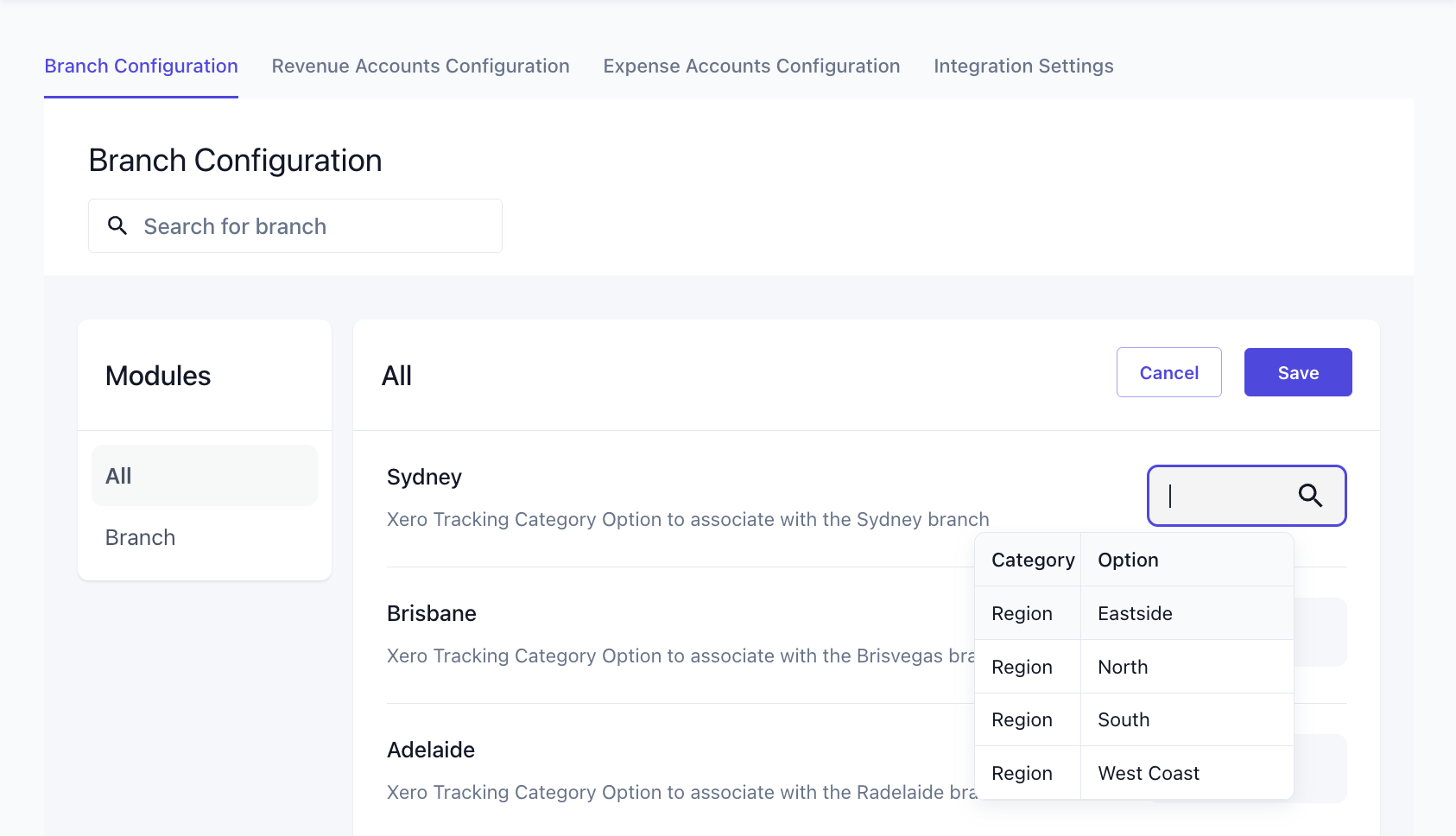
In the Branch Configuration tab, you can select which Tracking Categories in Xero you want to map your Branch from Latner to. This is an option, but recommended step that will help with slicing and filtering your reporting in Xero (More info on Tracking Categories and setting them up in Xero can be found here: https://central.xero.com/s/article/Set-up-tracking-categories).
Revenue and Expense Account Code Mapping
The Revenue Accounts Configuration and Expense Accounts Configuration tabs allow you to map Revenue and Expenses generated on Customer and Supplier Invoices in Latner respectively to their respective Account Codes in Xero.
The mapping configuration is setup as a hierarchy, with the most specific matching mapping taking priority for any given invoice line. The top level of the hierarchy are the different Line Types that can appear on an invoice (e.g., “Admin”, “Equipment”, “Sub Hire Equipment”, “Stock”, etc.). Then under each line type, there is a hierarchy relevant to that Line Type that allows you to more specifically assign Account Codes to types or Equipment, Stock, Admin Charges and more:
-
Line Type - Equipment
-
Equipment Category
-
Equipment Class
-
Equipment Model
-
-
-
-
Line Type - Sub Hire Equipment
-
Equipment Category
-
Equipment Class
-
-
-
Line Type - Stock
-
Stock Group
-
Stock Sub Group
-
-
-
Line Type - Admin
-
Admin Charge
-
-
Line Type - Transport
-
Internal Fulfilment
-
Delivery
-
Pick Up
-
-
External Fulfilment
-
Delivery
-
Pick Up
-
-
-
Line Type - Sanitation
-
Sanitation Service Type
-
-
Line Type - Fuel
-
Fuel Type
-
-
Line Type - Labour
-
Labour Service Type
-
-
Line Type - Damage (Note: this is not “Damage Waiver”, that is located under Admin Charges)
The full hierarchy above does not appear by default as it would take up too much space, so you will need to use the “Assign Account Code” button to configure account codes to revenue and expense types further down the hierarchy.
Integration Settings
In the Integration Settings tab, there are additional settings for the integration including:
-
Formats to use for Invoices and Bills
-
Reference Fields to use for different Invoice types (e.g., PO number or Rental Contract number)
-
Whether or not to sync payments to and from Xero
-
Account Codes to use for different payment types
-
and more…
When Does Syncing Occur
Customer and Supplier Syncing
Customer and Supplier records don’t get synced into Xero from Latner as soon as they are created. They are synced when either a Customer or Supplier Invoice relating to them is synced, OR if you select the “Sync Customer” option on the Customer record to manually sync them to Xero.
The email on the Xero contact comes from the first email address on the customer's main Billing Contact in Latner, so an email edited directly in Xero is overwritten at the next sync. See How to Set Up Billing Contacts for Customers and Sites.
Invoice Syncing
Customer and Supplier Invoices and Credit Notes are synced to Xero when the Invoice is marked as Completed status. You can also re-sync an Invoice to Xero by selecting the “Sync Invoice” options on the Invoice record. The history and status of the syncs to Xero can be found in the “Integration Syncs” tab on the bottom of the Invoice record. If the sync failed, hover over the info icon beside the “Failed” status to see the error message (e.g., missing account codes or validation issues). If an invoice, payment, bill or contact won't sync, Xero and MYOB Sync Troubleshooting walks through each symptom, its cause and the fix.
Only the invoice data is synced: the customer, invoice number, reference, dates, line descriptions, quantities, amounts, account codes and tax codes. Latner's invoice PDF is not sent to Xero, so Xero builds its own version of the invoice from that data using its own template. See Why does my invoice look different in Xero than in Latner? in the FAQs below.
Payment Syncing
Payments (Invoices) and Refund Payments (Credit Notes) made against Invoices and Credit Notes, are synced to Xero as soon as the payment record is created. There is also a trigger to sync payments made directly in Xero back into Latner. These payment records will appear with the payment method “Xero”. You can manually trigger the syncing of payments in both directions by selecting the “Sync Payments” option from the Invoice record. The history and status of payment record syncs to Xero can be seen in the “Integration Syncs” tab at the bottom of the related Invoice or Credit Note and are tagged with the relevant Payment ID.
Credit Allocation Syncing
Credit Note allocations are synced across into Xero as soon as the payment record is created. You can manually trigger the syncing of allocations to Xero by selecting the “Sync Allocations” option from the Credit Note record. The history and status of credit allocation record syncs to Xero can be seen in the “Integration Syncs” tab at the bottom of the related Credit Note and are tagged with the relevant Allocation ID.
Cancelling Invoices
When an Invoice or Credit Note is Cancelled in Latner, Latner first attempts to Void or Delete (depending on the current status) the Invoice or Credit Note in Xero. If the record can’t be Voided or Deleted in Xero (e.g., there are payments or allocations already made against it). Then the cancellation will raise an error.
Removing the Connection to Xero
To remove the connection between a Latner Company and a Xero Organisation, navigate to the Financials > Configuration > Accounting Integrations page, select the relevant Latner Company, and then click “Remove Connection” in the Xero integration card. This will remove the connection and revoke any access you have allowed Latner to your Xero Organisation.
When you remove the connection to Xero, all of your integration settings will be deleted as well, including Account Code mappings. As a result, if you are having issues with your Xero integration, we suggest you try using the “Reconnect to Xero” option first to resolve them.
FAQs
Something not arriving in Xero, or an error you don't recognise? Start with Xero and MYOB Sync Troubleshooting, which is organised by what you see.
Why does my invoice look different in Xero than in Latner?
Latner and Xero each build the invoice PDF from their own template. Latner doesn't send its PDF to Xero - only the invoice data syncs: the customer, invoice number, reference, invoice and due dates, line descriptions, quantities, amounts, account codes and tax codes. Xero then lays that data out with its own invoice template, so the logo, layout and wording around the figures will differ from Latner's PDF, and anything Latner's template prints that isn't part of the synced data won't appear on the Xero version.
Latner's layout comes from its PDF templates, under Security › Settings › PDF Templates. For the standard templates you can change the PDF Logo Image, Primary PDF Theme Color and PDF Header Content there. If you use a custom invoice template, contact Latner support to change its layout. Changing your invoice template in Xero doesn't change Latner's PDF, and changing Latner's PDF templates doesn't change Xero's.
The customer, lines and amounts on both come from the same Latner invoice. If the amounts themselves don't match, that's a sync issue rather than a template difference - check the Integration Syncs tab on the invoice and re-sync it with Sync Invoice.
Should I email invoices from Latner or from Xero?
Choose one system to send invoices from and don't email them from both. Because each system builds its own PDF, emailing from both means your customer can receive two copies of the same invoice that look different, which usually leads to confusion and duplicate payment queries. To send from Latner, use the Email Invoice option on the invoice (it appears once the invoice is Completed). If you send from Xero instead, make sure nobody also emails the same invoices from Latner - use Mark Invoice as Sent on the invoice to record in Latner that it has already gone out.
When do my Invoices Sync to Xero?
Customer and Supplier Invoices and Credit Notes are synced to Xero when the Invoice is marked as Completed.
Why are my Customers/Suppliers not synced to Xero?
Customers and Suppliers are only synced to Xero when a related Invoice in synced. They can be manually synced by selecting “Sync Customer” on the Customer record screen.
What does this error message mean?
The Account Number already exists. Please enter a different Account Number
Latner sends the Customer Code (or Supplier Code) as the Xero account number, and Xero finds the existing contact by its name. This error means no Xero contact has exactly the Latner name, but another contact already holds the code - usually because the contact was renamed, duplicated or archived in Xero. See Xero and MYOB Sync Troubleshooting for the fix.
Another contact has this contact number. Please enter a different contact number
Latner also sends the Customer Code (or Supplier Code) as the Xero contact number, so this has the same cause as the error above: another contact in Xero - including an archived one - already holds the code under a different name. See Xero and MYOB Sync Troubleshooting for the fix.
Invoice not found on Xero, please sync invoice to Xero first.
This error will occur if a payment sync is attempted before the Invoice has been synced to Xero. Resync the Invoice to Xero before attempting to resync any payments
Payment amount exceeds the amount outstanding on this document
The payment total does not match the total on the Invoice in Xero. Check the Invoice details in Xero match Latner.
Does Latner sync Purchase Orders to Xero?
Purchase Orders in Latner currently do not sync into Xero.