Reconnecting your MYOB integration re-approves Latner against MYOB's new permission model, which replaces the single broad permission MYOB retires on 1 September 2026, so your invoices, payments and credit notes keep flowing without a break.
Overview
Nothing about your setup is changing here. Your account codes, tax mappings and integration settings all stay exactly where they are. The only thing being renewed is the handshake between Latner and MYOB, and MYOB will only renew it when a person signs in and approves it.
-
MYOB is retiring the broad CompanyFile permission on 1 September 2026 and replacing it with a set of narrower permissions, each covering only one area of your ledger.
-
Latner already asks for the new permissions. What is missing is your consent, and MYOB only records that when someone signs in and approves it.
-
Reconnecting takes a couple of minutes on the Accounting Integration screen, and it keeps every account code mapping, tax code mapping and integration setting you have configured.
-
You now choose which MYOB business to connect on MYOB's own consent screen. Latner no longer asks you afterwards.
-
Each Latner Company has its own MYOB connection, so each one needs its own reconnect.
-
An integration that is not reconnected stops syncing once MYOB withdraws the old permission. Latner will still show it as connected, so the failures turn up on your invoices rather than on the integration screen.
The deadline is 1 September 2026. Reconnect before then and there is no interruption at all. If you are reading this afterwards and your syncs have already stopped, the steps below are still the fix.
This is not a one-off. MYOB's consent screen states that you will need to reconnect the app again after 12 months, so treat this as a yearly job and diarise it. The steps are identical every time.
Before You Begin
You need three things, and one of them is worth writing down before you start.
|
Requirement |
Where to Find It |
|---|---|
|
The Accounting Integration permission |
Security › Config › Permission Groups, under Financials › Configuration. Without it the menu item is hidden. |
|
A MYOB sign-in that administers the business file |
Your own MYOB account. MYOB's consent screen is explicit about it: "To connect this app, you need to be an Administrator in your MYOB business file." |
|
The name of the MYOB business you are connected to now |
Shown in green on the MYOB card as Connected to followed by the name. Note it down, because you pick it again on MYOB's consent screen. |
Reconnecting does not log anyone out of Latner, does not pause billing and does not need to be done out of hours. Invoices completed while you are mid-reconnect simply sync on the next attempt.
Reconnecting to MYOB
Step 1 - Open the Accounting Integration screen
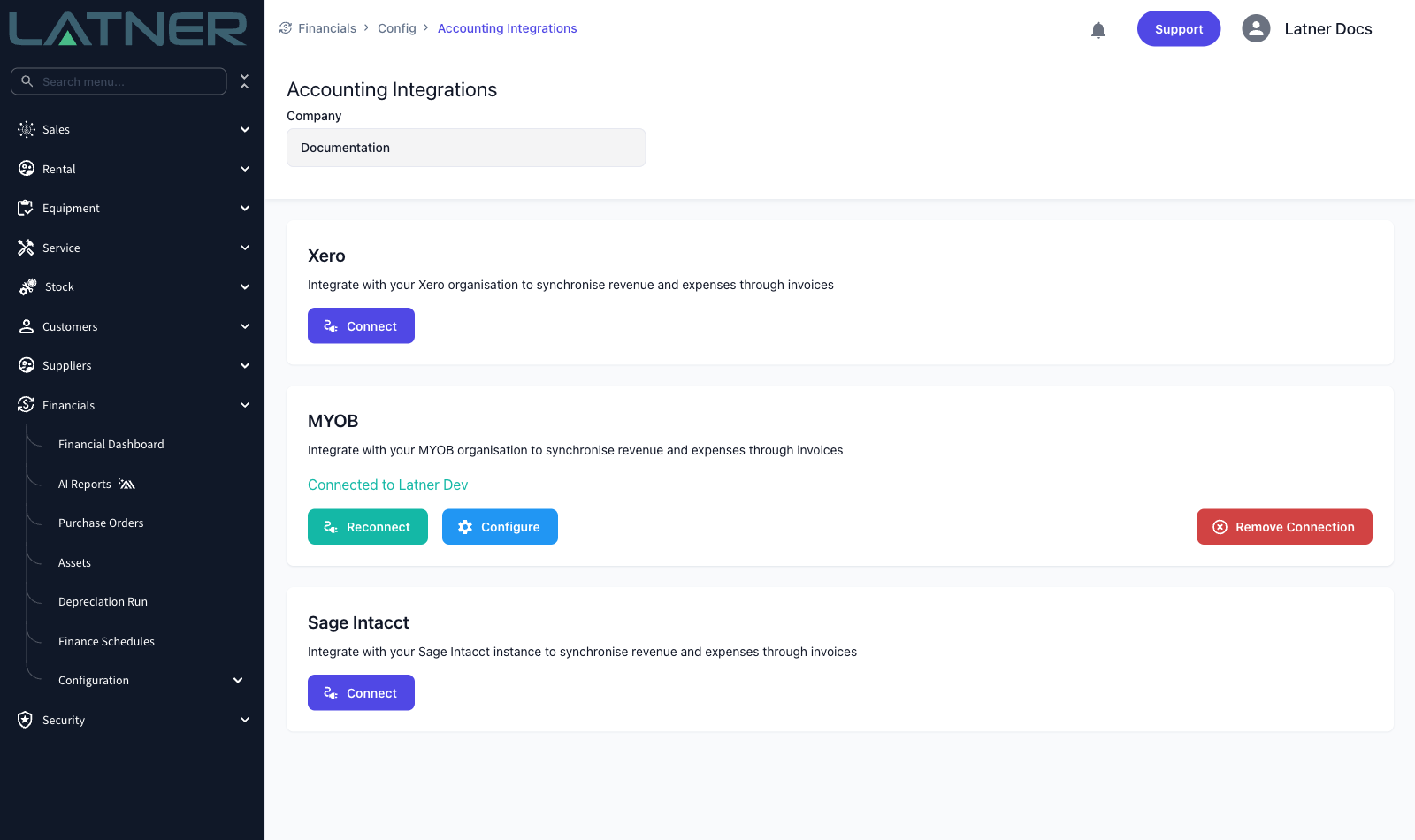
Go to Financials › Config › Accounting Integration. Set the Company field at the top of the screen to the Latner Company whose MYOB connection you are renewing, then find the MYOB card.
The card shows Connected to and the name of the MYOB business it currently syncs with. Note that name down now. You will be asked to choose the same one in Step 3, and picking the wrong one points your invoices at the wrong set of books.
Step 2 - Click Reconnect
Click Reconnect on the MYOB card. Latner hands the browser straight over to MYOB, so nothing more is typed into Latner until you come back.
Use Reconnect, not Remove Connection. They look like two routes to the same place and they are not. See the warning under After Reconnecting below.
Step 3 - Sign in and approve the new permissions
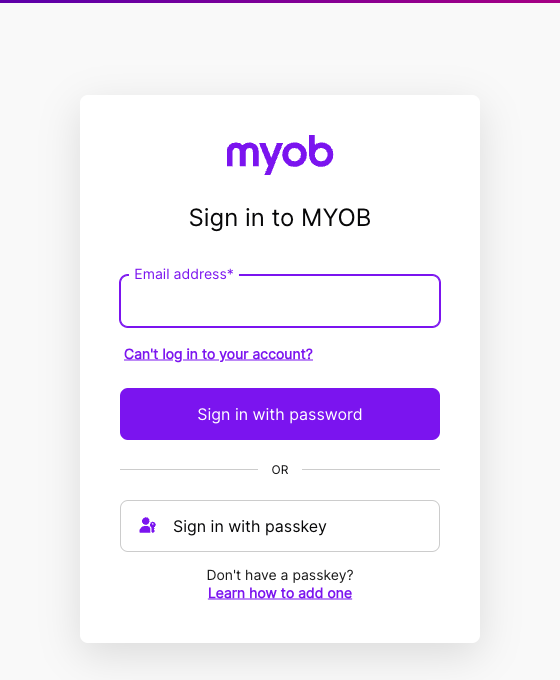
Sign in with a MYOB account that administers the business file. If that account has two-factor authentication turned on, MYOB asks for a one-time code before it lets you through.
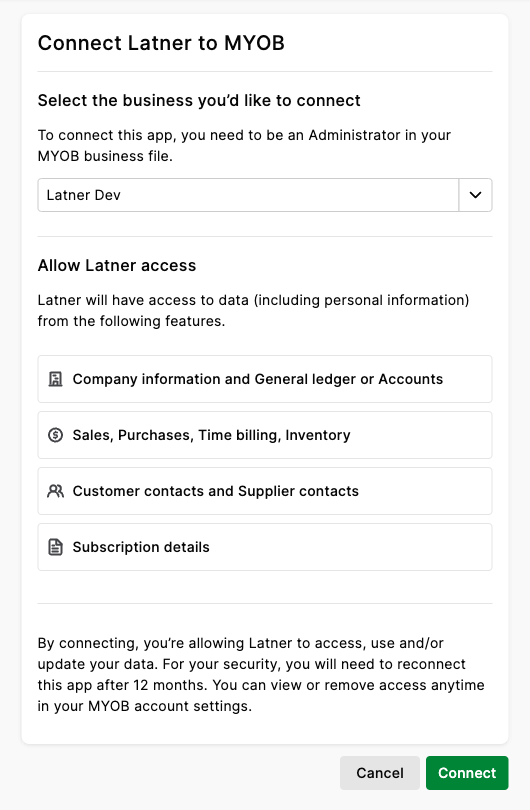
MYOB then shows a screen headed Connect Latner to MYOB, in two parts:
-
Select the business you'd like to connect - a dropdown listing the businesses your sign-in administers. Choose the one you noted in Step 1. MYOB calls it a business here, while Latner shows the same thing as the name after Connected to. The Connect button stays greyed out until you have chosen one.
-
Allow Latner access - the areas of your ledger Latner is asking for, grouped into four lines: Company information and General ledger or Accounts, Sales, Purchases, Time billing, Inventory, Customer contacts and Supplier contacts, and Subscription details.
That is the whole list. Latner does not ask for payroll or banking access, and neither appears on the screen. Time billing and Inventory are not used today and are requested now so a future release does not put you through an extra reconnect.
Choose your business, then click Connect.
Step 4 - Check you are back and connected
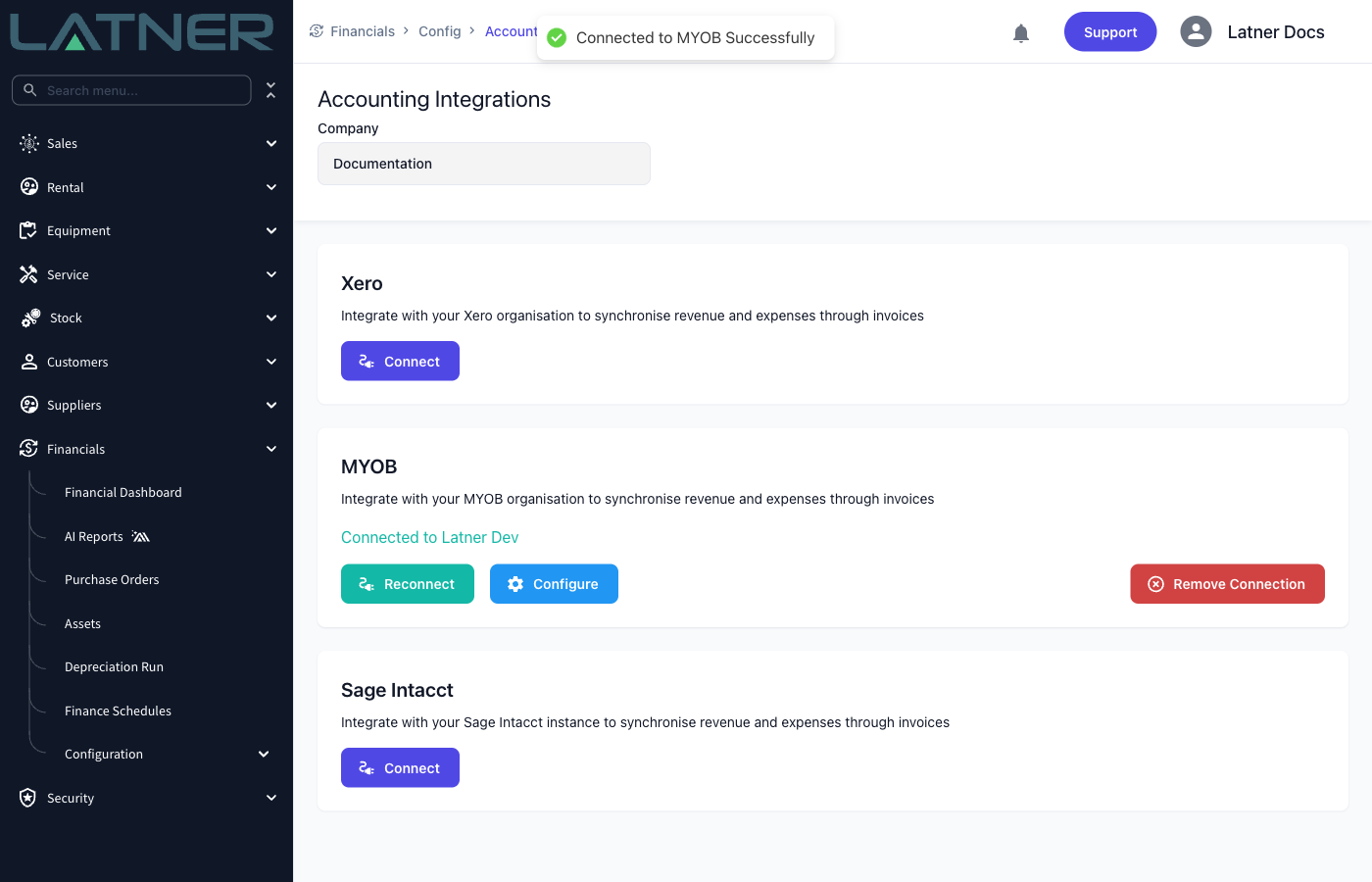
MYOB returns you to the Accounting Integrations screen and a green Connected to MYOB Successfully message appears. The MYOB card should read Connected to the same name you noted in Step 1, with Reconnect, Configure and Remove Connection available.
If the name does not match what you noted, you approved the wrong business. Click Reconnect again and choose the right one before completing any more invoices.
Step 5 - Repeat for your other Companies
Change the Company field at the top of the screen and work through Steps 1 to 4 again for every Company that has a MYOB card reading Connected to. A Company whose card offers only Connect has no MYOB integration and needs nothing done.
After Reconnecting
-
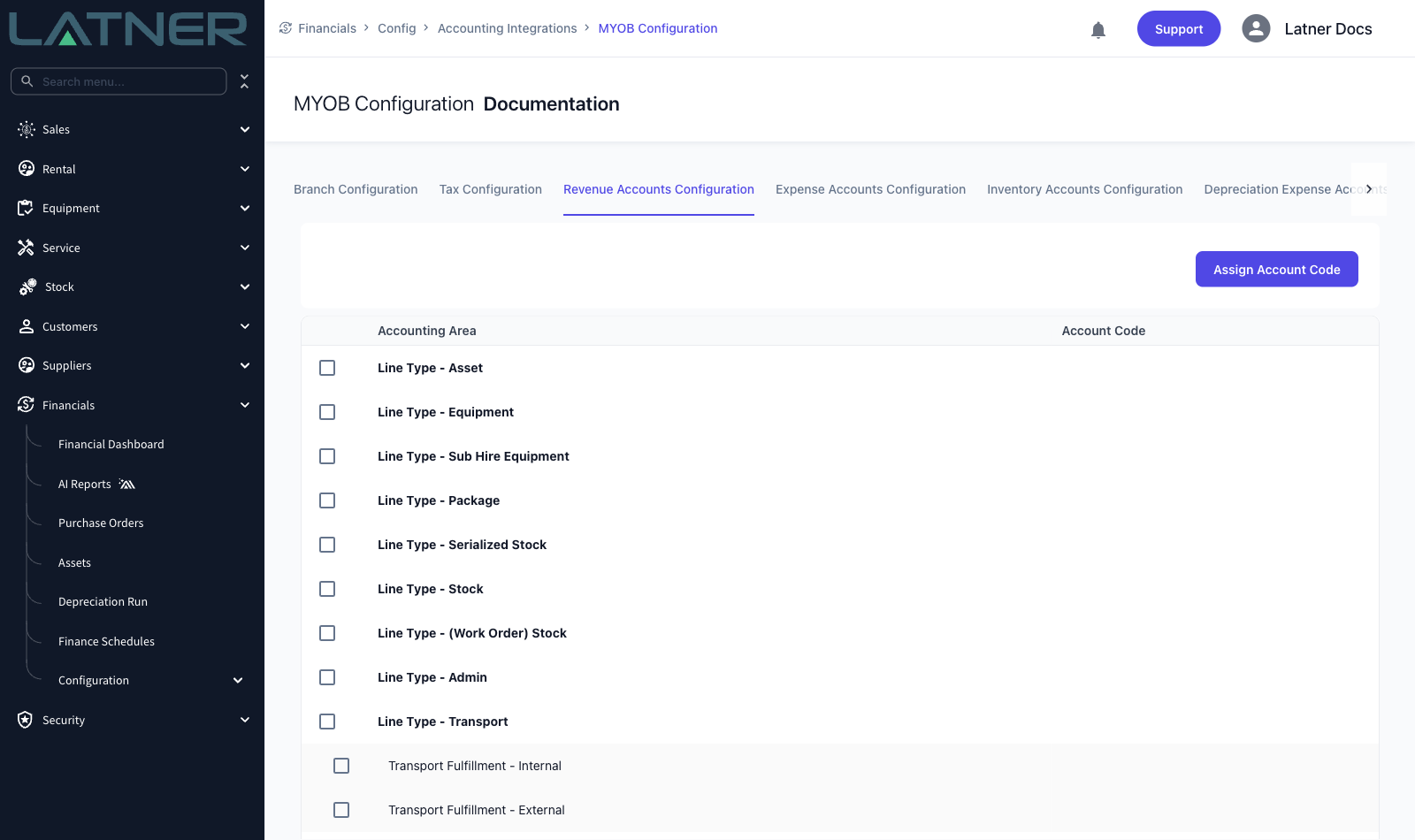
Your configuration is untouched. Every tab under Configure stays as it was, including Branch Configuration, Tax Configuration, the revenue, expense, inventory and depreciation account code mappings, and every value under Integration Settings.
-
Syncing resumes at its normal trigger points, so an invoice syncs when it is marked Completed, a payment syncs when it is recorded, and so on.
-
Nothing that failed earlier is retried automatically. Anything that failed while the connection was stale has to be re-sent by hand.
-
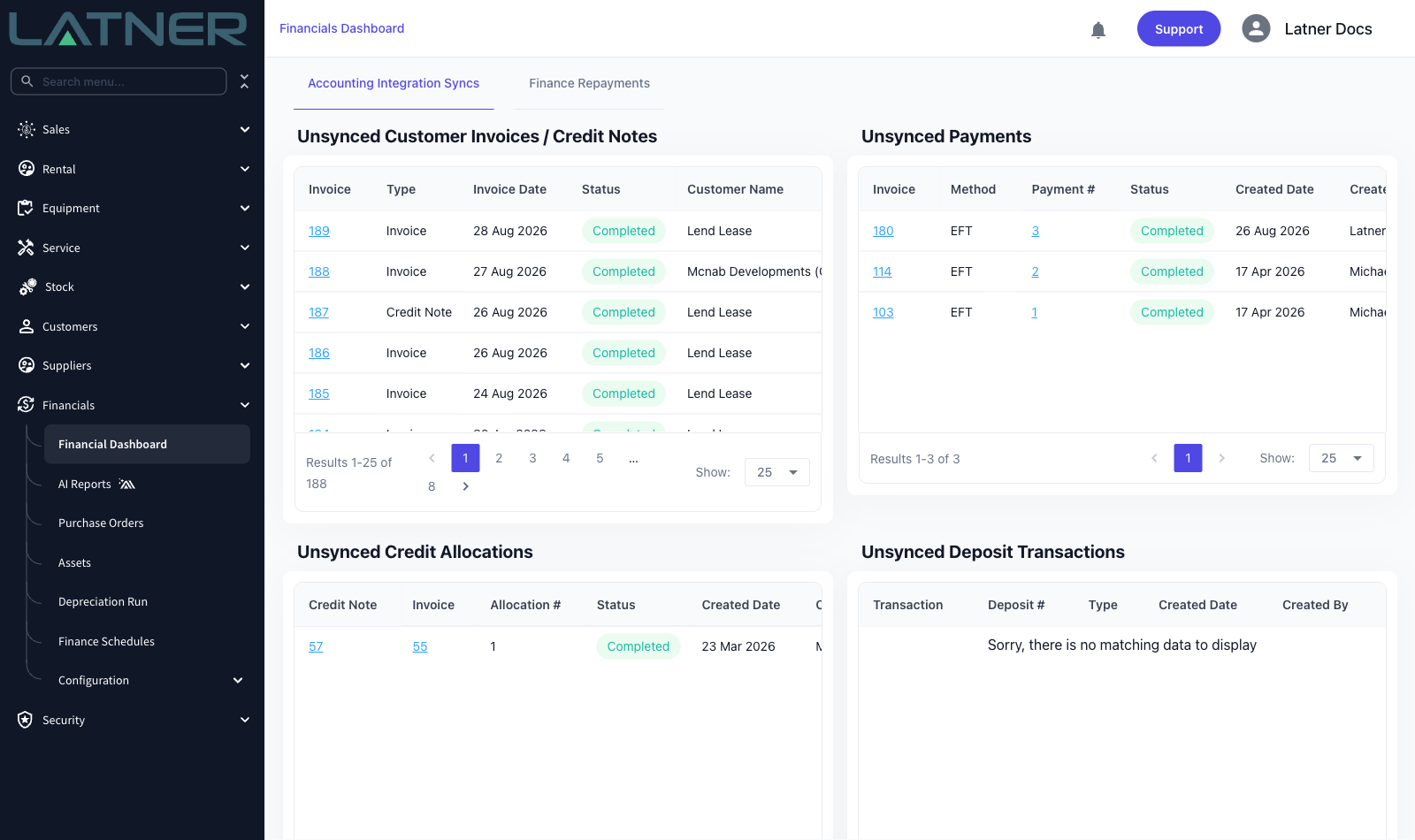
To catch up, open Financials › Financial Dashboard › Accounting Integration Syncs and work through Unsynced Customer Invoices / Credit Notes, Unsynced Payments, Unsynced Credit Allocations, Unsynced Deposit Transactions and Unsynced Supplier Invoices. Each row links to the record, where Sync Invoice, Sync Payments or Sync Allocations re-sends it. If a record still fails after you have reconnected, see Xero and MYOB Sync Troubleshooting for the cause and the fix.
-
Payments entered directly into MYOB look after themselves. Latner pulls the last 40 days of MYOB customer payments every night, so payments recorded in MYOB during the gap arrive on the next nightly run.
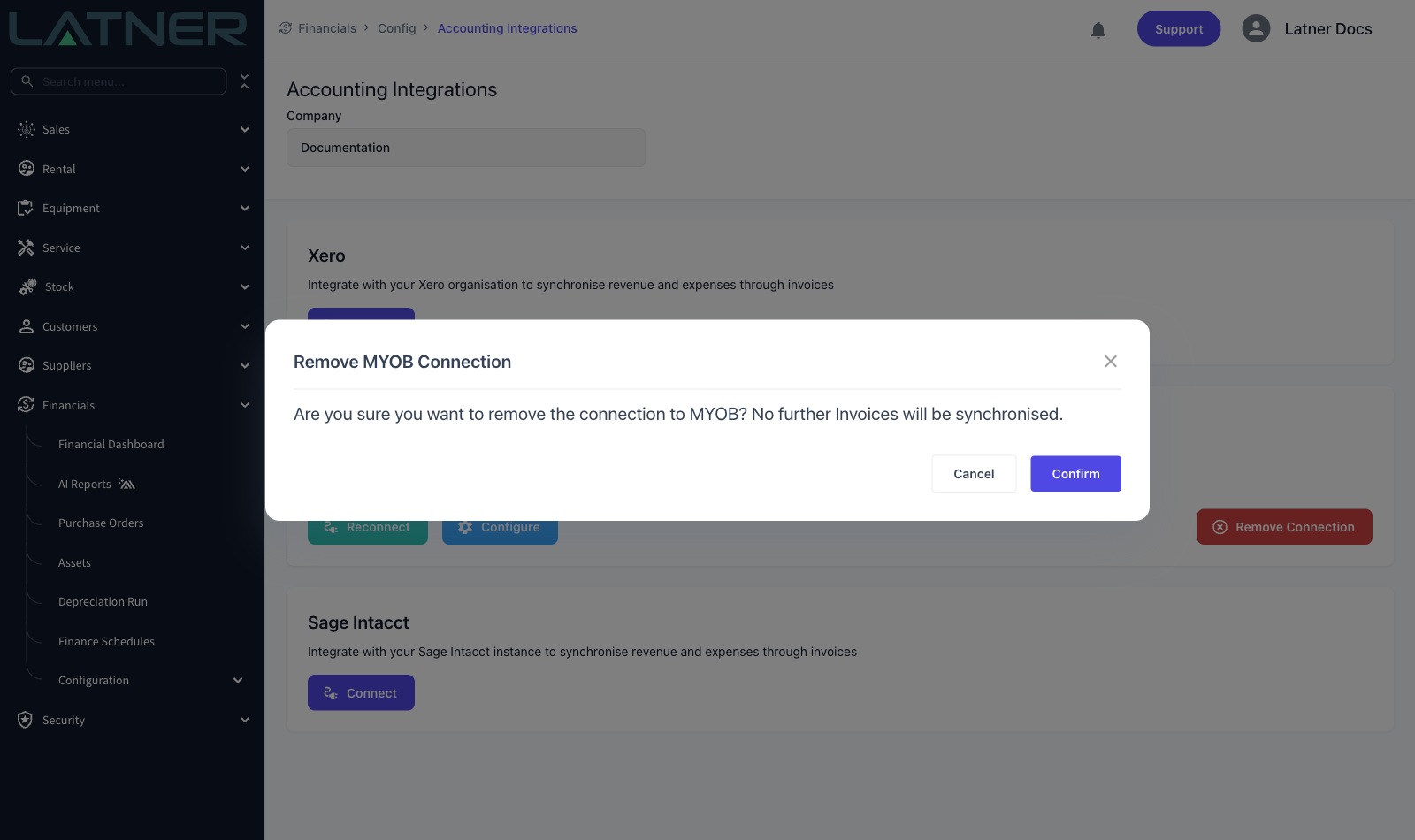
Reconnect, never Remove Connection. Removing the connection deletes the integration record itself, and with it every account code mapping, tax code mapping and integration setting for that Company. There is no undo. While it is gone Latner also stops stamping account codes onto new invoice lines, and older unsynced invoices drop off the Unsynced lists once you connect again. Reconnect replaces the credentials in place and leaves all of that alone. If you have already removed a connection, connect again and then check every tab under Configure before you complete another invoice.