
An ad hoc Sanitation Docket is a one-off service you raise by hand, for the times a site needs pumping out, cleaning or restocking outside any regular pattern.
Overview
Not every visit fits the timetable. A line set to Ad Hoc has no schedule behind it, so every visit is booked by hand - and a line on a regular schedule sometimes needs an extra visit too. Either way, that one-off booking is an ad hoc Sanitation Docket.
-
An ad hoc docket is raised from the Sanitation tab of the rental contract, against the Sanitation line for the equipment being serviced.
-
It is created with a status of Open, a due date, a charge, and either one of your own drivers or an external supplier carrying out the work.
-
An ad hoc docket can be raised against a Sanitation line of any frequency. On a scheduled line it is a one-off extra service: the scheduled dockets and their due dates are unchanged. Completing an ad hoc docket never raises another one.
-
Ad hoc dockets are not cleared away when the equipment comes off hire - somebody asked for that service, so it stays.
-
From there the docket behaves like any other: it is scheduled on Sanitation Allocation, completed by whoever attends, and billed once it is finished.
Before You Begin
The docket hangs off an existing Sanitation line, so get that in place first.
|
Requirement |
Where to Find It |
|---|---|
|
An open rental contract with a Sanitation line, linked to an equipment line |
Rental › Rental Contracts › the contract › Sanitation |
|
An Equipment Number on the linked equipment line |
The contract's Details tab |
|
Create Sanitation Dockets permission |
Security › Permission Groups › Rental › Options |
|
Sanitation Scheduler Default Duration (Minutes) setting, used when you later schedule the docket |
Security › Settings › Rental |
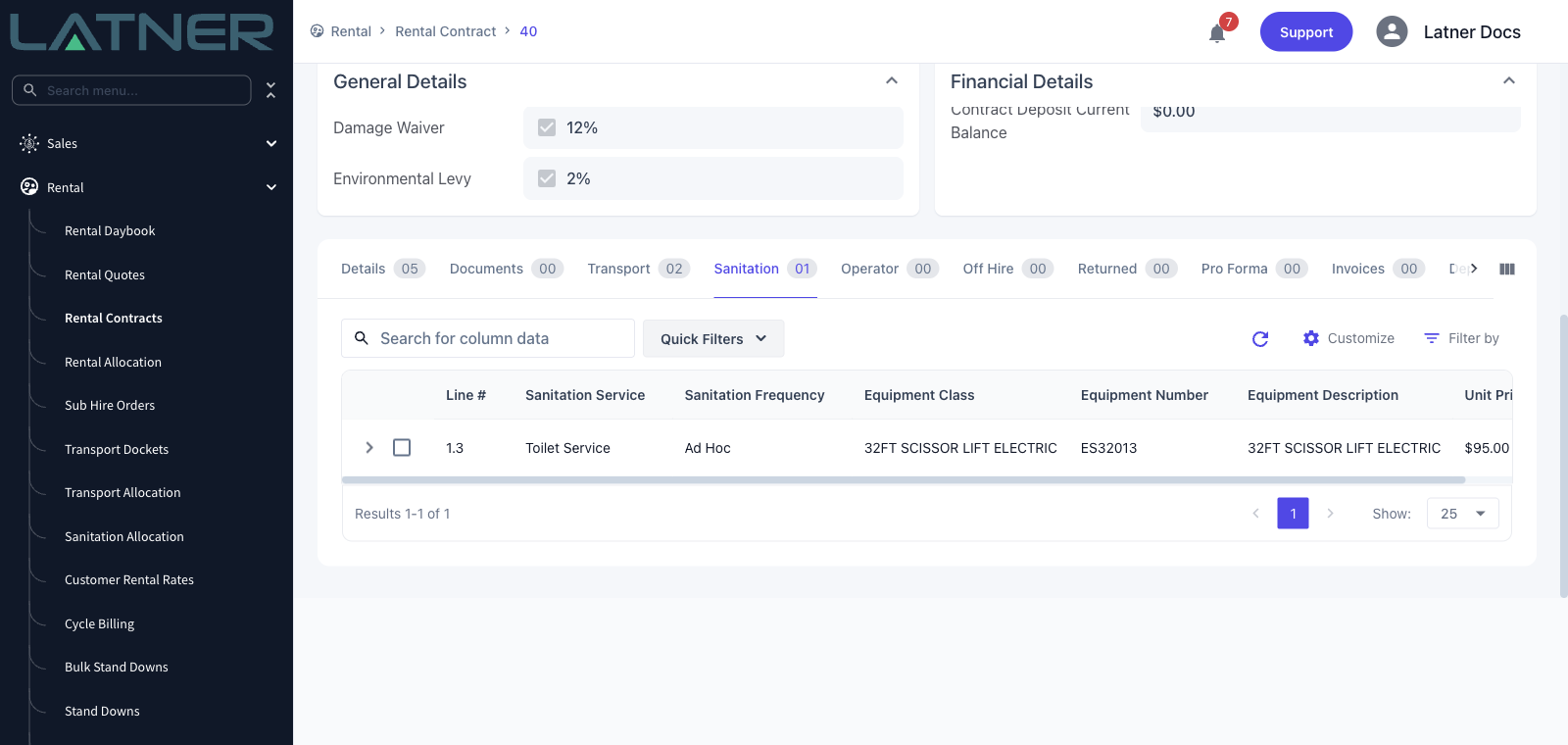
The action is only offered while the contract is still open. On a Completed, Cancelled or Lost contract it is greyed out with Rental Contract must be Open, and it stays greyed out until exactly one Sanitation line is ticked and the equipment line that line points at has an Equipment Number against it.
Creating the Ad Hoc Sanitation Docket
Step 1 - Select the Sanitation line
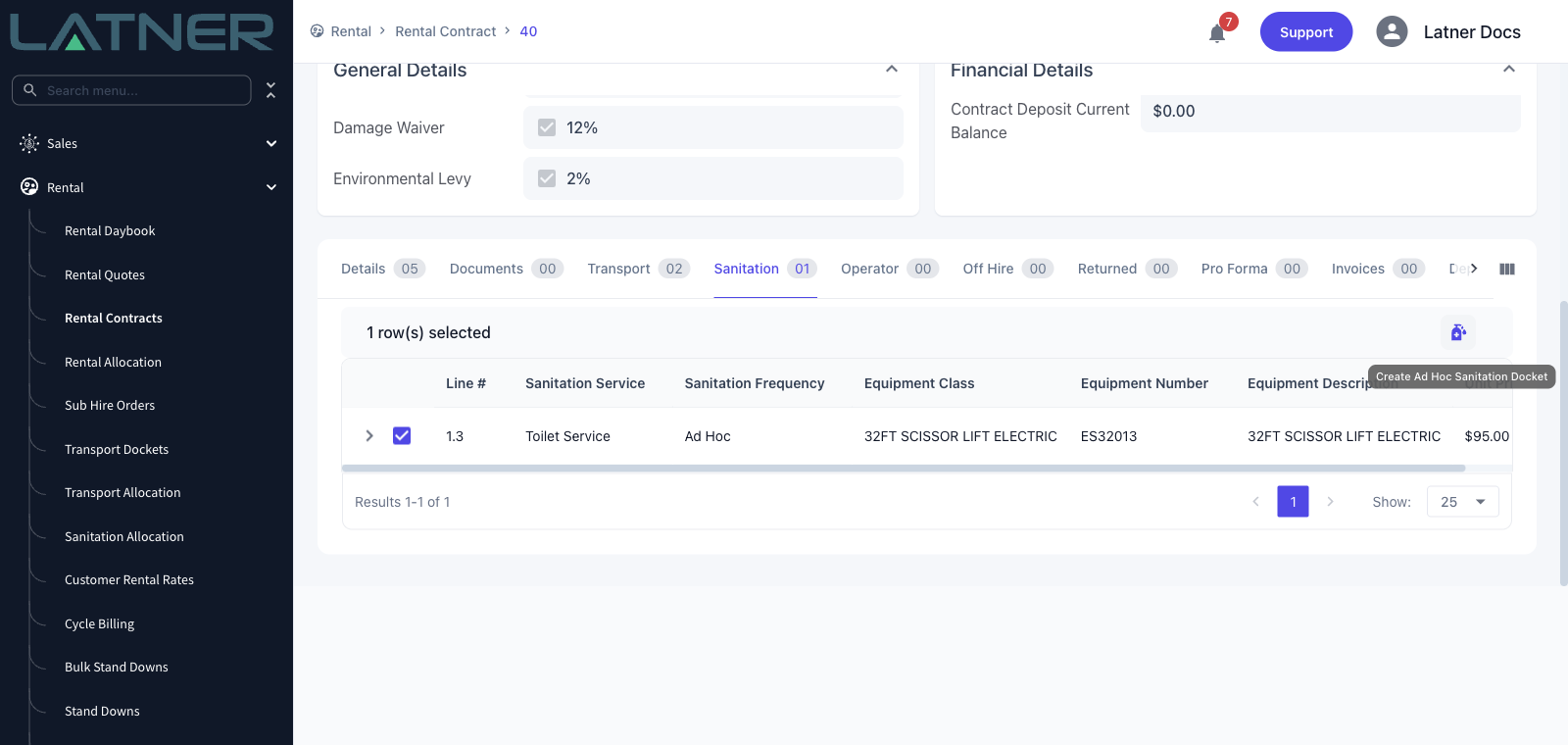
Open the rental contract, go to the Sanitation tab and tick the line you want an extra service on. A selection toolbar appears above the table with a sanitation icon on the right - hover it and it reads Create Ad Hoc Sanitation Docket. Click it.
Step 2 - Check the details and set the due date
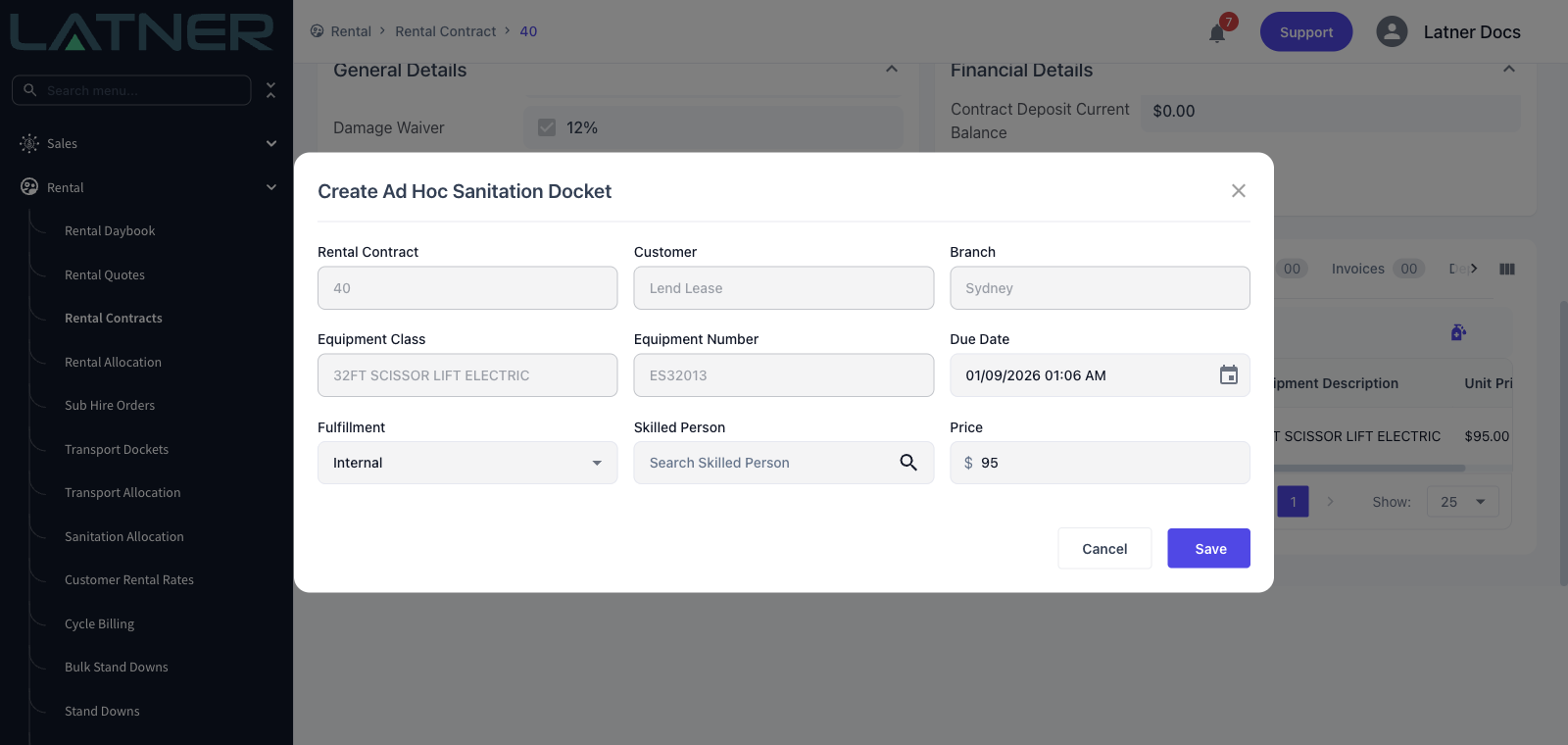
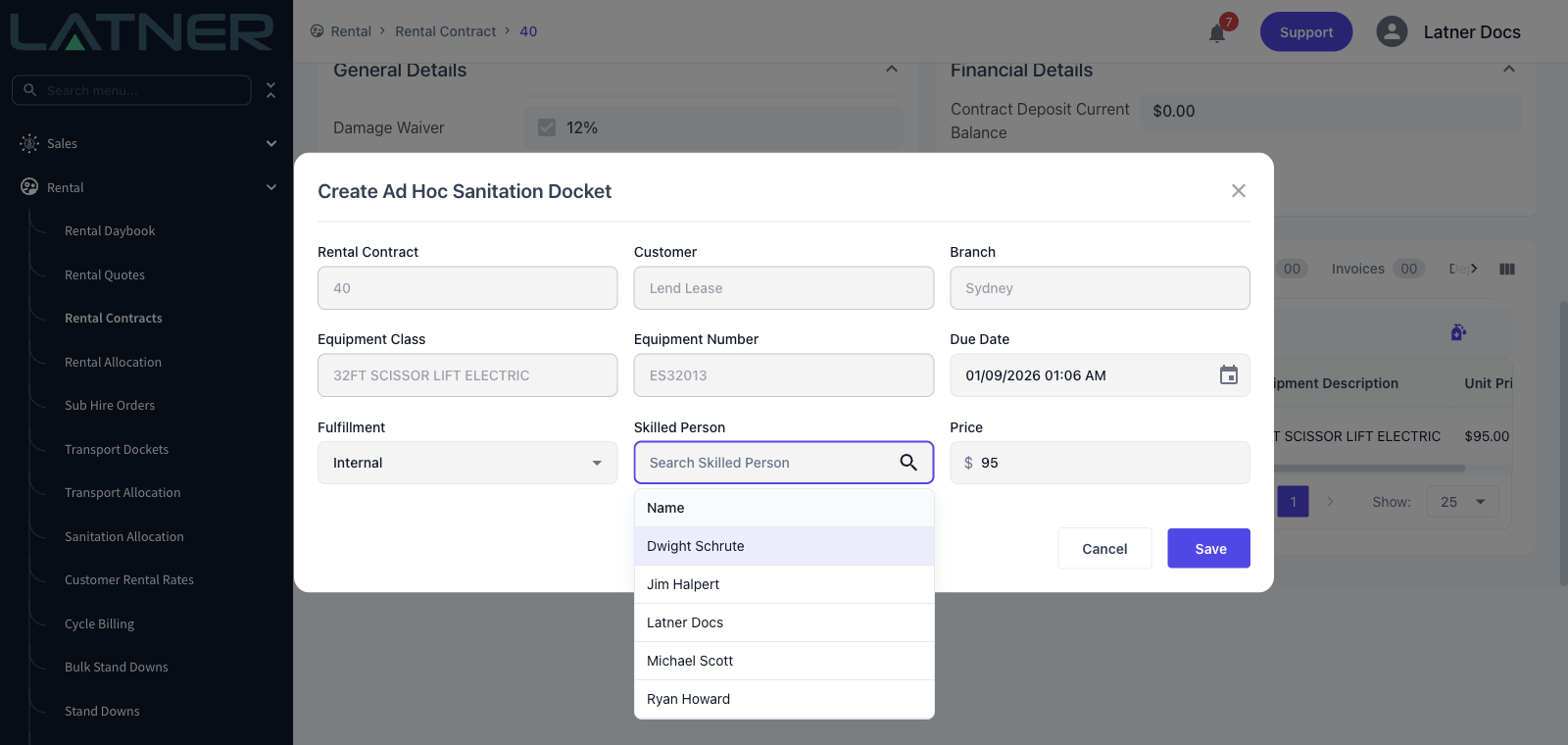
The dialog opens with everything it can work out for itself already filled in. The first five fields are read only - they come from the line you selected, so if any of them look wrong, you have the wrong line.
-
Rental Contract, Customer, Branch, Equipment Class, Equipment Number - carried across from the Sanitation line and its equipment line.
-
Due Date - required. It defaults to right now, so set it to when the service is actually needed. This is what the docket is grouped under on the allocation screen.
-
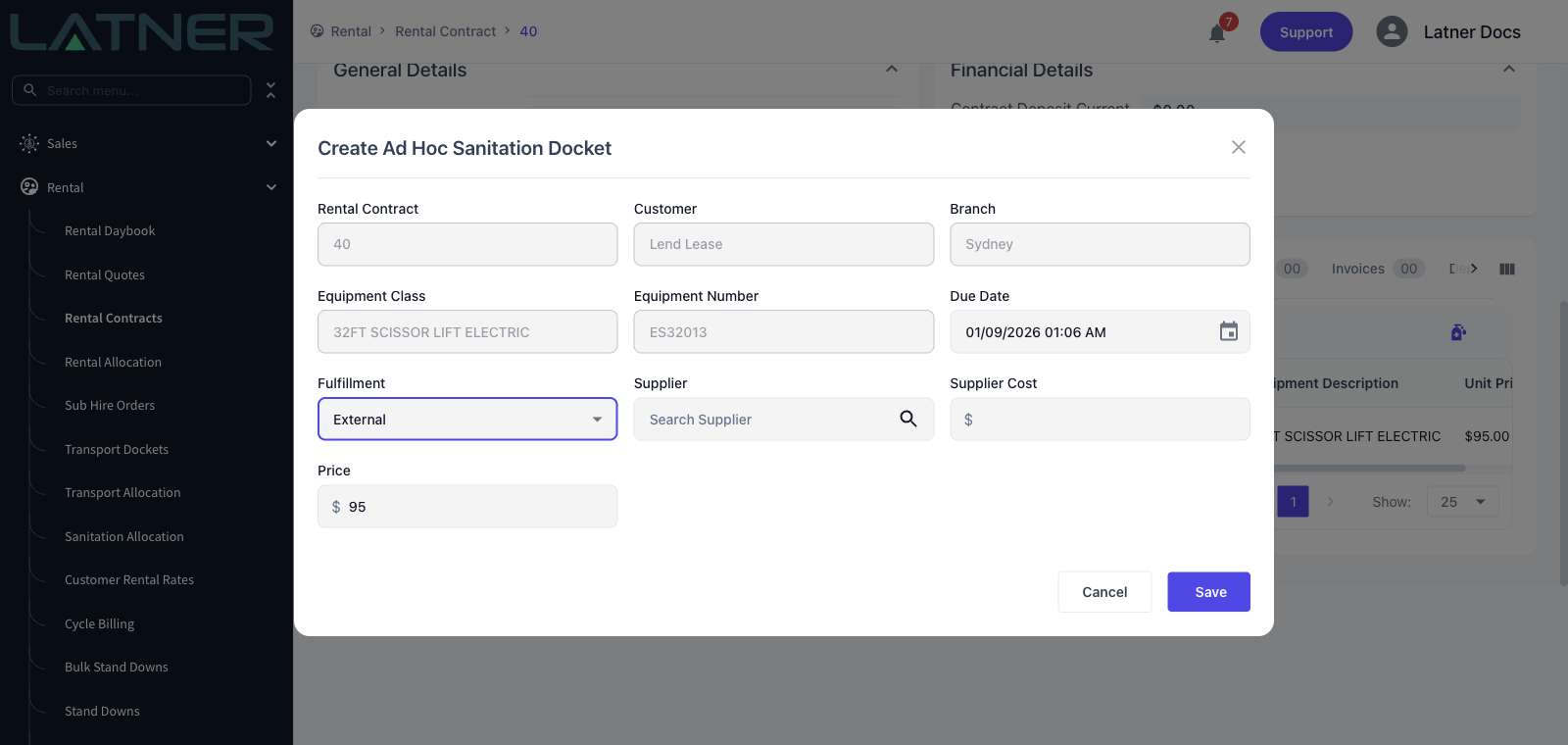
Fulfillment - required, and it decides which fields you get next. Internal means one of your own pump drivers, External means a contractor.
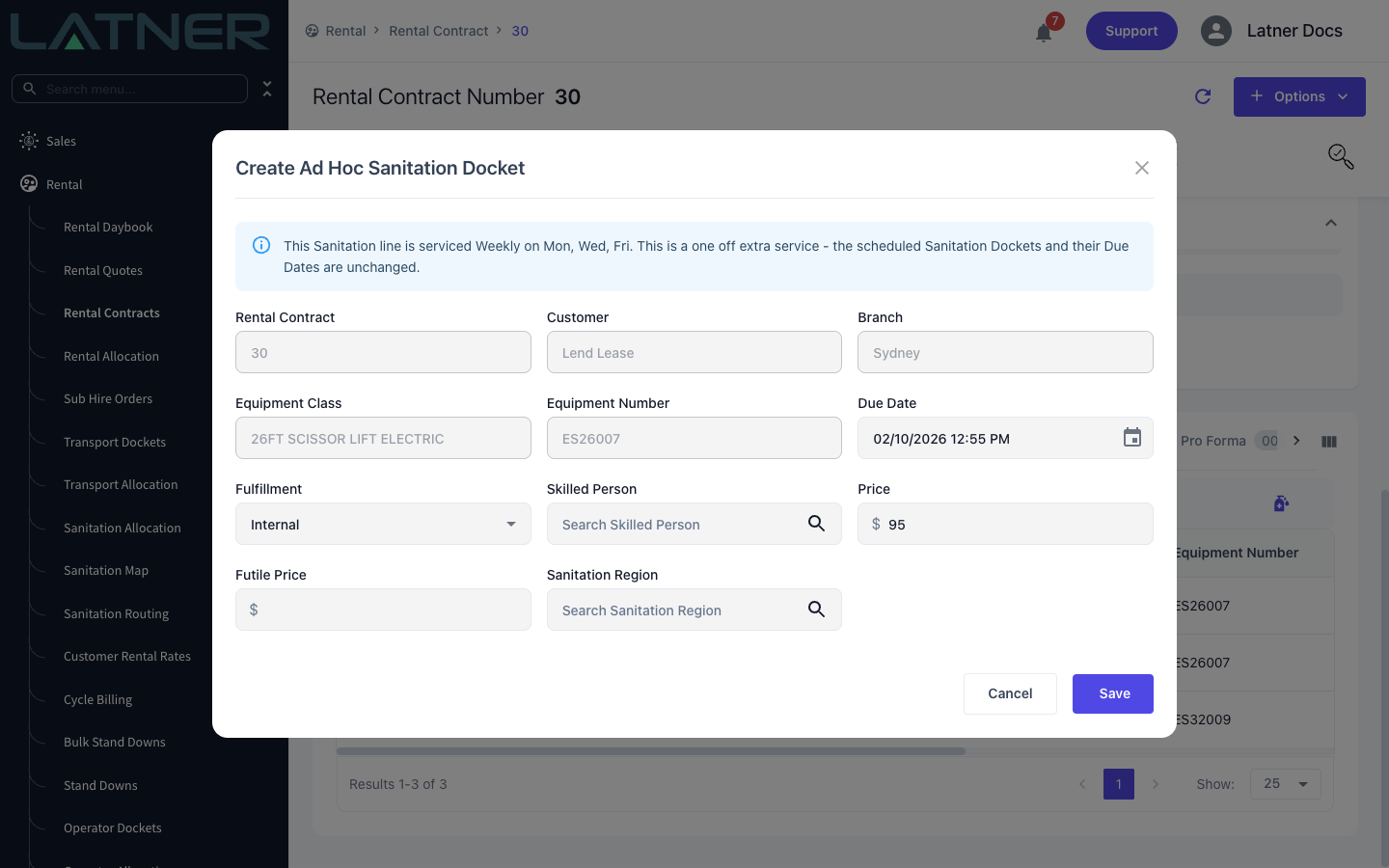
If the line is on a regular schedule, the dialog reminds you that this is an extra visit, for example "This Sanitation line is serviced Weekly on Mon, Wed, Fri. This is a one off extra service - the scheduled Sanitation Dockets and their Due Dates are unchanged." If the equipment is not On Rent, a warning tells you its current status - you can still raise the docket.
Step 3 - Say who is carrying out the service
With Fulfillment on Internal you get a single Skilled Person field, listing the people set up as pump drivers. It is optional - leave it blank if you would rather work out who is going on the allocation screen later.
Switch Fulfillment to External and Skilled Person is replaced by two fields, both required:
-
Supplier - the contractor doing the work.
-
Supplier Cost - what they are charging you for it. This is your cost, not the customer's charge.
Step 4 - Confirm the charge and save
Price is required and starts at the charge on the Sanitation line, which is what a normal service for this unit is worth. Change it if this particular visit is charged differently - an after-hours call-out, say, or a service you have agreed to do for nothing. Then choose Save.
Two optional fields follow the price. Futile Price starts at the line's futile price and is what the visit is charged at if the driver attends but cannot do the service. Sanitation Region starts at the line's region and only appears once the Sanitation Map is switched on for your business.
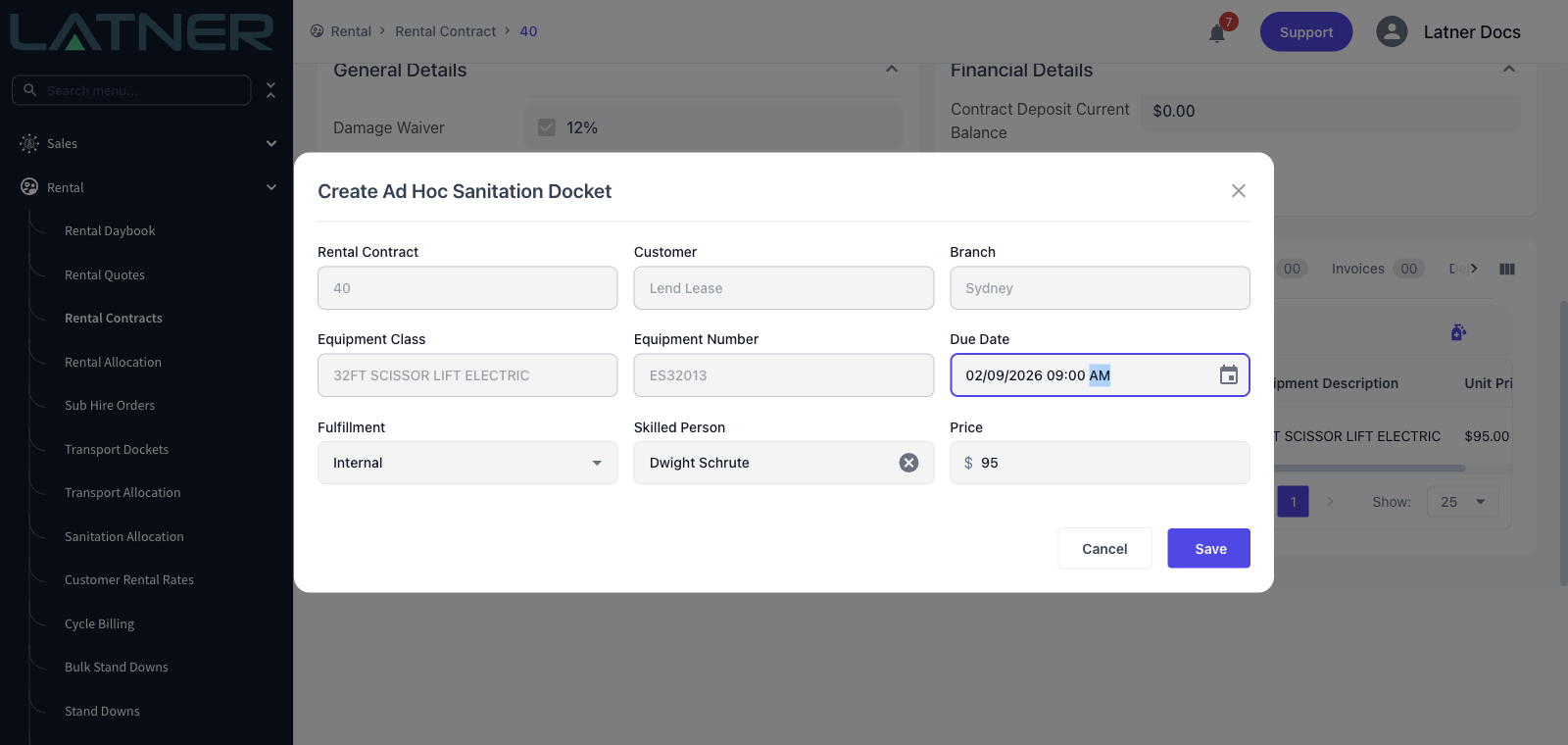
Latner confirms with Sanitation Docket Created and the dialog closes.
Step 5 - Find the new docket on the line
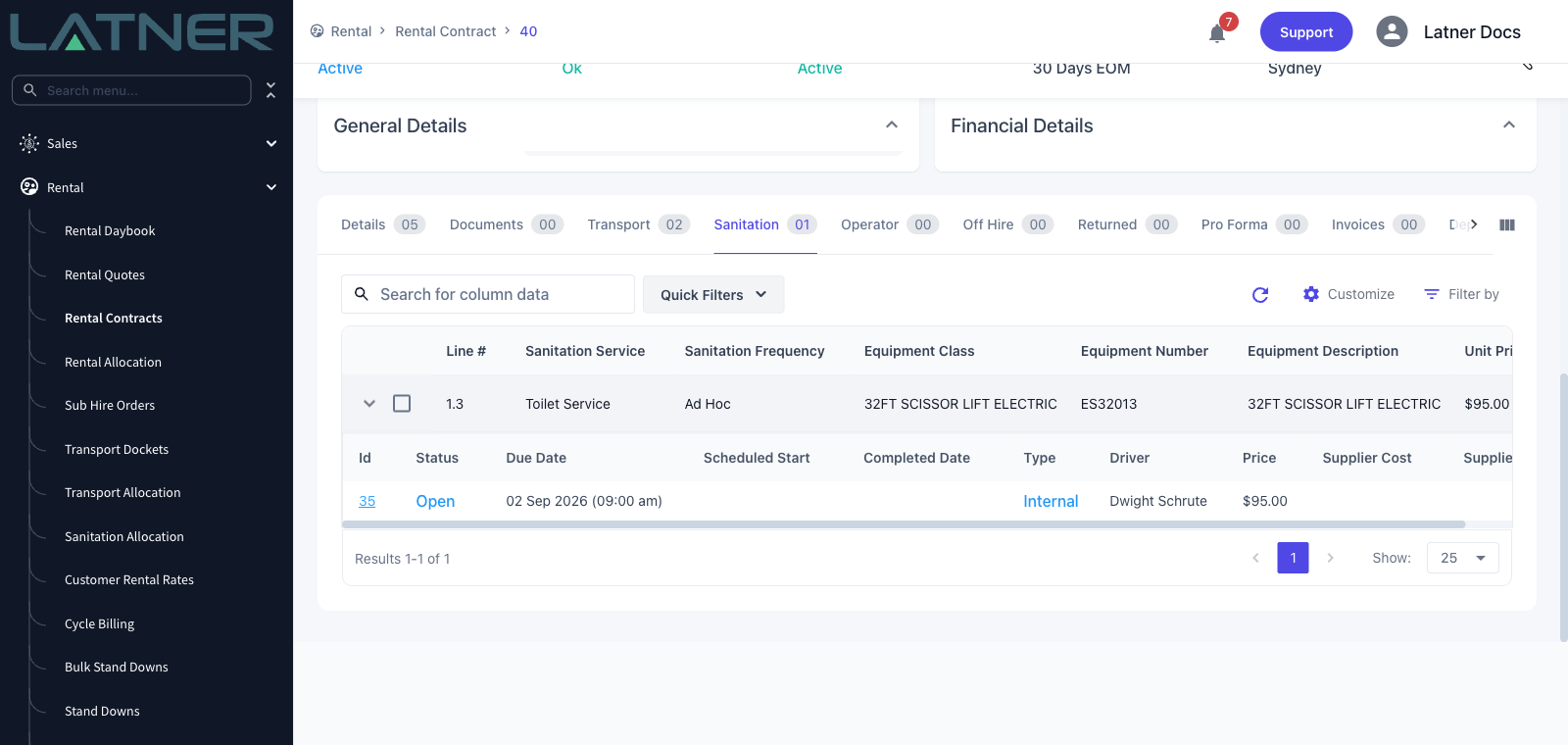
Back on the Sanitation tab, click the arrow at the start of the Sanitation line to expand it. Every docket ever raised against that line is listed underneath, with the new one showing as Open against the due date you gave it.
After Creation
-
The docket gets its own number and page, reachable from the Id column on the line. It records the service address (editable as Service Address on the docket page while it is open), the site contact and the phone number to ring, taken from the contract's delivery details.
-
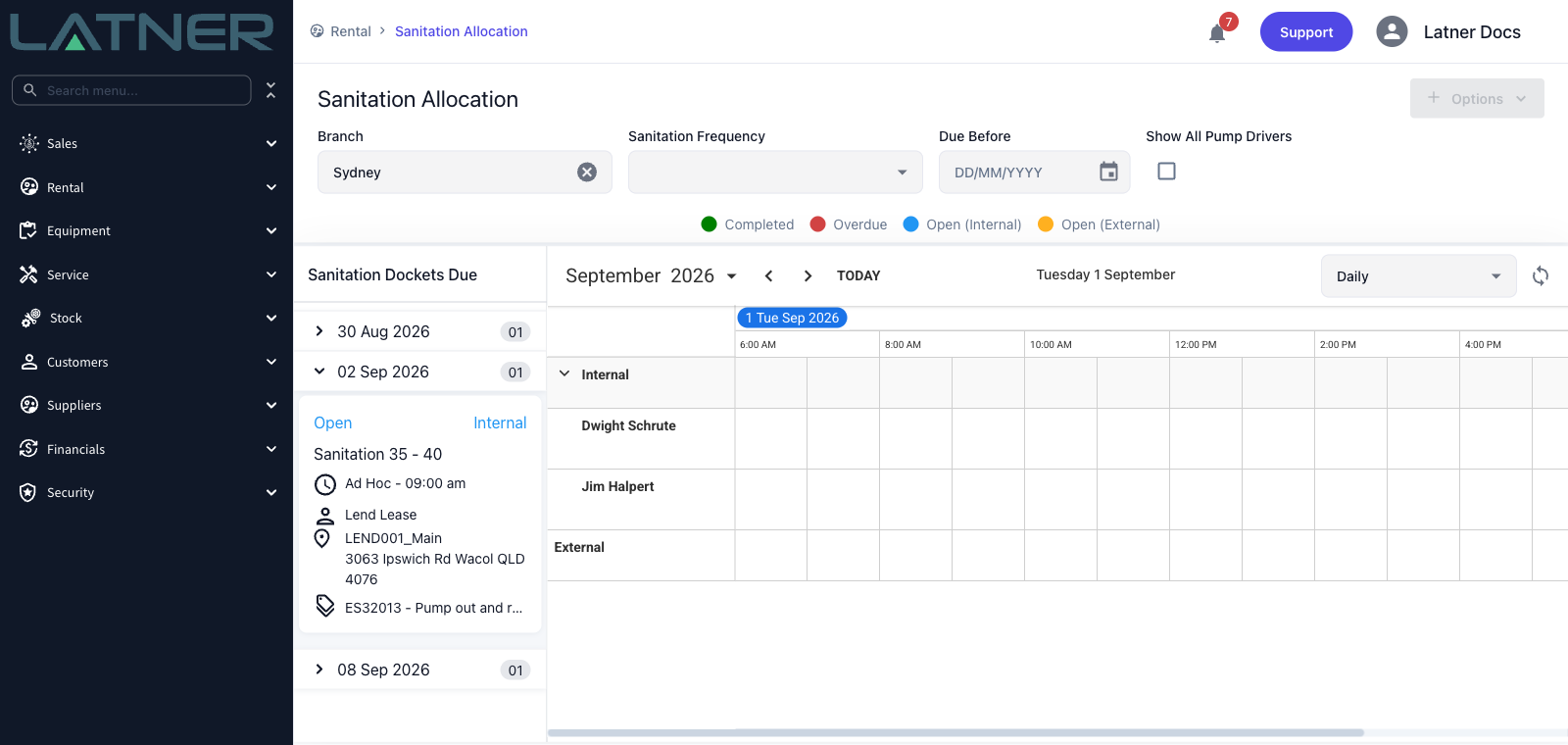
It appears in the Sanitation Dockets Due queue on Rental › Sanitation Allocation, grouped under its due date, ready to be dragged onto a driver or a supplier.
-
Giving it a scheduled window on that screen needs the resource that matches its Fulfillment: an Internal docket must be allocated to a Skilled Person, an External one to a Supplier. It also needs both ends of the window - a start without an end is rejected.
-
Once someone attends, the docket is finished from its own page with Options › Complete Sanitation (or Mark as Futile if the service could not be done), which is also when the Sanitation Service's admin charge, if it has one, is added to the contract.
-
A finished docket is picked up by the next invoice for the contract, at the price on the docket rather than the price on the line.
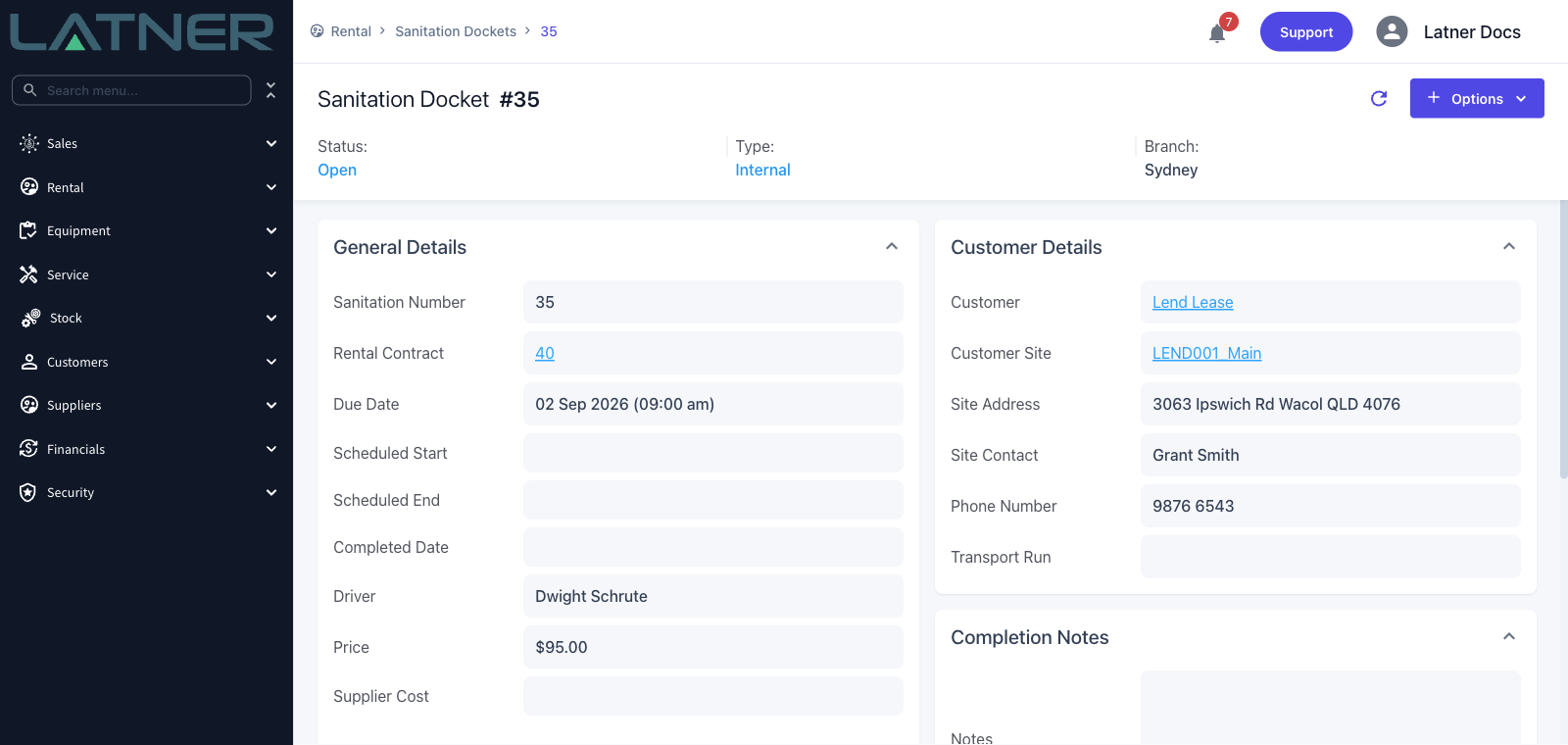
There is no way to delete or cancel a Sanitation Docket once it exists. If you raise one you did not mean to, or the customer stands the service down, close it off from its page rather than leaving it open - it will otherwise sit in the allocation queue indefinitely. A closed docket is billed at its Price, so check the Price on the docket page before you close it.
FAQs
Watch the Demo
Prefer to watch it? Step through the same flow here.