
Sanitation dockets are billed on actuals, so every service your driver has finished sits waiting until someone raises an invoice for it. This article shows you how to sweep up all of a contract's outstanding dockets in one go.
Overview
A sanitation schedule quietly builds up a list of jobs done and not yet charged. Latner keeps that list for you, and picks it up whole the next time the contract is invoiced.
-
A docket becomes billable once the driver has been to site: Completed when the service was carried out, or Futile when they attended but could not do it. Both are chargeable. Open dockets are never invoiced.
-
Each outstanding docket becomes its own line on the invoice, at the price held on that docket, quantity 1. A futile visit is billed at its futile price, and its line description ends in "(Futile Visit)". Sanitation is never billed from an estimate.
-
The Bill To date does not limit sanitation. Whatever date you bill the rest of the contract to, every outstanding docket goes on the invoice - which is why the answer is always "all of them".
-
Being invoiced is recorded as a link to the invoice, not as a docket status, so the docket carries on showing what actually happened on site.
-
Cancel the invoice and its dockets are outstanding again, ready for the next billing run.
Before You Begin
You will need the following in place.
|
Requirement |
Where to Find It |
|---|---|
|
Invoice Rental Contract permission |
Security › Configuration › Permission Groups, under Rental › Option |
|
At least one Completed or Futile docket that has not been billed |
The Sanitation tab of the rental contract |
|
The Sanitation line's Invoicing Stage, which decides when its dockets are picked up |
Set from the Sanitation Service's Default Invoicing Stage in Rental › Configuration › Sanitation Services, and editable per line |
|
A rental contract that is not Completed, Cancelled or Lost |
The Contract Status on the rental contract header |
|
For the bulk route: Cycle Billing, Preview Cycle Billing and Create Cycle Billing permissions, and a contract whose Billing Status is Active |
Security › Configuration › Permission Groups, under Rental; billing status is on the rental contract header |
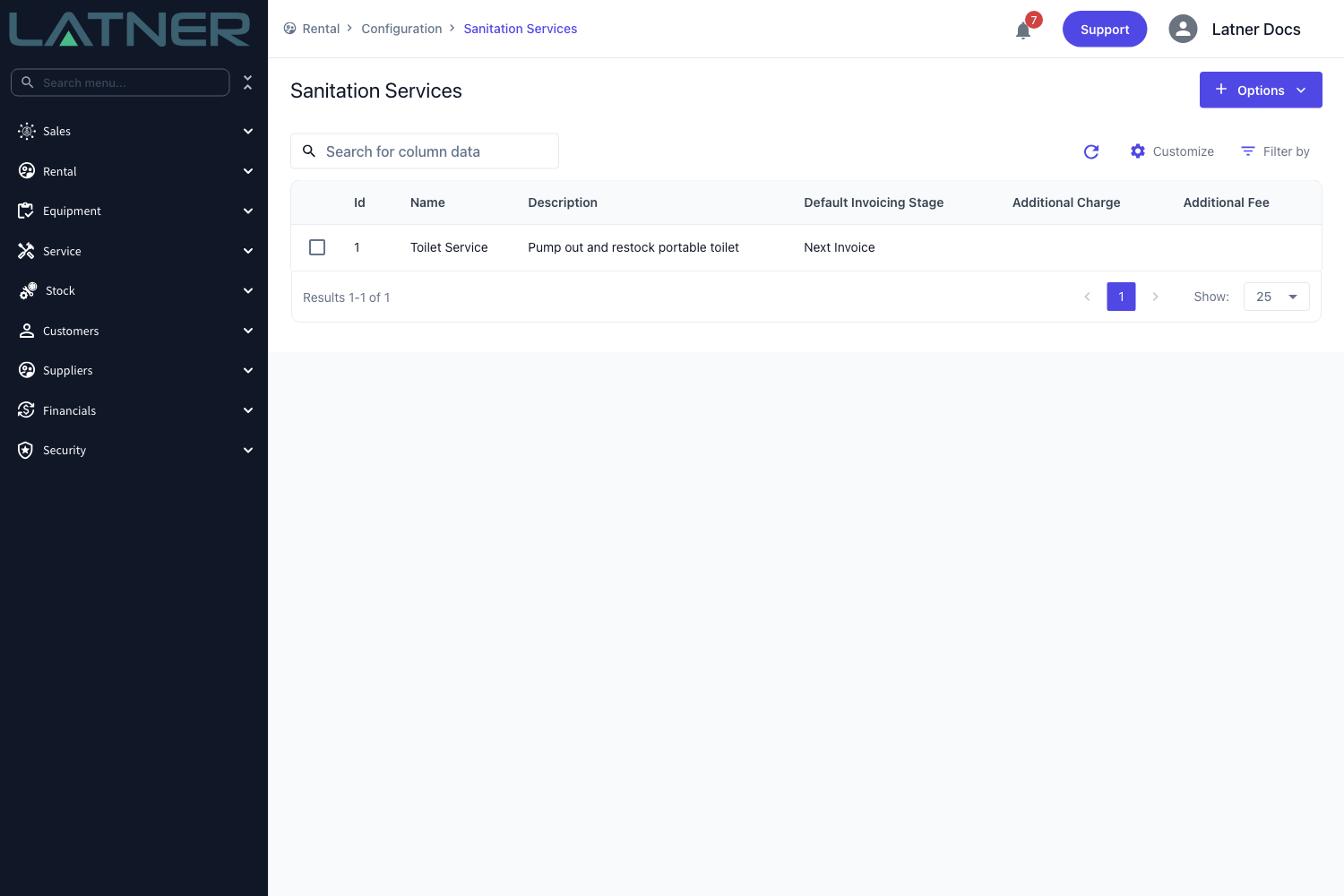
A Sanitation line set to Next Invoice is picked up by the next Progress Invoice. A line set to Return Invoice holds its dockets back until the equipment it is linked to has been returned. Either way, a Final Invoice picks up everything still outstanding.
Invoicing the Dockets on a Rental Contract
Step 1 - Check which dockets are outstanding
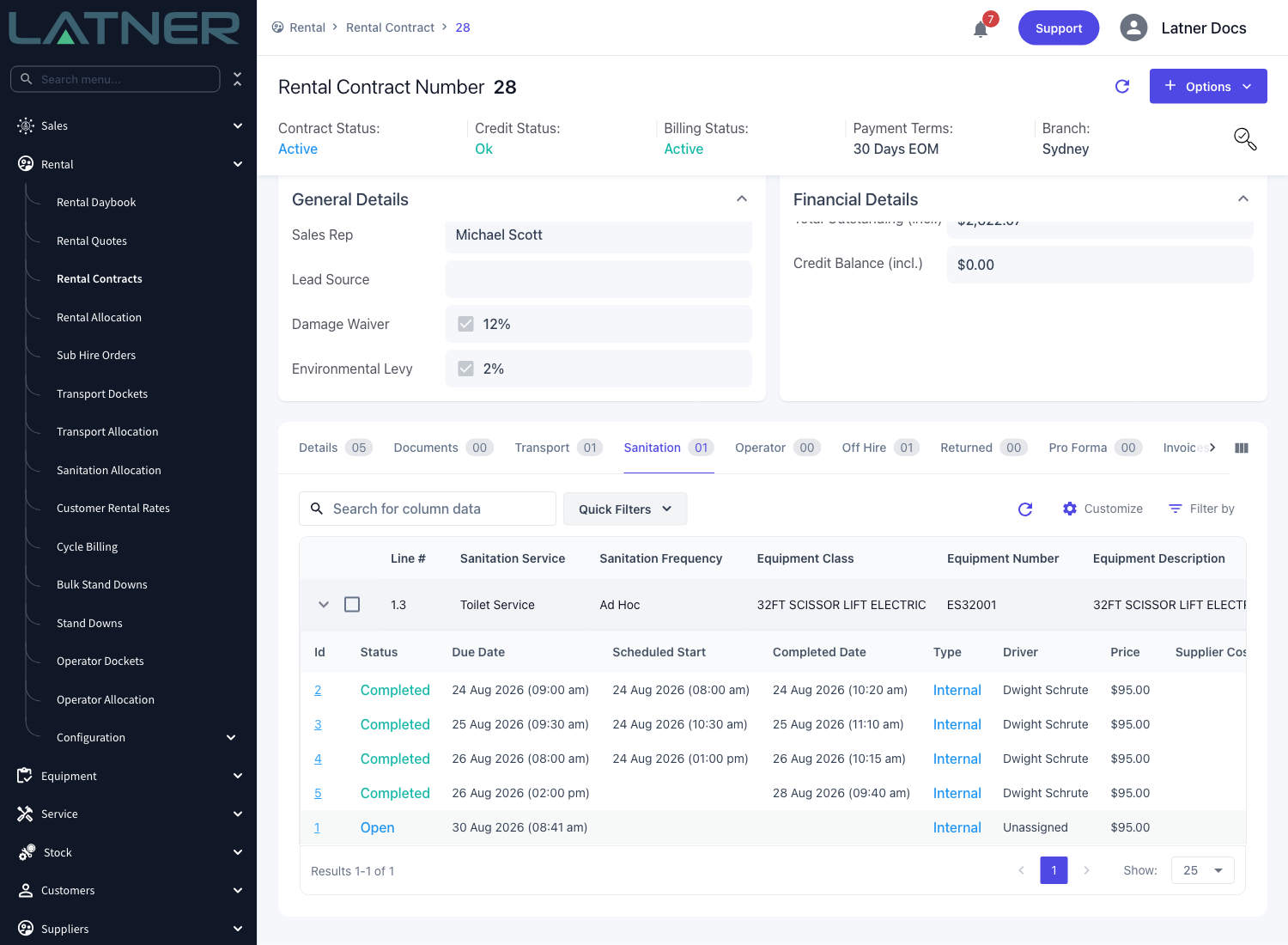
Open the rental contract and go to the Sanitation tab, then click the arrow at the start of the Sanitation line to expand it. Every docket raised against that line is listed with its status, due date, completed date, driver and price.
The Completed and Futile dockets with no invoice against them are the ones the next invoice will bill. Anything still Open is a visit that has not happened yet, and is left alone.
Step 2 - Open the invoicing screen
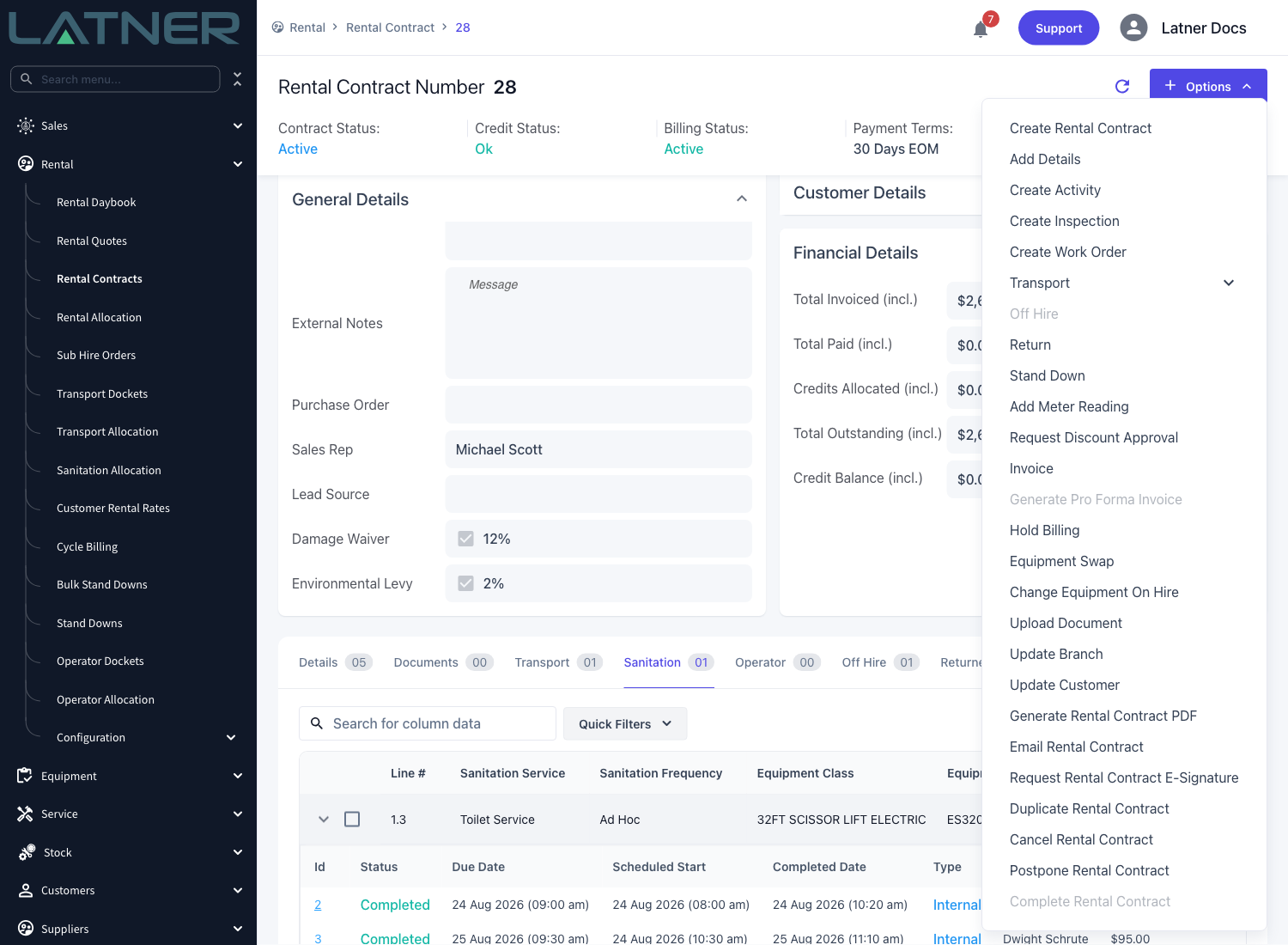
Click Options › Invoice at the top right of the rental contract. The option is greyed out once the contract has been Completed, Cancelled or Lost.
Step 3 - Set the invoice header
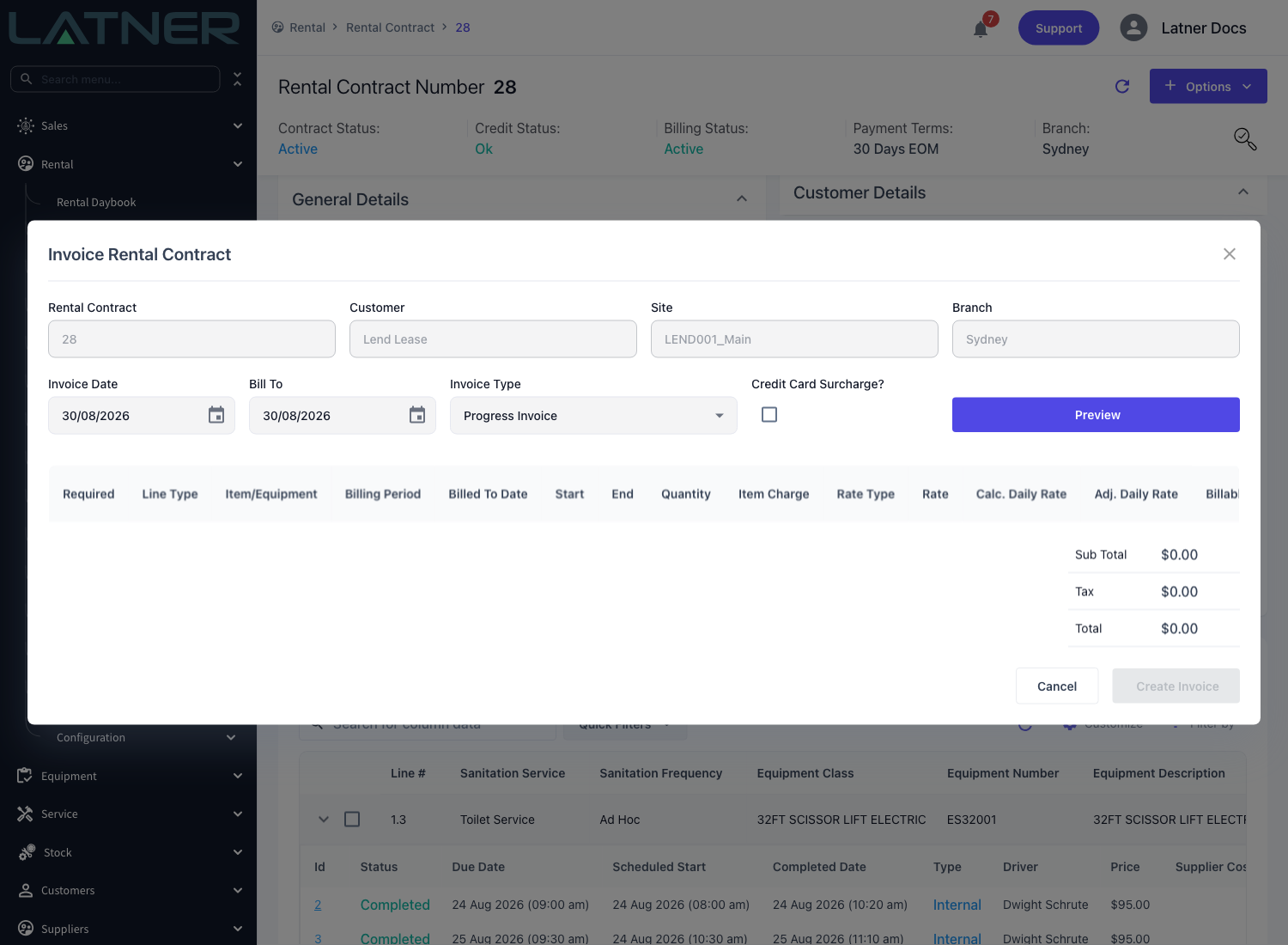
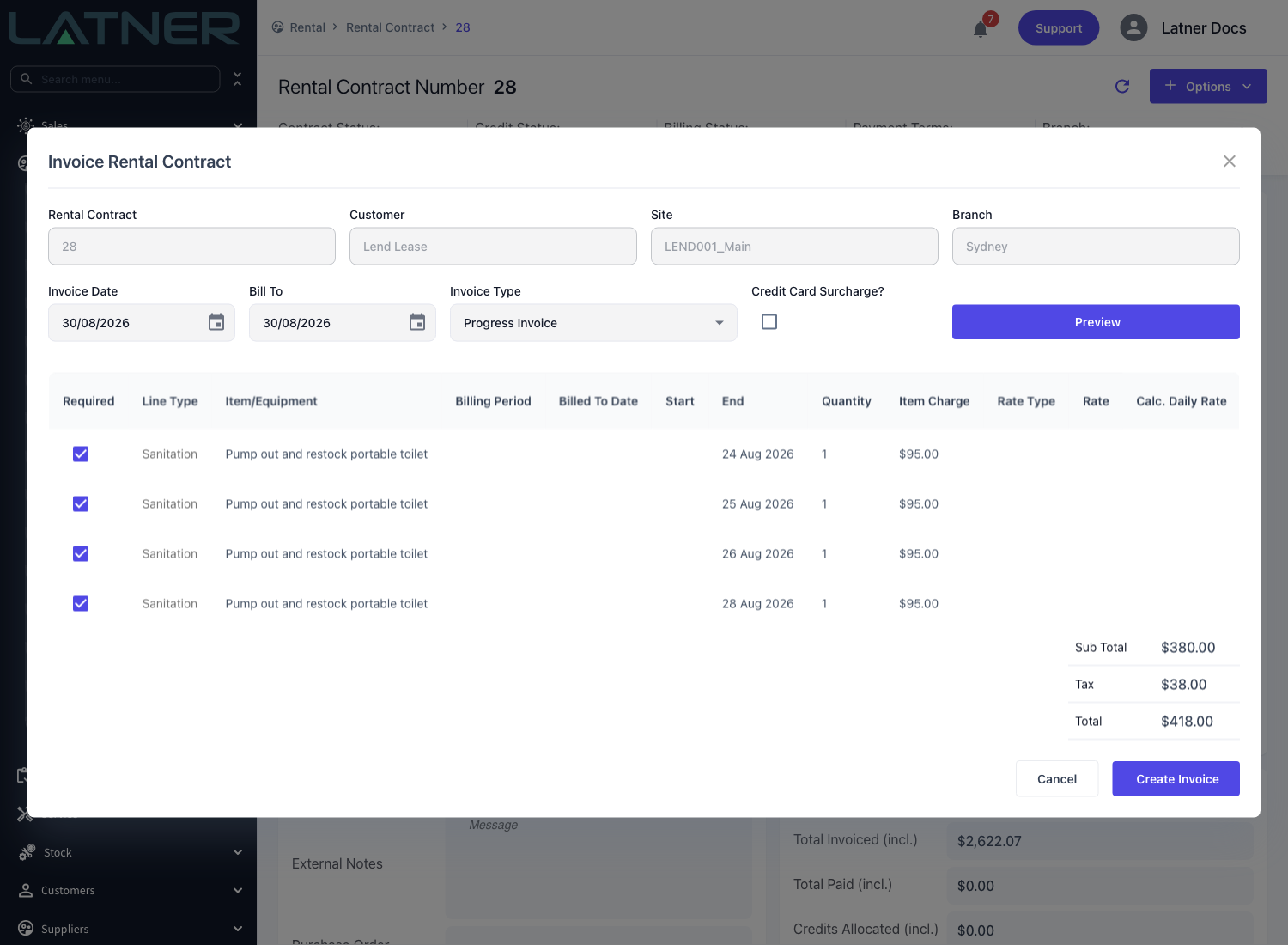
The Invoice Rental Contract dialog opens with the contract, customer, site and branch already filled in and locked. Set the four fields you can change:
-
Invoice Date - required. The date shown on the invoice, and the date the due date is worked out from.
-
Bill To - required. The date to bill the rental contract up until. It governs the equipment rental period; it has no effect on which sanitation dockets are billed.
-
Invoice Type - Progress Invoice is the everyday choice and picks up lines at the Next Invoice stage. Final Invoice picks up everything outstanding.
-
Credit Card Surcharge? - adds a surcharge line. It is ticked by default for cash on delivery customers when a surcharge percentage has been set.
Step 4 - Preview what will be billed
Click Preview. Each outstanding docket comes back as its own line with the Line Type Sanitation, a quantity of 1, the Item Charge held on the docket, and the docket's completed date in the End column. The totals at the bottom right update as you go.
Untick Required to leave something off the invoice. Note that the tick applies to a whole Sanitation line: unticking one docket row unticks every docket on that line, so its outstanding dockets go on the invoice together or not at all.
If the preview comes back empty you will see Nothing to Invoice - there is nothing outstanding on this contract at the invoice type you chose.
Step 5 - Create the invoice
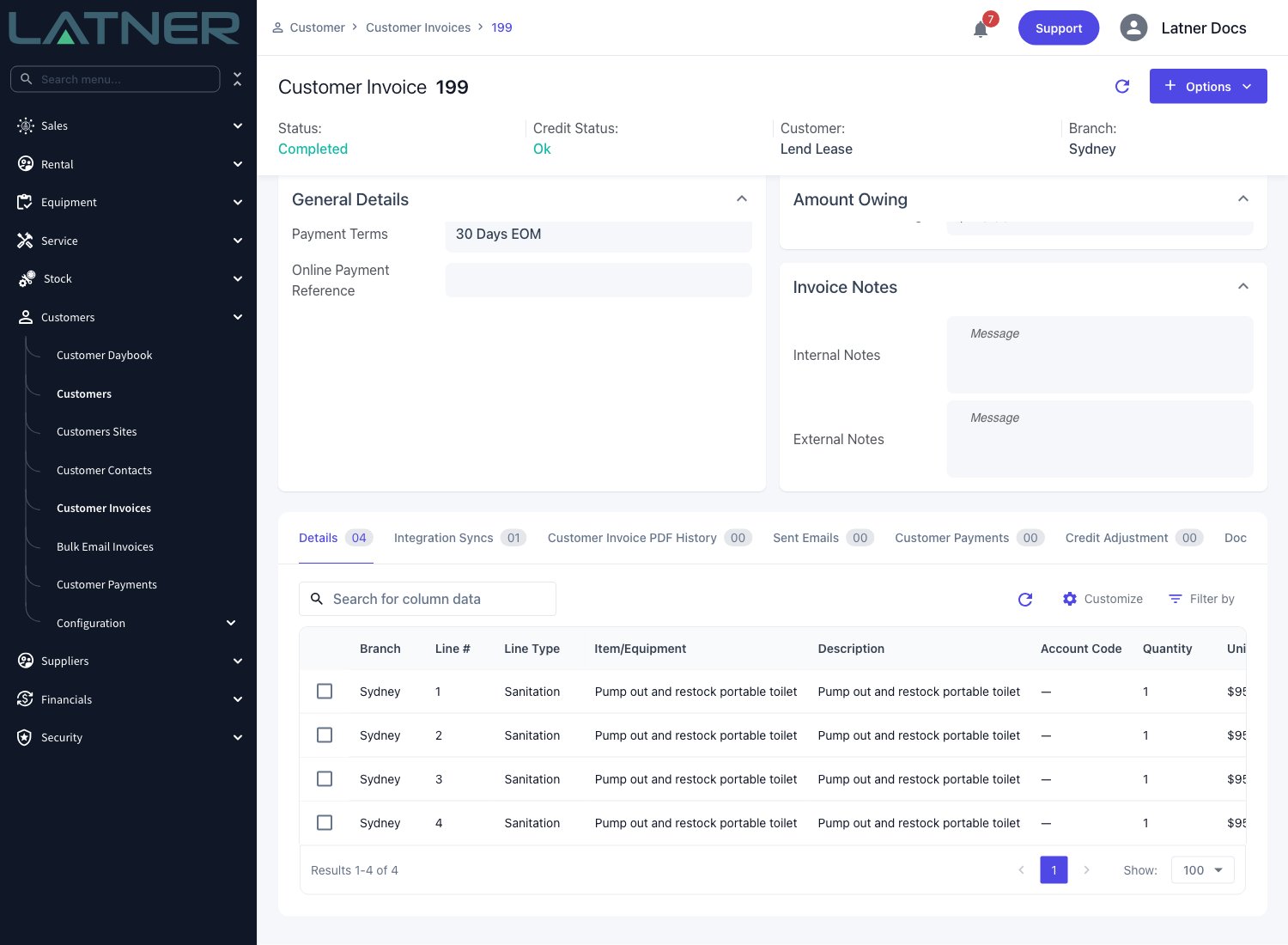
Click Create Invoice. Latner raises the customer invoice, marks every docket on it as billed, and shows a message with the new invoice number that you can click through to.
Invoicing Dockets Across Many Contracts
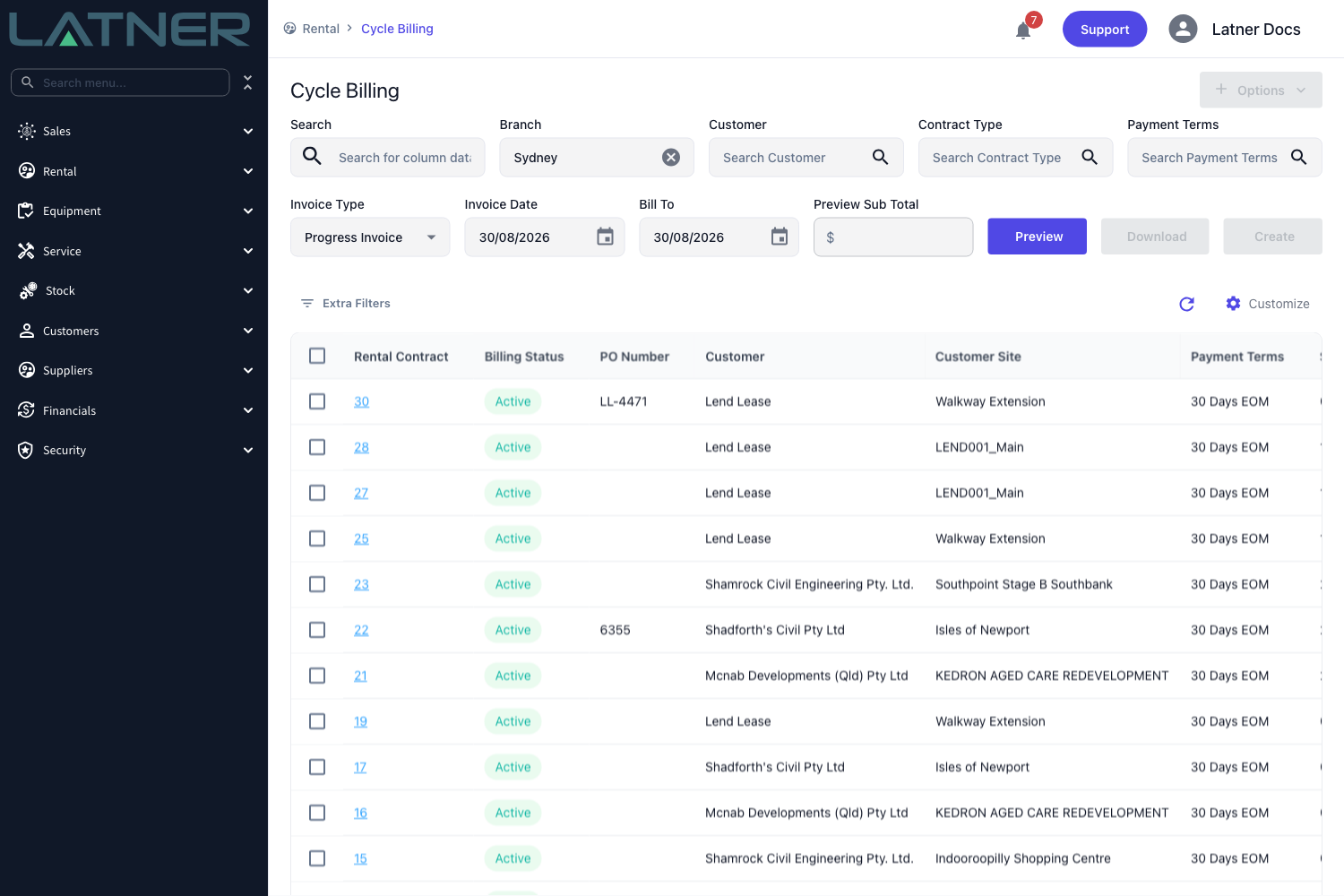
To clear outstanding dockets across the whole branch rather than one contract at a time, use Rental › Cycle Billing. Filter to the contracts you want, tick them, set the Invoice Type, Invoice Date and Bill To, then Preview and Create.
Every contract in the run is invoiced exactly the way Step 4 describes, so outstanding sanitation dockets come through with everything else that is due. Only contracts whose Billing Status is Active are included - a contract on Hold is skipped until someone releases it with Options › Allow Billing.
After Invoicing
-
Each docket now shows the invoice it was billed on and drops out of the outstanding list. Its status still records what happened on site, so a futile visit stays Futile.
-
The Sanitation line on the rental contract moves to Invoiced. Completing the next docket puts it back to Pending, because there is something to bill again.
-
The next scheduled docket is raised when a docket is completed, not when it is invoiced, so the schedule keeps running whether or not you have billed yet.
-
If the Sanitation Service carries an Additional Charge and Additional Fee, completing a docket adds that charge to the contract as its own line, and it is invoiced separately from the sanitation charge.
An invoice line that came from a sanitation docket cannot be edited or deleted. If something is wrong, cancel the invoice, fix the rental contract and invoice again - cancelling clears the link and puts the dockets straight back in front of the next billing run.
FAQs
Watch the Demo
Prefer to watch it? Step through the same flow here.