
The Revenue dashboard lets you filter invoiced revenue down to the sales reps you care about, so you can see what a rep has brought in, which customers it came from, and how it is tracking month by month.
Overview
Sales people like knowing where they stand. The Revenue dashboard charts invoiced revenue as a stacked column per month, and because Sales Rep is one of its filters you can narrow the whole chart to one rep, a pair of reps, or the whole team, then choose separately how the revenue is broken down inside each month.
-
The Revenue tab lives on the Dashboard and covers a window of up to 12 months at a time.
-
Sales Rep is a filter, not a grouping. You pick which reps to include, then pick a separate Group By (Customer, Branch, Line Type, Equipment Class and so on) for the coloured bands inside each column.
-
Revenue is attributed to the sales rep on the invoice. Where the invoice itself has no rep, a rental line falls back to the sales rep on the rental contract behind it.
-
Only invoices in Completed or Paid status are counted, so nothing that is still being drafted or has been cancelled can inflate a rep's figures.
-
Credit notes are tracked separately from invoices, and you can chart invoices only, credit notes only, or the two netted against each other.
-
Any combination of filters can be saved under a name and reloaded later, and the charted figures can be downloaded as a CSV.
Before You Begin
A few things need to be in place before the numbers will mean anything.
|
Requirement |
Where to Find It |
|---|---|
|
Customer Revenue Dashboards permission |
Security › Configuration › Permission Groups, under Customers › Screen. Without it the Revenue tab does not appear on your Dashboard at all. |
|
At least one sales rep record |
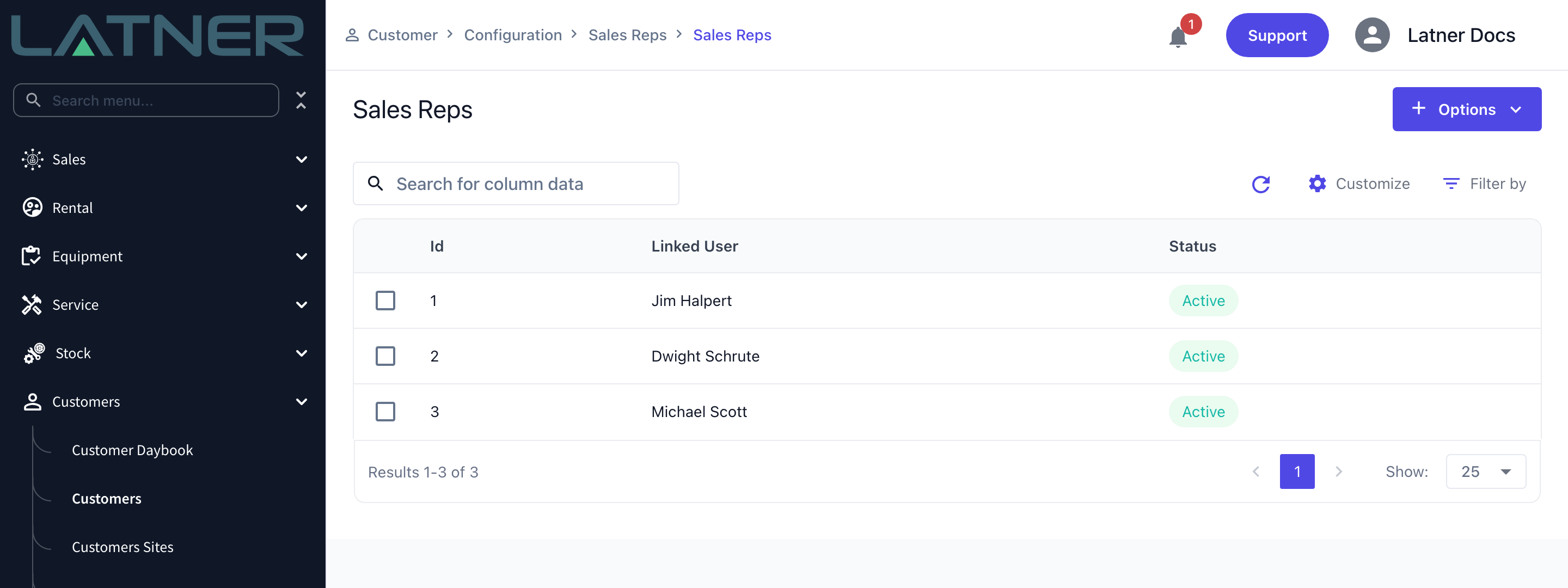
Customers › Configuration › Sales Reps. A sales rep is a Latner user linked to a sales rep record, and only reps listed here can be chosen in the filter. |
|
A sales rep on the work being invoiced |
The Sales Rep field on the customer, rental quote, rental contract or sales order. Changing it needs the Change Sales Rep permission. |
|
Default Sales Rep to User (optional) |
Security › Settings › Rental. When it is on, a new rental quote, rental contract or opportunity defaults its sales rep to the logged in user rather than to the customer's or site's rep. |
Rental contract and sales order invoices pick up their sales rep automatically: the rep on the contract or order, or failing that the rep on the customer. Manual, work order and transport invoices do not, so if you want that revenue attributed you need to set the Sales Rep field on the invoice itself. The dashboard also only ever shows branches your permission group covers, so two people can run the same filters and see different totals.
Running the Report
Step 1 - Open the Revenue dashboard
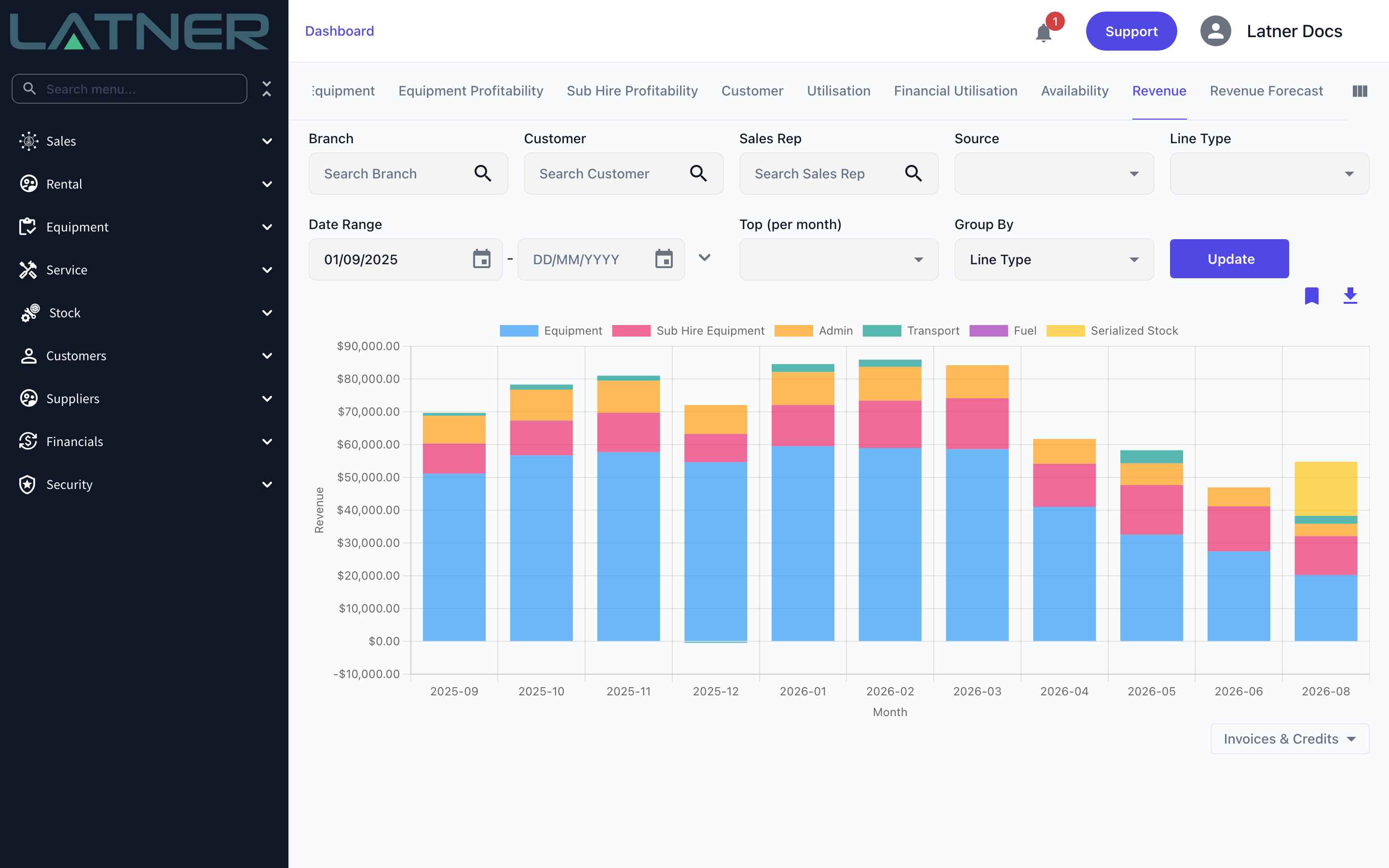
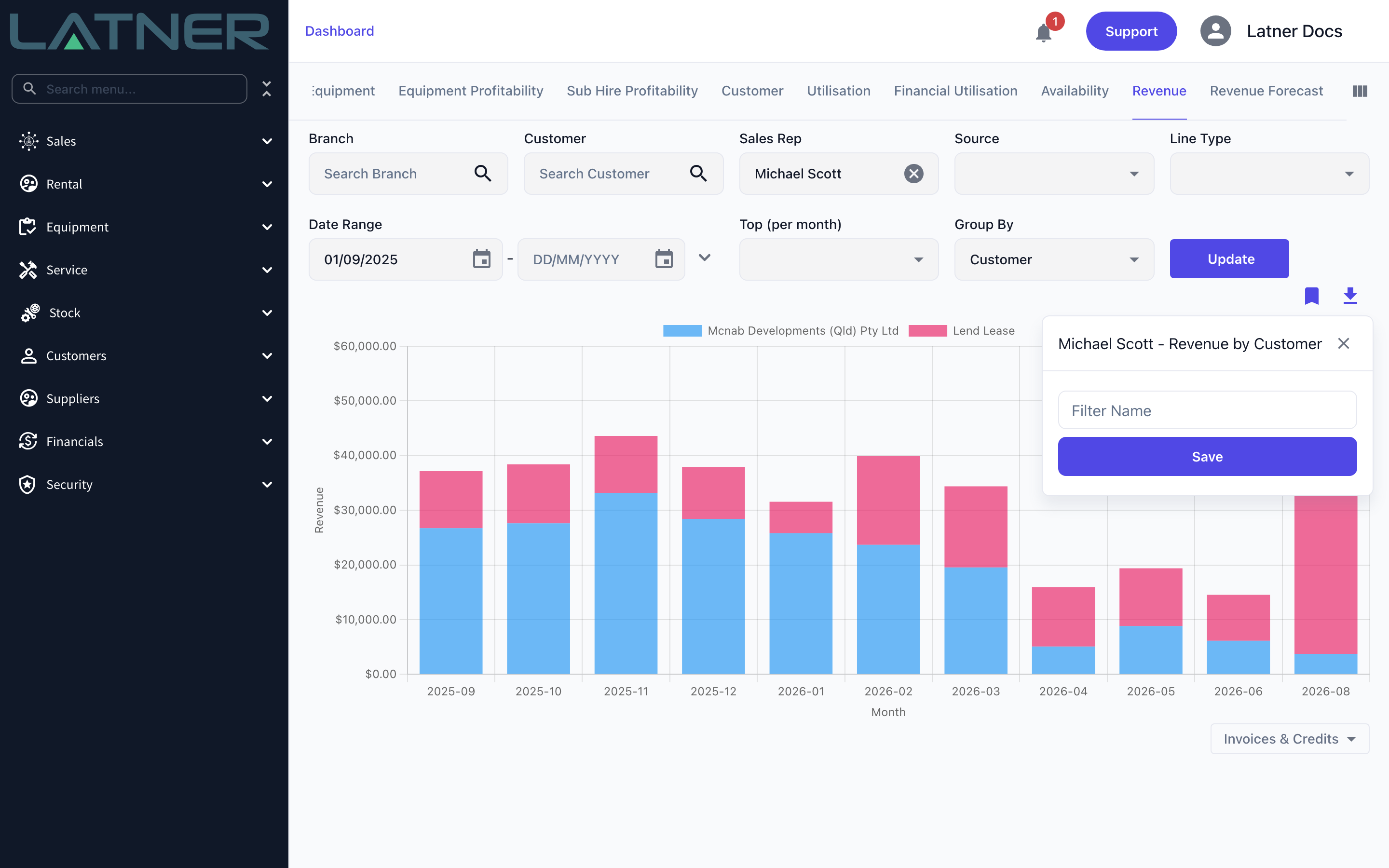
Go to the Dashboard and select the Revenue tab. It sits near the right hand end of the tab strip, so you may need to scroll the strip across. The chart loads straight away with a default of the last 12 months, grouped by Line Type.
Step 2 - Set the reporting period
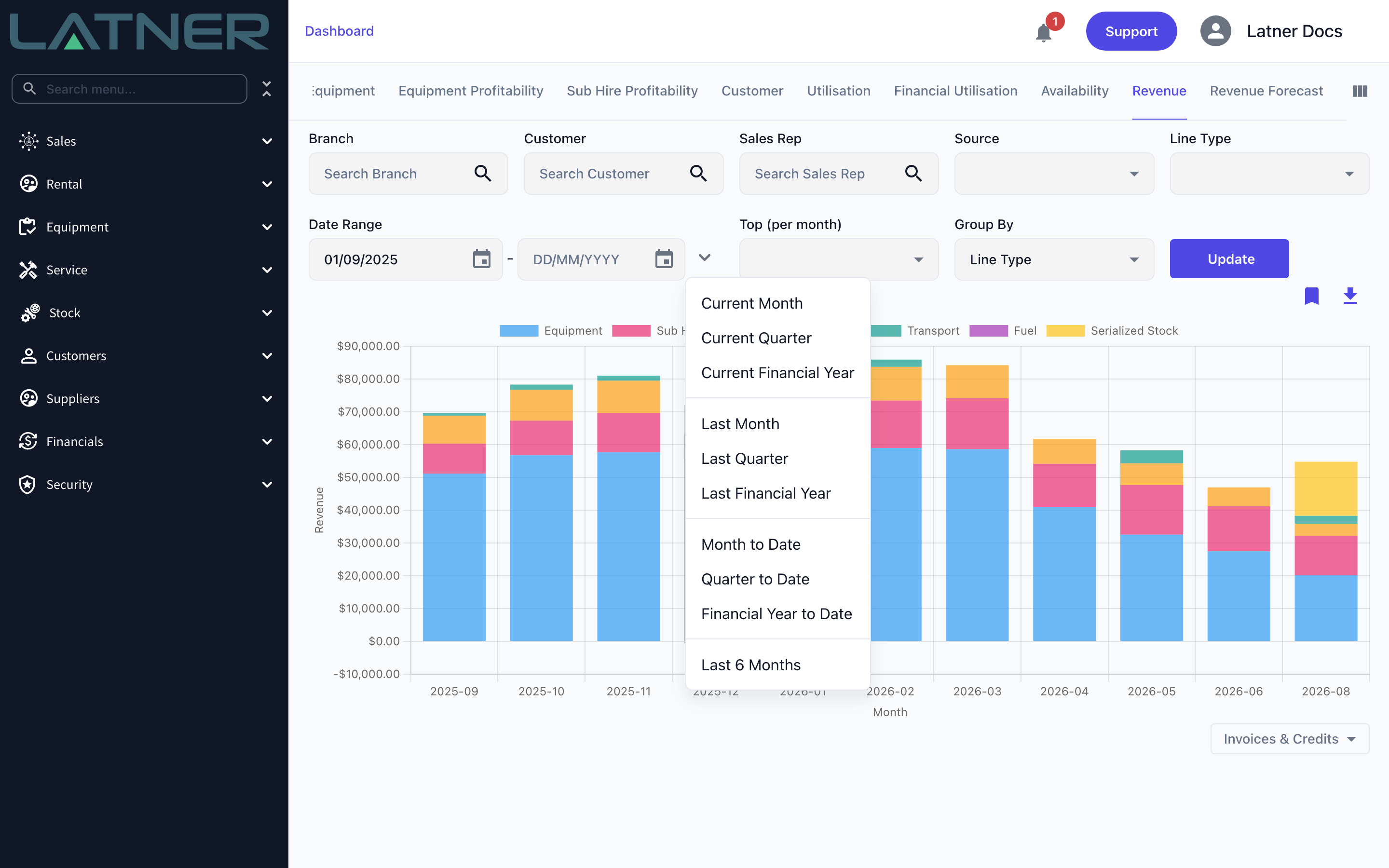
Type dates into Date Range, or use the chevron beside it to pick a preset such as Last Financial Year, Financial Year to Date or Last 6 Months. A from date is always required, and the two dates cannot be more than 12 months apart.
Step 3 - Choose the sales reps
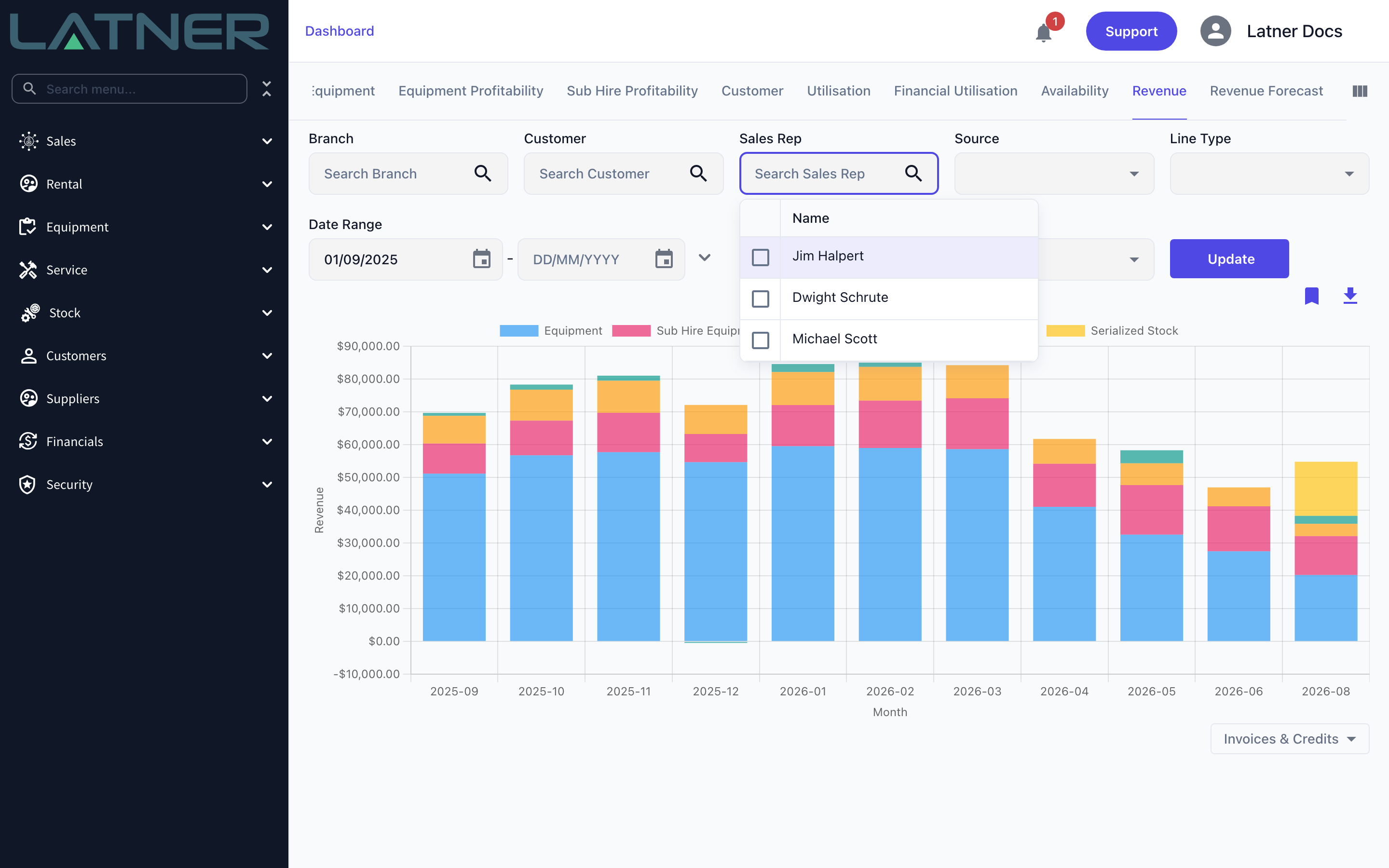
Click Sales Rep and tick the reps you want. It is a multi select, so ticking two reps gives you their combined revenue rather than two separate series. Leave it empty to report on everyone.
Step 4 - Choose how to break the revenue down
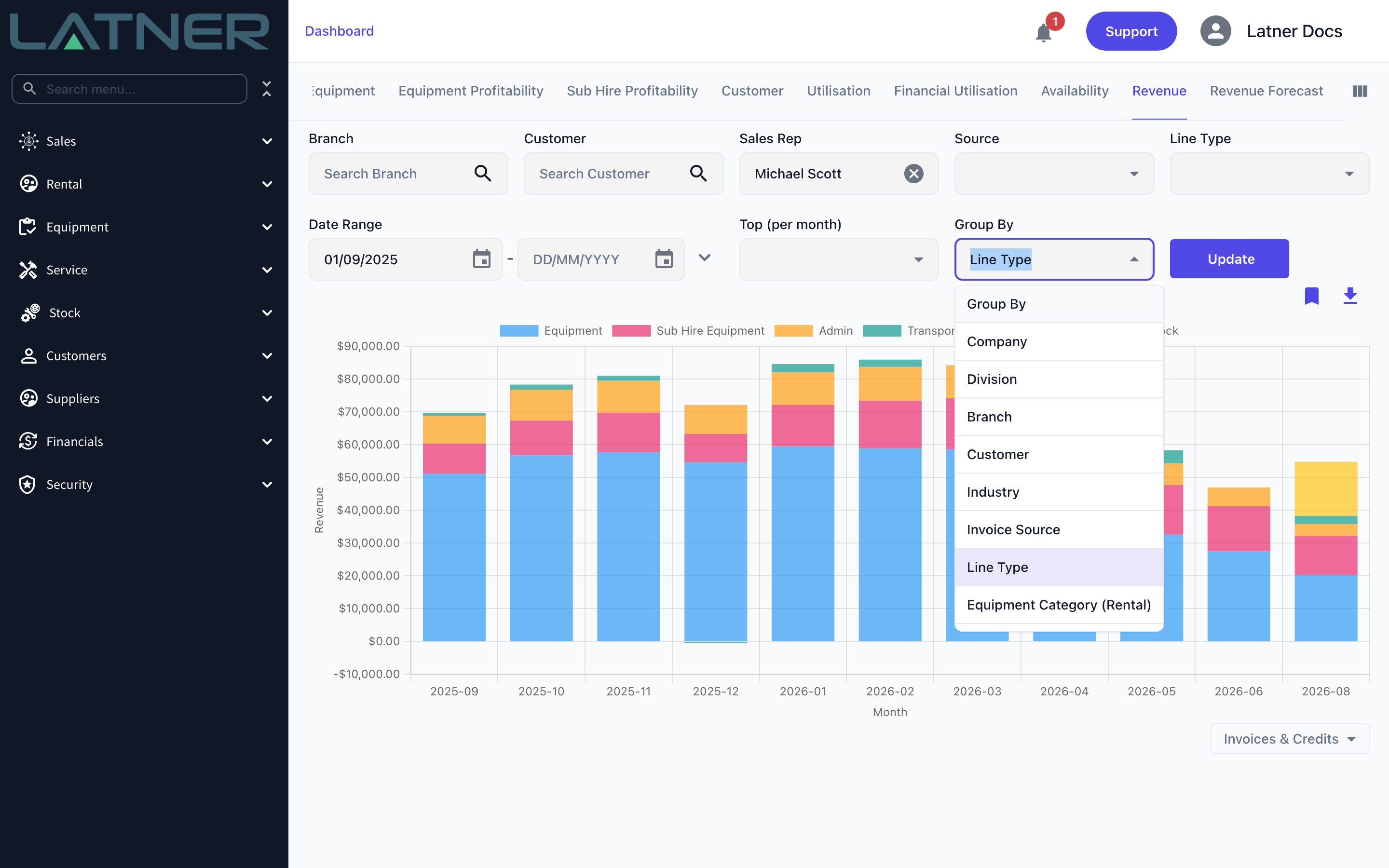
Set Group By to whatever you want the coloured bands in each column to represent. Customer answers "where did this rep's revenue come from", while Line Type answers "what was it made of". The full list also covers Company, Division, Branch, Industry, Package, Equipment Category, Class and Model, and the two service groupings.
Five options depend on the Line Type filter and stay greyed out until it matches:
-
Transport Type - requires Line Type Transport
-
Admin Charge Type - requires Line Type Admin
-
Fuel Type - requires Line Type Fuel
-
Sanitation Type - requires Line Type Sanitation
-
Labour Type - requires Line Type Labour
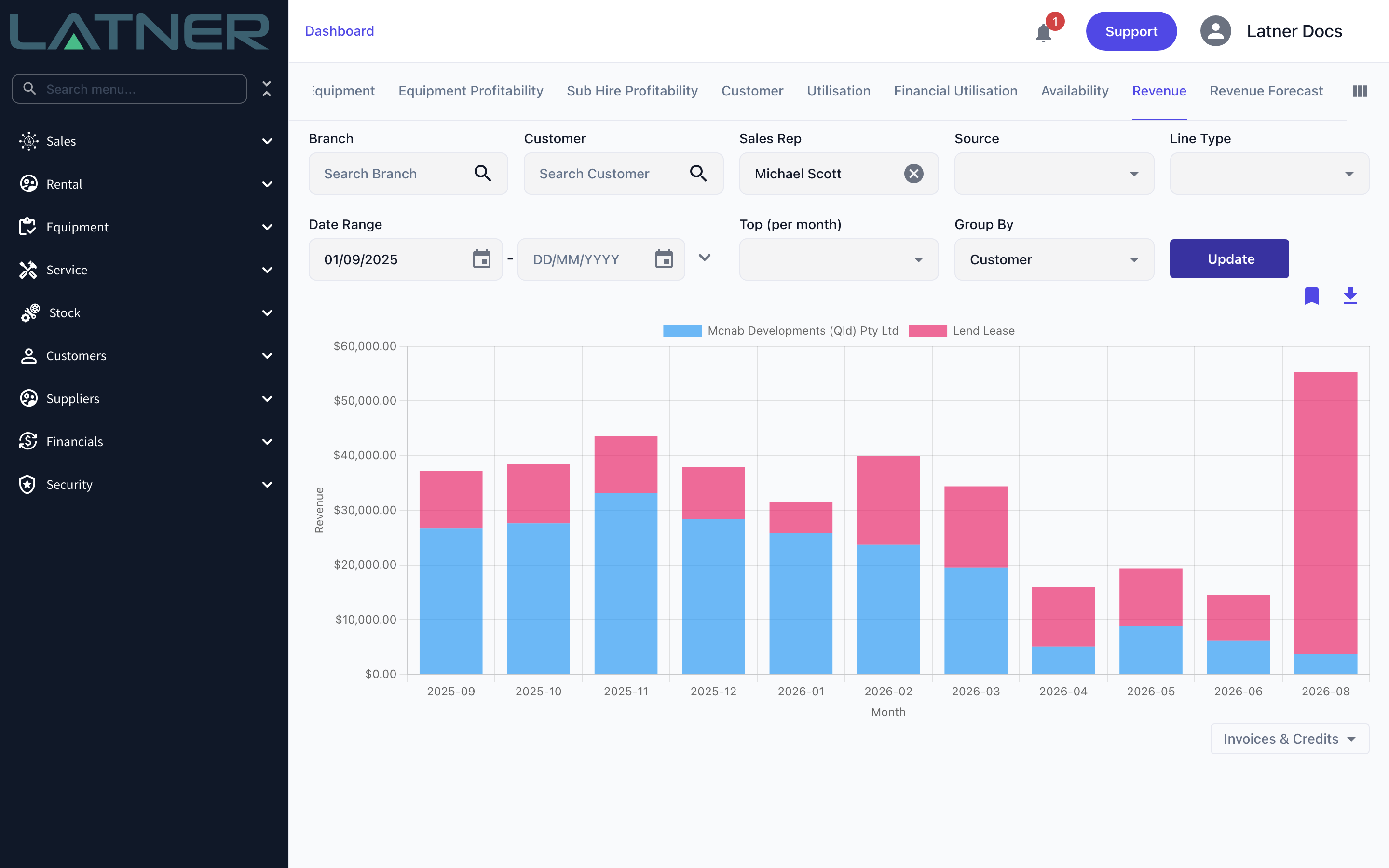
You can narrow things further at the same time with Branch, Customer, Source (Rental Contract, Sales Order, Work Order, Transport or Manual) and Line Type. Top (per month) keeps only the highest earning 10 or 25 groups in each month, which is what makes a group by Customer readable when a rep has a long tail of small accounts.
Step 5 - Press Update
Nothing is refetched until you press Update, so set all your filters first and then run it once. The chart redraws with one column per month across the range.
Step 6 - Read the totals
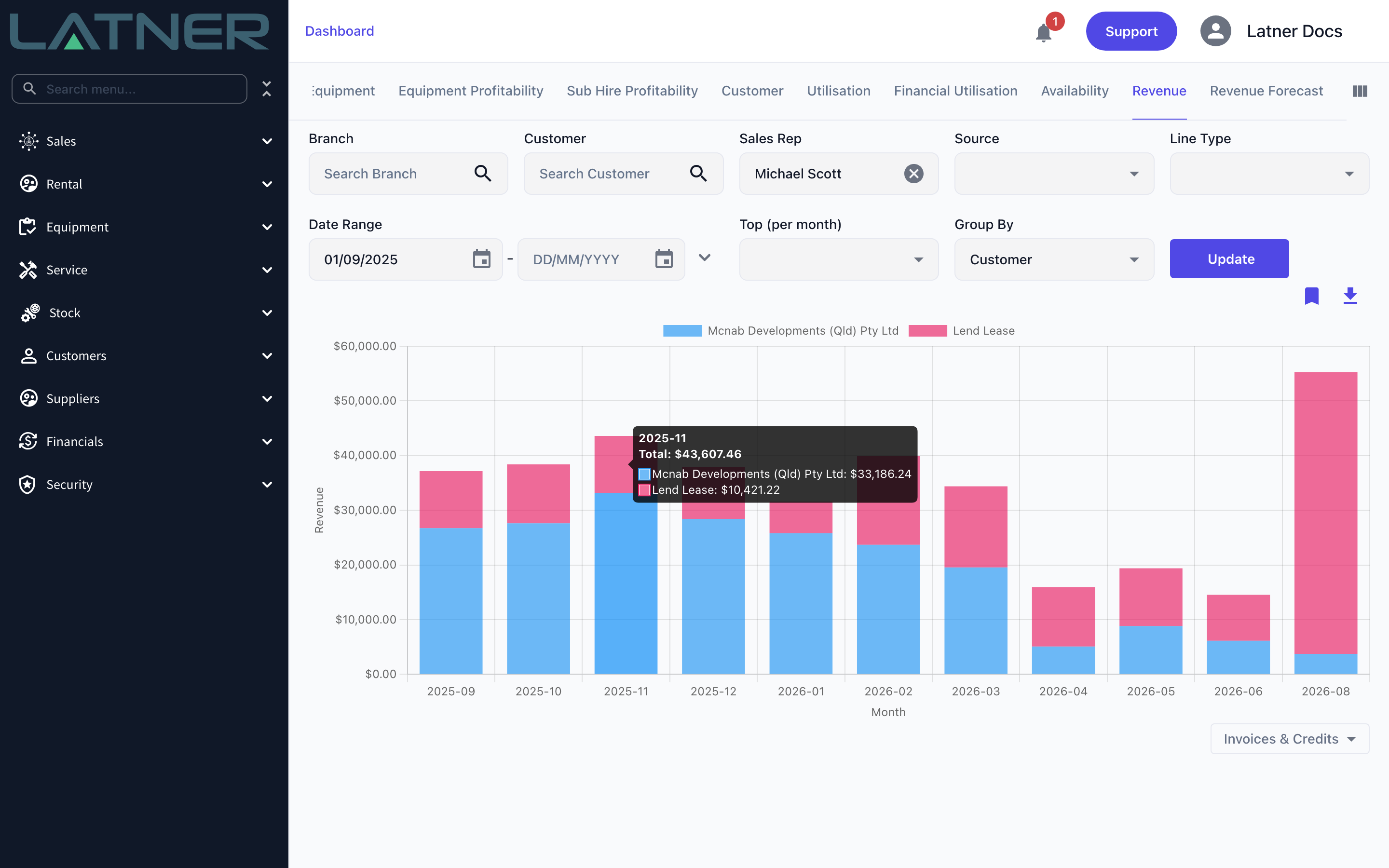
Hover any column to see that month's Total plus a line for each band, all formatted as currency. Clicking a name in the legend hides that series, which is a quick way to strip a dominant customer out and see what is underneath.
Step 7 - Switch between invoices and credit notes
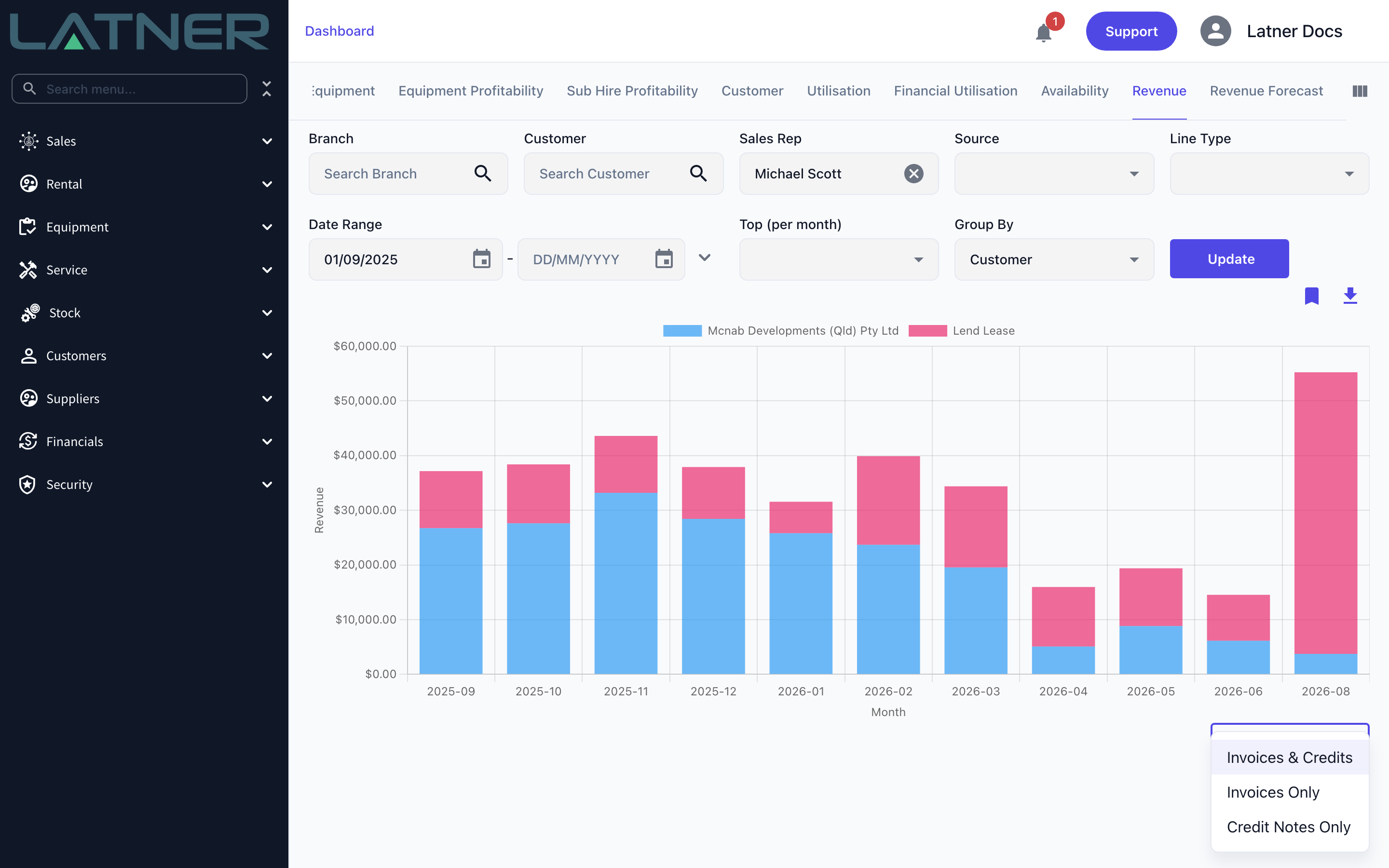
The selector under the chart controls what the columns measure:
-
Invoices & Credits - invoiced revenue with credit notes netted off. This is the default and the figure most people mean by revenue.
-
Invoices Only - gross invoiced revenue, ignoring credits.
-
Credit Notes Only - just the credits, drawn below the axis.
This one takes effect immediately and does not need Update.
Step 8 - Save the filters or download the figures
The bookmark icon above the chart saves the current filter set under a name, so "Michael - Revenue by Customer" is one click away next time. Saved filters are per report, and picking one from the list reapplies it and reruns the chart. The download icon beside it exports exactly what is charted as Revenue.csv, one row per band and one column per month, which is how you build a rep against rep comparison in a spreadsheet.
Reading the Results
-
Columns are positioned by invoice date, not by when the rental ran or when the invoice was paid.
-
Only Completed and Paid invoices are included, so a rep's month can move after the fact as invoices are completed.
-
Figures are sub totals and exclude tax.
-
A month with no invoiced revenue is skipped on the axis rather than drawn as a zero column.
-
Lines with no value for the chosen breakdown are charted as Other, or as Unknown when grouping by Industry.
-
The same Sales Rep filter is available on the Revenue Forecast tab, which adds the uninvoiced pipeline from live rental contracts to the invoiced history.
Revenue on a combined invoice covering several rental contracts is only attributed to a rep when every contract on it shares the same one. Where the contracts have different reps, the invoice header is left without a rep and each line falls back to its own contract's rep, so the revenue still lands on the right person. Where the contracts have no rep at all, the customer's rep is used instead.
FAQs
Watch the Demo
Prefer to watch it? Step through the same flow here.